
 By
The best laptop accessories for work from home fix a specific problem: a stand for neck pain, an external keyboard and mouse for wrist and shoulder strain, a hub for too few ports, and a webcam for bad video calls. Buy for the problem you actually have, in the order below, and a basic laptop turns into a desk setup you can use all day.
In short: Start with a laptop stand plus an external keyboard and mouse, because screen height and hand position cause most home office aches.
Add a USB-C hub if you run out of ports, a 1080p or 4K webcam if your built-in camera looks poor, and a monitor light bar if you work in a dim room.
Seven picks below cover each problem, with the specs that matter for each one.
Key takeaways
- Fix screen height first: a stand lifts the laptop screen toward eye level, but it only works paired with an external keyboard and mouse.
- Check your laptop ports before buying a hub or dock, because charging pass-through and display support depend on the USB-C port, not the hub.
- A webcam upgrade beats a ring light for most people, since the built-in 720p camera is usually the weak link.
- Buy in problem order: posture, then ports, then picture, then comfort extras like light and cooling.
Quick picks
Our shortlist for this job · tap one to see today's price
Raises the screen about 6 inches so you stop hunching over the laptop all day.

Connects to three devices over Bluetooth and leaves room on the desk for a mouse at the same height.
Pairs with three computers at once and has a sculpted shape that keeps the wrist in a neutral position.
Turns one USB-C port into USB-A ports, HDMI, card readers and pass-through charging for the laptop.
Records up to 4K and handles backlight far better than the 720p camera built into most laptops.
Lights the desk surface without shining into the screen, so there is no glare during evening calls.
Lifts the laptop and moves air under the base, which helps machines that throttle during long video calls.
Buy by problem, not by product list
Most home office setups fail in the same few ways. The screen sits too low, so your neck bends forward for hours. The keyboard and trackpad are fixed to that low screen, so raising one makes the other worse. Ports run out the moment a monitor, a drive and a charger all need a home. Find your problem in the table, then read that section.
| Problem | Fix | What to check before buying |
|---|---|---|
| Neck and back pain by midday | Laptop stand plus external keyboard and mouse | Stand height range and desk depth |
| Slow, cramped typing and wrist ache | External keyboard and a shaped wireless mouse | Bluetooth or receiver, desk space at one level |
| Cable chaos and too few ports | USB-C hub or dock | Your USB-C port carrying video and charging |
| Dark or washed-out video calls | External webcam | Resolution, field of view, light in the room |
| Eye strain in a dim room | Monitor light bar | Screen thickness and USB power source |
| Laptop runs hot and loud on calls | Cooling stand | Laptop size and where its vents sit |
1. Neck and back pain: a laptop stand
A laptop screen sits roughly at chest height on a desk, and your head follows it down. Ergonomics guidance from OSHA puts the top of the screen at or just below eye level, with the screen about an arm’s length away.
A stand is the cheapest way to get a laptop screen close to that position, and it is the first purchase to make if you end the day with a stiff neck.
The Soundance aluminum stand raises the laptop by about 6 inches (15 cm) and holds machines from 10 to 15.6 inches.
The open frame leaves the base vents clear, and the aluminum body does not flex when you type against the machine in an external display setup. Fixed-height stands like this one suit a permanent desk.
If you move between rooms, pick a folding stand with 6 or more height stops instead, and accept a little more wobble.
One rule matters more than the brand: never use a stand on its own. Raising the screen also raises the built-in keyboard and trackpad to a height your shoulders will hate. A stand only works as a set with the keyboard and mouse in the next two sections.
Raises the screen about 6 inches so you stop hunching over the laptop all day.
- Improve Viewing Comfort – Elevate your screen by 6 inches to an optimal eye level. This
- High-Strength Stability – Constructed from premium 5mm thickened aluminum alloy, this
2. Cramped typing: an external keyboard
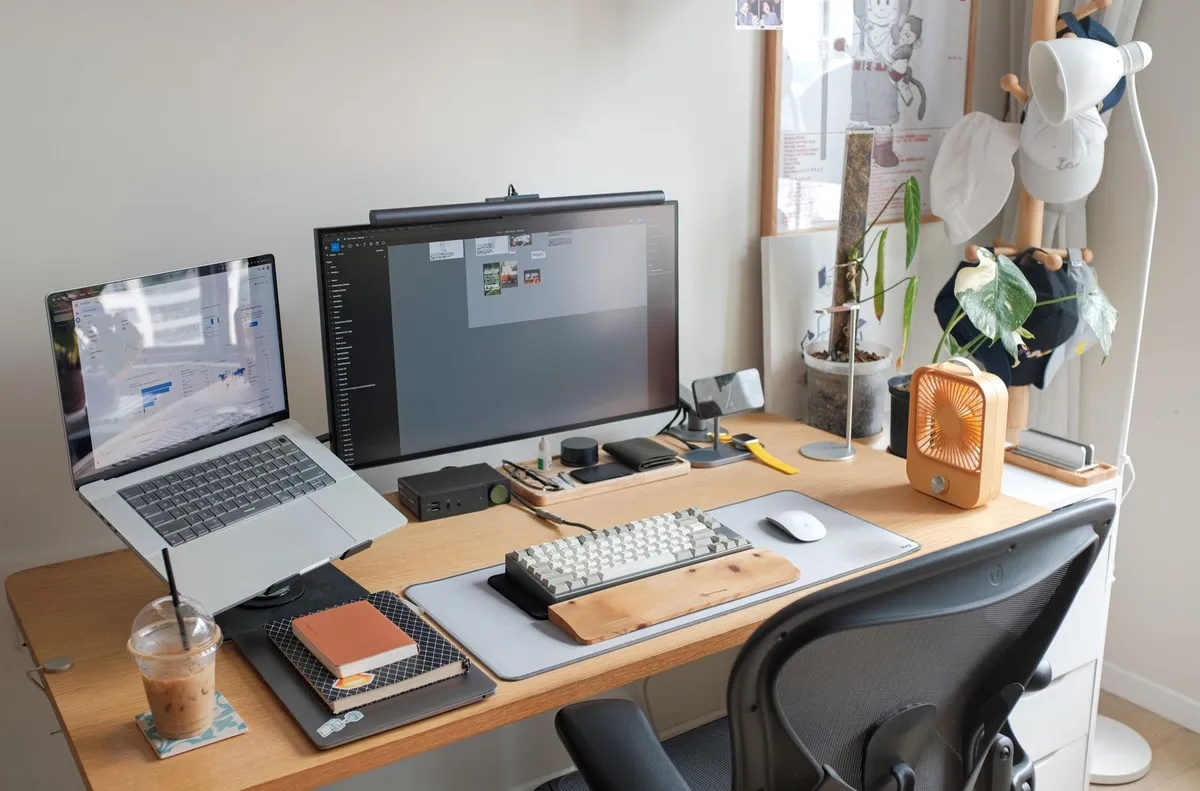
With the laptop on a stand, you need a keyboard down at desk level, where your elbows can sit at roughly 90 degrees and your wrists stay flat. A separate keyboard also lets you place the screen at a proper viewing distance instead of wherever your arms happen to reach.
The Logitech K380 is a compact Bluetooth keyboard that connects to three devices and switches between them with a key press, handy if you split the day between a work laptop and a home machine.
It runs on two AAA batteries rated for up to two years, and its small footprint leaves room for a mouse beside it on a narrow desk.
It has no number pad, so if you enter data all day, choose a full-size board with a dedicated numeric keypad instead.
Keep the board clean like the built-in one: the routine in our guide to maintaining keyboard cleanliness applies to external keyboards too, and if keys start sticking, work through how to fix sticky keys before replacing anything.
Connects to three devices over Bluetooth and leaves room on the desk for a mouse at the same height.
- Type on Any Device: A new type of wireless computer keyboard for your desk that also
- Easy-Switch Dial: Simply turn the dial of the Logitech K480 keyboard to switch typing
Pairing comes first: our guide to connecting a keyboard and mouse covers Bluetooth and receiver setups.
3. Mouse trouble: a shaped wireless mouse
A trackpad forces your hand flat and your shoulder rotated inward, which is fine for an hour and miserable for eight. A shaped mouse keeps your hand in a handshake position and lets your whole arm do the moving. Wireless matters here because a cable drags against the desk edge and slowly pulls your aim off.
The Logitech M720 Triathlon pairs with three computers over Bluetooth or its USB receiver, so one mouse serves the work laptop and a second machine. The sculpted right-hand shape supports the palm, the scroll wheel tilts for side scrolling in wide spreadsheets, and a single AA battery is rated for up to 24 months. Left-handed users should look for an ambidextrous model instead, since this shell is right-hand only.
Set the pointer speed once, in Settings > Bluetooth & devices > Mouse on Windows 11, so a short hand movement crosses the screen. If you keep lifting and re-placing the mouse, the speed is too low.
Pairs with three computers at once and has a sculpted shape that keeps the wrist in a neutral position.
See options on Amazon4. Too few ports: a USB-C hub
Thin laptops ship with two USB-C ports and call it enough. One goes to the charger, one to a monitor, and then there is nowhere for a drive, a headset dongle or a camera card. A hub turns one port into a row of them and leaves a single cable to unplug at the desk.
The Anker PowerExpand 7-in-1 hub offers two USB-A ports, a USB-C data port, HDMI output up to 4K at 30 Hz, SD and microSD card slots, and USB-C Power Delivery pass-through so the laptop charges through the hub while everything else stays connected. That mix covers the standard home office load: monitor, keyboard receiver, external drive and cards.
The catch is your laptop, not the hub. For the HDMI port to work, your USB-C port must carry DisplayPort Alt Mode, and for pass-through charging it must accept USB-C PD.
Check both before ordering, using the checks in our guide to whether USB-C is necessary on your laptop, and the USB-IF consumer pages on USB-C if the maker listing is vague.
If you also keep an external drive plugged in for backups, the hub keeps that routine one-cable simple, the same setup described in how to back up laptop data.
Turns one USB-C port into USB-A ports, HDMI, card readers and pass-through charging for the laptop.
See options on AmazonOnce the hub is in place, connecting the screen itself is covered in our guide to how to connect a monitor to a PC. If it stays black, work through an external monitor not working before you return anything.
5. Poor video calls: an external webcam
Most laptop cameras are 720p sensors squeezed above the screen, and they struggle the moment a window sits behind you. If colleagues say you look dark, grainy or washed out, the camera is the limit, and better lighting only partly hides it.
The Logitech Brio records up to 4K Ultra HD at 30 frames per second, with 1080p at up to 60 fps for calls, a 90-degree field of view you can narrow in software, and 5x digital zoom.
Its exposure handling copes with backlight far better than a built-in camera, and it connects over a single USB cable with a standard tripod thread if you want it lower than the top of a monitor.
On a video call the app will usually send 1080p or less, and the downscaled picture from a 4K sensor looks cleaner than a native 720p one.
Placement matters too: put the camera at eye level, keep the window in front of you rather than behind, and test the picture before the call, not during it.
Records up to 4K and handles backlight far better than the 720p camera built into most laptops.
See options on Amazon6. Eye strain: a monitor light bar
Working in a dark room with a bright screen tires your eyes because of the contrast, not the screen alone. A desk lamp fixes the contrast but often shines straight into the display, adding glare. A light bar sits on top of the screen and aims down at the desk, lighting your keyboard and papers while the screen stays clear.
The BenQ ScreenBar throws an asymmetric beam that lights the desk to about 500 lux in the center, has an auto-dimming sensor that adjusts to the room, and offers adjustable color temperature from warm to daylight.
It powers from any USB port, including one on the hub above, and clamps to screens from about 0.4 to 1.2 inches thick. Check that clamp range against your lid or monitor first, because ultra-thin lids can be too slim for some mounts.
Lights the desk surface without shining into the screen, so there is no glare during evening calls.
See options on Amazon7. Hot, loud laptop: a cooling stand
A laptop flat on a desk draws air through vents on its base, and a video call makes the processor work hard for an hour straight. The result is fan noise on every call and a machine that slows down when it gets hot. A cooling stand lifts the base and adds fans under those vents.
The Havit HV-F2056 fits laptops from 15.6 to 17 inches, uses three 110 mm fans, and has two height settings, so it doubles as a basic stand for a second machine or a desk without a separate riser.
It powers from a USB port and adds a spare USB pass-through port on the back.
Cooling pads drop surface temperatures by a few degrees, enough to keep fans quieter, but they do not fix a machine choked with dust: clean the vents first and treat the pad as support, not the cure.
Lifts the laptop and moves air under the base, which helps machines that throttle during long video calls.
See options on AmazonHow to choose: the specs that matter
Stand: height first. You want the top of the screen at or just below eye level, which for most desks means a lift of 5 to 7 inches. Check the stand is rated for your laptop size and weight, and that it does not block the base vents.
Keyboard and mouse: connection and fit. Bluetooth removes the receiver from a port, while a 2.4 GHz USB receiver is more reliable in crowded offices. Match the keyboard size to your work, full-size with a number pad for data entry, compact for small desks, and choose a mouse shaped for your hand size and your dominant hand.
Hub or dock: port support on your laptop decides everything. Confirm DisplayPort Alt Mode for video and USB-C PD for charging, then count the ports you use daily and add one spare. A hub suits one monitor up to 4K at 30 Hz on most models; two external monitors usually means a proper dock, so confirm your laptop supports it first.
Webcam and light: resolution is only half the story. Field of view decides how much of the room shows, and exposure handling decides how your face looks against a window.
For light, check the clamp fits your screen and that the bar runs from USB power, so it does not claim another wall socket. More buying guides, including stands, docks and desk gear checked the same way, live in the Buying Guides hub section.
Mistakes to avoid
- Buying the stand alone. A raised screen with the built-in keyboard raised too swaps neck pain for shoulder pain. Fix: always pair a stand with an external keyboard and mouse.
- Ordering a hub before checking the port. If your USB-C port lacks DisplayPort Alt Mode, the HDMI port on any hub stays black. Fix: confirm video and charging support in your laptop specs first.
- Paying for dock features the laptop cannot use. Dual-monitor docks need matching support in the machine. Fix: check the maker page for your exact model.
- Mounting the webcam on a low laptop lid. A camera below eye level aims up at your chin and the ceiling. Fix: raise the camera to eye level on the stand setup or a small tripod.
- Lighting the screen instead of the desk. A lamp aimed at the display adds glare and makes the camera picture worse. Fix: light the desk surface, with the source above and in front of the screen, not behind you.
- Expecting a cooling pad to fix dust. Fans cannot move air through blocked vents. Fix: clean the vents, then use the pad to keep temperatures and noise down.
Frequently asked questions
What is the first accessory I should buy for working from home?
Buy the laptop stand, keyboard and mouse as one set, starting with whichever piece you can afford first. The stand fixes screen height, and the keyboard and mouse let you use that height without raising your shoulders. Together they solve the posture problems behind most end-of-day aches, and everything else on this page is an add-on to that base.
Do I need a hub or a docking station?
A hub is enough for most people: one monitor, a charger, a drive and a receiver or two. A docking station earns its higher price when you run two external monitors, wired ethernet and several drives from a desk that never moves. In both cases the laptop decides what works, so confirm the USB-C port carries video and charging before you choose.
Will a 4K webcam make my calls look better on Zoom or Teams?
Yes, within limits. Meeting apps usually send 720p or 1080p, so the 4K sensor downscales to a cleaner picture than a built-in 720p camera produces, with better exposure against windows. Good light still matters: face a window or use a light bar, and even an average camera will look far better than a good camera in a dark room.
Can I use these accessories with any laptop?
Mostly yes. Keyboards and mice work with any machine that has Bluetooth or a free USB port. Stands, light bars and cooling pads only need to match your laptop size. Hubs are the exception: the video and charging features depend on what your USB-C port supports, so check the specs for your model before ordering one.
How high should my laptop screen be?
OSHA workstation guidance puts the top of the screen at or slightly below eye level, about 20 to 40 inches from your eyes, with your head and torso upright. On a typical desk that means raising a laptop by roughly 5 to 7 inches, which is what a stand does. Your elbows should rest near 90 degrees at the keyboard at the same time.
Bottom line: Fix posture first with a stand, keyboard and mouse, then solve ports with a hub once you have checked what your USB-C port supports. Add the webcam and light bar when calls are a big part of your day, and the cooling stand only if your laptop runs hot and loud. Bought in that order, each accessory removes a problem you can name.
Sources: OSHA Computer Workstations eTool; USB-IF, USB Power Delivery; Microsoft Support, Windows help. Photos: via Pexels and Unsplash, see image plan. Diagram: ICT Service Center.