
 By
A work-from-home laptop has a different job than a travel laptop. It sits on your desk for eight hours a day, runs video calls, and has to stay quiet, comfortable and reliable while it does it.
In short: The best laptop for working from home is one with a 14-inch or larger screen, 16 GB of RAM, a 1080p webcam, and a battery that lasts a full workday, paired with a separate keyboard and mouse at your desk.
The Apple MacBook Air 13-inch (M4) is the best all-round pick for most home workers, while the Lenovo ThinkPad E14 Gen 6 is the best Windows pick for heavy typing, and the HP Pavilion 15 is the best budget pick.
Key takeaways
- Buy 16 GB of RAM and at least 256 GB of storage, since both are hard to upgrade later on most thin laptops.
- A 14-inch or larger screen suits full-day work, and a 13-inch screen suits a desk with an external monitor.
- A quiet keyboard, a 1080p webcam and a clear mic matter more at home than raw speed.
- Check battery life, weight and USB-C charging before you buy, not after.
- Pair any laptop with a separate keyboard and mouse at a fixed desk, so your neck and wrists stay neutral.
Silent fanless design, a full workday of battery life and a sharp webcam suit a home desk.
A comfortable keyboard, sturdy build and full-size ports suit long typing days.
A large screen and everyday speed for less, with the ports most home desks need.
A bright, sharp display and a slim aluminum body suit video calls and long documents.
Light enough to carry from room to room, with a bright screen and USB-C charging.
How to choose a laptop for working from home

Start with the screen, because it is what you will look at all day. A 14-inch or larger screen shows a document and a video call side by side without constant switching.
A 13-inch screen can work, but it suits a desk with an external monitor better than it suits a laptop-only desk. Check the brightness too.
A dim screen washes out in a bright room, so look for a panel rated for indoor daylight use, and test it near a window if you can. Our guide to choosing a laptop screen for work explains size and resolution trade-offs in full.
Next, set the memory and storage floor. Microsoft lists 16 GB of RAM and 256 GB of storage as the spec for its Copilot+ PCs, and that is a sound floor for a home work laptop, since video calls, browser tabs and office apps all run at once.
A laptop with 8 GB of RAM can still handle light work, but it will slow down sooner.
Windows 11 needs 64 GB at minimum, but 256 GB leaves room for apps, files and updates, and most thin laptops do not let you add storage later. Treat soldered memory as a fixed decision.
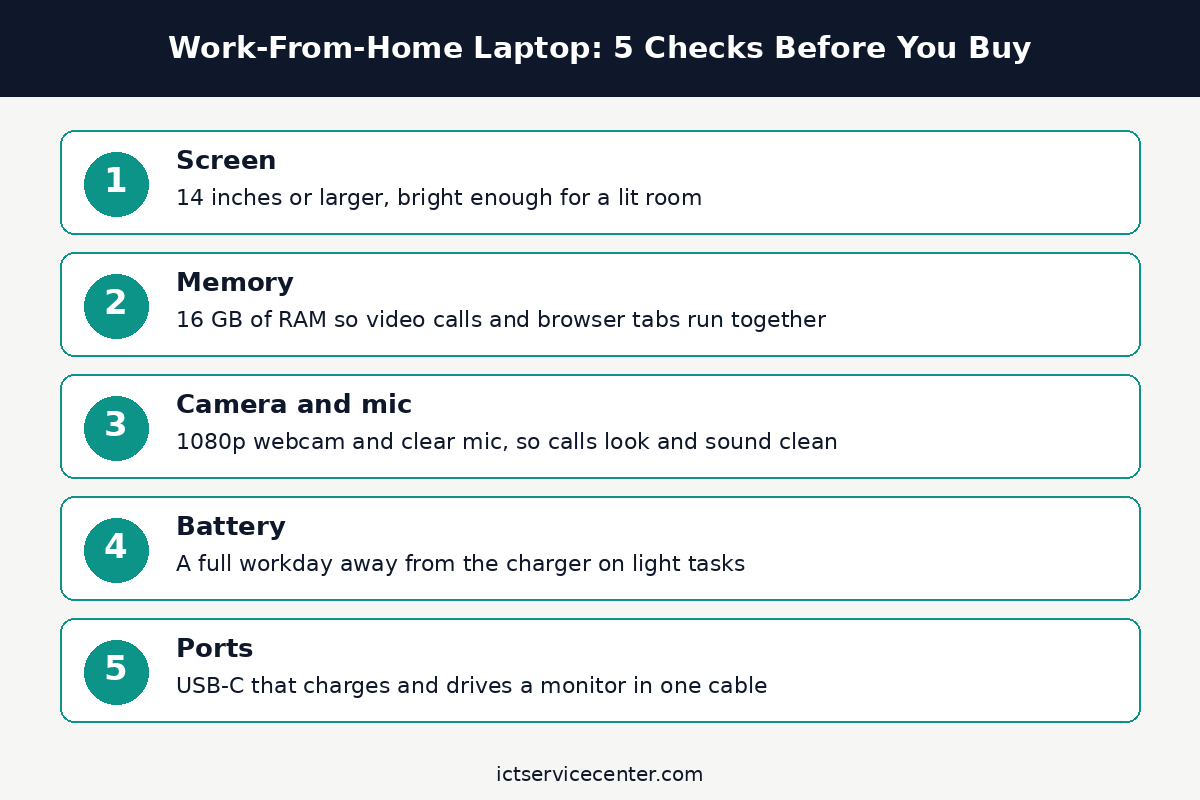
Then weigh the keyboard, webcam and mic, since these are the parts you touch and use on every call. A good home-work keyboard has keys with clear travel and spacing, so your fingers do not tire by mid-afternoon.
A 1080p webcam keeps your face sharp on calls, and a mic array that cancels room noise keeps your voice clear when the washing machine runs.
Test the keyboard in a shop if you can, and read the webcam spec on the product page rather than trusting a stock photo. A laptop that looks slim in a photo can still have a cramped keyboard.
Battery life decides how free your desk is. A laptop that lasts a full workday on light tasks lets you work from the kitchen table, the sofa or the garden without hunting for a socket.
Maker battery ratings are measured under light use, so treat them as a best case and read real-world guidance too. Our guide to choosing a laptop with long battery life explains how to read those ratings and which settings stretch a charge.
USB-C charging is worth having as well, since one cable can charge the laptop and connect a monitor through a dock.
Finally, plan the desk around the laptop, not the other way round. A laptop on a stand at eye level, with a separate keyboard and mouse, keeps your neck level and your hands at elbow height.
Public ergonomic guidance agrees on the target: the top of the screen at or just below eye level, about an arm’s length away. The Canadian Centre for Occupational Health and Safety puts the comfortable viewing distance at about 40 to 70 cm, and OSHA notes that there is no single correct posture for everyone. Our guide to the best laptop accessories for work from home covers the keyboard, mouse, stand and dock that go with any of the laptops below.
The 5 laptops at a glance
All five picks below suit full-day home work, but they solve different problems. Use this table to narrow the list, then read the full pick for the fit checks.
| Laptop | Best for | Screen | Check before buying |
|---|---|---|---|
| Apple MacBook Air 13-inch (M4) | Most home workers | 13.6-inch | RAM and storage at order time |
| Lenovo ThinkPad E14 Gen 6 | Heavy typing on Windows | 14-inch | Keyboard layout and port list |
| HP Pavilion 15 | A first home office laptop on a budget | 15.6-inch | RAM, storage and screen brightness |
| Dell XPS 14 | A premium screen and slim body | 14.5-inch | Port count and charger wattage |
| Acer Swift Go 14 | Moving between rooms | 14-inch | Weight and battery rating |
Apple MacBook Air 13-inch (M4): best all-round home office laptop
This is the pick for most people who work from home and do not need Windows-only software. The M4 Air has no fan, so it stays silent through calls and long documents, and its battery lasts a full workday on typical office tasks.
The keyboard is quiet and comfortable, the webcam and mic array handle video calls well, and the 13.6-inch screen is bright enough for a lit room. It wakes fast, sleeps well, and needs little upkeep.
The one spec to check is the configuration at order time. The base model suits browsing, documents, calls and light photo work, but the memory and storage are fixed once you buy, so choose 16 GB of RAM and at least 256 GB of storage.
If your work needs Windows-only apps, check that they run on macOS or through a web version before you switch. For a full setup walkthrough, read our guide to setting up a new laptop.
Skip this pick if your employer locks you to Windows, or if you need ports beyond USB-C and a headphone jack, since you will live on a hub or dock. Skip it too if you need a larger screen as your only display, since the 13.6-inch panel is a compromise that works best with an external monitor on the desk.
Silent fanless design, a full workday of battery life and a sharp webcam suit a home desk.
See options on AmazonLenovo ThinkPad E14 Gen 6: best Windows keyboard and build
This is the pick for people who type all day on Windows and want a laptop built for it. ThinkPad keyboards have long been the reference for comfortable typing, with keys that travel well and a layout that stays out of your way.
The E14 adds a sturdy chassis, a 14-inch screen that suits documents, and the ports a home desk needs, including USB-C, USB-A and HDMI, so a monitor and a dock connect without adapters.
The one spec to check is the exact configuration. The E14 ships in several versions, so confirm the RAM, storage and screen brightness on the listing you buy, and choose 16 GB of RAM. The TrackPoint nub in the middle of the keyboard suits some people and not others, so try it in a shop if you have never used one.
Skip this pick if you want the lightest laptop in the house, since the E14 is built for durability first and weighs more than an ultrabook. Skip it too if you want a fanless machine, since this is a standard Windows laptop with a fan that spins up under load.
A comfortable keyboard, sturdy build and full-size ports suit long typing days.
See options on AmazonHP Pavilion 15: best budget Windows laptop
This is the pick for a first home office laptop when the budget is tight. The 15.6-inch screen shows a full document without scrolling sideways, the keyboard has a number pad for spreadsheets, and everyday speed is fine for browsing, office apps and video calls.
It has the ports a home desk needs, and its larger body leaves room for a bigger battery than a slim ultrabook at the same price.
The one spec to check is the configuration, since the Pavilion 15 ships in many versions. Avoid the lowest spec with 8 GB of RAM and a small drive, and look for 16 GB of RAM and a 256 GB or larger SSD.
Check the screen brightness too, since budget screens vary more than premium ones. Read our guide to what to look for when buying a laptop for the full checklist.
Skip this pick if you carry the laptop around the house all day, since a 15.6-inch machine is heavier and wider than a 14-inch one. Skip it too if you need a silent machine, since the fan will be audible during video calls and heavy multitasking.
A large screen and everyday speed for less, with the ports most home desks need.
See options on AmazonDell XPS 14: best premium screen
This is the pick for people who stare at text and video all day and want the best screen in a slim body. The XPS 14 has a bright, sharp display with thin bezels, an aluminum chassis that feels solid on a desk, and a quiet keyboard with a large glass trackpad. It suits long documents, spreadsheets and video calls, and it looks at home in a video frame.
The one spec to check is the port list. The XPS 14 leans on USB-C, so count your peripherals and budget for a dock or hub if you connect a monitor, a keyboard and a mouse. Confirm the RAM and storage at order time, since both are fixed once you buy.
Skip this pick if you need a full set of ports built in, or if you want the best value per dollar, since you pay a premium for the screen and the build. Skip it too if you type hard all day and prefer deep key travel, since the slim keyboard trades some travel for thinness.
A bright, sharp display and a slim aluminum body suit video calls and long documents.
See options on AmazonAcer Swift Go 14: best light laptop for moving around the house
This is the pick for people whose home office moves: kitchen table in the morning, desk after lunch, sofa for the last call.
The Swift Go 14 is light enough to carry with one hand, charges over USB-C, and has a bright 14-inch screen that suits documents and calls.
It wakes fast and runs quiet on light work, so it fits a house where the desk is wherever you sit down.
The one spec to check is the battery rating against your real day. A light laptop with a small battery can still run out before the workday ends, so check the maker rating and the RAM at the same time. If you travel with it too, read our guide to choosing a laptop for travel for the weight and port checks that matter on the road.
Skip this pick if you want a large screen as your only display, since 14 inches is the middle ground, not the roomy option. Skip it too if you need a full-size keyboard with a number pad, since a light 14-inch body has no room for one.
Light enough to carry from room to room, with a bright screen and USB-C charging.
See options on AmazonMistakes to avoid
- Buying 8 GB of RAM to save money. A home work laptop runs a browser, office apps and video calls at once, and 8 GB fills up fast. Most thin laptops have soldered memory, so the saving locks in a slow machine. Fix it by choosing 16 GB at order time.
- Choosing a small screen as your only display. A 13-inch screen is fine with an external monitor, but as your only screen it means constant window switching. Fix it by buying a 14-inch or larger screen, or by budgeting for a monitor.
- Ignoring the webcam and mic. A laptop can be fast and still look and sound poor on calls. Fix it by checking for a 1080p webcam and a mic array on the product page, and by testing a call in the first week while you can still return it.
- Working with the laptop flat on the desk. A low screen bends your neck down all day, and the built-in keyboard sits too high once you raise it. Fix it with a stand at eye level and a separate keyboard and mouse.
- Skipping the battery and port checks. A laptop that dies by mid-afternoon or needs three adapters for your desk will annoy you every day. Fix it by checking the battery rating and the port list against your monitor, dock and charger before you order.
Frequently asked questions
How much RAM do I need in a work-from-home laptop?
Choose 16 GB of RAM for a work-from-home laptop in late 2026. Video calls, a browser full of tabs and office apps run at the same time, and 16 GB keeps them smooth together. Microsoft lists 16 GB as the spec for its Copilot+ PCs. A laptop with 8 GB can handle light work, but it slows down sooner, and most thin laptops do not let you add memory later.
Is a 13-inch laptop big enough for working from home?
Yes, if you pair it with an external monitor at your desk. On its own, a 13-inch screen means more window switching during a full workday, since a document and a video call rarely fit side by side. A 14-inch or larger screen suits laptop-only desks better. If you buy a 13-inch laptop, budget for a monitor and a stand so the screen sits at eye level.
Do I need a separate keyboard and mouse for home work?
Yes, for full-time desk work. A laptop raised to eye level puts its own keyboard too high to type on comfortably, so your shoulders rise and your wrists bend. A separate keyboard and mouse let your hands stay at elbow height while the screen stays at eye level. For short sessions under half an hour, the built-in keyboard is fine.
MacBook or Windows laptop for working from home?
Either works, and the deciding factor is your software. A MacBook Air suits most home workers with its silent design, long battery life and low upkeep, while a Windows laptop suits people who need Windows-only apps or a wider choice of ports and prices. Check that your work apps run on the system you pick, including any employer software, before you buy.
How long should a work-from-home laptop battery last?
It should last a full workday on light tasks such as documents, browsing and calls, so you are not tied to a socket. Maker ratings are measured under light use, so treat them as a best case.
Check the rating on the product page, read our guide to choosing a laptop with long battery life, and test a full day on battery in the first week while you can still return the laptop.
Bottom line: Buy the Apple MacBook Air 13-inch (M4) for most home desks, the Lenovo ThinkPad E14 Gen 6 for heavy Windows typing, or the HP Pavilion 15 for a tight budget. Get 16 GB of RAM, a 14-inch or larger screen, and a 1080p webcam, then add a stand, keyboard and mouse. For more buying guides, see the Buying Guides hub.
Sources: Microsoft, Windows 11 Specs and System Requirements; OSHA, Computer Workstations eTool; CCOHS, Working in a Sitting Position. Photos: Tima Miroshnichenko, Moses Londo, Soumil Kumar, picjumbo.com and Andrew Neel via Pexels. Diagram: ictservicecenter.com.