
 By
The best external webcam for a laptop is the one that puts a clear, well-lit picture of you on the call, and that usually costs less than the 4K model at the top of the list. Light and framing change your picture more than extra pixels do.
In short: For most laptop calls, the Logitech C920 HD Pro is the best external webcam for a laptop: 1080p at 30 frames per second, autofocus, a 78 degree field of view, and dual stereo mics.
If you want the lowest spend, the Logitech Brio 100 covers the same 1080p calls with a narrower 58 degree view and a built-in privacy shutter. Buy 4K only if you record video and crop it later.
Key takeaways
- Light matters more than pixels. A lamp or a window in front of you does more for your picture than a 4K sensor in a dark room.
- 1080p at 30 frames per second is enough for most video calls. Most meeting apps send 1080p or less to the other side.
- Field of view sets your framing: 58 degrees frames one person tightly, while 90 degrees fits two people or a whiteboard.
- Check the mic and the shutter before you buy: dual mics help in a quiet room, and a shutter covers the lens between calls.
- Test the camera in your meeting app before the real call: pick it in Settings, then run a test call and watch the preview.
A 1080p picture, a narrow 58 degree view for one person, and a built-in privacy shutter at the lowest spend in this list.
A 1080p picture with autofocus, a 78 degree view, and dual stereo mics suits most laptop video calls.

A 4K picture with a 90 degree view and dual mics suits recordings and calls where you crop the frame later.
A 2K picture with a 65, 78 or 95 degree view and dual mics with noise canceling suits group calls and small rooms.
A 1080p picture with a built-in ring light suits dim rooms where a lamp is not already in front of you.
What actually matters more than the megapixels

Webcam boxes lead with resolution, but on a video call the order runs the other way: light first, framing second, resolution third, and the mic last.
Light is the biggest change you can make. A window or a lamp in front of you, shining toward your face, lifts the picture on any camera.
A bright window behind you does the opposite: the camera darkens your face to cope with the light behind it. Sit facing the window, or put a lamp on the desk in front of you.
If the picture still looks grainy, the room is too dark, and no resolution number fixes it. Our guide on why a laptop webcam looks blurry covers the same checks for a built-in camera.
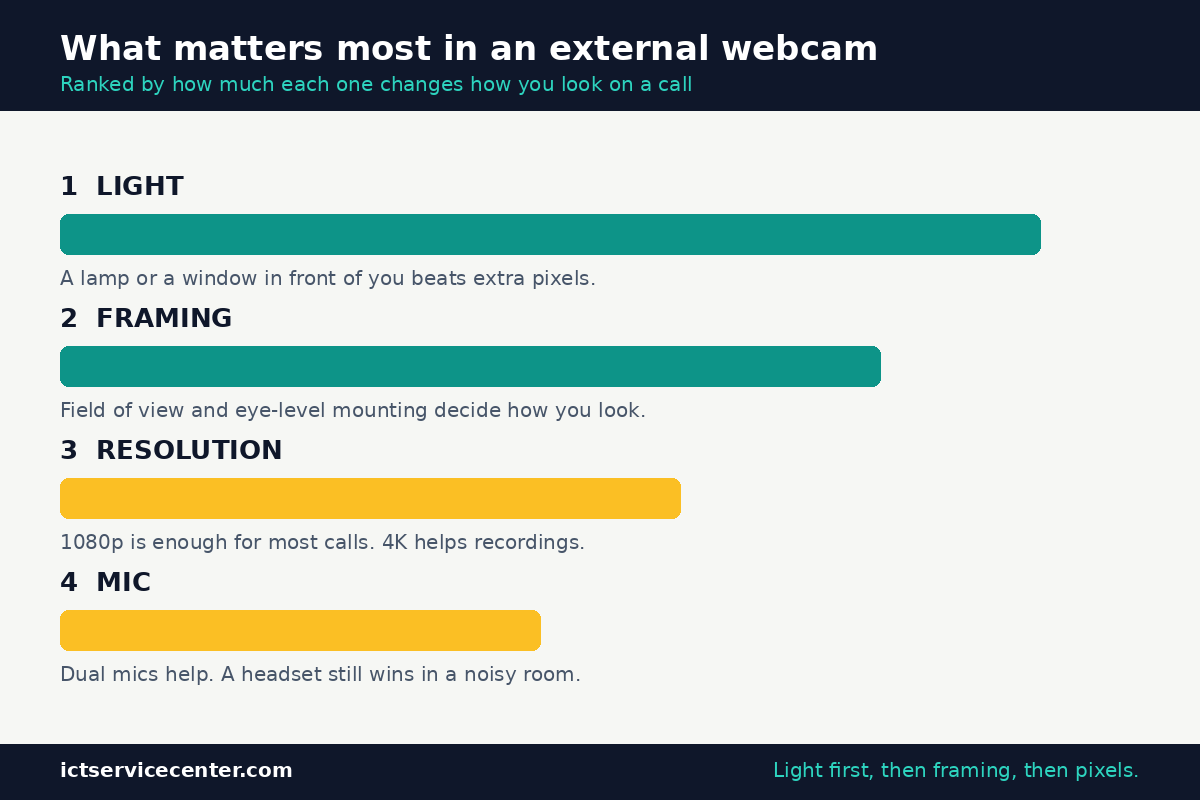
Framing is next. Field of view is the width of the picture, measured in degrees across the diagonal. A narrow view, near 58 degrees, frames one person at a desk and cuts out most of the room.
A middle view, near 78 degrees, shows head, shoulders, and some desk. A wide view, near 90 degrees or more, fits two people side by side or a whiteboard behind you. Pick the narrowest view that still fits what you need to show.
Mount the camera at eye level, on top of the lid: a camera on a low desk looks up your nose.
Resolution is third because of what meeting apps do with it. Zoom, Teams, and Meet send a compressed picture to the other side, and most calls run at 1080p or below.
A 2K or 4K camera earns its keep when you record video and crop it later. It does not make a live call look twice as good, because the call itself is the limit.
The mic is last: it sits on the desk and hears the room as well as your voice. Dual mics help in a quiet room, but a headset wins in a noisy one.
The 5 external webcams at a glance
The table lists the maker specs for each pick. Check the exact model name on the listing before you buy.
| Pick | Resolution | Field of view | Mic | Best for |
|---|---|---|---|---|
| Logitech Brio 100 | 1080p at 30 fps | 58 degrees | Single omni mic | Budget 1080p calls |
| Logitech C920 HD Pro | 1080p at 30 fps | 78 degrees | Dual stereo mics | Most laptop calls |
| Logitech Brio 4K | 4K at 30 fps | 90, 78 or 65 degrees | Dual omni mics | 4K recording and cropping |
| Anker PowerConf C200 | 2K at 30 fps | 95, 78 or 65 degrees | Dual mics, AI noise canceling | Wide rooms and group calls |
| Razer Kiyo | 1080p at 30 fps | 81.6 degrees | Built-in omni mic | Dim rooms, with its ring light |
Logitech Brio 100: best budget 1080p pick
The Brio 100 is the lowest spend in this list, and it covers the core job: a clear 1080p picture at 30 frames per second for calls.
Logitech lists a 2 megapixel sensor, a fixed-focus lens, and a 58 degree diagonal field of view, which frames one person tightly at a desk and keeps most of the room out of the picture.
It connects over USB-A, works without drivers, and supports Windows, macOS, and ChromeOS.
Two details set it apart. It has an integrated privacy shutter that slides over the lens when the call ends, so the camera is covered without tape.
It also has a single omnidirectional mic rated to about 1 meter, with RightLight 2 light correction for dim rooms. The fixed focus is the trade: hold paper at your normal sitting distance.
Buy it for one-to-one calls in a quiet room, and skip it if you share the frame.
A 1080p picture, a narrow 58 degree view for one person, and a built-in privacy shutter at the lowest spend in this list.
See options on AmazonLogitech C920 HD Pro: best for most calls
The C920 HD Pro is the default pick for a reason: its spec list matches what most calls need. Logitech lists Full HD 1080p at 30 frames per second, a glass lens with autofocus, a 78 degree diagonal field of view, and dual stereo mics.
The autofocus keeps your face sharp as you lean in or sit back, and the 78 degree view fits head, shoulders, and some desk without showing the whole room. It connects over USB-A with a 1.5 meter cable and works with Windows and macOS.
The one gap is the shutter: the base C920 has none, so use the clip-on cover from the C920s version, or slide the camera off the lid between calls. The C920s adds the shutter and keeps the same sensor and lens.
If your picture looks soft, check the light first: light correction helps in a dim room, but it cannot replace a lamp in front of you. Buy it for work calls, classes, and family calls.
A 1080p picture with autofocus, a 78 degree view, and dual stereo mics suits most laptop video calls.
See options on AmazonLogitech Brio 4K: best 4K pick
The Brio 4K is the pick for recordings.
Logitech lists 4K Ultra HD at 30 frames per second, 1080p at up to 60 frames per second, and 720p at up to 90 frames per second, from a 13 megapixel sensor with a glass lens and autofocus.
The field of view adjusts across three presets, 90, 78, or 65 degrees, through the Logi Tune app, so one camera covers a solo call, a two-person call, and a whiteboard.
It also has dual omnidirectional mics with noise canceling, rated to about 1.2 meters, and RightLight 3 with HDR for mixed light.
A live call will rarely show 4K to the other side, because the meeting app compresses the picture.
The 4K sensor pays off when you record a lesson and crop the frame later: a crop from a 4K frame still holds detail, while the same crop from a 1080p frame turns soft.
It needs a USB 3 port for full 4K mode, so check the port on your laptop first. Buy it if you record video or present from a whiteboard.
A 4K picture with a 90 degree view and dual mics suits recordings and calls where you crop the frame later.
- 4K Ultra HD at 30fps, 1080p at 60fps, or 720p at up to 90fps with superb resolution
- Adjustable field of view: Choose from three dFOV presets to perfectly frame your video
Anker PowerConf C200: best 2K pick for wide rooms
The PowerConf C200 is the pick for a small room or a group call. Anker lists 2K video at 30 frames per second, which is 2560 by 1440 pixels, plus 1080p at 30 frames per second.
The field of view changes in software, through the AnkerWork app, across 65, 78, and 95 degrees, so you can frame one person tightly or open the view to fit a second person without moving the camera.
It has autofocus, a built-in privacy cover that slides over the lens, and low-light correction.
The mic is the other reason to pick it: dual stereo mics with AI noise canceling help when the room has a fan or street noise.
The mic still sits on the desk, so it will not beat a headset in a loud room, but it is the strongest built-in mic here for a quiet to medium room. It connects over USB-A and works with Windows and macOS.
Changing the field of view needs the AnkerWork software, so install it once when you set the camera up.
A 2K picture with a 65, 78 or 95 degree view and dual mics with noise canceling suits group calls and small rooms.
See options on AmazonRazer Kiyo: best with a light built in
The Razer Kiyo is the pick for a dim room. It is a 1080p camera with a ring light built around the lens, so the light moves with the camera and shines straight at your face.
Razer lists 1080p at 30 frames per second, 720p at 60 frames per second, an 81.6 degree diagonal field of view, autofocus, and a built-in omnidirectional mic.
The ring light uses 12 white LEDs at 5600K daylight color, with a 12-step dial on the camera body to turn the brightness up or down.
The light helps, but it has limits. A ring light close to the lens fills in shadows and keeps the picture bright when the room is dark.
It will not replace a room lamp if you sit far from the desk, and at full brightness it can wash out pale skin or glare on glasses, so turn the dial down until your face looks natural.
It connects over USB 2.0 and works with Zoom, Teams, and Meet. It has no privacy shutter. Buy it if you call at night or stream.
A 1080p picture with a built-in ring light suits dim rooms where a lamp is not already in front of you.
See options on AmazonHow to choose the right webcam for your calls
Start with the room, not the spec sheet. Sit where you take calls and look at the picture. If your face is dark, fix the light first: a lamp in front of you, or a seat facing the window. If the frame cuts off a second person, you need a wider field of view. If the picture is soft even in good light, the built-in camera is the limit.
Next, match the resolution to the job. One-to-one calls and classes need 1080p. Recorded lessons and videos you crop later benefit from 2K or 4K. A 4K camera on a laptop that only joins live meetings is money spent on pixels the call never shows.
Check the port too: most webcams here use USB-A, so a laptop with only USB-C ports needs a small adapter or a dock.
Our guide to the best docking station for a laptop covers docks that add USB-A ports, and our roundup of the best laptop accessories for working from home covers the rest of the desk setup around the camera.
Then decide about the mic and the shutter. If your room is quiet, a dual-mic webcam is enough for daily calls. If the room is noisy, plan on a headset and treat the webcam mic as a backup.
A shutter is worth having if the camera stays on the lid all day. Every camera here clips to a laptop lid, and most also sit on a desk or screw onto a small tripod, so check the clip width if your lid is thick.
Buy the camera for the calls you take this month. A 1080p camera with good light beats a 4K camera in a dark room.
Set it up and test it before your next call
Setup takes five minutes. Do it the day the camera arrives, not five minutes before a meeting.
- Clip the camera to the top of the laptop lid, centered above the screen, and plug it into a USB port. Use a USB 3 port for a 4K camera, and a plain USB-A port for the rest.
- Open Settings, then Privacy and security, then Camera, and check that camera access is on and that desktop apps can use the camera.
- Open your meeting app, go to Settings, then Devices, and pick the new camera in the Camera dropdown. Check the preview: your face should be centered, lit from the front, and in focus.
- Pick the new camera mic in the Microphone dropdown, or pick your headset if you use one. Speak a sentence and watch the mic level move.
- Run a test call from the same Devices page, or start a meeting with only yourself in it. Record a short message, play it back, and check the picture and the sound before the real call.
If the camera does not appear in the app, close the app fully and open it again, then check that no other app is using the camera: Windows gives the camera to one app at a time.
If the picture is black in every app, the camera may be blocked in Windows privacy settings or covered by its shutter. Our guide to fixing a laptop camera that is not working walks through the same checks for a built-in camera.
Microsoft documents the same test call path in Teams: Settings, then Devices, then Make a test call.
Keep the lid open even with an external monitor: our guide on how to use a laptop as a second monitor covers layouts that keep the camera in place.
Mistakes to avoid
Buying 4K for live calls only. Most meeting apps send 1080p or less, so a 4K camera changes nothing on a live call. The fix: buy 1080p for calls, and buy 4K only if you record and crop video.
Sitting with a bright window behind you. The camera darkens your face to cope with the light behind it, and you turn into a silhouette. The fix: face the window, or close the blinds and use a lamp in front of you.
Leaving the wrong camera picked in the app. The meeting app keeps using the built-in camera after you plug the new one in, so the new camera never appears on the call. The fix: pick the new camera in Settings, then Devices, and check the preview before you join.
Frequently asked questions
Do I need an external webcam if the laptop already has one?
Not always. A built-in camera is fine for short calls in good light. An external webcam earns its place when the built-in picture is soft or dark, or when you need a wider view, a shutter, or a better mic. Fix the light first: a lamp can make the built-in camera look better than a new one in a dark room.
Is 1080p or 4K better for video calls?
1080p is better value for live calls, because most meeting apps send 1080p or less, whatever the camera captures. A 4K camera is better when you record video and crop the frame later, since a crop from a 4K frame keeps its detail. For calls alone, spend the gap on a lamp or a headset instead.
What field of view do I need for a webcam?
A 58 degree view frames one person tightly at a desk. A 78 degree view fits head, shoulders, and some desk, and suits most solo calls. A 90 degree view or wider fits two people or a whiteboard. Pick the narrowest view that fits what you need to show.
Do external webcams work with Zoom, Teams, and Meet?
Yes. These cameras appear as a standard USB video device, so Zoom, Teams, and Meet list them in the camera dropdown. Pick the new camera in Settings, then Devices, and check the preview before you join. If it does not appear, close the app and reopen it, then check that no other app is using the camera.
Should I use the webcam mic or a headset?
Use a headset in a noisy room and the webcam mic in a quiet room. A webcam mic sits on the desk and hears the room as well as your voice, so a fan or street noise sits under your words. A headset puts the mic near your mouth and cuts most of that out.
Bottom line: Fix the light, clip the camera to the lid at eye level, and pick the camera for your calls: the Brio 100 for budget 1080p, the C920 HD Pro for most calls, the Brio 4K for recordings, the PowerConf C200 for wide rooms, and the Razer Kiyo for dim rooms.
Test it in your meeting app before the next call, and see the buying guides hub for more laptop buying advice.
Sources: Logitech, Brio 100; AnkerWork, PowerConf C200; Razer, Kiyo user guide; Microsoft Support, My camera is not working in Microsoft Teams. Photos: Artem Podrez, Anna Shvets, cottonbro studio, Elena Golovchenko, Skylar Kang, Vanessa Garcia via Pexels. Diagram: ictservicecenter.com.