
 By
Your second monitor stays dark, Windows shows only one display, and the Detect button finds nothing. Most of the time the fault is a loose cable, the wrong monitor input, or a driver that needs attention.
In short: A second monitor not detected on Windows 11 is usually a cable, input, or driver problem. Reseat the cable, set the monitor to the input you plugged into, press Win + P and choose Extend, then open Settings > System > Display > Multiple displays and select Detect. If that fails, update or roll back the graphics driver, and test the monitor on another PC.
Key takeaways
- Work in order: cable and power, monitor input, Windows settings, driver, then dock and port.
- Press Win + P and choose Extend, then use Detect in Display settings.
- Swap in a cable you know works before you change any setting. A bad cable is the most common cause.
- Not every USB-C port carries video. Check the port symbol or the maker spec sheet before you blame the monitor.
- If the monitor works on another PC, the fault is in your cable, port, or driver.
First, check whether Windows sees the monitor at all
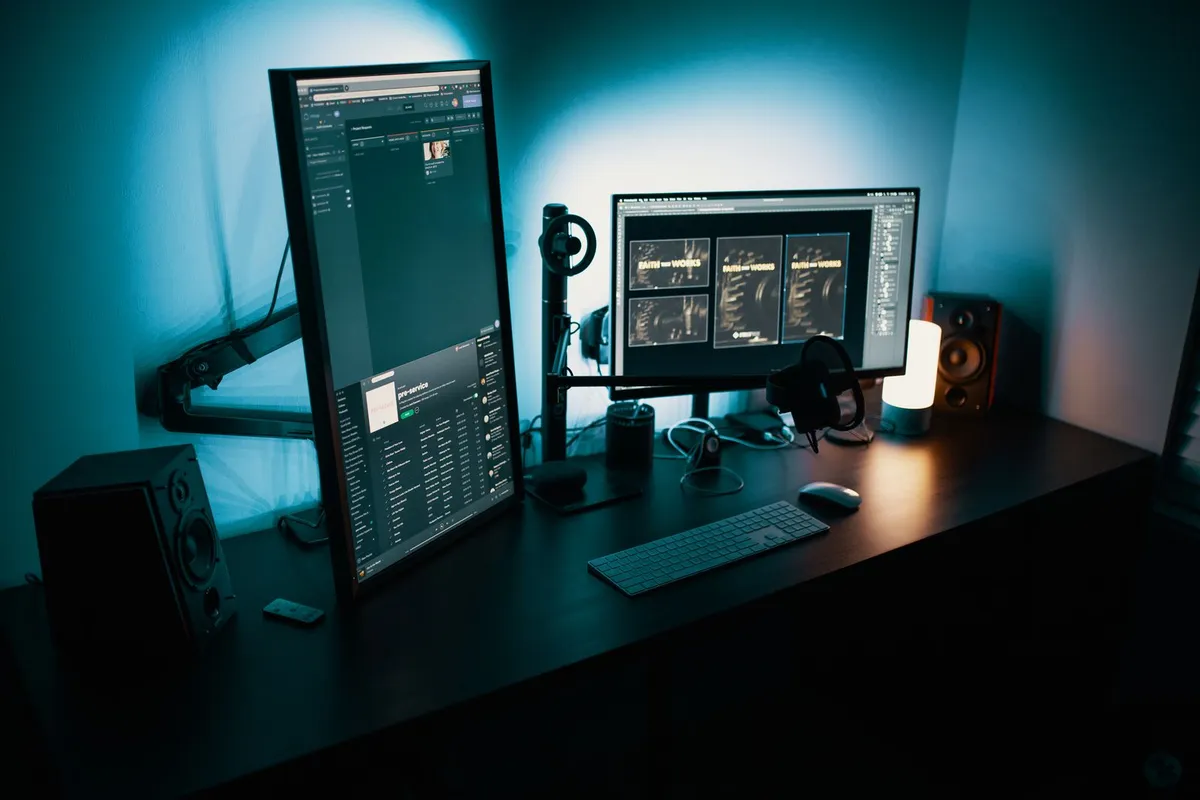
“Not detected” and “black screen” are different faults. A monitor that Windows does not detect never appears in Display settings. A monitor that Windows detects but shows a black screen appears as display 2 and needs a picture fix instead.
Our guide to a laptop external monitor not working covers that case. If that sounds like your bench, read up on laptop not recognizing usb drives next.
Open Settings > System > Display and count the display boxes at the top. One box means Windows sees one screen. If you are setting up a second monitor for the first time, our guide on how to connect a monitor to a PC covers setup.
Check the cable, the port, and the power

Start with the physical connection. A cable that looks plugged in can still sit short of a firm connection, and a cable that worked yesterday can fail after a desk move or a tug.
- Power off the monitor, unplug the video cable at both ends, then plug it back in firmly.
- Check the cable for bent pins, a cracked housing, or a sharp kink. Replace it if you see any of these.
- Swap in a cable you know works. If the monitor appears, the old cable was the fault.
- Try a different port on the PC and on the monitor.
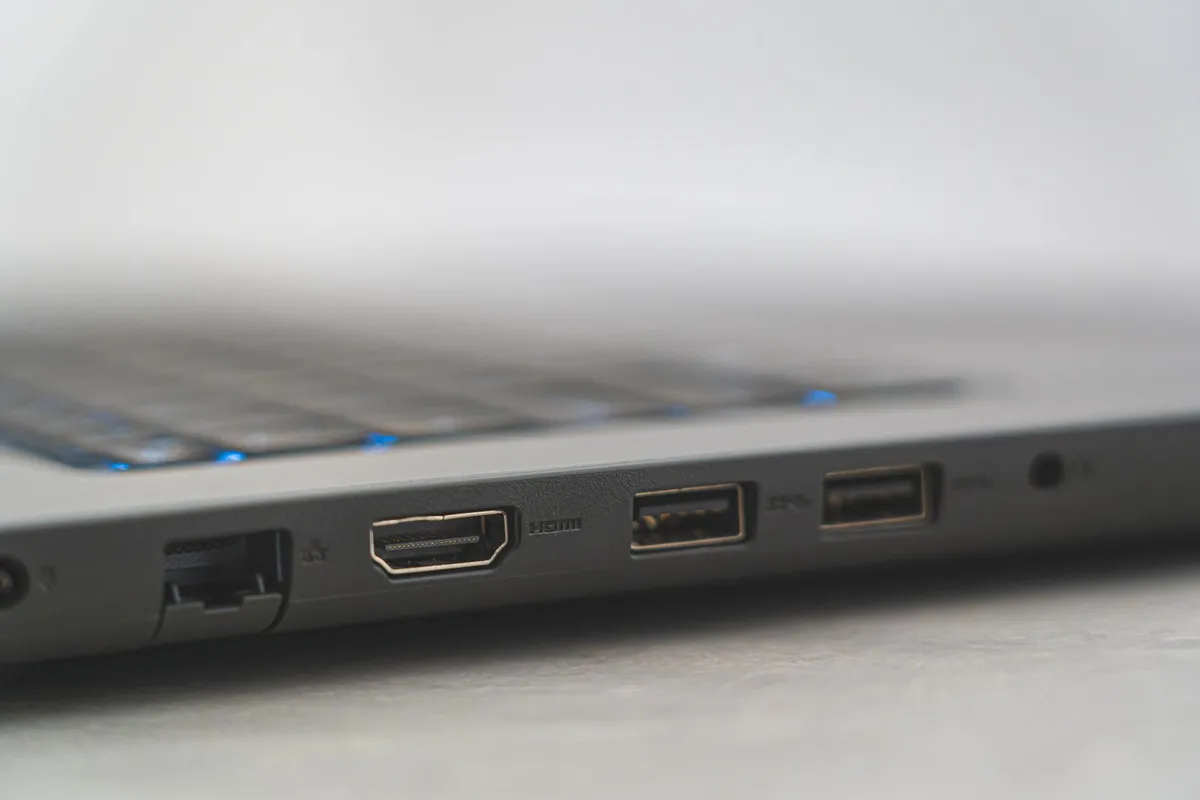
- Try DisplayPort instead of HDMI if you can. If DisplayPort works, the HDMI path is at fault.
An HDMI splitter mirrors one signal to two screens, so it can never create an extended desktop. Remove it and connect the monitor directly.
A known-good cable rules out the most common cause of a missing second monitor.
See options on AmazonIf the monitor power light stays off, try another power socket. A monitor that shows “No signal” is on and listening: it has power and is waiting on the right input.
Check the monitor input and the on-screen menu

Most monitors have more than one input, and they do not switch to a new one on their own. A monitor plugged into HDMI 1 but set to HDMI 2 will show “No signal” forever, and Windows will not detect it.
- Press the input or source button on the monitor and open the input menu.
- Pick the exact input you plugged into: HDMI 1, HDMI 2, or DisplayPort.
- Wait a few seconds after each change. Some monitors take a moment to lock on to a new signal.
- If the monitor has an auto-detect setting, turn it on so it finds the live input next time.
A monitor that wakes for its own menu but shows no picture from the PC has a signal problem, not a dead panel. If the buttons do nothing at all, power the monitor off at the wall for 30 seconds, then switch it back on. We cover broken usb-c port on laptop in a guide of its own.
Ask Windows to detect the monitor
Once the cable and the input are right, tell Windows to look for the display. This is the step most people skip, and it fixes the fault when Windows simply missed the new connection.
- Press Win + P and choose Extend. PC screen only hides the second screen by design.
- Open Settings > System > Display, scroll down, expand Multiple displays, and select Detect.
- Wait a few seconds, then look for a second display box at the top. If one appears, select it, choose Extend these displays, and select Apply.
- Press Win + Ctrl + Shift + B to reset the graphics driver. The screen will blink once. Check Display settings again.
- Restart the PC with the monitor connected and powered on. Windows scans for displays during startup.
On Windows 10 the same controls live under Settings > System > Display, with Detect under Multiple displays. Microsoft ended Windows 10 support on October 14, 2025.
Tip: Use Identify in Display settings once both screens appear. A number shows on each monitor, so you know which box matches which screen.
Fix the graphics driver
The graphics driver lets Windows talk to the graphics chip. A driver fault is the likely cause when the monitor worked before and stopped after a Windows update or a driver update.
- Open Settings > Windows Update and select Check for updates. Install pending updates, including driver updates under Advanced options > Optional updates, then restart.
- Right-click Start, select Device Manager, and expand Display adapters.
- Right-click the adapter and select Update driver, then Search automatically for drivers.
- If Device Manager shows Microsoft Basic Display Adapter instead of your graphics chip name, Windows is using a generic driver with no multi-monitor support. Download the driver for your exact graphics chip from the maker site or your laptop maker.
- If the fault started right after a driver update, roll it back instead. In Device Manager, right-click the adapter, select Properties, open the Driver tab, and select Roll Back Driver. You need administrator rights.
When rollback is greyed out, Windows has no earlier driver saved. Download the previous version from the maker site. Get drivers only from the maker site or Windows Update, never from a driver download site.
Check the dock, the hub, and USB-C video
Docks and hubs add a link in the chain. A monitor that works when plugged straight into the PC but not through a dock points at the dock, its cable, its power, or its firmware. It helps to understand dell laptop not reading ssd before going further.
- Unplug the dock or hub and connect the monitor directly to the PC. If Windows detects it now, the dock is part of the fault.
- Check that the dock has power. Many docks need their own power supply to drive a monitor.
- Try a different port on the dock, and a different USB-C port on the laptop.
- Update the dock firmware from the dock maker site if an update is offered, then restart with the dock connected.
Not every USB-C port carries video. A USB-C port can charge a laptop and move files without supporting DisplayPort Alt Mode, the feature that lets a USB-C connection carry video. Check the port symbol or the laptop spec sheet.
Our guide to the best USB-C hub for a laptop explains what to look for in a hub that carries video, and our guide to using a laptop as a second monitor covers the wireless route.
Warning: Do not force a USB-C cable into a port that resists it, and do not use a damaged cable with exposed wires. A bent connector can damage the port. Replace the cable and test again.
Cable, port, or monitor: work out which one is at fault
By now you have one of three results: the monitor works, it works only on a direct connection, or it works nowhere.
| Symptom | Likely cause | Fix |
|---|---|---|
| Monitor missing, no signal on screen | Wrong input or loose cable | Pick the right input, reseat the cable, select Detect. |
| Monitor appears after a cable swap | Faulty cable | Replace the cable. Keep the working one as a spare. |
| Works direct, not through the dock | Dock, cable, or power | Check dock power, try another port, update firmware. |
| Monitor stopped after an update | Graphics driver | Roll back the driver, or install the maker driver. |
| Works on another PC, not on yours | Your port or driver | Try another port, then reinstall the driver. |
| Monitor fails on every PC and cable | Faulty monitor | Check the warranty, then repair or replace it. |
The test that settles it is the second-PC test. Connect the monitor to another laptop or desktop with a cable you know works and pick the right input. If it appears there, your monitor is fine. If it fails there too, the monitor is the fault.
One more place to look is the BIOS or UEFI setup. On some PCs, a setting controls whether the built-in graphics output is on. Menu names differ by maker, so check the maker manual. If you are not sure what a setting does, leave it alone.
A damaged HDMI port is a hardware repair. If the cable only works when you hold it at an angle, or the port feels loose, stop using it: a wobbling connector can short the port. Our guide on how to repair an HDMI port on a laptop explains the options.
Mistakes to avoid
- Changing drivers before checking the cable. A driver reinstall takes time and can make things worse. Swap the cable and check the input first.
- Leaving Win + P on PC screen only. This mode hides the second monitor on purpose. Press Win + P and choose Extend first.
- Buying a new monitor before the second-PC test. A monitor that works on another PC is fine.
- Using any USB-C port and expecting video. Some USB-C ports carry power and data only. Check the port symbol or the spec sheet.
- Installing drivers from a download site. Driver download sites bundle old or wrong drivers and sometimes unwanted software. Get drivers from the maker or Windows Update only.
- Forcing a cable into a damaged port. A bent connector or a loose port can short the board. If the cable only works at an angle, stop.
Frequently asked questions
Why is my second monitor not detected in Windows 11?
The most common causes are a loose or faulty cable, the wrong monitor input, Win + P set to PC screen only, or a graphics driver problem. Reseat the cable, pick the right input, choose Extend, then use Detect. If it still does not appear, update the driver or roll it back.
How do I force Windows 11 to detect a second monitor?
Open Settings, go to System, then Display, expand Multiple displays, and select Detect. First press Win + P and choose Extend, and check that the monitor is on and set to the right input. If Detect finds nothing, press Win + Ctrl + Shift + B to reset the driver, then restart.
Why does my monitor say no signal when it is connected?
No signal means the monitor has power but is not receiving video on the input it is set to. Check that the cable is fully seated at both ends, then use the monitor buttons to pick the input you plugged into. If that fails, swap in a cable you know works.
Can a bad HDMI cable stop Windows from detecting a monitor?
Yes. A damaged HDMI cable is a common cause of a missing second monitor, because Windows cannot detect a display it receives no signal from. Swap in a cable that works with another setup. If the monitor appears, replace the old one.
Why is my second monitor not detected through a docking station?
The dock may lack power, use a USB-C port that does not carry video, or need a firmware update. Connect the monitor directly to the PC first: if Windows detects it there, the dock is part of the fault. Check the dock power, try another dock port, and update the firmware.
How do I know if the monitor or the laptop is at fault?
Connect the monitor to another PC with a cable you know works and pick the right input. If it appears there, the monitor is fine and the fault is your cable, port, or driver. If it fails there too, the monitor is at fault. Check the warranty before you pay for a repair.
Bottom line: Reseat the cable, pick the right monitor input, press Win + P and choose Extend, then use Detect in Display settings. If the monitor still does not appear, fix the graphics driver, test the dock with a direct connection, and run the second-PC test. If you need a replacement screen, our guide to the best monitor for a laptop can help. Browse our troubleshooting guides for the next fix.
Sources: Microsoft Support, How to use multiple monitors in Windows (support.microsoft.com); Dell Support, Multi-Monitor Displays: Black Screen or Not Detected (dell.com). Photos: Josh Sorenson, Srattha Nualsate, Castorly Stock, Kaboompics and Tranmautritam via Pexels. Diagram: ictservicecenter.com.