
 By
A slim laptop can leave you short of ports: one USB-C socket for the charger, the monitor, the mouse and the drive. A USB-C hub turns that single port into a full desk setup.
In short: The best USB-C hub for a laptop is a 7-in-1 hub with 4K HDMI, two USB-A ports, a USB-C data port, card slots and pass-through charging. Pick the hub that matches your laptop port first: video and charging only work when the port, the cable and the hub all support them.
Key takeaways
- Check your laptop USB-C port before you buy: some ports carry data only, with no video and no charging.
- A 7-in-1 hub covers most desks: HDMI for a monitor, USB-A for a mouse and keyboard, and a card reader.
- Pass-through charging keeps the laptop powered, but the hub takes a small share of the wattage.
- A bus-powered hub suits light gear; a hard drive or a second monitor may need a powered hub.
- Test every port on the day the hub arrives, while a return is still easy.
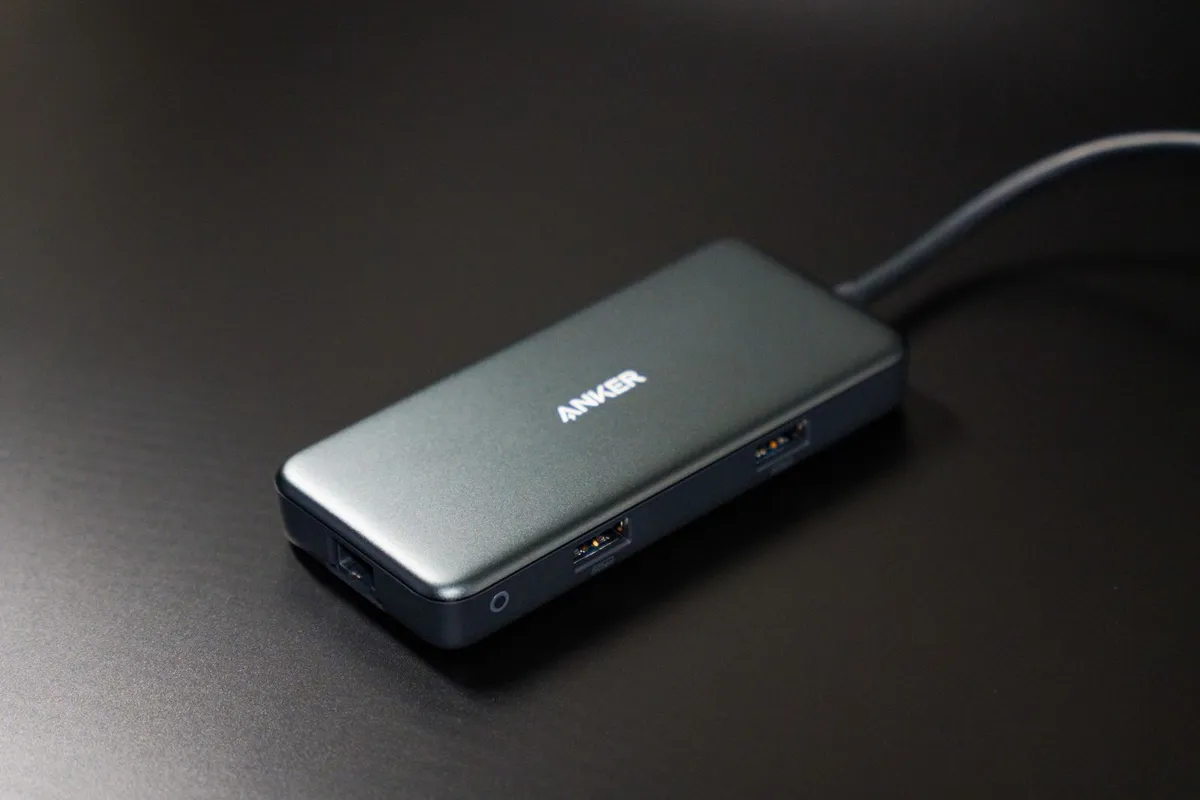
HDMI, two USB-A ports, a USB-C data port and card slots cover a full desk setup from one port.
A small five-port hub adds a monitor, a mouse and charging for less than a full dock.
A gigabit Ethernet port adds a wired connection for video calls and large downloads.
A slim bar plugs straight into the laptop side with no loose cable on the desk.
A pocket-size hub adds HDMI and USB-A on a shared table or in a hotel room.
How to choose a USB-C hub for your laptop
USB-C is the shape of the plug, not a promise of what the port can do.
The USB Implementers Forum defines USB-C as a connector specification, and a port with that shape may carry data only, or data plus video, or data plus video plus charging.
That is the first thing to check, and it decides which hub is worth your money.
Check the laptop manual for the port list, and note the small icons beside each USB-C port: a lightning bolt usually marks Thunderbolt, and a monitor symbol marks video output. There is more on cheap reliable laptop in a separate guide.
Start by listing what you plug in on a normal day. Count the monitor, the keyboard, the mouse, the external drive, the headset and the charger. Then count the ports the laptop already has.
The gap between the two lists is the hub you need. Leave two ports spare for a new headset or a second drive.
If you are not sure how many ports you need in the first place, our guide to how many USB ports a laptop needs walks through the count for a desk setup and a travel setup.
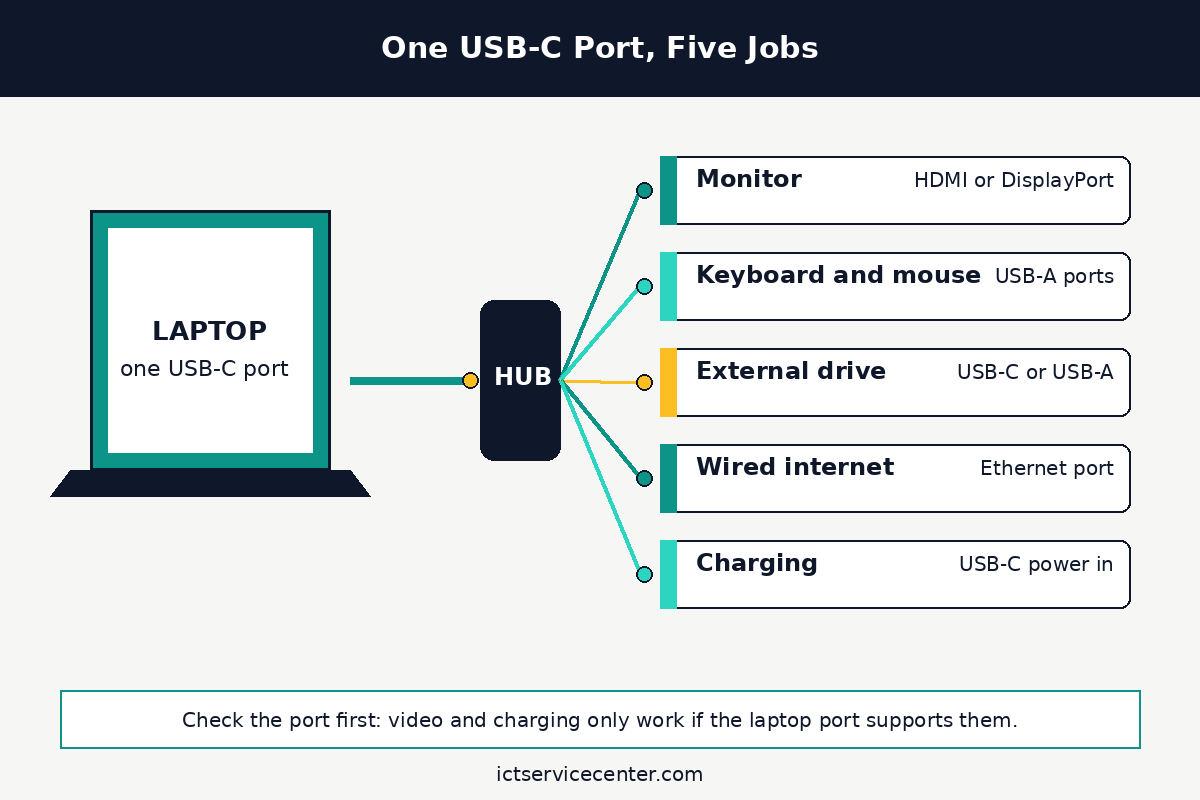
Video is the feature most buyers get wrong. A monitor only works through a hub when the laptop port supports DisplayPort Alt Mode or Thunderbolt, and the hub and cable support the same mode.
Microsoft puts it plainly in its USB-C guide: the PC, the display and the cable must all support the same Alternate Mode, or the display connection will be limited. If your laptop port has no video output, no hub will add it.
Check the port first, then buy the hub. If you are still deciding on the laptop itself, read our guide to whether USB-C is necessary on a laptop before you spend anything.
Charging works the same way. A hub with a USB-C pass-through port lets you plug the laptop charger into the hub, so the single laptop port does charging and data at once.
The hub keeps a small share of the power for itself, so the laptop charges a little slower than it would plugged in direct. Check the hub listing for the pass-through wattage and compare it with the charger that came with the laptop.
A 65W charger through a hub that passes 85W is fine; a 100W laptop charger through a hub that passes only 60W will charge slowly or not at all while you work.
For the full picture on ports and charging, see our guide to choosing laptop connectivity.
Power is the other half of the choice. Most small hubs are bus-powered, which means they draw all their power from the laptop port. That is fine for a mouse, a keyboard, a flash drive and a card reader.
It is not enough for a spinning external hard drive, a second monitor, or three power-hungry devices at once. If the drive clicks or disconnects, the hub is short of power.
A powered hub with its own wall adapter fixes that, and it is the right pick for a fixed desk with a drive attached all day. A travel hub should stay bus-powered and light, since nobody wants to carry a wall adapter for a hub.
Build matters more than it looks. A metal case sheds heat and survives a bag better than thin plastic, and a short attached cable is one less thing to lose.
Check the cable length: a short cable keeps the hub close to the laptop, while a detachable cable can be replaced when it frays.
Card readers sound like a bonus until you need one; if you move photos from a camera, a hub with SD and microSD slots saves a second adapter.
If a port on the laptop itself stops working, read our guide to fixing a USB port that is not working before you blame the hub.
The 5 hubs at a glance
All five picks turn one USB-C port into a working desk. Use this table to narrow the list, then read the full pick.
| Hub | Ports | Best for | Check before buying |
|---|---|---|---|
| Anker 7-in-1 USB-C hub | HDMI, 2x USB-A, USB-C data, SD, microSD, PD | One fixed desk setup | Pass-through wattage and HDMI resolution |
| UGREEN 5-in-1 USB-C hub | HDMI, USB-A, USB-C PD, card slots | A first hub on a small budget | Number of USB-A ports |
| Plugable 7-in-1 USB-C hub | HDMI, 2x USB-A, Ethernet, SD, microSD, PD | Video calls on wired internet | Ethernet speed and driver needs |
| Satechi multiport adapter | HDMI, USB-A, USB-C PD, card slots | A tidy desk with no loose cable | Port spacing on your laptop side |
| Baseus 6-in-1 travel hub | HDMI, 2x USB-A, USB-C PD, card slots | Travel and shared tables | Size, weight and cable length |
Anker 7-in-1 USB-C hub: best all-round hub
This hub suits a laptop that lives on one desk and needs everything connected at once: a monitor, a keyboard, a mouse, a card reader and the charger.
The 4K HDMI port drives an external monitor, the two USB-A ports take the keyboard and mouse, and the USB-C data port takes a flash drive or a phone cable.
The card slots cover a camera card, and pass-through charging keeps the laptop powered through the same cable.
The one spec to check is the pass-through wattage on the listing. Compare it with the charger that came with the laptop, and remember the hub keeps a small share for itself. Also check the HDMI resolution the listing promises for a single monitor, and whether it needs a driver on your operating system.
Skip this hub if you travel light. For a fixed desk, this is the hub that covers the most jobs.
HDMI, two USB-A ports, a USB-C data port and card slots cover a full desk setup from one port.
See options on AmazonUGREEN 5-in-1 USB-C hub: best budget hub
This hub suits a buyer who needs the basics and nothing more: a monitor, a mouse, a card reader and charging, in a small bar that costs less than a full dock. The HDMI port handles a single external monitor, the USB-A port takes a mouse or a keyboard, and the USB-C pass-through port keeps the laptop charged.
The one spec to check is the number of USB-A ports. Five ports sounds like plenty until the mouse, the keyboard and a flash drive all want one at once. If you need two USB-A devices plugged in all day, step up to a 7-in-1 hub instead. Also check the pass-through wattage against your charger, since budget hubs often pass less power.
Skip this hub if your desk has a wired network cable, since there is no Ethernet port here, and skip it if an external hard drive stays attached all day. For a simple desk with a monitor and a mouse, this is the cheapest way there.
A small five-port hub adds a monitor, a mouse and charging for less than a full dock.
See options on AmazonPlugable 7-in-1 USB-C hub: best hub with Ethernet
This hub suits anyone whose video calls drop on Wi-Fi: a home office at the far end of the house, a shared flat, or a desk near the router. The gigabit Ethernet port gives a wired connection, which is steadier than Wi-Fi for calls and large downloads. Around it you get HDMI, two USB-A ports, card slots and pass-through charging.
The one spec to check is the Ethernet driver. Plugable lists the chipset and the driver situation on the product page; on Windows the driver usually arrives through Windows Update, but a work laptop with locked-down updates may need the driver installed by hand.
Also check that the hub cable reaches from the laptop to where the Ethernet cable comes out of the wall, since a short hub cable plus a short network cable can leave the hub dangling.
Skip this hub if you never plug in a network cable, since you would pay for a port you never use. For a desk that needs wired internet, this is the pick.
A gigabit Ethernet port adds a wired connection for video calls and large downloads.
See options on AmazonSatechi USB-C multiport adapter: best slim hub
This hub suits a tidy desk where a loose cable and a dangling box would annoy you. The slim aluminum bar plugs straight into the laptop side, so the hub sits flush against the machine with no cable in between. You get HDMI, USB-A, pass-through charging and card slots, all in a bar that matches the laptop finish.
The one spec to check is the port spacing on your laptop.
A bar that plugs straight in needs two USB-C ports side by side on some models, or one port with the right clearance on others, and it will not fit a laptop whose ports sit too far apart or too close to a vent.
Check the maker compatibility list on the product page for your exact laptop model before you order.
Skip this hub if you move the laptop between rooms all day, since a rigid bar is awkward to plug and unplug ten times a day, and skip it if your laptop has only one USB-C port with no second port for the bar to brace against.
For a single desk and a matching laptop, this is the neatest option. For the rest of the desk setup that goes with it, see our guide to the best laptop accessories for work from home.
A slim bar plugs straight into the laptop side with no loose cable on the desk.
See options on AmazonBaseus 6-in-1 USB-C hub: best travel hub
This hub suits a bag, not a desk. It is small enough to sit in a laptop sleeve pocket, and the attached cable means there is no separate cable to forget in a hotel room. You get HDMI for a presentation monitor or a hotel TV, two USB-A ports for a mouse and a flash drive, a USB-C pass-through port for charging, and card slots for a camera.
The one spec to check is the cable length and the hub weight. A very short cable can pull the hub off the table edge when the laptop sits back, and a heavy hub can strain a thin laptop port if it hangs in the air. Also check the HDMI resolution, since travel hubs sometimes top out lower than desk hubs.
Skip this hub as a fixed desk hub, since a bus-powered travel hub is not the right home for a spinning external drive that stays attached all day. For travel, though, this is the hub that earns its pocket space.
A pocket-size hub adds HDMI and USB-A on a shared table or in a hotel room.
See options on AmazonMistakes to avoid
- Buying a hub before checking the laptop port. A hub cannot add video or charging to a port that does not support them. The monitor stays dark and the hub gets the blame. Fix it by checking the laptop manual for DisplayPort Alt Mode, Thunderbolt or Power Delivery before you order.
- Using a charge-only USB-C cable with the hub. Some USB-C cables carry power only, with no data and no video. Plug the hub in with one of those and nothing but charging works. Fix it by using the cable that came with the hub, or one that lists data and video support.
- Loading a bus-powered hub with a spinning hard drive. A spinning drive draws more power than a flash drive, and a bus-powered hub may not have it to spare. The drive clicks or drops mid-copy. Fix it with a powered hub for a fixed desk, or a solid-state drive that draws less power.
- Plugging the monitor into the wrong laptop port. Many laptops have two USB-C ports with different abilities: one carries video and the other does not. Plug the hub into the data-only port and the monitor stays dark. Fix it by trying the other port, and mark the video port once you find it.
- Ignoring a loose USB-C port on the laptop. A hub that wobbles when the cable moves may mean the laptop port itself is worn, not the hub. Fix it by testing the hub on a second laptop first, and if the port is loose on the laptop, read our guide to fixing a loose USB port on a laptop before you buy a replacement hub.
Frequently asked questions
Do I need a USB-C hub for a laptop?
You need one when the laptop has fewer ports than your daily gear. Count the monitor, keyboard, mouse, drive and charger, then count the laptop ports. If the gear list is longer, a hub closes the gap. If you only ever plug in a mouse, a small adapter costs less and does the same job.
Will any USB-C hub work with any laptop?
No. The hub, the cable and the laptop port must all support the same features. A port with no video output cannot drive a monitor through any hub, and a port with no Power Delivery cannot charge through a hub. Check the laptop manual for DisplayPort Alt Mode, Thunderbolt and Power Delivery before you buy.
Can a USB-C hub charge a laptop?
Yes, when the hub has a USB-C pass-through port and the laptop port supports Power Delivery. Plug the laptop charger into the hub, and the hub passes most of the power to the laptop. Charging runs a little slower than a direct connection, so compare the hub pass-through wattage with your charger before you buy.
Why does my monitor not work through a USB-C hub?
The usual cause is a missing link in the video chain. The laptop port, the hub and the cable must each support the same video mode, usually DisplayPort Alt Mode or Thunderbolt. Plug the monitor straight into the laptop first. If it works there, the hub or cable is the weak link.
Is a powered USB-C hub better than a bus-powered one?
It depends on what you plug in. A powered hub with its own wall adapter suits a fixed desk with a spinning hard drive, a second monitor or several power-hungry devices. A bus-powered hub suits a mouse, a keyboard and a flash drive, and it travels better with no wall adapter. Match the power to the gear.
Bottom line: Check the laptop port for video and charging support first, then buy the 7-in-1 hub that matches your desk: Anker for a full desk, Plugable for wired internet, UGREEN for a small budget, Satechi for a tidy setup, and Baseus for travel. For more buying guides, see the Buying Guides hub.
Sources: Microsoft Support, Fix USB-C problems in Windows; USB-IF, USB Type-C Cable and Connector Specification. Photos: Anzor Dukaev, Kindel Media, Kavinda Lochana, Arina Krasnikova and Alpha En via Pexels. Diagram: ictservicecenter.com.