
 By
A spare laptop can give you a second screen without buying a monitor. Connect it over Wi-Fi and it shows part of your desktop next to your main screen.
In short: To use a laptop as a second monitor, set the spare laptop to receive a picture, then connect from your main PC. On Windows, install the free Wireless Display feature on the spare laptop and press Win + K on the main PC.
SpaceDesk is a free app that does the same job, and Macs can use AirPlay to Mac. An HDMI cable will not work, because laptop HDMI ports send video out only.
Key takeaways
- Use Windows Wireless Display for two Windows 11 laptops: it is built in and costs nothing.
- Use SpaceDesk when Wireless Display is missing or will not connect.
- Use AirPlay to Mac when both machines are Macs.
- An HDMI cable cannot turn a laptop into a monitor: the port is output only.
- Expect a short delay, so keep chat, notes and reference windows on the second screen, not games or video editing.
Pick the right method first

The right method depends on the two machines in front of you. All three methods send the picture over Wi-Fi, so both laptops need Wi-Fi turned on and a connection to the same network. Plug both laptops into power before you start: a wireless display session drains the battery faster than normal use. It helps to understand to connect keyboard mouse to computer before going further.
| Situation | Best method | What you need |
|---|---|---|
| Two Windows 11 laptops | Wireless Display | Wireless Display feature on the spare laptop, same Wi-Fi network |
| Two Windows laptops, Wireless Display fails | SpaceDesk | SpaceDesk Driver on the main PC, SpaceDesk Viewer on the spare laptop |
| Two Macs | AirPlay to Mac | macOS Monterey or later on the receiving Mac, same Wi-Fi network |
| One Windows laptop and one Mac | SpaceDesk | SpaceDesk Driver on the Windows PC, SpaceDesk Viewer on the Mac |
Method 1: Use Windows Wireless Display
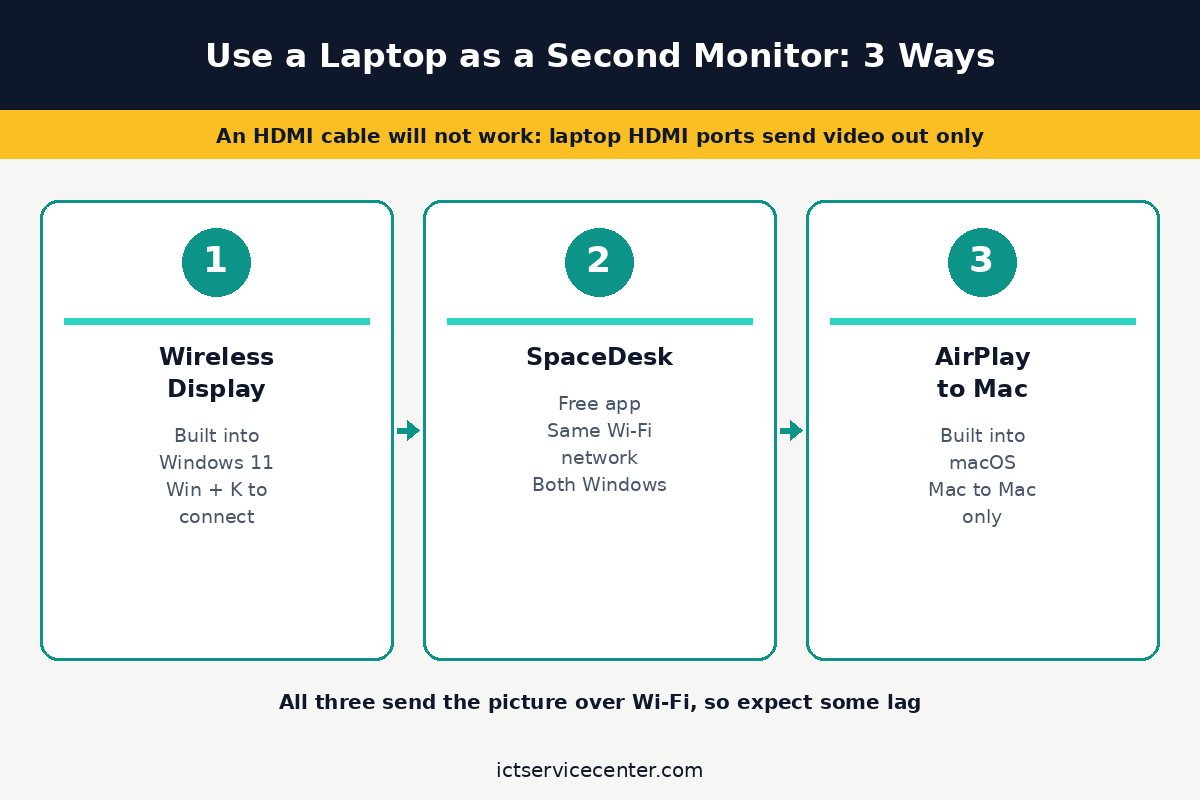
Wireless Display is the built-in Windows way to send a screen to another Windows PC. It uses Miracast, a wireless display standard built on Wi-Fi Direct. There is nothing to buy and no app to install on the main PC: you only add a free optional feature to the laptop that will receive the picture.
- On the spare laptop, open Settings > System > Projecting to this PC and install the Wireless Display optional feature if it is missing: select Optional features, then View features, type “wireless display”, tick the checkbox, select Next, then Install.
- Set the first dropdown to Available everywhere on secure networks.
- Open the Wireless Display app from the taskbar search box, and leave it open.
- On the main PC, press Win + K and select the spare laptop from the list.
- Accept the connection on the spare laptop if it asks, then press Win + P on the main PC and choose Extend.
On the Projecting to this PC page, set Ask to project to this PC to Every time a connection is requested while you test it. A PIN is optional; leave it off at home.
The Wireless Display app is available on Windows 11, version 22H2 and later. On an earlier version of Windows, open the Connect app instead. If the spare laptop never appears in the Win + K list, check that Wi-Fi is turned on on both machines and that the Wireless Display app is open.
Keep the spare laptop awake: in Settings > System > Power & battery, set the screen to stay on while plugged in.
If your main laptop is short of ports for the keyboard and mouse, read our guide to the best USB-C hub for a laptop: a hub keeps your desk gear connected while the spare laptop handles the second screen.
Method 2: Use SpaceDesk
SpaceDesk is a free app that turns a second Windows PC, a Mac or a tablet into an extra display for a Windows PC.
Use it when Wireless Display is missing, when the spare laptop runs an older version of Windows, or when the Win + K list stays empty. It works over Wi-Fi, USB or a wired network, and it can extend or duplicate the desktop.
Loaders in this spot often ask about how to transfer files from old laptop to new laptop as well.
- On the main PC, download the SpaceDesk Driver from spacedesk.net and install it, then restart the PC if the installer asks.
- On the spare laptop, install the SpaceDesk Viewer app for its operating system.
- Connect both laptops to the same Wi-Fi network.
- Open the SpaceDesk Viewer on the spare laptop and select the main PC by name. The desktop appears on the spare laptop.
- On the main PC, open Settings > System > Display and choose Extend these displays.
SpaceDesk treats the spare laptop as a real display in Windows display settings, so you can set its resolution and position just like a wired monitor. If the picture looks soft, lower the resolution in the Viewer settings: a smaller picture travels faster over Wi-Fi. If the connection drops, close the Viewer, reopen it and connect again.
Why an HDMI cable will not work
This is the mistake almost everyone makes first. An HDMI cable will not turn a laptop into a second monitor, because the HDMI port on a laptop is output only. It sends video out to a TV or a monitor. It cannot take video in from another computer, and no cable or adapter changes the direction of the port.
That is the opposite of the normal monitor job, where the PC sends video out and the monitor receives it. Our guide to how to connect a monitor to a PC covers that direction. Using a laptop as a second monitor is the reverse problem: the laptop has to receive video, and its HDMI port cannot do that.
The only wired exception is a USB video capture card, which shows the main PC output in a window on the spare laptop. That is not a true second monitor: the picture sits inside an app window and adds delay.
Mac option: AirPlay to Mac
Two Macs can do the same job with AirPlay, which is built into macOS. The receiving Mac needs macOS Monterey or later, and it must be a supported model: a MacBook Pro or MacBook Air from 2018, an iMac from 2019, an iMac Pro, or a Mac mini from 2020. Older Macs cannot receive AirPlay, even after a macOS update.
On the Mac that will act as the second screen, open System Settings > General > AirDrop & Continuity and turn on AirPlay Receiver.
Choose who can connect under Allow AirPlay for: pick Current User at home, or set a password if other people share the network.
On the sending Mac, open Control Center, select Screen Mirroring, and choose the receiving Mac, then choose whether to mirror the screen or extend it.
Arrange your displays: Extend vs Duplicate
Once the spare laptop shows your desktop, arrange the two screens so the mouse moves between them in the right direction. On the main Windows PC, open Settings > System > Display. You will see two numbered boxes.
Drag the box for the spare laptop to the side where it sits on your desk, select Apply, then move the mouse off the edge of the main screen to check it appears in the right place.
Under Multiple displays, choose Extend these displays to spread your desktop across both screens. That is the setting you want for a second monitor: each screen shows different windows. Choose Duplicate these displays only when you want both screens to show the same thing, such as during a presentation. You can also press Win + P at any time to switch modes without opening Settings.
Raises the spare laptop to eye level so the second screen sits beside the main screen instead of far below it.
See options on Amazon
If the spare laptop screen looks dim next to the main screen, raise its brightness before you blame the connection. Our guide to fixing a dim laptop screen walks through the brightness and power settings to check.
What a laptop second screen is good for
A laptop used as a second monitor is a wireless video stream, not a wired display. The picture is compressed and sent over Wi-Fi, so there is always a short delay between moving the mouse and seeing it move.
The delay is small on a strong 5 GHz network and larger on a crowded 2.4 GHz one. Keep both laptops close to the router and use the 5 GHz network if your router offers one.
That makes the second screen right for chat windows, email, notes and reference pages: windows you glance at while you work on the main screen. It is not right for gaming or video editing, where the mouse must track exactly with your hand. Fast video on the second screen will stutter, and the picture may drop to a lower resolution when the network is busy.
Resolution is the other limit. The spare laptop shows the picture at the resolution the wireless link can carry, which may be lower than its own screen can show. Text will look a little soft next to a wired monitor.
If the wireless delay or the small screen gets in the way, a real screen is the better buy: our picks for the best monitor for laptop cover one-cable desks.
Mistakes to avoid
1. Plugging in an HDMI cable first. The cable fits, so it feels like it should work, but the laptop HDMI port is output only and nothing will appear. Fix it by using Wireless Display, SpaceDesk or AirPlay instead.
2. Leaving Projecting to this PC on Always Off. The spare laptop will not appear in the Win + K list. Fix it on the spare laptop under Settings > System > Projecting to this PC: change the first dropdown to Available everywhere on secure networks.
3. Closing the Wireless Display app on the spare laptop. The app must stay open for the laptop to be found. If the connection drops, check the app first.
4. Letting the spare laptop sleep. A laptop that sleeps drops the wireless display session, and your windows snap back to the main screen. Fix it by plugging the spare laptop into power and setting its screen to stay on while plugged in.
5. Ignoring a black screen on the spare laptop. If the spare laptop screen stays black while the machine is clearly running, the screen itself may be at fault. Check our guide to a laptop screen that is black but still running, and if the screen stays black on its own as well, read our guide to fixing a laptop black screen before you buy anything.
Frequently asked questions
Can I use a laptop as a second monitor with an HDMI cable?
No. The HDMI port on a laptop is output only: it sends video out to a monitor or TV, and it cannot take video in. No cable or adapter changes that. Use Windows Wireless Display, SpaceDesk or AirPlay to Mac instead.
Can I use a laptop as a second monitor for free?
Yes, in most cases. Wireless Display is built into Windows 11 and costs nothing, SpaceDesk is free to download, and AirPlay to Mac is built into macOS. You need two laptops, Wi-Fi turned on, and both machines on the same network.
Why does the spare laptop not show up when I press Win + K?
The usual cause is a setting on the spare laptop. Open Settings, System, Projecting to this PC and check that the first dropdown is not set to Always Off. Then check that the Wireless Display app is open and Wi-Fi is turned on on both laptops.
Can I use a Windows laptop as a second monitor for a Mac?
Not with the built-in tools, since AirPlay to Mac only works between Apple devices and Wireless Display only works between Windows PCs. Use SpaceDesk for a mixed pair: install the Driver on the Windows PC and the Viewer on the Mac, then connect over the same Wi-Fi network.
Is a laptop second monitor good for gaming?
No. A wireless display always adds a short delay, and the picture is compressed, so fast movement looks smeared and the mouse feels late. Keep games and video editing on the main screen or a wired monitor. A laptop second screen suits chat, notes, email and reference windows.
Bottom line: Start with the free built-in method: Wireless Display for two Windows laptops, AirPlay to Mac for two Macs, and SpaceDesk when either will not connect. Skip the HDMI cable, choose Extend, and keep chat and notes there.
Sources: Microsoft Support, Screen mirroring and projecting to your PC or wireless display; spacedesk, official site; Apple Support, Stream video and audio with AirPlay. Photos: alleksana, cottonbro studio, Minh Phuc and Ylanite Koppens via Pexels. Diagram: ictservicecenter.com.