
Your Dell Precision laptop booted into an error screen because it cannot find your SSD, or you just opened the case and see the drive but Windows or BIOS does not list it. This page gets you from that dead end to a working drive or a clear diagnosis in under 30 minutes.
In short: Most Dell Precision SSD detection issues come from a loose M.2 slot, an outdated BIOS, or a misconfigured boot order. Start by checking the physical connection and running Dell Diagnostics. If the drive still does not appear in BIOS, the SSD itself is likely faulty or incompatible.
Quick picks
Our shortlist for this job · tap one to see today's price
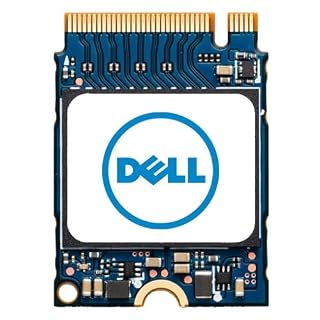
A genuine Dell M.2 NVMe drive that fits standard Precision slots and avoids compatibility issues.

Holds an M.2 NVMe SSD to test it on a desktop, confirming if the drive is dead.
Why Your Dell Precision SSD Suddenly Vanished
SSDs do not fail like spinning hard drives. They usually stop being detected because of a loose connection, a firmware error, or a total data wipe from a controller crash. If that sounds like your bench, read up on laptop not recognizing usb drives next.
On Dell Precision laptops, the M.2 slot is located under the back panel. Vibration from carrying the laptop can work the drive out of its contact points over time. This is the most common cause of the SSD not detected symptom.
Second, BIOS settings can hide drives. If the boot order is wrong or the drive is disabled in the UEFI settings, Windows will not see it, and sometimes the BIOS POST screen will not list it either.
Common Triggers
- Moving the laptop: Drops or bumps shift the M.2 card slightly.
- Windows Update: Sometimes updates reset boot priorities in UEFI.
- Power drain: If the CMOS battery dies, BIOS settings reset to default, which may not match your SSD configuration.
If the SSD was working yesterday and is gone today, check the physical slot first. If it never worked after installation, check compatibility.
Pro tip: Do not assume the SSD is dead just because Windows does not see it. Many drives are fine but simply unbootable or unmounted. Check BIOS first.
A generic NVMe drive lets you test if the issue is with the specific drive or the laptop slot.
- Genuine Dell 512GB Class 35 (Gen 4x4) Solid State Drive
Check the BIOS and Boot Settings First
Before opening the laptop, rule out software and configuration issues. This takes five minutes and saves you from unnecessary hardware work.
Restart the Dell Precision and press F2 at the logo screen to enter BIOS Setup. Navigate to System Information or Device Settings. If that sounds like your bench, read up on ssd not detected hp next.
Look for the M.2 drive in the list of installed devices. If the drive appears here but not in Windows, the problem is in the OS. If it does not appear here, the issue is hardware or BIOS configuration.
What to Look For
- Boot Order: Ensure the SSD is set to UEFI Boot Mode. Dell drives often fail if set to Legacy/CSM.
- Storage Configuration: Make sure the M.2 slot is enabled. Some Precision models allow you to disable secondary storage slots.
- Version: Check your BIOS version. Dell often releases updates that fix SSD detection bugs. Go to Dell Support and search for your service tag to download the latest BIOS update.
If you see the drive in BIOS, proceed to the Windows storage settings in the next section. If you do not see it, move to the physical check.
Pro tip: Note your current BIOS version before updating. If the update fails, you can restore the previous version from the Dell support site.
Run Dell Diagnostics to Isolate the Fault
Dell includes a built-in hardware test called SupportAssist OS Recovery or System Diagnostics. This tool can detect the SSD even if Windows cannot, and it will tell you if the drive’s controller is failing.
Press F12 at startup to open the boot menu. Select Diagnostics. Let it run the full memory and storage test.
If the diagnostics say “Storage Device Not Found” or “SSD Failed Self Test,” the drive is physically dead or disconnected. If it says the drive is healthy but Windows does not see it, the issue is a missing driver or a corrupted partition. We go through resolving missing hardware step by step in its own article.
Interpreting the Results
- Test Passed: The SSD hardware is good. The problem is in Windows or BIOS settings.
- Test Failed – No Device: The laptop cannot electrically see the SSD. Check the slot or replace the drive.
- Test Failed – I/O Error: The SSD is failing. Back up data immediately if possible, then replace the drive.
This step is critical because it tells you whether you need to buy a new part or just fix settings.
Reseat the M.2 SSD Safely
If the drive is not detected in BIOS or Diagnostics, the next step is physical. You need to open the bottom panel and check the M.2 slot.
Power off the laptop. Unplug the charger. Remove the bottom panel. This is usually two Phillips head screws on either side of the hinge. Some models have a single screw under the battery; remove the battery first.
Locate the M.2 SSD. It is a small stick of metal and chips, held in place by a single screw at one end and a slot at the other. Carefully remove the screw. The drive will pivot outward. Lift it out gently.
Inspection Steps
- Check the Slot: Look for dust, debris, or bent pins inside the M.2 slot. Use a soft brush or compressed air.
- Check the Drive: Look at the gold contacts on the bottom of the SSD. They should be clean and free of smudges.
- Reseat: Insert the drive back into the slot at a 30-degree angle until the connector is fully in. Lay it flat and tighten the screw just enough to hold it. Do not overtighten.
- Test: Reassemble and boot. Check BIOS again.
If the drive is still not detected after reseating, the slot or the drive itself is likely faulty.
Safety first: Always disconnect the main battery before touching internal components. This prevents short circuits that can damage the motherboard.
Test the SSD in an External Enclosure
If you have swapped the drive or want to confirm it is dead, you can test it outside the laptop. This is the fastest way to know for sure.
Use an M.2 NVMe enclosure. Insert the SSD into the enclosure and connect it to a desktop or another laptop via USB. If the enclosure shows up in Disk Management on the host machine, the SSD is still alive. If it does not show up, the SSD has failed.
For Dell Precision users, a genuine Dell SSD like the Class 40 M.2 2280 NVMe drive is a safe replacement. It is designed for these chassis and uses the standard interface, so compatibility is high.
When to Use This Test
- Before buying a new SSD, to confirm the old one is actually dead.
- To recover data from a failing drive, since it might be read-only or unstable in the laptop.
- To check if a used SSD you bought is working before installing it.
If the SSD fails in the enclosure, replace it. If it works, the problem is in the laptop’s M.2 slot or motherboard, which is a more complex repair.
The Sabrent enclosure holds M.2 NVMe drives without tools, letting you test your Dell drive on any USB port.
- Flip-Open Tool-Free Design: Open the cover, insert your NVMe SSD, lock it in place, and
- Cooler 10Gbps Performance: The aluminum enclosure presses the thermal pad directly
Fix Windows Not Seeing a Detected SSD
Sometimes the BIOS sees the drive, but Windows does not. This usually means the drive is healthy but not initialized or formatted correctly.
Open Disk Management in Windows. Press Win + X and select Device Manager or Computer Management. Look for the SSD under Disk Drives. If it says “Offline” or “Not Initialized,” right-click it and choose Online or Initialize Disk.
If the drive shows up but has no drive letter, right-click it and select Change Drive Letter and Paths. Assign a letter. The drive will appear in File Explorer.
Common Windows Fixes
- Update Drivers: Go to Device Manager, find the M.2 NVMe controller, and update the driver from Dell’s support site.
- Check for BitLocker: If the drive is encrypted and you lost the key, it will not appear as normal. You must decrypt it first.
- Boot Repair: If the SSD is the boot drive and Windows will not start, use a USB recovery drive to run bootrec /fixmbr and bootrec /fixboot.
These steps apply when the hardware is confirmed good but the OS layer is broken.
The bottom line
Start with BIOS and Dell Diagnostics to isolate whether the issue is settings or hardware. If the drive is physically loose, reseat it carefully. If the drive is dead, use an enclosure to confirm before buying a replacement. For most Dell Precision users, a genuine Dell M.2 NVMe SSD is the safest choice for compatibility.
- Genuine Dell 512GB Class 40 Solid State Drive
Frequently asked questions
Why does my Dell Precision show 'No Boot Device Found' instead of 'SSD Not Detected'?
This error usually means the BIOS cannot find any bootable storage. If the SSD is not detected, the laptop defaults to this message. Check the M.2 connection first, then verify the boot order in BIOS is set to UEFI and the SSD is listed.
Can I use a SATA SSD in a Dell Precision laptop that only has M.2 slots?
Most modern Dell Precision laptops do not have SATA slots. They use M.2 NVMe drives. If your Precision has an M.2 slot, it is almost certainly for NVMe. Check your specific model’s service manual to confirm the interface type before buying a drive.
What should I do if the M.2 slot itself is damaged?
If the slot pins are bent or the connector is broken, the SSD will not be detected even if the drive is good. This is a motherboard-level repair. Contact Dell support for a repair or replace the motherboard assembly. Do not attempt to solder the slot yourself unless you are an advanced technician.
Will updating the BIOS fix SSD detection issues on Dell laptops?
Yes, frequently. Dell releases BIOS updates to improve storage controller support. If your SSD was purchased after the laptop was made, or if it is a new model, the current BIOS may not recognize it. Always check Dell Support for the latest BIOS before buying a new SSD.
How do I know if my Dell Precision supports a 1TB or 2TB SSD?
Check the service manual for your specific Precision model. It will list the maximum storage capacity supported. Most recent models support up to 4TB or more in M.2 NVMe. If the manual is silent, a 1TB drive is usually safe, but verify with Dell support before installing a larger drive.