
 By
You plug a cable into the USB-C port and nothing happens. No charge, no monitor, no device, and no error message.
In short: A laptop USB-C port not working is most often a cable that cannot do the job, a port that does not support that job, or a Windows power or driver setting. Work through the cable, power, and driver checks in order, and most dead USB-C ports come back without a repair.
Key takeaways
- USB-C is a connector shape, not a promise: one port can carry data, video, and power, while the next may carry only one of the three.
- Test with a cable and a device you know work before you change any setting.
- A cable rated for 60 W cannot feed a laptop that needs 100 W, and a charge-only cable cannot show video.
- USB selective suspend and a faulty USB driver can silence a healthy port, and both are quick to rule out.
First, work out what your USB-C port can actually do
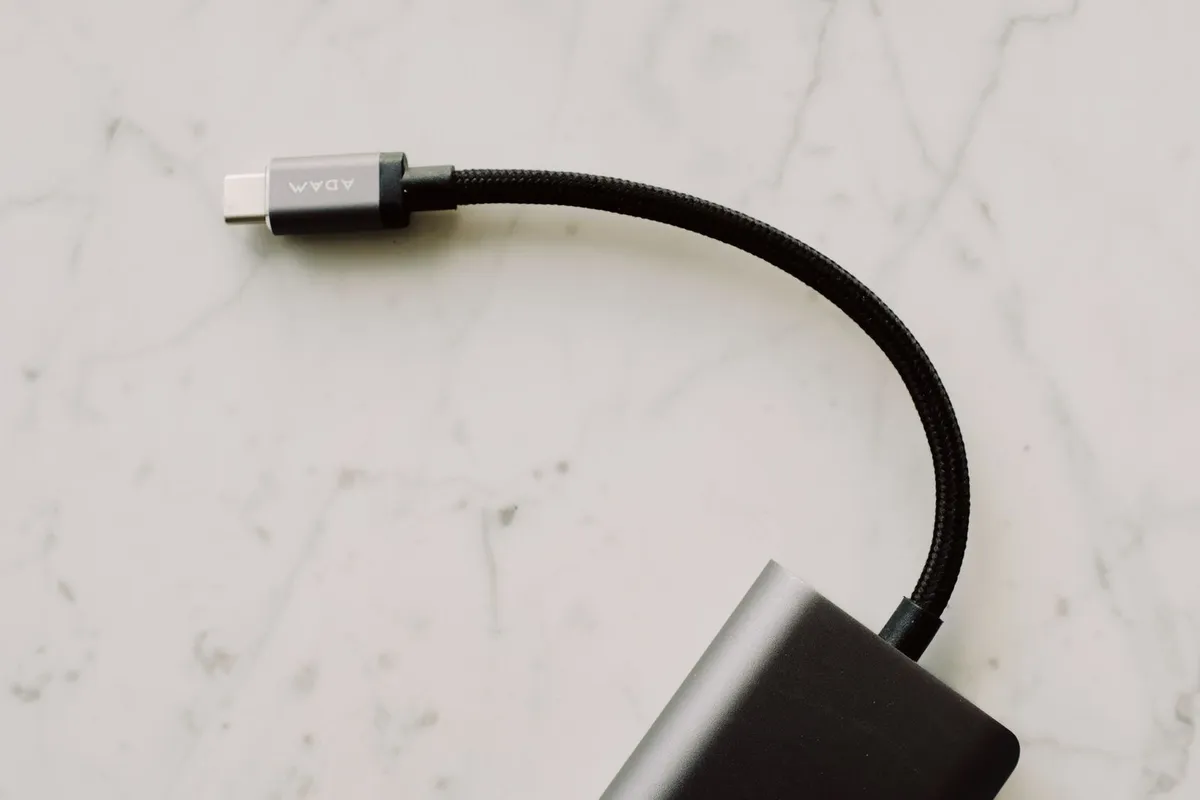
Two USB-C ports on the same laptop can do different jobs: one may charge, carry data, and drive a monitor, while the next one only charges. Find out what your port is supposed to do before you guess. Before you buy anything, it is worth looking at laptop on off switch not connecting to the mother board.
Check the manual or the spec sheet for your exact model: it lists what each port supports. Look for the icons beside the port too: a lightning bolt means Thunderbolt, a DisplayPort symbol means video output, SS with a number means a data speed, and a battery symbol means the port can charge a device.
This guide is about USB-C ports only. If the dead port is the wide rectangular USB-A port, use our companion guide to how to fix a USB port that is not working on a laptop instead: the cause and the fixes are different. If you are still deciding what USB-C is for, our guide to whether USB-C is necessary on a laptop explains which jobs it covers.
The 2-minute checks that fix most dead USB-C ports
Start with the cheap checks.
- Restart the laptop with the device unplugged, then plug it in again once Windows has loaded. A restart clears a stuck USB controller.
- Try the other USB-C port on the laptop, if it has one. If the device works there, the first port is the problem.
- Remove any hub or dock and plug the device straight in. A hub can fail and make a healthy port look dead.
- Power off, unplug, and blow short bursts of compressed air into the port, then look inside with a flashlight for lint or dust.
- Push the plug in firmly. It should seat fully and stay put. If it wobbles or falls out, skip to the damage section at the end of this guide.
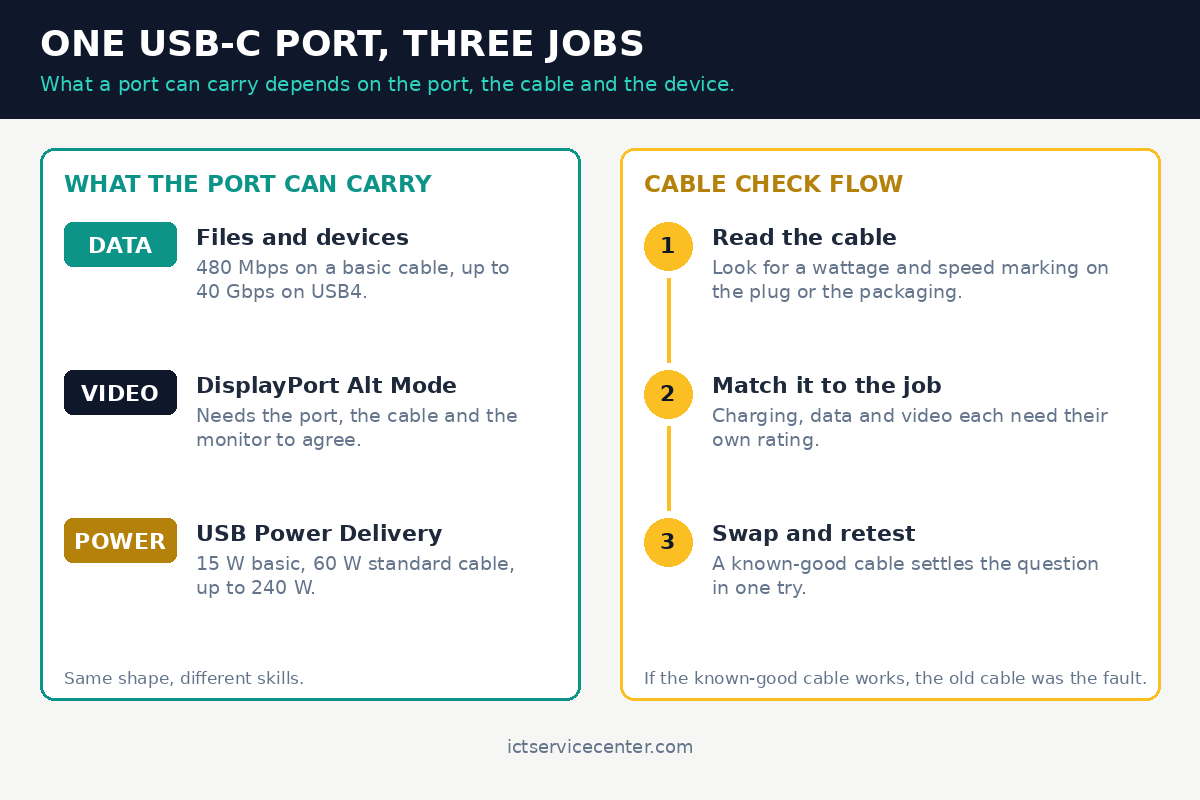
If the device works in the other port, use that port and read the damage section. If nothing works in any port, the cable, the power, or the software is the more likely cause.
Test with a known-good cable and a known-good device
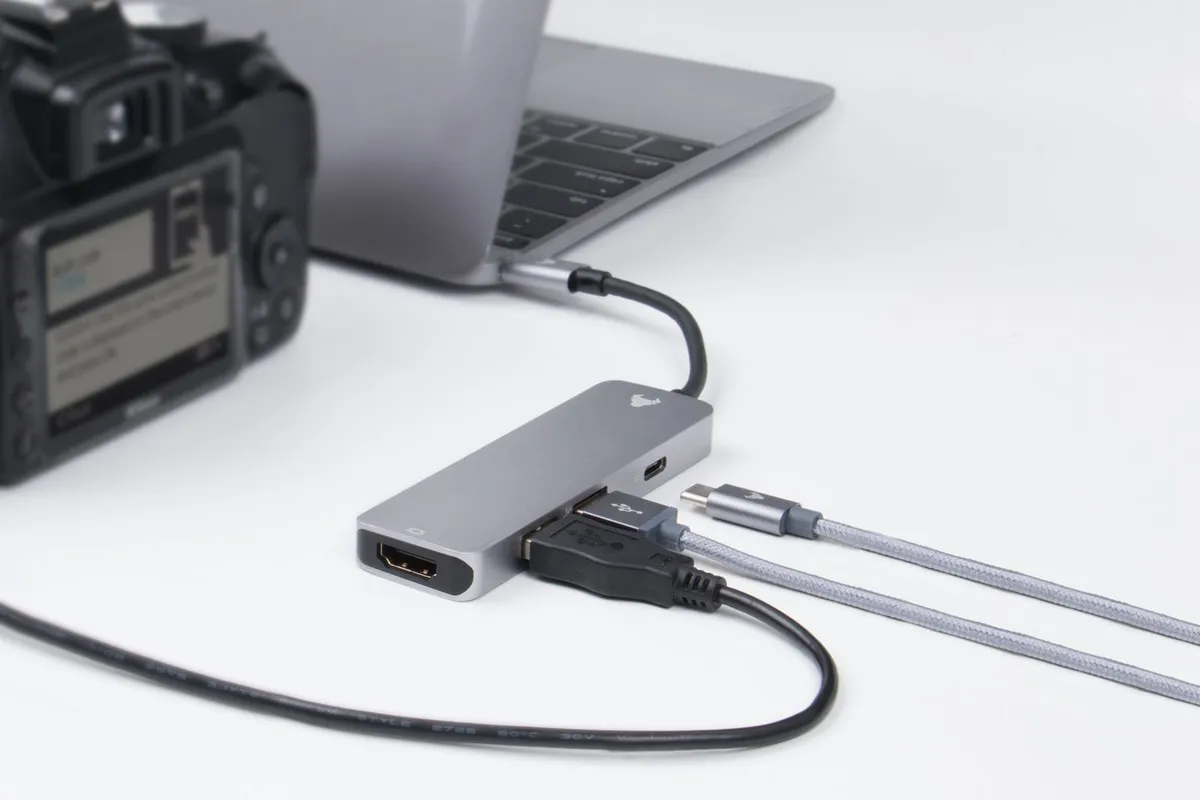
Not every USB-C cable can do every job. Some carry power only, with data at the old USB 2.0 speed of 480 Mbps. Others carry 5, 10, 20, or 40 Gbps, and some carry video. The plug shape is the same in every case, so the cable is the most common cause.
Read the marking on the cable, the plug, or the packaging. A good cable states its wattage and its speed, such as 100 W and 10 Gbps.
A cable with no marking is usually a basic charge cable, and it will not drive a monitor or move large files fast. Cables rated above 60 W carry a small e-marker chip that tells the charger and the laptop what the cable can take.
- Borrow or buy a cable you know is good, rated for the job: the wattage your laptop needs, or video support.
- Test the same device in the same port with the known-good cable. If it works, the old cable was the fault.
- Test the device on another computer. If it fails there too, the device is at fault.
- Test a different device in the same port. If a phone charges but a drive does not appear, the port has power and the data path is the problem.
A certified cable rated for the wattage and speed your laptop needs rules out the cable as the cause.
See options on AmazonTip: Label your cables with their wattage and speed when you buy them, so the next test takes seconds, not guesses.
If Windows sees nothing at all, our guide to a laptop not detecting USB devices covers the wider detection checks. It helps to understand dual monitor connection issues before going further.
Check the power: wattage, the charger, and the cable rating
USB-C charging is a negotiation between the charger, the cable, and the laptop, and the result is only as strong as the weakest of the three. A laptop that needs 100 W will charge slowly, or not at all, from a 45 W charger, and a 60 W cable caps it at 60 W.
USB Power Delivery sets the scale.
A standard cable is rated for 3 amps, which caps it at 60 W, and a 5 amp cable with an e-marker chip reaches 100 W. The Extended Power Range in USB PD 3.1 reaches 140 W at 28 volts, 180 W at 36 volts, and 240 W at 48 volts, but only with a cable rated for it.
Match the wattage on your charger brick to the wattage your laptop needs, in the manual.
Microsoft gives the same advice for the slow charger message: use the charger and cable that came with your device, plug the charger into the charging port rather than through a hub, and clean the port if dust stops the plug seating fully. If charging broke right after an update, our guide to a laptop not charging after a Windows update covers the driver checks.
Turn off USB selective suspend and reinstall the USB drivers
Windows can put an idle USB port to sleep to save power, through a feature called USB selective suspend. Usually the port wakes when you plug something in, but on some laptops it does not wake cleanly, and the port looks dead until the laptop restarts. Treat this as a test: turn the setting off, try the port, and turn it back on if it makes no difference.
- Select Start, type Edit power plan, open it, and select Change advanced power settings.
- Expand USB settings, then USB selective suspend setting. Set On battery and Plugged in to Disabled, then select Apply and OK.
- Reconnect the device and test the port. If nothing changes, set the option back to how it was.
- In Device Manager (Win + X), expand Universal Serial Bus controllers, right-click each USB Root Hub, choose Properties, and clear Allow the computer to turn off this device to save power on the Power Management tab.
If the port still does nothing, reinstall the USB drivers: a corrupt driver is one of the causes Microsoft lists for a device Windows does not recognize.
- Open Device Manager with Win + X and expand Universal Serial Bus controllers.
- Look for a yellow warning mark or an Unknown USB Device, right-click it, choose Properties, and read the code under Device status: Code 43 means the device reported a problem, Code 28 means no driver is installed.
- Right-click each USB host controller and USB Root Hub, choose Uninstall device, and restart. Windows reinstalls the controllers when it starts.
- Run Windows Update, then get chipset drivers from the laptop maker support site if the problem stays. Install only drivers for your exact model.
Thunderbolt or USB-C? How to tell, and why it matters
Every Thunderbolt port is a USB-C port, but not every USB-C port is Thunderbolt. A Thunderbolt device in a plain USB-C port will not run at Thunderbolt speed, and some Thunderbolt docks will not work at all. Look for the lightning bolt icon beside the port.
Thunderbolt 3 and 4 run at 40 Gbps and carry video as part of the standard, while a plain USB-C port may carry no video at all. A Thunderbolt cable works in a plain USB-C port, but only at USB speeds. The reverse is not true: a plain USB-C cable cannot carry a Thunderbolt signal.
Video has the same rule. DisplayPort Alt Mode lets a USB-C port carry video, but only when the port, the cable, and the display all support it. Test video with the monitor plugged straight into the laptop, not through a hub.
If you need more ports once the laptop port works again, our roundup of the best USB-C hubs for laptops explains which are worth paying for.
If one good port must serve a whole desk, a docking station for a laptop can stand in for a dead second port.
Match the symptom to the cause
Find the row that matches what you see, then follow its fix.
| Symptom | Likely cause | Fix |
|---|---|---|
| Nothing happens with any device | Driver, BIOS setting, or dead port | Reinstall the USB drivers, check the BIOS USB settings, and test the other port. |
| Charges but no data | Charge-only cable, or dead data lines | Try a full-featured cable rated for data. |
| Data works but no video | Port or cable lacks DisplayPort Alt Mode | Check the port markings and manual, then try a cable rated for video. |
| Plug wobbles or falls out | Worn or damaged port | Stop using it and get a repair quote. |
Software cannot fix a broken port: a plug that wobbles, a tongue that is bent or missing, a port sunk into the case, or scorch marks and a burnt smell all mean hands-on repair.
Warning: Power off and unplug before you look inside the port. Never poke inside it with metal, a paper clip, or a SIM tool: a short can damage the board, and a bent tongue can snap off.
Check the warranty first: a damaged port on a laptop under cover should go back to the maker. If a second USB-C port works, a hub can cover the dead one while you decide. Get a quote before opening the laptop yourself: the port is soldered to the board on most laptops, so the repair is board work, not a part swap.
Mistakes to avoid
- Assuming every USB-C cable is the same. The plug shape says nothing about wattage, speed, or video. Read the cable rating, or test with a cable you know is good.
- Testing only one device and blaming the port. One dead device can look like a dead port. Test a second device, and the first one on another computer.
- Forcing a plug into a dirty or damaged port. A plug that needs force means something is in the way. Power off and inspect the port before you push harder.
Frequently asked questions
Why does a USB-C port charge a laptop but not connect to a monitor?
Charging and video are separate jobs on the same plug. The port may lack DisplayPort Alt Mode, or the cable may be charge-only, with no video lines. Check the manual and the icons beside the port, then test with a cable rated for video. If the port has no video support, no cable will add it.
Can a USB-C port stop working after a Windows update?
Yes. An update can replace the USB drivers with a version that does not suit your laptop. Reinstall the USB controllers in Device Manager and restart, run Windows Update again, then get the chipset drivers from the laptop maker for your exact model. If the port worked before the update, the driver is the first suspect.
How do I know if my USB-C port supports video output?
Check the manual or spec sheet for your exact model first. Look for a DisplayPort symbol or a lightning bolt beside the port: both mean video is supported. Test with a monitor and a cable rated for video. If the manual says the port has no video output, no cable changes that.
Is it safe to clean a USB-C port?
Yes, if you power the laptop off and unplug it first. Use short bursts of compressed air and a flashlight to inspect the port. Never use metal tools, water, or a toothpick that can snap inside the port. If debris stays stuck or the tongue looks bent, stop and take the laptop to a repair shop.
Bottom line: Test the cable first, then the power, then the drivers. Most dead USB-C ports turn out to be a cable that cannot do the job or a setting that put the port to sleep. If the port is loose or damaged, stop and get a repair quote. Browse our troubleshooting guides for laptops for the next check.
Sources: Microsoft Support, Fix USB-C problems in Windows (support.microsoft.com); Microsoft Learn, “USB Device not recognized” error (learn.microsoft.com); USB-IF, USB Charger (USB Power Delivery) (usb.org). Photos: ready made, Rann Vijay, Kaboompics and Markus Winkler via Pexels. Diagram: ictservicecenter.com.