
 By
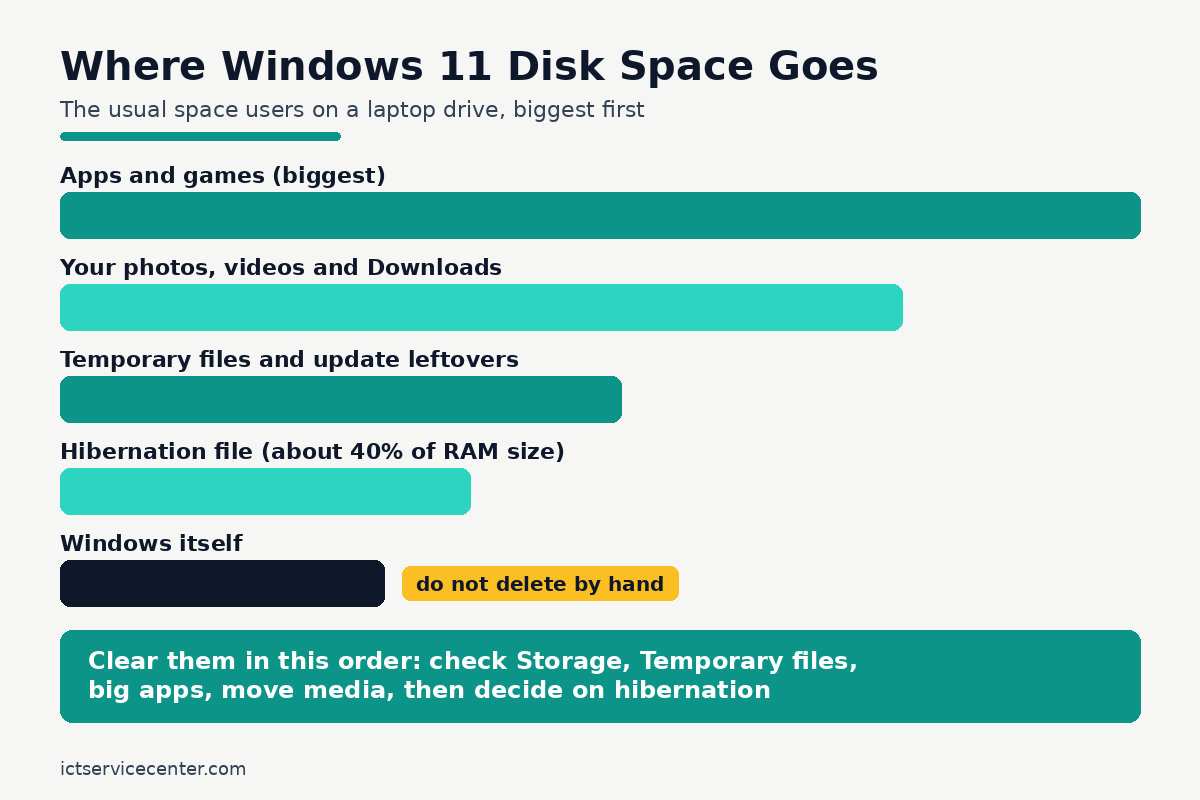
A full drive slows Windows 11 down, blocks updates and leaves no room for new files. Most of that space is held by temporary files, old downloads and a few oversized apps, and Windows has safe built-in tools to clear all of it.
In short: Start in Settings > System > Storage to see what is actually taking space, turn on Storage Sense, clear Temporary files, then move big personal files off the drive. Most laptops free 10 to 40 GB this way without deleting anything important, and the whole pass takes about 30 minutes.
Key takeaways
- Check the Storage page first, so you clear the biggest category instead of the easiest one.
- Storage Sense and Temporary files remove cache and update leftovers safely, but both can delete your Downloads if you let them.
- The hibernation file alone can hand back several gigabytes on a laptop with plenty of RAM.
- Move photos, videos and game libraries to an external drive or OneDrive instead of deleting them.
- Keep 10 to 15 percent of the drive free, so updates and the page file always have room.
1. See what is actually filling the drive

Do not delete anything yet. Open Settings > System > Storage and give Windows a few seconds to finish scanning. You get a bar for the drive and a list of categories with a size beside each one, and those sizes tell you where the real gains are.
The categories that matter most are Installed apps, often the largest on a gaming or work laptop, Temporary files, which is safe ground covered below, and Documents, which points at your own files. The Other category holds files Windows cannot classify, often a game library or a forgotten archive.
Click any category to open it and see the biggest items inside. Our walkthrough of how to check laptop storage usage shows how to read each category and sort folders by size. Note your top two categories, then work through the steps below in order.
2. Turn on Storage Sense and set it carefully
Storage Sense is the automatic cleaner built into Windows 11. Once it is on, it removes temporary files and old Recycle Bin contents on a schedule, so the drive stops creeping back to full.
- Open Settings > System > Storage and select Storage Sense.
- Switch on Automatic User content cleanup.
- Under Run Storage Sense, pick When Windows decides or Every month. The low free space option also works well on small drives.
- Set Delete files in my recycle bin if they have been there for over to 30 days, which gives you a month to rescue anything binned by mistake.
- Leave the Downloads setting at Never for now. The warning below explains why.
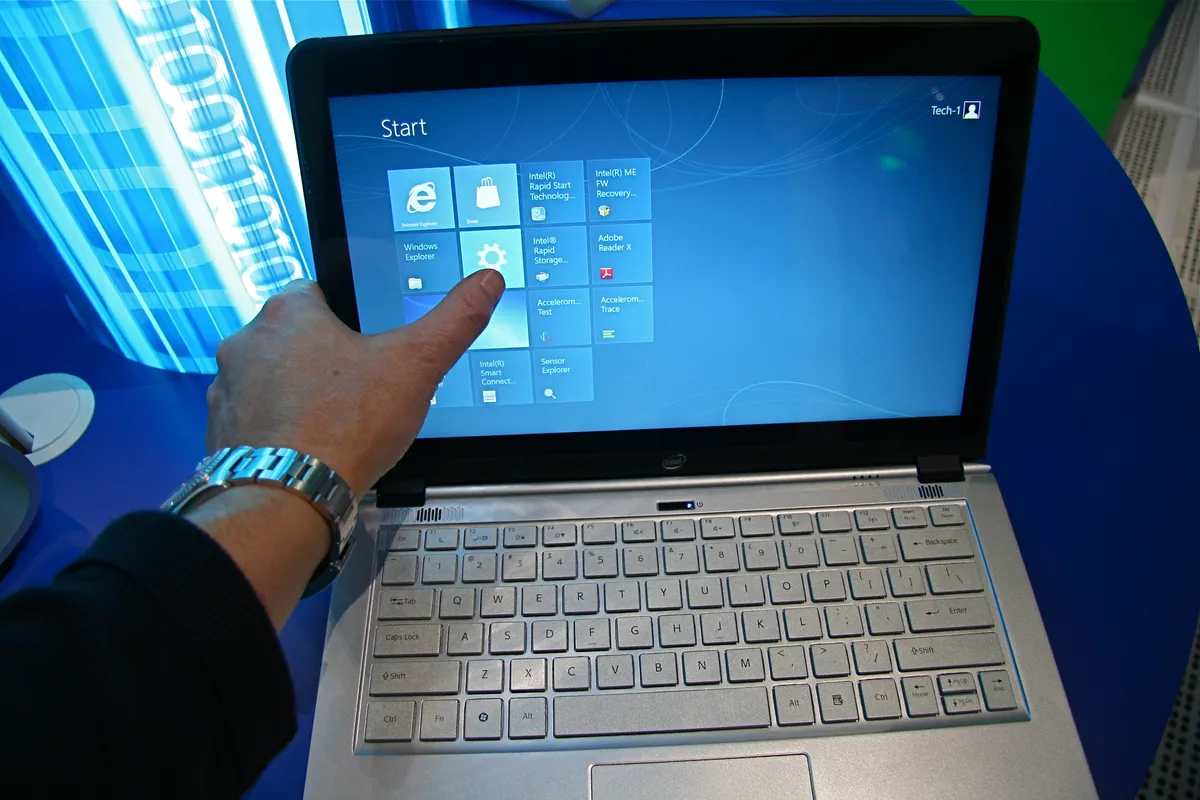
Warning: Storage Sense can delete files in your Downloads folder once they pass the age limit you set, and it does not ask first. Downloads holds installers, statements, PDFs and photos you saved on purpose, not just junk. Keep the Downloads cleanup window at Never until you have sorted that folder by hand in step 7.
3. Clear Temporary files
Back on the Storage page, select Temporary files. Windows lists every kind of leftover it can remove, with a size beside each one and a short note on what it holds. Most of the list is safe to clear:
- Windows Update Cleanup: files left after updates install. Often several gigabytes after a big feature update.
- Temporary files: cache and working files that apps have finished with.
- Thumbnails: the small preview images for your folders. Windows rebuilds them as you browse.
- Delivery Optimization Files: update files kept for sharing with other PCs on your network.
- Recycle Bin: only tick this if you have already checked the bin for anything you want back.
Tick the boxes you want, then select Remove files. One box needs the same care as Storage Sense: Downloads appears here too, and ticking it deletes the contents of that folder. Leave it unticked and handle Downloads by hand later.
4. Uninstall the big apps and games you no longer use
Open Settings > Apps > Installed apps and sort the list by size, largest first. This one screen often explains the whole problem: a single modern game can take 80 to 150 GB, and many laptops carry two or three games that have not been opened in a year.
Select the three-dot menu beside an app and choose Uninstall. Work through expired trials, old versions of work software, and launchers for games you have finished. Leave anything from Microsoft that mentions drivers, runtimes or frameworks, plus your laptop maker’s driver and firmware tools. If a name means nothing to you, search the exact name before removing it. Restart once afterwards so the Storage page sizes refresh.
5. Move big files to an external drive or the cloud
Personal media is the safest space to reclaim, because moving a file deletes nothing. Open your Videos, Pictures and Downloads folders, sort each by size, and look for the usual heavyweights: phone backup folders, screen recordings, old video projects and downloaded films.
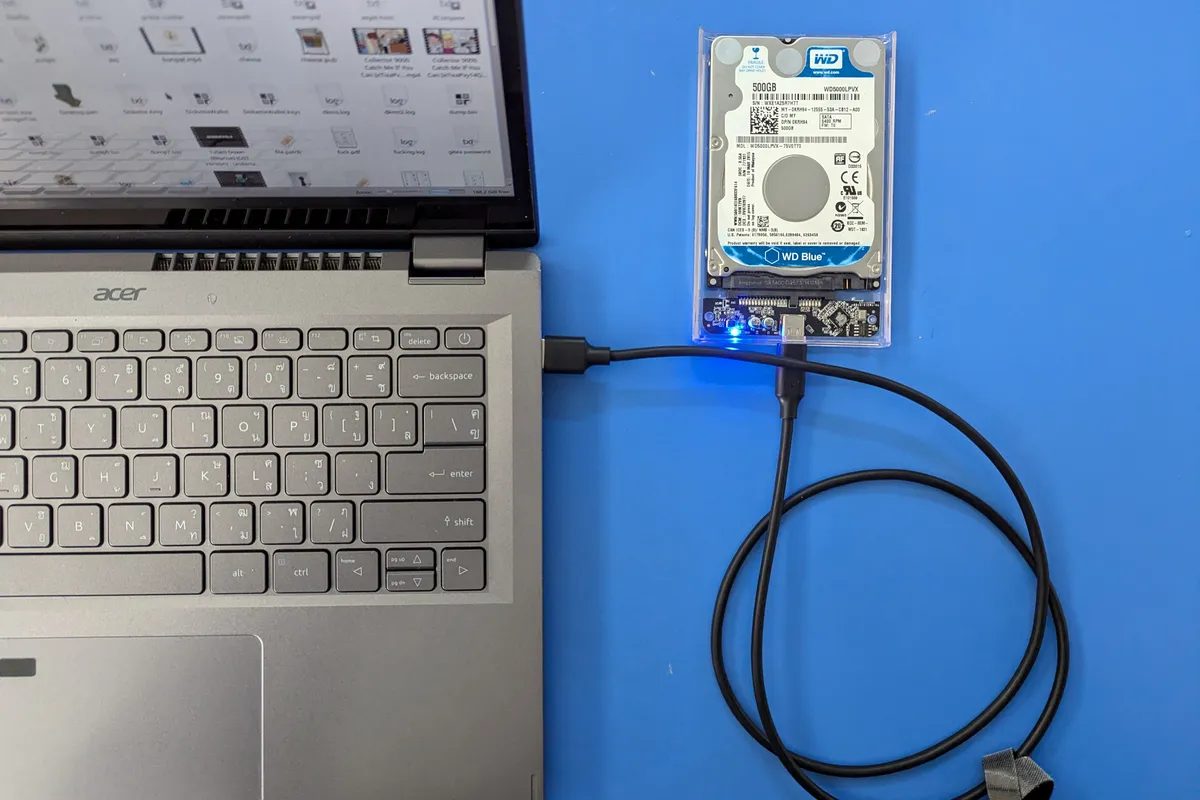
Copy those folders to an external drive, confirm the copies open, then delete the originals from the laptop. If you are new to external drives, our explainer on what an external storage device is covers the types and connectors.

Big enough for a photo and video archive, fast enough that copying 100 GB takes minutes, and it works as the backup drive afterwards.
- Create; Explore; Store; The T7 Portable SSD delivers fast speeds and durable features
- Don’t waste a second waiting and spend more time doing; The T7 is embedded with PCIe
OneDrive gives you the same result without a drive on your desk. With Files On-Demand, a file can live in the cloud and show on the laptop as a small placeholder that downloads when you open it:
- Open File Explorer and find the folder under OneDrive.
- Right-click the folder and choose Free up space.
- The folder icon gains a cloud outline, which means the local copy has gone and the cloud copy remains.
Use this for archives you open rarely, such as last year’s photos. Keep files you need offline pinned with Always keep on this device. One caution: a moved file is not a backed-up file. Keep a second copy of anything you cannot replace.
6. Shrink or remove the hibernation file
Windows keeps a hidden file called hiberfil.sys on the system drive, sized at roughly 40 percent of your installed RAM. On a laptop with 16 GB of RAM that is about 6.5 GB, and on a 32 GB machine it is close to 13 GB. If you never use Hibernate, that space can come back.
- Press Start, type cmd, right-click Command Prompt and choose Run as administrator.
- Type powercfg /hibernate off and press Enter. The hiberfil.sys file is removed at once.
- To restore it later, repeat the steps with powercfg /hibernate on.
The trade-off is real: turning hibernation off removes the Hibernate option and disables Fast Startup, so the laptop may take a little longer to boot. Sleep mode still works. If you use Hibernate daily, skip this step. Never try to delete hiberfil.sys by hand in File Explorer; the powercfg command is the only safe route.
7. Empty the Recycle Bin and sort Downloads by hand
Files in the Recycle Bin still take up their full space until the bin is emptied. Right-click the Recycle Bin on the desktop, choose Empty Recycle Bin, and glance at the list before you confirm.
Then open Downloads and sort by size. The usual waste here is installers for apps that are already installed and running, and a months-old installer is out of date anyway, so deleting it costs nothing. Move anything you want to keep into Documents or Pictures, delete the rest, then empty the Recycle Bin one last time so the space actually returns.
8. Run Disk Cleanup after big updates, then keep headroom
The older Disk Cleanup tool still earns its place for system files, and gives a clear total before you commit. Our step-by-step Disk Cleanup guide for laptops walks through every box, including the Clean up system files pass. Run it after each big Windows feature update, when several gigabytes of old update files are waiting.
Once the drive has room again, the aim is to keep it that way. Try to hold at least 10 to 15 percent of the drive free at all times.
Windows stages updates in that space and uses it for the page file, so a drive at 98 percent full brings failed updates and slowdowns.
Drives refill for ordinary reasons, and our post on why laptop storage fills up quickly lists the common ones to watch.
If you worked through every step above and the free space figure barely moved, something less obvious is holding the space, such as restore points or a stuck update cache. Our guide to laptop storage not freeing up space covers those cases one by one. For the rest of the routine care a laptop needs, see the guides in our laptop maintenance hub.
Mistakes to avoid
Deleting Downloads blindly. Both Storage Sense and the Temporary files page can wipe the Downloads folder, and that folder holds files you saved on purpose. Fix: keep both Downloads settings off, and sort the folder by hand.
Removing system folders by hand. Never delete the Windows folder, the WinSxS folder or anything inside Program Files yourself. Windows manages those, and removing files there can stop the laptop from starting. Fix: use only the tools in this guide, which clear system files safely.
Paying for cleaner apps. Registry cleaners and driver booster style tools add nothing Windows lacks, and some bundle unwanted software or charge for scans of invented problems. Fix: skip them. Storage Sense, Temporary files and Disk Cleanup do the real work for free.
Formatting the recovery partition. That small partition looks like wasted space, but it holds the tools that reset or repair Windows when the main system will not start. Fix: leave it alone. The few gigabytes are not worth losing your safety net.
Frequently asked questions
Is it safe to delete temporary files in Windows 11?
Yes. The Temporary files page in Settings only lists files Windows can remove without harming your apps or documents, such as update leftovers, cache and thumbnails. Two boxes need a look before you tick them: Recycle Bin, in case something in there is worth rescuing, and Downloads, which holds real files.
How much free space should I keep on a Windows 11 drive?
Keep at least 10 to 15 percent of the drive free. On a 256 GB drive that means roughly 25 to 38 GB. Windows uses that space to stage updates and for the page file, so a nearly full drive leads to failed updates, slower app launches and warnings that interrupt your work.
What is hiberfil.sys, and can I delete it?
It is the file Windows uses for Hibernate, and it takes about 40 percent of your RAM size. Do not delete it in File Explorer. Open Command Prompt as administrator and run powercfg /hibernate off, which removes the file cleanly. The cost is losing Hibernate and Fast Startup until you turn it back on.
Why did my drive fill up again a week after cleaning?
Usual causes are a Windows feature update staging its files, a game updating itself, cloud folders syncing back down, or an app cache growing again. Turn on Storage Sense so the routine clutter clears itself, and check the Storage page monthly to spot which category is growing.
Will freeing up space delete my photos and documents?
Not if you stick to the tools in this guide. Storage Sense, Temporary files and Disk Cleanup only touch cache, update leftovers and the Recycle Bin. Your photos and documents go only if you tick the Downloads box or set Downloads cleanup in Storage Sense, which is why this guide handles that folder by hand.
Bottom line: Work in order: look, automate, clear, move. The Storage page shows where the space went, Storage Sense handles the routine clutter from then on, and moving big media off the drive settles the rest. Keep 10 to 15 percent free and the full drive warning stays away.
Sources: Microsoft Support, Free up drive space in Windows (https://support.microsoft.com/en-us/windows/free-up-drive-space-in-windows-85529ccb-c365-490d-b548-831022bc9b32); Microsoft Support, Manage drive space with Storage Sense (https://support.microsoft.com/en-us/windows/experience/storage-filemanagement/manage-drive-space-with-storage-sense). Photos: credited per image.