
You are staring at a laptop storage bar that is almost red, or a pile of camera SD cards you need to get a computer. This page tells you exactly what an external storage device is, which type fits your speed or size needs, and where to get one.
In short: An external storage device is any removable drive that holds data outside your computer's main case. It connects through ports like USB or Thunderbolt to give you extra space or a way to move files. The two main types are solid-state drives for speed and hard disk drives for capacity.
Our pick
Tap to see today's price on Amazon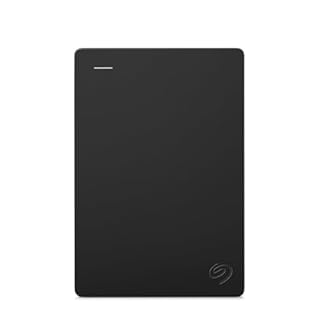
Offers a simple, compact way to add terabytes of space for backups and media without opening your PC.
What external storage is and why it is separate
External storage is any device that sits physically outside your computer’s main chassis. It acts as an extension of your built-in hard drive, but it stays independent. It holds data even when your computer is completely off and unplugged. For the detail, see our notes on using the empty slots.
The defining trait is the connection point. These drives plug into a port on the outside of your machine. They never replace the main internal storage where your operating system and apps live.
- Portability: You can take your files with you anywhere the computer goes.
- Capacity: It instantly adds extra space when your internal drive is full.
- Separation: It keeps your data safe if your main computer fails.
This separation is why it is your best first line of defense against data loss. If your internal drive crashes, the files on the external drive remain untouched and accessible.
Safety first: Keep external drives in a bag or case when traveling to protect them from drops.

Gives you a physical, separate drive for your files.
- 【Versatile Storage Expansion – For Gaming, Work & Everyday Use】 Running out of space on
- 【Patented Silicone Sleeve – Data Protection You Can Count On】 Worried about drops?
How the connection and power actually work
Most external drives use the Universal Serial Bus or USB standard. This single cable often provides both the data connection and the electrical power to run the drive.
The speed of that cable is the main limit. A basic USB 2.0 port is fine for documents, but high-speed drives need a USB 3.0 or Thunderbolt port to move large files quickly. Check your port colors: blue usually means USB 3.0, which is much faster.
- Physical connection: The cable bridges your computer’s port to the drive.
- Power delivery: The port sends electricity to keep the drive spinning or active.
- Data transfer: The computer sees the drive as a simple folder in your file system.
For portable hard drives, the USB port supplies enough power. For larger desktop drives, you usually need to plug them into a wall outlet for extra power. We go through storage impact on pc speed step by step in its own article.
The main types and where each one fits
External storage comes in two major physical styles: solid-state drives and hard disk drives. There are also small, key-sized USB flash drives.
Understanding the difference helps you pick the right one for speed, size, or budget.
| Type | Best For | Key Trait |
|---|---|---|
| External SSD | Speed & Editing | Flash memory, no moving parts, very fast. |
| External HDD | Bulk Backup | Spinning disks, holds terabytes cheaply, slower. |
| USB Flash Drive | Quick Transfers | Tiny, plug-and-play, good for single files. |
Solid-state drives are silent and durable, making them great for moving video projects. Hard drives are best for large collections of files that you do not touch often.
When you actually need one in real life
Your first need is the 3-2-1 backup rule. It says to keep three copies of your data on two different types of storage, with one copy off-site. An external drive is your second copy.
Media creators also need them. Video editors often work with files too large for a built-in drive. An external drive holds the whole project so it can be moved between a studio and a home office.
- Backups: A scheduled copy of your whole computer.
- Media Libraries: Storing thousands of photos and videos.
- Gaming: Moving less-played titles off your main drive.
This means you can keep your main computer fast for active work while the external drive handles the heavy lifting of storage. Before you buy anything, it is worth looking at main laptop types.
Pro tip: Do not keep your only backup on the same physical desk as your computer. The drive is your safety net, keep it in a drawer.
Common mistakes to avoid when picking one
A frequent myth is that all external drives are the same. They are not. A cheap hard drive that spins will never match the speed of a solid-state drive.
Another mistake is trusting any drive without checking the power source. If you are using a high-speed portable drive over a laptop battery, it can drain your power fast. Check your laptop settings to see which drive is using the most power.
- Myth: External drives do not need formatting. Fact: You must often format a new drive so your operating system can write to it.
- Myth: A bigger drive is always better. Fact: A smaller, faster solid-state drive is often better for everyday use.
Be careful with third-party formatting tools, as they can erase all your data on the drive by mistake.
How to choose the right device for you
Your first choice is always about speed versus size. If you need to edit large video files or move massive games, choose a solid-state drive. If you just need to keep years of photos safely backed up, choose a hard drive.
Check your computer first. Older machines may only have basic USB 2.0 ports, which will make even a fast drive run slowly. A modern computer with a USB-C port is ready for top speed.
- Define the use: Are you backing up or editing?
- Check your ports: See what your computer supports.
- Match the type: Pick solid-state for speed, hard drive for space.
Start with a smaller capacity if you are unsure, as you can always add a second drive later for more space.
The bottom line
For most people, a basic portable hard drive is the simplest way to get extra space and start a backup routine. If your main goal is speed for large files, look for a solid-state drive. Always match the device to the type of port your computer actually has.
- Easily store and access 1TB to content on the go with the Seagate Portable Drive, a USB
- Designed to work with Windows or Mac computers, this external hard drive makes backup a
Frequently asked questions
Is external storage faster than my internal drive?
Usually no, but it is getting closer. A solid-state external drive is much faster than a hard drive, but it still cannot beat the speed of a built-in solid-state drive because it goes through a cable connection.
Can I use an external drive with any computer?
Yes, almost any. As long as you have the matching port, such as a standard USB port, the drive will plug in and be recognized. Older Macs and PCs work with new drives just fine.
Do I need to install special software for it to work?
For basic use, no. Modern operating systems recognize standard drives automatically. You only need to download the manufacturer’s software if you want to set up automatic backups or use built-in encryption.
What is the safest way to store files externally?
Use the 3-2-1 method: keep one backup on an external drive at home, and one copy in the cloud. This protects your files from physical damage, theft, and computer failure all at once.