
 By
You can stop your palm from moving the cursor while you type by clearing one checkbox in Windows 11, and the touchpad wakes up again the moment you unplug the mouse.
In short: Press Win + I, open Settings, then Bluetooth and devices, then Touchpad. Expand the Touchpad switch and clear Leave touchpad on when a mouse is connected. Windows then ignores the touchpad while a mouse is connected and turns it back on when you unplug the mouse. No restart is needed, and nothing is uninstalled.
Key takeaways
- The checkbox is a condition, not a power switch: the touchpad comes back as soon as the mouse is gone.
- The master Touchpad switch turns the touchpad off for good, until you turn it back on.
- If the checkbox is missing, your laptop uses a maker driver instead of a Precision touchpad driver, so check Additional mouse settings or the maker app.
- Disabling the touchpad in Device Manager is the hard off: only Device Manager can turn it back on.
What the checkbox actually does
The setting is called Leave touchpad on when a mouse is connected, and it is on by default.
Microsoft documents it as the control that decides whether the touchpad may stay active when an external mouse is present, and when it is inactive, any input the touchpad produces is ignored.
Clearing the box does not switch the touchpad off; it tells Windows to ignore it only while a mouse is connected. We cover stop laptop thermal throttling in a guide of its own.
A palm brushing the touchpad while you type stops moving the cursor, but the moment you unplug the mouse or its receiver, the touchpad works again. The same applies to a Bluetooth mouse, with one catch: if the mouse goes to sleep, Windows may treat it as disconnected, and the touchpad comes back until the mouse wakes.
A USB receiver left in a port also counts as a connected mouse. If the touchpad seems dead, check for a small receiver you forgot about before you assume the touchpad is broken.
| Method | Where it lives | What it does |
|---|---|---|
| Settings checkbox | Settings > Bluetooth & devices > Touchpad | Touchpad off only while a mouse is connected |
| Touchpad switch | Same page, master switch at the top | Touchpad off until you turn it back on |
| Device Manager | Mice and other pointing devices | Touchpad off until you re-enable it there |
| Mac Pointer Control | System Settings > Accessibility > Pointer Control | Trackpad ignored while a mouse or wireless trackpad is present |
This article is a settings guide, not a repair guide. If the touchpad stays dead after you unplug the mouse and tick the checkbox again, that is a fault, not a setting, and our guide to a laptop touchpad not working walks through the fixes in order.
Turn it off in Windows 11 Settings
Use this method first: it is quick, easy to undo, and leaves the touchpad working whenever the mouse is not there.
- Connect the mouse you plan to use, wired or wireless, so you can test the result at once.
- Press Win + I to open Settings, then select Bluetooth and devices.
- Select Touchpad. Make sure the Touchpad switch at the top is On.
- Select the small arrow next to the Touchpad switch to expand it.
- Clear the Leave touchpad on when a mouse is connected check box, then slide a finger across the touchpad. The pointer should not move, while the mouse still moves it.
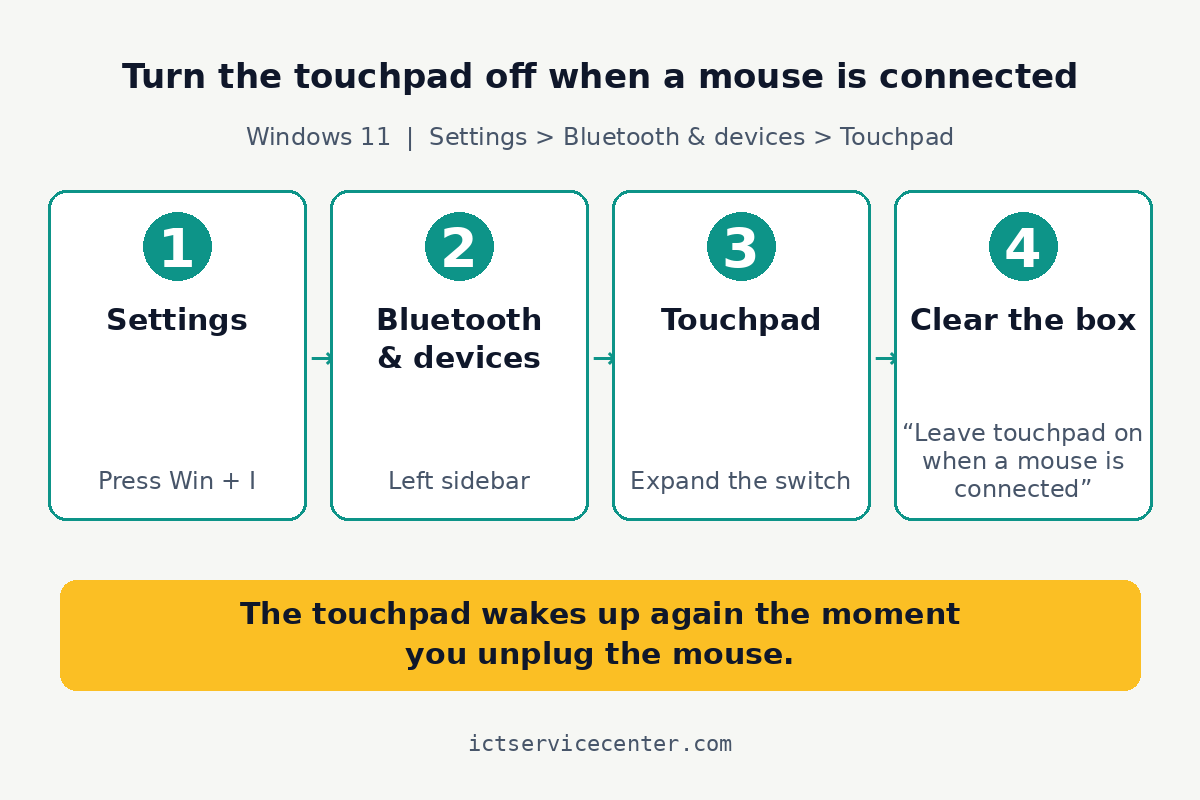
Test it the way you will use it: rest your palms where they sit when you type and type a few lines. If the cursor stays put, the setting is doing its job. If the touchpad still moves the pointer, check that the mouse is really connected. A wireless mouse that is off or out of range does not count.
If the mouse itself is new to this laptop, our guide on how to connect a keyboard and mouse covers the wired, receiver, and Bluetooth paths. Loaders in this spot often ask about keep laptop running as well.
The same setting on Windows 10
Windows 10 has the same checkbox in a different place. Open Settings, then Devices, then Touchpad, and clear Leave touchpad on when a mouse is connected.
Behaviour is the same on both versions: the touchpad is ignored while a mouse is connected and returns when it is removed. If you follow a Windows 11 guide on a Windows 10 laptop, only the path differs, so use Devices instead of Bluetooth and devices.
When the checkbox is missing: older laptops and maker software
On some older laptops the Touchpad page shows only the master switch, or it is missing entirely. That usually means the laptop does not use a Windows Precision touchpad driver, and the touchpad is managed by the maker driver instead, often Synaptics or ELAN.
Look for the maker controls first. At the bottom of the Touchpad page, select Additional mouse settings, which opens the Mouse Properties window. The maker driver adds its own tab there, often labelled for Synaptics or ELAN. Look on that tab for an option to disable the touchpad when an external pointing device is attached; the exact wording varies by maker and driver version.
If the maker tab is missing too, update the touchpad driver through Windows Update, which Microsoft recommends as the first method for touchpad driver updates. Open Settings, then Windows Update, select Check for updates, then open Advanced options, then Optional updates, and install any touchpad driver listed there.
Some makers also ship their own settings app, such as Lenovo Vantage, and Dell and HP ship touchpad settings with their support tools.
These apps sometimes carry the same switch, but the names and locations change with the model and app version, so check the maker support page for your exact model rather than downloading a driver tool from anywhere else.
Our tips to keep your laptop touchpad working smoothly cover cleaning and care for any touchpad.
Turn the touchpad off completely in Device Manager
Device Manager is the hard off. Use it only when you want the touchpad gone in every situation, not just while a mouse is connected, and only when a working mouse is already connected.
- Connect a working mouse first, then press Win + X and select Device Manager.
- Expand Mice and other pointing devices. On some laptops the touchpad sits under Human Interface Devices instead.
- Right-click the touchpad entry, which is usually named for the maker, such as Synaptics, ELAN, or HID-compliant touch pad, and select Disable device.
- Confirm the warning, then test the touchpad. It should not move the pointer at all, with or without the mouse connected.
Before you do this, check the keyboard for a touchpad key. Many laptops have one, usually an F key marked with a touchpad icon, pressed on its own or with Fn. It is faster than Device Manager, and the same key turns the touchpad back on.
If the mouse dies after you disabled the touchpad in Device Manager, you are not stuck. Press the Win key, type Device Manager, and press Enter. Press Tab to reach the device tree, use the arrow keys to reach the touchpad entry, press Shift + F10 to open its menu, and choose Enable device. The touchpad works again at once.
Do not uninstall the touchpad driver as a way to turn it off. Windows will usually reinstall it at the next restart, which puts you back where you started, and if it does not, you have a driver problem on top of a settings question. If the pointer misbehaves after any of these changes, our guide to fix laptop cursor issues separates a settings problem from a driver problem.
The same idea on a Mac
A MacBook has the same idea in a different place. Open System Settings, then Accessibility, then Pointer Control, and turn on Ignore built-in trackpad when mouse or wireless trackpad is present.
The built-in trackpad is then ignored whenever a mouse or wireless trackpad is connected, and it comes back when you disconnect the mouse.
On older macOS versions the same option sits under System Preferences, then Accessibility, then Mouse and Trackpad; the name of the setting is the same.
Keep in mind that the trackpad on a MacBook is also how you click, so turn this on only while a mouse is connected and working.
If the trackpad still does not move the pointer after you turn the setting off again, Apple advises checking that you are using one finger, since two fingers scroll rather than move the pointer, and connecting the Mac to power in case a hidden low-battery alert is blocking input.
When to leave the touchpad on instead
Turning the touchpad off suits a desk setup where the mouse never leaves. It suits travel and shared use far less. If you move between the mouse and the touchpad during the day, for example to scroll with two fingers, leave the checkbox ticked.
Bluetooth mice are another reason to leave it on. A mouse that sleeps between uses can let the touchpad wake up mid-sentence, then go quiet again when the mouse wakes. That on-and-off behaviour is more distracting than a touchpad that simply stays on.
On a laptop other people use, think twice before changing a setting they will not expect. A touchpad that does nothing looks broken to the next person, and they will not know about a checkbox you cleared, so turn it back on when you finish.
If the mouse itself is the weak link, a comfortable replacement is the simpler fix, and our roundup of the best wireless mouse for a laptop covers the shapes and sizes worth trying.
Mistakes to avoid
Turning off the master Touchpad switch instead of clearing the checkbox. The touchpad then stays off after you unplug the mouse, which looks like a fault. The fix: turn the switch back on, then clear only the checkbox.
Disabling the touchpad in Device Manager first. The Settings checkbox cannot undo it, so the touchpad stays dead. The fix: re-enable it in Device Manager with the keyboard steps above.
Leaving a USB receiver plugged in and thinking the setting failed. Windows still sees the receiver as a connected mouse. The fix: unplug the receiver or switch the mouse off.
Changing the setting on a shared laptop without saying so. The next person finds a dead touchpad and assumes it is broken. The fix: turn the setting back on when you finish.
Treating a dead touchpad as a settings problem. If the touchpad does nothing with no mouse connected and the checkbox ticked, no setting will fix it. The fix: work through the repair guide linked above.
Frequently asked questions
Does the touchpad turn back on by itself?
Yes, if you used the Settings checkbox. Windows watches for the mouse, and the touchpad starts working again as soon as you unplug the mouse or remove its receiver. You do not need to open Settings again or restart the laptop.
Will this work with a Bluetooth mouse?
Yes, Windows treats a connected Bluetooth mouse the same as a wired one, so the touchpad is ignored while the mouse is paired and awake. If the mouse goes to sleep, Windows may treat it as gone and the touchpad comes back until the mouse wakes.
Why is the checkbox missing?
The checkbox belongs to the Windows Precision touchpad driver. If your laptop uses a maker driver, such as Synaptics or ELAN, the Touchpad page may show only the master switch. Check Additional mouse settings, or the maker app, for the equivalent switch.
How do I turn the touchpad back on after disabling it in Device Manager?
Open Device Manager with the keyboard: press the Win key, type Device Manager, and press Enter. Tab to the device tree, use the arrow keys to reach the touchpad entry, press Shift and F10, and choose Enable device. The touchpad works again at once.
Does this setting also turn off touchpad gestures?
Yes. While the checkbox is cleared and a mouse is connected, Windows ignores all touchpad input, including taps, scrolling, and multi-finger gestures. The gestures return with the touchpad as soon as you unplug the mouse, so nothing is lost for good.
Bottom line: Clear Leave touchpad on when a mouse is connected in Settings, then Bluetooth and devices, then Touchpad, and the touchpad stays out of your way at your desk and returns when you unplug the mouse. Save Device Manager for a touchpad you want off in every situation, and read our maintenance guides for the next job.
Sources: Microsoft Support, Fix touchpad problems in Windows (support.microsoft.com); Microsoft Learn, Precision touchpad tuning guidelines (learn.microsoft.com); Apple Support, If the pointer does not move when using the trackpad with Mac (support.apple.com). Photos: Helena Lopes, 500photos.com, Thirdman, Boris Hamer, cottonbro studio via Pexels. Diagram: ictservicecenter.com.