
 By
You have a printer next to your laptop, and now the two need to talk. Windows 11 and macOS do most of the work once the printer is plugged in or on the same network.
In short: Pick USB, Wi-Fi, or Bluetooth. For USB, plug the cable in and turn the printer on. For Wi-Fi, join the printer to the same network as the laptop, then open Settings > Bluetooth & devices > Printers & scanners and select Add device. For Bluetooth, put the printer in pairing mode and add it from the same page. Then print a test page.
Key takeaways
- USB is the fastest way to a first print: plug the cable in and Windows usually installs it.
- Wi-Fi suits a household: put the printer and the laptop on the same network, then add it in Settings.
- Bluetooth works at short range, but it is slower than Wi-Fi and not every printer has it.
- Get drivers from Windows Update or the maker’s own support site, never from a third-party driver site.
- If Windows cannot find the printer, check the network name, restart both devices, and run the Printer troubleshooter.
Which way should you connect your printer?
Pick the connection that fits where the printer sits. A printer on the same desk is a USB job. A printer the household shares belongs on Wi-Fi. Bluetooth is the fallback for a printer with no Wi-Fi that sits close to the laptop. It helps to understand setting up wireless peripherals before going further.
| Way | Best for | What it needs |
|---|---|---|
| USB cable | One laptop and one printer on the same desk | A USB-A to USB-B printer cable and a free USB port |
| Wi-Fi | A printer the whole household uses | Printer and laptop on the same network name |
| Bluetooth | A quick print from a laptop sitting next to the printer | A printer with Bluetooth and Bluetooth on in Windows |
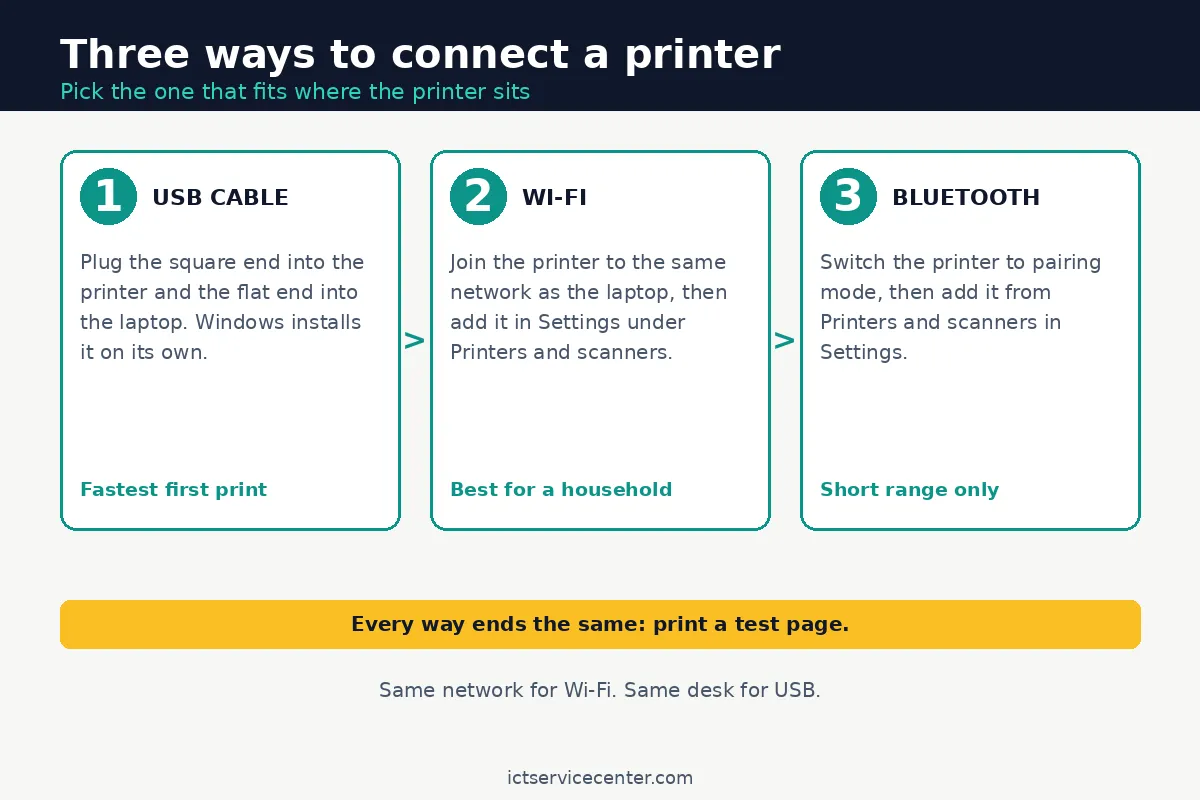
If the printer is already on your network, skip to the Wi-Fi steps. Our guide to connect a monitor to a PC covers the wired side of a desk setup, and our guide to use a laptop as a second monitor shows another way to put two devices to work together.
Connect a printer by USB cable
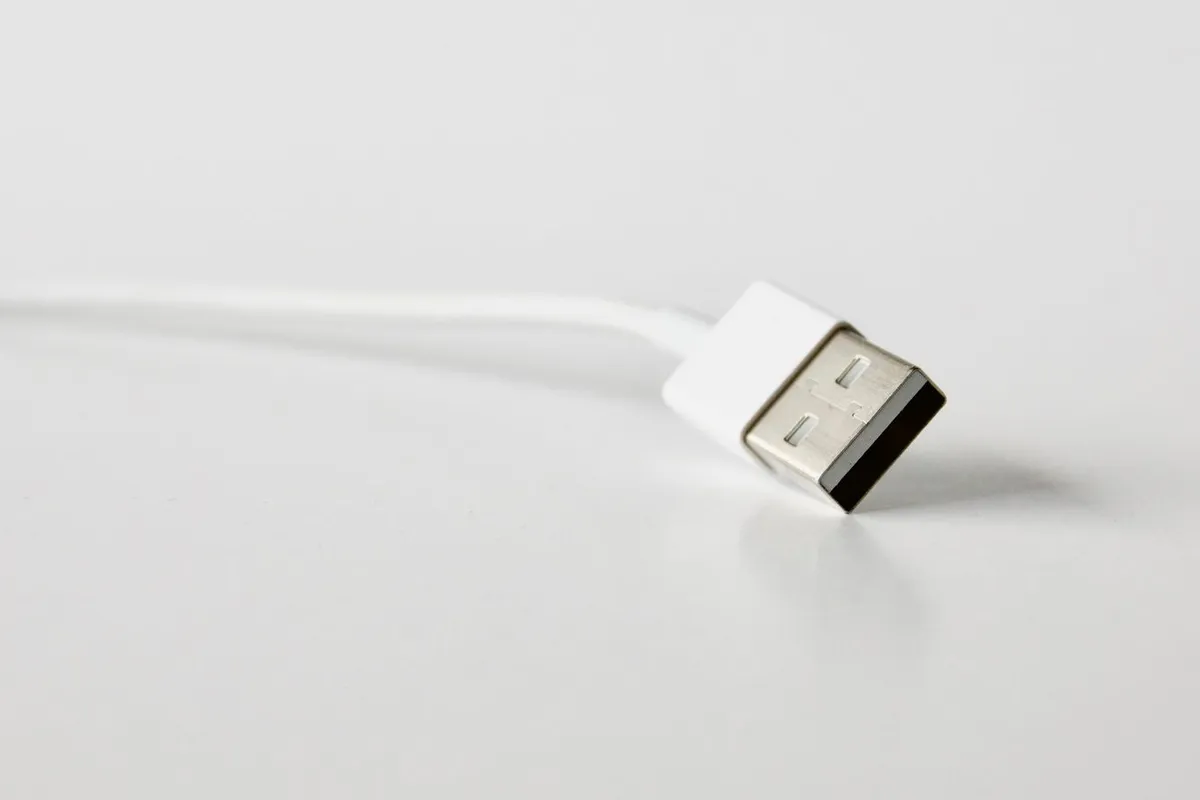
USB is the most reliable first connection, and the one to try when Wi-Fi setup keeps failing. The printer cable is not a phone charging cable: the printer end has a square USB-B plug and the laptop end has the flat USB-A plug.
- Turn the printer on, load paper, and check that no error light is showing.
- Plug the square USB-B end into the printer and the flat USB-A end into the laptop.
- Wait about a minute while Windows installs the printer on its own.
- Open Settings > Bluetooth & devices > Printers & scanners. If the printer is not listed, select Add device and pick it from the search.
- Print a test page. If it prints, the cable, the connection, and the driver all work.

Printers use a square USB-B socket, so a phone charging cable will not fit the printer end.
- Ideal Printer Scanner Cable: UGREEN USB 2.0 printer cable is ideal for connecting your
- High-Speed Transfer: Up to 480 Mbps transfers data speed for USB 2.0 devices, the USB
Many thin laptops have USB-C ports only. Plug the printer cable into a USB-C to USB-A adapter first. Check that the adapter passes data, not power only: a charge-only adapter will not carry the printer connection.

Lets a standard printer cable plug into a laptop that has no full-size USB-A port.
- Attention: This usba to usbc adapter is not applicable for wireless charger and video
- Simple & Convenient: The usb-c to usb-a converter turns USB ports into USB C ports to
Connect a printer over Wi-Fi
Wi-Fi is the setup most households want, since any device on the same network can print without a cable. The rule that matters is that the printer and the laptop share one network name: a printer on the guest network will not show up for a laptop on the main network.
- On the printer screen, open the wireless settings and join the same network name the laptop uses.
- Check the printer screen shows it is connected.
- On the laptop, open Settings > Bluetooth & devices > Printers & scanners and select Add device.
- Wait for the search, then select Add device next to the printer. If it never appears, select Add a new device manually and add it by its IP address.
- Print a test page to confirm the setup.
Many home printers only see the 2.4 GHz band, so if the router splits the bands into two names, join the printer to the 2.4 GHz one. The same wireless idea works for screens: our guide to connect a laptop to a TV wirelessly uses the same same-network rule.
On a Mac, open System Settings > Printers & Scanners, select Add Printer, Scanner, or Fax, pick the printer, and select Add. If both are already on the same network, the printer may need no setup, since macOS usually uses AirPrint.
Connect a printer by Bluetooth
Bluetooth suits a small portable printer, or one with no Wi-Fi. It is slower than Wi-Fi and only works over a short range, so keep the laptop close and use Wi-Fi or USB for large files. There is more on how bluetooth communication works in a separate guide.
- Turn the printer on and switch on Bluetooth pairing mode. The button differs by model, so check the printer manual.
- On the laptop, open Settings > Bluetooth & devices and switch Bluetooth On.
- Open Printers & scanners and select Add device next to Add a printer or scanner.
- Wait for the search, then select Add device next to the printer and confirm any pairing code shown on both screens.
- Print a test page.
Check that the printer really has Bluetooth first: many printers marked wireless use Wi-Fi only, and no pairing will find a radio that is not there. Look for the Bluetooth mark on the printer or in its manual. If the printer never appears, read our guide to Bluetooth not working on a laptop before you buy anything.
Install the driver and print a test page
A driver turns a document into instructions the printer understands. Windows installs a basic driver on its own for most printers, and that is enough for plain printing. The full driver from the maker adds duplex printing, paper sizes, ink levels, and the scanner.
- Let Windows try first: if the printer appears in Printers & scanners, the basic driver is in place.
- Check Windows Update: open Settings > Windows Update, select Check for updates, and look under Advanced options > Optional updates.
- If a feature is missing, get the full driver from the printer maker’s own support site. Search the exact model number and run the Windows 11 driver.
- Never download a driver from a third-party driver site: those sites bundle installers you did not ask for, and a wrong driver can leave the printer worse off than the basic one.
- Print a test page, then set the printer as the default on its printer page. If Set as default is missing, turn off Let Windows manage my default printer first.
On a Mac, printer software arrives through Software Update, so update macOS first if a feature is missing. If the test page prints but one app will not print, the fault is in that app, not the connection.
Share the printer on your home network
Sharing lets a second laptop print through the first one, with no extra cable and no second setup. The host PC passes jobs along. Set the network to Private first: Windows turns file and printer sharing off on Public networks.
- On the host PC, print a test page first. A shared printer that does not print locally will not print for anyone else.
- Set the network to Private: open Settings > Network & internet, select Wi-Fi or Ethernet, select the network, and choose Private.
- Turn sharing on: open Settings > Network & internet > Advanced network settings > Advanced sharing settings, expand Private networks, and switch on Network discovery and File and printer sharing.
- Share the printer: in Printers & scanners, select the printer, choose Printer properties, open the Sharing tab, select Change Sharing Options, tick Share this printer, and note the Share name.
- On the second PC, open Printers & scanners and select Add device. If the printer does not appear, select Add manually, choose Select a shared printer by name, and type two backslashes, the host computer name, one backslash, and the share name.
The host PC must stay on and awake while others print, or jobs from the second PC will sit in the queue. A printer with its own Wi-Fi connection avoids this. Sharing files works the same way: our guide to transfer files from a laptop to a phone covers the same home network idea.
Fix it when the printer will not connect
Start with the symptom that matches what you see. A printer that is off, asleep, out of paper, or on the wrong network explains most failed setups.
| Symptom | Likely cause | Fix |
|---|---|---|
| Printer not found in the search | Different network, or the printer is asleep | Check the network name on the printer screen, wake the printer, and run Add device again |
| Printer shows offline | Stuck job, or the printer lost the network | Restart the printer, open the print queue, and cancel stuck jobs |
| Driver error after adding | Wrong or half-installed driver | Remove the printer, restart the laptop, and install the driver from the maker site |
Run the Printer troubleshooter first: open Settings > System > Troubleshoot > Other troubleshooters, then select Run next to Printer.
If that does not fix it, remove the printer, restart the laptop, and add it again. Use Restart, not Shut down, so Windows fully reloads the printing service. If jobs still sit in the queue, press Win + R, type services.msc, find Print Spooler, right-click it, and select Restart.
Mistakes to avoid
Using a phone charging cable instead of a printer cable. The printer end needs a square USB-B plug. A charging cable will not fit, and forcing it can damage the socket.
Putting the printer on a different network from the laptop. A printer on the guest network will not show up in the search. Put both on the same network name.
Downloading drivers from a random driver site. Only Windows Update and the maker’s own support site are safe sources. Third-party sites bundle extra software and often serve the wrong driver.
Skipping the test page. A printer can look installed and still fail to print. The test page proves the cable or network, the driver, and the paper path all work in one shot.
Sharing the printer before it prints locally. If the host PC cannot print a test page, no other PC will print through it either. Get one good test page from the host first.
Frequently asked questions
Do I need to install software to connect a printer to a laptop?
Not for plain printing. Windows installs a basic driver on its own when you plug the printer in or add it over Wi-Fi, and macOS usually uses AirPrint. Install the full driver from the maker site only when a feature is missing, such as duplex printing, the scanner, or ink levels.
Can I connect a printer to a laptop without Wi-Fi?
Yes. A USB cable is the simplest way: plug it in, turn the printer on, and Windows adds it. Bluetooth is the other cable-free option when the printer has it, though it is slower and only works at short range. Some printers also offer Wi-Fi Direct, which connects the laptop straight to the printer without a router.
Why does my laptop say the printer is offline?
The printer is usually asleep, on a different network, or holding a stuck job. Wake it, check the network name on its screen, then open the print queue and cancel any stuck jobs. If it still shows offline, remove the printer, restart the laptop, and add it again. The Printer troubleshooter can also find the fault for you.
How do I connect a printer to a MacBook?
Plug it in by USB, or join it to the same Wi-Fi network as the Mac. Then open System Settings, select Printers & Scanners, and select Add Printer, Scanner, or Fax. Pick the printer from the list and select Add. macOS usually uses AirPrint, so no extra driver is needed for basic printing.
Bottom line: Start with the connection that fits the room: USB for one laptop on the same desk, Wi-Fi for a printer the household shares, Bluetooth only when the printer has no Wi-Fi. Add the printer in Printers & scanners and print a test page.
Sources: Microsoft Support, Add or install a printer in Windows; Microsoft Support, Fix printer connection and printing problems in Windows; Microsoft Support, Share a printer as a network printer; Apple Support, Add and manage printers on Mac. Photos: Engin Akyurt, Matthias Zomer, George Milton via Pexels. Diagram: ICT Service Center.