
 By
Your photos sit on your phone, the document you need is on your laptop, and the file has to move now. The fastest route depends on your phone and whether a cable is within reach.
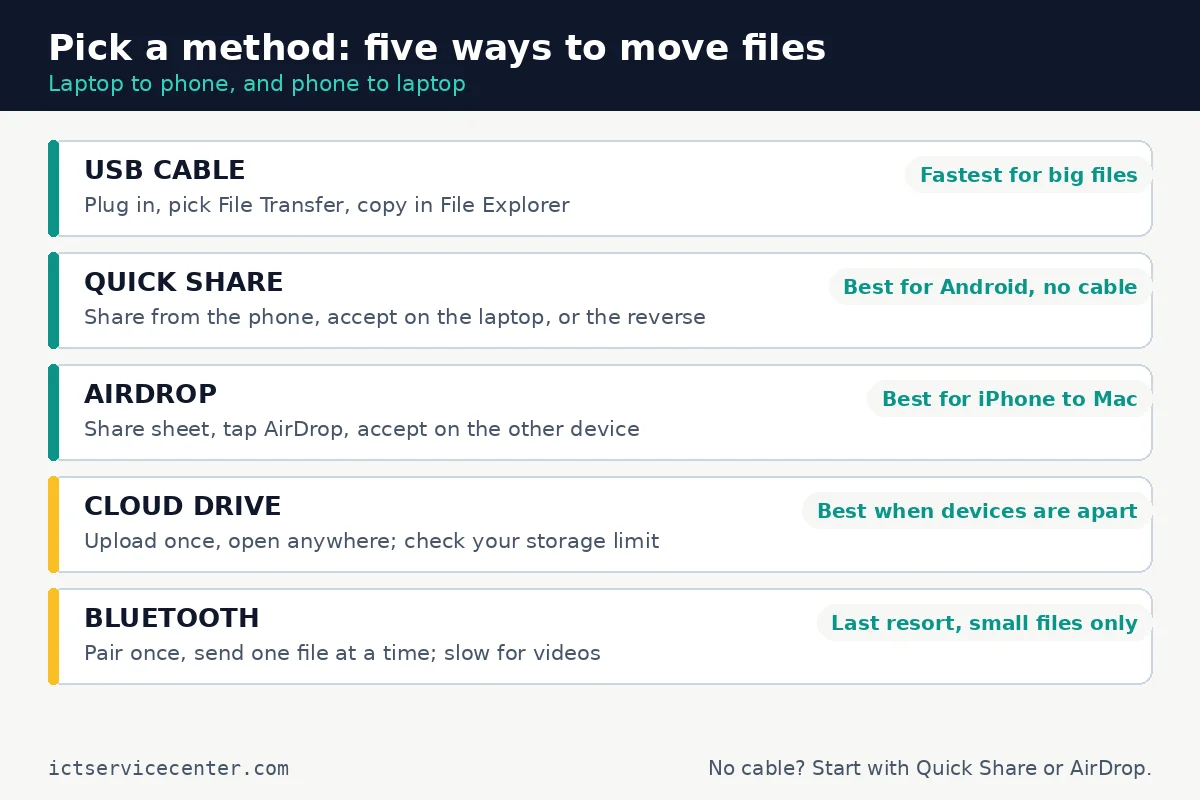
In short: Plug the phone into the laptop with a USB cable: fastest for large videos. On Android, use Quick Share when no cable is handy. On an iPhone, use AirDrop to send files to a Mac, or a cable or cloud drive to send them to a Windows laptop. Cloud storage works across any distance, while Bluetooth suits one small file at a time.
Key takeaways
- A USB cable is fastest for big files and works with Android and iPhone.
- Quick Share moves files between Android phones and Windows laptops, no cable needed.
- AirDrop works between Apple devices only; a Windows laptop cannot receive one.
- Cloud storage is best when the phone and laptop are not in the same room.
- Check copied files open before you delete the originals.
Which method should you pick first?
If a cable is on the desk, use it: it is fast, it charges the phone while it works, and it needs no Wi-Fi. If no cable is handy, use the wireless option built for your phone: Quick Share on Android, AirDrop on iPhone.
If the devices are in different places, use a cloud drive. If you are moving files between two laptops instead, our guide to transferring files from an old laptop to a new laptop covers that move.
| Method | Best for | Needs |
|---|---|---|
| USB cable | Large photos and videos | A data cable, phone open |
| Quick Share | Android phone and Windows laptop | Bluetooth and Wi-Fi on |
| AirDrop | iPhone and Mac | Wi-Fi and Bluetooth on |
| Cloud drive | Devices in different places | Internet and free storage space |
| Bluetooth | One small file | Paired devices, patience |
Transfer files with a USB cable
A cable is the most reliable method. It moves a whole folder of photos fast, even when the Wi-Fi is down. Use the cable that came with the phone: some cheap cables charge only and never show the phone to the laptop. Our explainer on how USB data transfer works explains why.
From an Android phone to a Windows laptop
- Connect the phone to the laptop, then turn it on and enter your passcode: the laptop cannot see a phone at its lock screen.
- On the phone, pull down the notification shade and tap the USB notification. Select File Transfer. Some phones say Transfer files or MTP instead.
- On the laptop, press Win + E. The phone appears under This PC.
- Open the phone, then the folder with your files: photos and videos usually sit in DCIM, downloads in Download. Select the files, press Ctrl + C, open a folder on the laptop, and press Ctrl + V. Open one copied file before you unplug the phone.
From an iPhone to a Windows laptop
- Connect the iPhone with a USB-C or Lightning cable, then enter your passcode.
- Tap Trust or Allow when the phone asks, and enter your passcode again if asked.
- On the laptop, open Start, then Photos, then select Import and pick the connected iPhone, then choose the photos and the destination folder. If Photos does not list the phone, open File Explorer instead: the iPhone appears under This PC, and its photos sit in Internal Storage, then DCIM.
To move files the other way, copy them in File Explorer and paste them into a folder on the phone. On Android, the Download folder is easy to find later. On iPhone, move photos with the Photos app, or through a cloud drive.
Use Quick Share on Android
Quick Share is the wireless transfer tool built into Android. Google renamed it from Nearby Share, so older phones may still show the old name, and it works the same way. It runs on Android 6 and later, and on Windows through the Quick Share for Windows app.
- On the Windows laptop, install the Quick Share for Windows app and sign in with the same Google account as the phone.
- On the phone, turn on Bluetooth and Wi-Fi, then swipe down and tap the Quick Share tile. If the tile is missing, search for Quick Share in Settings.
- Open the file, tap Share, then tap Quick Share, and tap the laptop in the list. If the laptop does not appear, open the Quick Share page on the laptop and make sure it is in receive mode.
- Accept the transfer on the laptop. Transfers between your own devices on the same Google account need no accept step.

To send from the laptop to the phone, pick the files in the Quick Share app on the laptop, select the phone, and tap Accept on the phone.
Quick Share also has a QR code option: if the laptop does not appear, tap Use QR code on the phone and scan the code. Newer Pixel phones, from the Pixel 8a onward, and some Samsung and other Android phones can also send files straight to an iPhone when its owner sets AirDrop to Everyone for 10 Minutes.
Use AirDrop on iPhone
AirDrop is the fastest wireless option between Apple devices. It sends photos, videos, and documents over Wi-Fi and Bluetooth, and the transfer is encrypted. It works between iPhone, iPad, and Mac, but not with a Windows laptop: a Windows laptop cannot appear in the AirDrop list, so use a cable or a cloud drive for an iPhone to Windows move.
- Turn on Wi-Fi and Bluetooth on both devices, and keep them within 30 feet (10 metres).
- On the iPhone, open Control Center, press and hold the connectivity controls, tap AirDrop, and choose Contacts Only or Everyone for 10 Minutes.
- Open the file, tap the Share button, then tap AirDrop.
- Tap the Mac in the list, then click Accept on the Mac. Photos save to the Photos app; other files save to the app they belong to, or to Downloads.
To send from a Mac to an iPhone, reverse the steps. AirDrop suits a small set of files; for a full photo library, a cable or a cloud drive is faster.
Send files through the cloud
Cloud storage is the only method that works when the phone and the laptop are not in the same room. Upload from one device, then open it on the other. OneDrive comes with Windows, Google Drive works with any Google account, and iCloud works through iCloud for Windows or a browser.
- On the laptop, open the cloud drive in a browser or its app and sign in.
- Upload the files and wait. A large video takes a while on a slow connection, so leave the tab open until the file shows as uploaded.
- On the phone, open the same cloud drive app, sign in with the same account, and download the files, or open them in place.
To move files from phone to laptop, reverse the direction: upload from the phone app, then download from the laptop. Watch your storage limit: free cloud accounts fill up fast with phone videos. Our guide to how to back up laptop data safely covers a full backup plan. Do not upload sensitive files from a shared computer, and sign out when you are done.
Use Bluetooth for small files
Bluetooth is the slowest option here, and it suits one small file, such as a document or a single photo, when nothing else is available. A video sent over Bluetooth can take many minutes. Use it as a fallback, not for a full photo library.
- Pair the devices first: on the laptop, open Settings, then Bluetooth and devices, then Add device. On the phone, open Bluetooth settings, tap the laptop name, and confirm the pairing code on both screens.
- On the phone, open the file, tap Share, then Bluetooth, and tap the laptop name. On the laptop, accept the transfer and choose where to save the file.
- To send from the laptop, right-click the file in File Explorer, select Send to, then Bluetooth device, and accept on the phone.
If the laptop cannot find the phone, remove the pairing on both devices and pair again. Our explainer on how Bluetooth communication works explains why.
When a transfer fails
Most failed transfers have one of four causes: a charge-only cable, the wrong USB mode, a receiving setting off, or a file too large.
| Symptom | Likely cause | Fix |
|---|---|---|
| Laptop does not show the phone | Charge-only cable, or phone at its lock screen | Try a data cable and enter the passcode |
| Phone appears but shows no files | USB mode still set to charging only | On Android, pick File Transfer in the USB notification; on iPhone, tap Trust |
| Quick Share cannot find the laptop | Laptop not in receive mode, or Bluetooth off | Turn on Bluetooth and Wi-Fi, open the receive screen |
| AirDrop shows no devices | Wi-Fi or Bluetooth off, or Contacts Only set | Turn both radios on, set Everyone for 10 Minutes, move closer |
| Transfer stalls halfway | Weak Wi-Fi, or a file too large | Move closer, or switch to a USB cable |
If the phone still does not appear after a cable swap and a mode check, the laptop port itself may be at fault. Our guide to a laptop USB-C port not working walks through the port checks.
Mistakes to avoid
Deleting the originals before checking the copies. A copy that stopped halfway looks complete. The fix: open a few copied photos on the destination device before you delete anything from the source.
Using a charge-only cable and blaming the laptop. Many cheap cables carry power and no data, so the phone charges and never appears in File Explorer. The fix: use the cable that came with the phone.
Leaving AirDrop on Everyone. The Everyone setting stays open for 10 minutes, and anyone nearby can send files to the phone. The fix: switch AirDrop back to Contacts Only as soon as the transfer is done.
Sending a large video over Bluetooth. Bluetooth moves data slowly, so a long video can take many minutes and may fail partway. The fix: use a cable or the cloud for anything larger than a few photos.
Uploading to the cloud from a shared computer. The next person at that computer can open your cloud drive. The fix: sign out before you walk away.
Frequently asked questions
Can I transfer files from a laptop to a phone without a cable?
Yes. On Android, use Quick Share with the Quick Share for Windows app, with Bluetooth and Wi-Fi on. On iPhone, use AirDrop to a Mac, or a cloud drive such as OneDrive or Google Drive to reach any laptop. Bluetooth also works cable-free, but only for small files.
Why does my laptop not see my phone when I plug it in?
The usual cause is a charge-only cable, which powers the phone but carries no data. Try the cable that came with the phone. Then check the phone: enter your passcode, tap Trust on an iPhone, or pick File Transfer in the USB notification on Android. If it still does not appear, try a different USB port.
Can I use AirDrop from a Windows laptop to an iPhone?
No. AirDrop works only between Apple devices, so a Windows laptop cannot send or receive AirDrop transfers. For an iPhone and a Windows laptop, use a USB cable, a cloud drive, or email the file to yourself for small documents.
Is Quick Share the same as Nearby Share?
Yes. Google renamed Nearby Share to Quick Share, so older Android phones may still show the old name. The feature works the same way: it sends files to nearby Android devices, Chromebooks, and Windows laptops with the Quick Share app.
What is the fastest way to move a large video from a laptop to a phone?
Use a USB cable. Connect the phone, pick File Transfer on Android or trust the computer on iPhone, then copy the video in File Explorer. A cable moves a large video far faster than Bluetooth or a cloud upload. Check the video plays on the phone before you delete the laptop copy.
Bottom line: Plug in a cable for big files, use Quick Share on Android or AirDrop on a Mac for quick wireless moves, and use a cloud drive when the devices are apart. Try one method on a single photo first. If you just bought the laptop, our guide to setting up a new laptop is the next job, and our technical guides hub lists the rest.
Sources: Microsoft Support, Import photos and videos from phone to PC (support.microsoft.com); Google Support, Use Quick Share on your Android device (support.google.com); Apple Support, Use AirDrop to send items to nearby Apple devices (support.apple.com). Photos: Ahmed Lishane, Szabó Viktor, Kindel Media, Jessica Lewis, Airam Dato-on via Pexels. Diagram: ictservicecenter.com.