
 By
Your headphones sit in pairing mode, your laptop acts as if Bluetooth does not exist, and the meeting starts in five minutes. Work through the checks below in order: most problems clear before you reach the driver steps.
In short: Start with the toggle, airplane mode, and the device itself: charged, in range, and in pairing mode. If Bluetooth is missing or the toggle is greyed out, restart the Bluetooth Support Service and reinstall the driver. If the device pairs but will not connect, remove it and pair it again. A USB adapter covers a dead built-in radio.
Key takeaways
- Check the toggle, airplane mode, charge, range, and pairing mode first: they solve the largest share of cases.
- A missing toggle points at the service or the driver, not at the headphones.
- Remove the device and pair it again when pairing stalls: a stale pairing causes more failures than a bad driver.
- A cheap USB adapter is a sound workaround when the built-in radio has failed.
Two-minute checks that fix most Bluetooth problems
Run these six checks before you touch a driver: the pass mark is simple, the device appears and pairs. For the detail, see our notes on how to fix the cursor on my laptop.
- Turn Bluetooth off and on again. Press Win + A to open Quick Settings and check the Bluetooth tile, then open Settings > Bluetooth & devices, switch the toggle off, wait 10 seconds, and switch it on again.
- Turn airplane mode off. Press Win + A and make sure the airplane mode tile is off: it switches Bluetooth off along with Wi-Fi.
- Charge the device and switch it off and on. A headset with a flat battery will not enter pairing mode, so charge it first, then hold its power button until it restarts.
- Move the device close to the laptop. Keep it within a metre while you pair, and away from USB 3.0 ports, hubs, and docks, which can interfere with the signal.
- Put the device in pairing mode: most headsets need a long press until a light flashes. Check the manual for the exact button.
- Restart the laptop from Start > Power > Restart. A restart clears a stuck Bluetooth service, a common cause after sleep or a Windows update.
If the device now appears, select it and choose Add device > Bluetooth. If not, the next section shows where the fault sits.
If your headphones are already paired with your phone, they may connect to the phone first and ignore the laptop. Turn the phone Bluetooth off, then try pairing with the laptop again.
Match the symptom to the cause
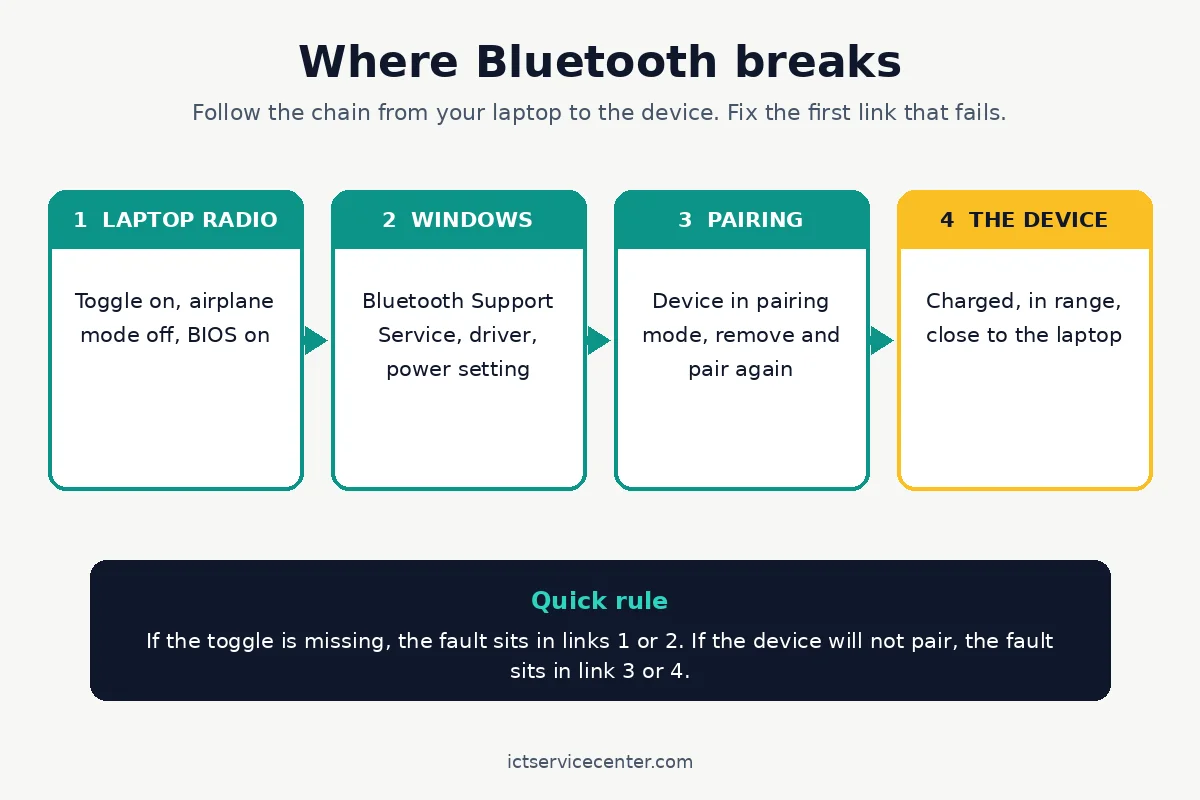
Bluetooth has four links in a chain: the laptop radio, Windows and its driver, the pairing step, and the device itself. The symptom tells you which link is broken. Fixing the driver will not help a headset that was never put in pairing mode. For background, read how Bluetooth pairs two devices.
| Symptom | Likely cause | Fix |
|---|---|---|
| Toggle missing or greyed out | Service stopped, driver fault, or no adapter | Restart the service, then reinstall the driver |
| Device does not appear in the list | Not in pairing mode, out of range, or discovery set to Default | Enter pairing mode, move closer, set discovery to Advanced |
| Device appears but will not pair | Stale pairing, device linked to another gadget | Remove the device, disconnect it elsewhere, pair again |
| Pairs, then drops after a minute | Power saving or interference | Turn off adapter power saving, move away from USB 3.0 ports |
| Connected but no sound | Wrong output device selected in Sound settings | Pick the Bluetooth device as the sound output |
| Works after a restart, then fails later | Driver or Windows update conflict | Update the driver, run the troubleshooter |
Use the table as a map for the rest of this guide.
Pairing failures: the device will not appear or will not connect
Pairing fails more often than the radio does. Start by removing the old pairing: Windows keeps the old keys, and a stale entry blocks a fresh connection.
Open Settings > Bluetooth & devices > Devices, find the device, and select More options (…) > Remove device. Then put the device back in pairing mode, select Add device > Bluetooth, and pick it from the list.
If the device still does not appear, change the discovery setting. Under Device settings on the same page, set Bluetooth devices discovery to Advanced. The Default setting hides some device types, including older headsets and car kits. For the detail, see our notes on handling a dangerous battery bulge.
Clear the pairing on the device side too, using the button hold in the manual.
Test with a second device to find which side is at fault. If your phone pairs but the headphones do not, the headphones are the problem. If no device pairs, the fault sits in Windows or the laptop radio, and the driver section below is next.
Bluetooth is missing or the toggle is greyed out
A missing toggle means Windows cannot see or start the radio. Work in order: troubleshooter, service, driver, power setting. Stop as soon as the toggle returns.
Run the automated troubleshooter first. Open Settings > System > Troubleshoot > Other troubleshooters, find Bluetooth, and select Run. Microsoft lists it as the first step in its guide to fixing Bluetooth problems in Windows.
Check the Bluetooth Support Service next. Press Win + R, type services.msc, and press Enter. Double-click Bluetooth Support Service, set Startup type to Automatic, select Start if it is stopped, then select OK. Restart and check the toggle.
Reinstall the driver in Device Manager. Press Win + X, select Device Manager, and expand Bluetooth. Right-click your adapter, select Uninstall device, and restart: Windows installs a fresh copy of the driver at startup. If the adapter is missing, select View > Show hidden devices. A greyed-out adapter is installed but not running. There is more on identify hard drive clicks in a separate guide.
Update the driver the safe way. Run Settings > Windows Update > Check for updates, then look under Advanced options > Optional updates for a Bluetooth driver.
If Windows Update offers nothing, get the driver from your laptop maker support site using your exact model number.
See our guide to update the Bluetooth driver the safe way for the maker-site route, and our guide to driver problems that stop hardware working for wider driver faults.
Turn off the adapter power saving setting last. In Device Manager, right-click the Bluetooth adapter, select Properties > Power Management, and clear Allow the computer to turn off this device to save power. This stops Windows from switching the radio off after sleep.
Download drivers only from Windows Update or your laptop maker support site. Driver download sites and updater tools are a common source of wrong drivers, and a wrong Bluetooth driver can leave the radio worse than before.
Connected but no sound
A headset can show as connected while Windows still sends sound to the laptop speakers. This is a sound setting problem, not a Bluetooth problem: do not reinstall the driver yet.
Open Settings > System > Sound and look at Output. Select your Bluetooth headphones or speaker, then play a test sound and check the volume slider.
If the device is missing from the output list, disconnect it and connect it again from Settings > Bluetooth & devices > Devices. If it still will not appear, remove the device and pair it again.
If sound works in one app and not another, check the app volume in Settings > System > Sound > Volume mixer.
If the laptop speakers themselves are silent with no Bluetooth device involved, our guide to no sound from your laptop speakers covers that case.
If the sound connects but stutters or lags instead of cutting out, that is a different problem: our guide to Bluetooth that is not smooth walks through the driver and power-saving checks for laggy audio.
Hardware causes and the USB adapter workaround
When no software step brings the toggle back, check the hardware. First confirm the laptop has Bluetooth at all. Some budget laptops ship without a radio, and no setting or driver will create one. Check the specifications for your exact model. Microsoft makes the same point in its guide to Bluetooth that has disappeared from Windows. Before you buy anything, it is worth looking at single laptop network issue.
Check the BIOS or UEFI setting next. Some laptops have a Bluetooth or wireless toggle in BIOS, and a BIOS reset can switch it off.
Enter BIOS with the key your maker lists for your model, often F2 or Del at startup, and confirm Bluetooth is enabled under a wireless or onboard devices menu. If you are not sure of the key, check the maker manual rather than guessing.
Also check for a function key or case switch that controls wireless.
Bluetooth and Wi-Fi often share one card and one antenna, so if Wi-Fi is also weak or dropping, the shared card or its antenna leads may be the fault. Our guide to Wi-Fi hardware faults covers the checks.
If the built-in radio has failed, a USB Bluetooth adapter is a practical workaround. Plug it in, wait for Windows to install its driver, then pair your device as normal.

A small USB adapter adds Bluetooth to a laptop whose built-in radio has failed, with no need to open the case.
- Amazon Basics Bluetooth 5.4 USB dongle adapter receiver converts non-Bluetooth PCs into
- Supports Bluetooth 5.4 & is backwards compatible with Bluetooth
When to repair or replace
Take the laptop to a shop when the adapter is missing from Device Manager even with hidden devices shown, the BIOS setting is on, and a USB adapter works fine: that pattern points at a failed internal card or a loose antenna lead.
If the laptop is under warranty, contact the maker first: opening the case can void it on some models.
Weigh the age of the laptop before paying for a repair. On a laptop that is otherwise sound, a card replacement is a small job. On an old laptop with a weak battery and a failing drive, a USB adapter keeps Bluetooth working cheaply.
Mistakes to avoid
Reinstalling Windows before checking the service. A clean install wipes your apps and settings. Restart the Bluetooth Support Service and reinstall the driver first: those two steps fix most missing-toggle cases in minutes.
Downloading drivers from random sites. Only Windows Update and the maker support site carry the right driver for your model. A driver from a download site can install the wrong radio firmware and make the fault harder to fix.
Forgetting the device is still paired to a phone. Headphones connect to the last device they used, so disconnect them on the phone before you blame the laptop.
Skipping the restart after a driver reinstall. Windows loads the fresh driver at startup, so test the toggle only after a full restart, not straight after the uninstall.
Buying new headphones before testing a second device. Pair a phone or another headset first. If the second device works, the fault is in the first device, and new headphones would be wasted money.
Frequently asked questions
Why did Bluetooth disappear after a Windows update?
An update can replace the Bluetooth driver with a version that does not match your adapter, or leave the service stopped. Run the troubleshooter, reinstall the driver, and restart. If the toggle is still missing, check Windows Update for an optional driver, or get one from the maker site.
Why does a laptop see headphones but refuse to connect?
The usual cause is a stale pairing. Remove the device in Settings, clear the pairing on the headphones using the button hold in the manual, then pair again. Check the headphones are not already connected to your phone, and keep them within a metre of the laptop.
Why does Bluetooth keep disconnecting?
Power management is the first suspect. In Device Manager, open the Bluetooth adapter properties and clear the setting that lets Windows turn the device off to save power. Interference is the second suspect, so move the device away from USB 3.0 ports and hubs.
Can I add Bluetooth to a laptop that has none?
Yes. A USB Bluetooth adapter plugs into any spare USB port and Windows installs its driver on its own. Pick a small adapter that sits close to the case. It works with headphones, mice, keyboards, and speakers, and you can move it to another laptop later.
Why is there no sound even though the headphones show as connected?
Windows is likely sending sound to the laptop speakers instead. Open Settings, System, Sound, and pick the Bluetooth device under Output. If it is missing, disconnect and reconnect the device. If sound works in one app only, check the Volume mixer.
Bottom line: Start with the toggle, airplane mode, and the device itself. If the toggle is missing, fix the service and the driver. If pairing stalls, remove the device and pair it again. If the built-in radio has failed, a USB adapter gets you working again today. For more fixes, browse the Troubleshooting hub.
Sources: Microsoft Support, Fix Bluetooth problems in Windows; Microsoft Support, Fix Bluetooth disappeared in Windows; Bluetooth SIG, Bluetooth technology overview. Photos: SpotwizardLee, cottonbro studio, Imthiyaz Syed, picjumbo.com, Polina Tankilevitch via Pexels. Diagram: ICT Service Center.