
 By
A big TV beats a small laptop screen for movies, photos, and family calls, and you do not need a cable to get there. Pick the method that fits your laptop and TV.
In short: On Windows 11, press Win + K and pick a Miracast TV or adapter. In Chrome, use Cast to send a tab or your screen to a Chromecast or a TV with Google Cast. On a Mac, open Control Center, pick Screen Mirroring, and choose an Apple TV or an AirPlay TV. If none of those work, an HDMI cable gives the sharpest picture.
Key takeaways
- Put the laptop and the TV on the same Wi-Fi network before you try any wireless method.
- Windows uses Miracast with Win + K, Chrome uses Cast, and a Mac uses AirPlay from Control Center.
- Wireless suits video and slides, but it lags in games.
- An HDMI cable is the fallback when the TV has no wireless support.
- A laptop HDMI port sends video out only, so it cannot show another device on the laptop screen.
Before you start: the two things every method needs
Every wireless method needs the same two things: a Wi-Fi network both devices can join, and a TV or receiver that speaks the same wireless language as your laptop. Check both first, or the TV may never show up in the list.
Join the laptop and the TV to the same Wi-Fi network. The 5 GHz and 2.4 GHz bands of one router are usually fine, but a guest network is not the same as the main network, so move the TV to the main one.
Then find out what your TV supports: open the TV settings and look for Screen Mirroring, Miracast, Wireless Display, AirPlay, or Chromecast built in. Samsung calls it Screen Mirroring and LG calls it Screen Share. If the TV shows none of those, it needs a small receiver in an HDMI port.
Keep the laptop within a few metres of the TV for the first connection: walls and distance weaken the direct Wi-Fi link.
Pick the right method for your laptop and TV
The right method depends on your laptop and your TV. The diagram maps the common setups to the method that fits.
| Your setup | Method | What you need |
|---|---|---|
| Windows 11 laptop, Miracast TV | Miracast | Wi-Fi on, Win + K, pick the TV |
| Any laptop with Chrome | Chromecast | Chrome browser, Chromecast or Cast TV |
| Mac, Apple TV or AirPlay TV | AirPlay | Same Wi-Fi, Control Center, Screen Mirroring |
| Old TV with no wireless support | Wireless display adapter | Adapter in an HDMI port, then Win + K |
| Games or fast video | HDMI cable | HDMI cable, spare HDMI port on the TV |
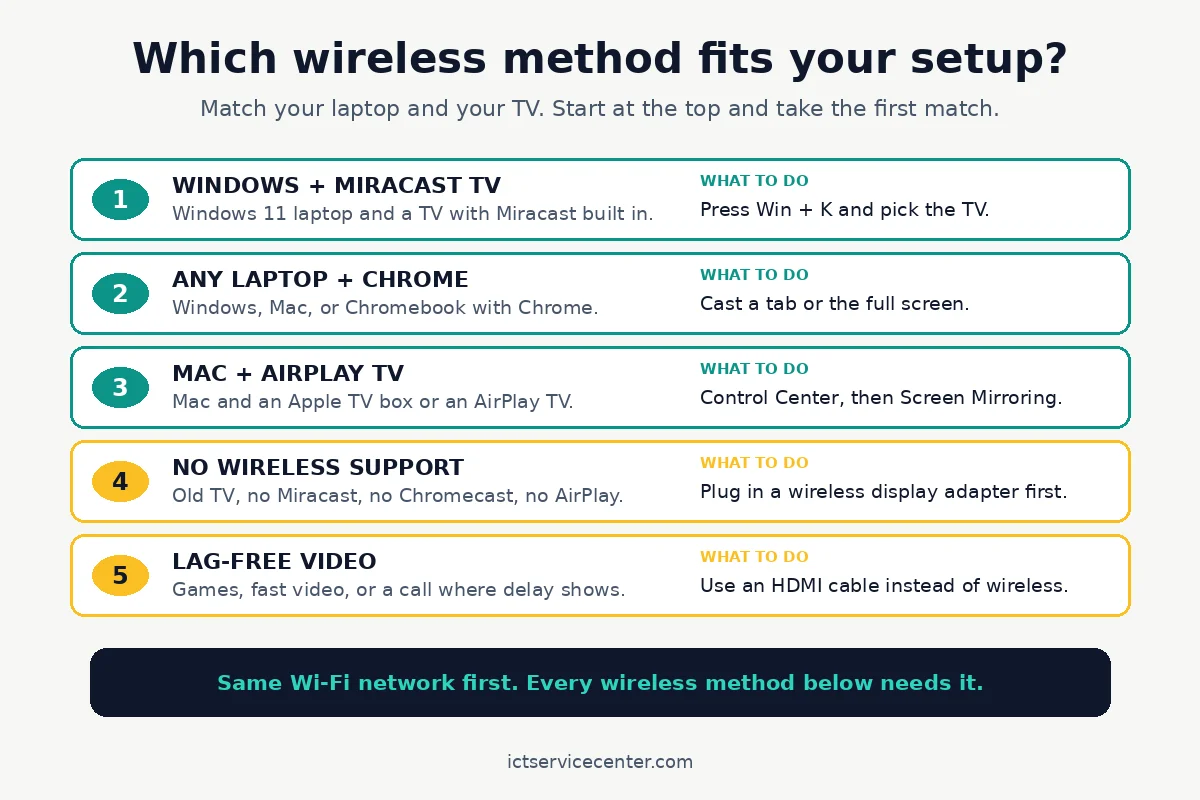
If more than one method fits, start with the one built into your laptop: Miracast on Windows, AirPlay on a Mac. Chromecast is the best choice on a Chromebook, or for a single browser tab. To set up dual monitors on a laptop, mirror to copy the screen or extend it for a second desktop.
Method 1: Cast from Windows with Miracast
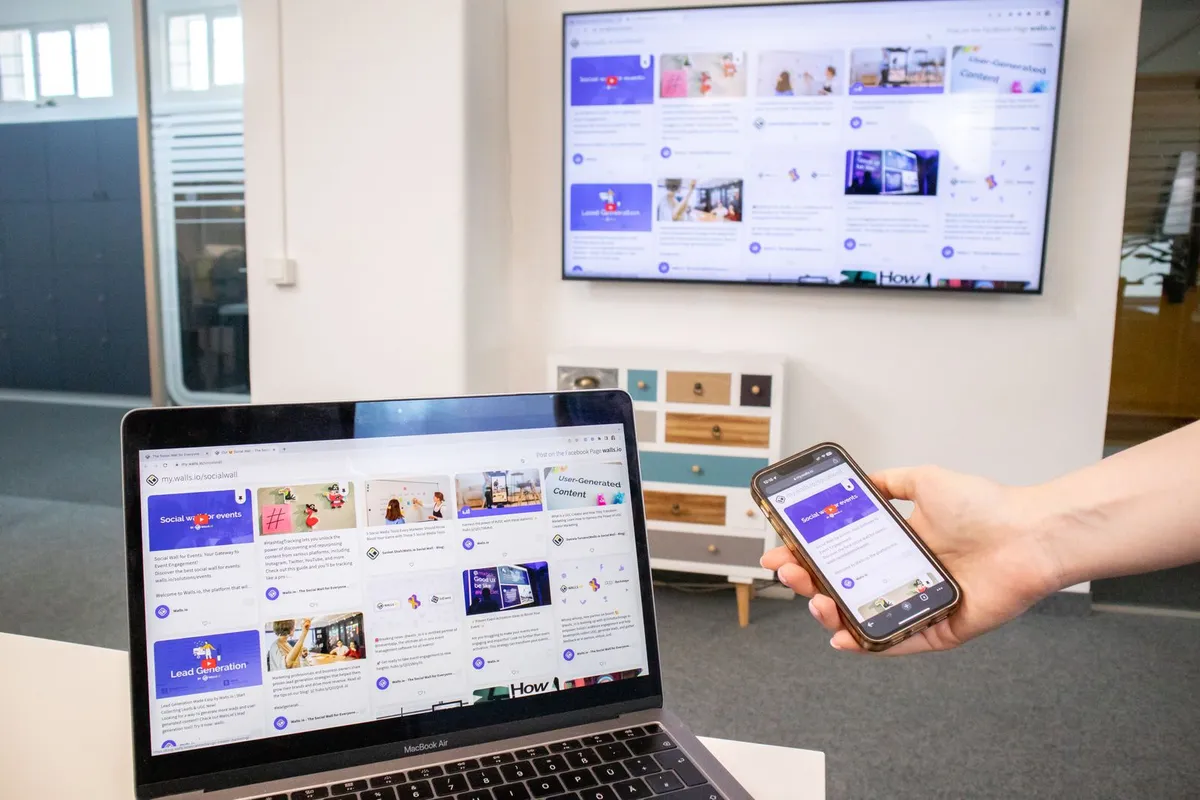
Miracast is built into Windows 11, and it needs no app and no cable. Microsoft documents the steps in its guide to screen mirroring and projecting to a wireless display.
- Turn on the TV. If you use a Miracast adapter, plug it into an HDMI port first and switch the TV to that input.
- On the laptop, turn on Wi-Fi so the two devices can find each other.
- Press Win + K. The Cast panel opens and lists the wireless displays nearby.
- Select your TV from the list and follow any prompt, such as a PIN shown on the TV screen.
- Press Win + P and pick Duplicate to copy the screen, Extend for a second screen, or Second screen only.
- To stop, press Win + K again and select Disconnect.
If the TV does not appear, check the TV input, then restart both devices. To check Miracast support, press Win + R, type dxdiag, press Enter, save the report, and search it for Miracast. The same checks apply when a second monitor is not detected over a cable.
On a TV with no Miracast built in, a wireless display adapter adds it: plug it into an HDMI port, power it from USB, switch the TV to that input, and cast to it by name.
An adapter plugs into an HDMI port and lets a Windows laptop cast to an older TV without a cable.
See options on AmazonMiracast works best for slides, video, and browsing. It adds a small delay, which shows in games, so use the HDMI cable in Method 4 for those.
Method 2: Cast from Chrome with Chromecast
Chromecast works from the Chrome browser on Windows, Mac, and Chromebook. Google documents it in its guide to casting from Chrome to your TV. The laptop and the Chromecast device must be on the same Wi-Fi network.
- Plug the Chromecast or Google TV Streamer into an HDMI port on the TV and set it up on Wi-Fi. Switch the TV to that HDMI input.
- On the laptop, open Chrome and open the tab you want to send.
- Select the three-dot menu at the top right, then Cast, save, and share, then Cast.
- Pick your Chromecast device. The tab appears on the TV, and its sound plays through the TV speakers.
- To send the whole screen, select Sources, then Cast screen, then pick the device.
- To stop, select the Cast icon by the address bar, then Stop casting.
Cast a tab for video or music: it keeps playing on the TV, and the sound goes to the TV. Cast the screen for a document or an app outside the browser, though the sound may stay on the laptop. If the TV has Google Cast built in, you need no extra device.
A Chromecast plugs into an HDMI port and turns an older TV into a cast target for Chrome and phone apps.
See options on AmazonMethod 3: Mirror a Mac with AirPlay
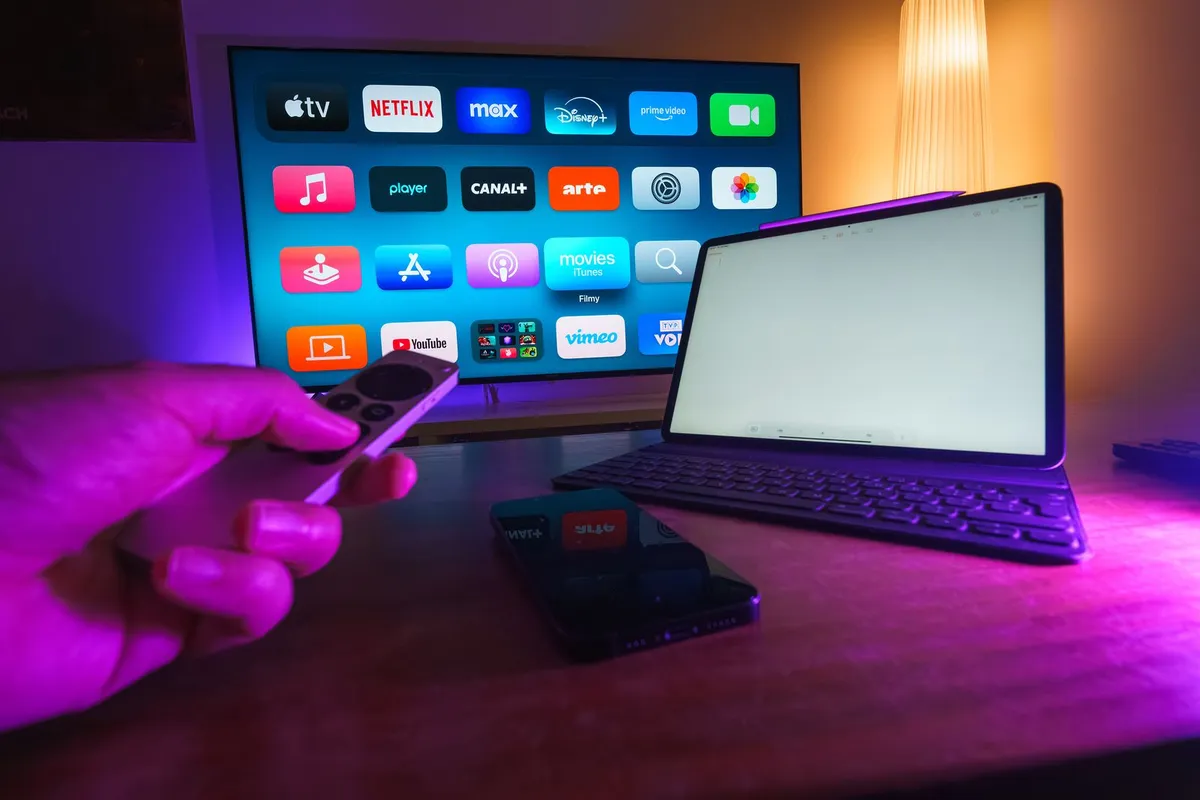
AirPlay sends a Mac screen to a TV with an Apple TV box or AirPlay built in. Apple documents the steps in its guide to using AirPlay to stream to Apple TV. The Mac and the TV must be on the same Wi-Fi network.
- Turn on the TV. If you use an Apple TV box, switch the TV to its HDMI input. If the TV has AirPlay built in, turn AirPlay on in the TV settings.
- On the Mac, click Control Center in the menu bar at the top right.
- Click Screen Mirroring and select the name of your Apple TV or AirPlay TV.
- If a code appears on the TV, type it on the Mac.
- Choose whether to mirror the display or extend the desktop, if the Mac asks.
- To stop, open Control Center, click Screen Mirroring again, and choose Stop Mirroring.
AirPlay also works from inside a single app: open a video, click the AirPlay icon, and pick the TV. If the TV does not appear, check that AirPlay is on, that both devices share a network, and that the Mac runs macOS Big Sur or later.
Method 4: Use an HDMI cable when wireless will not do
An HDMI cable is not wireless, but it is the most reliable way to put a laptop on a TV. Plug one end into the laptop HDMI port and the other into a spare HDMI port on the TV, switch the TV to that input, and the picture appears. Press Win + P on Windows, or open System Settings, then Displays, on a Mac.
A cable also beats wireless on picture quality: wireless compresses the picture over Wi-Fi, while HDMI sends the full picture with no compression and no delay. That is why a cable is the right pick for games and calls. The same wired path works for a monitor too, and our guide to connect a monitor to a PC covers the steps.
One thing a cable cannot do is carry the picture the other way.
The HDMI port on almost every laptop is an output: it sends the laptop screen out, and it has no hardware to take a signal in. HP support gives the same answer for its laptops, as stated in the HP Support Community answer on laptop HDMI input.
So a cable from a console into the laptop HDMI port will show nothing. To show another device on the laptop screen, use the wireless methods above, or use a laptop as a second monitor over Wi-Fi instead.
If the HDMI port itself is damaged, read our guide to repair an HDMI port on a laptop first.
Fix lag, low resolution, and missing sound
Wireless pictures have three common faults. Work through them in order and test after each change.
Lag. A small delay is normal for wireless. Move the laptop closer to the TV and the router, and close heavy apps and downloads. If the TV offers a Game mode, turn it on. If the lag stays, switch to an HDMI cable.
Low resolution or soft text. Wireless casting often drops the picture to 1080p, even on a 4K TV, because the Wi-Fi link cannot carry a 4K stream cleanly. On Windows, open Settings, then System, then Display, and set the highest resolution offered. If the text is still soft, switch to Extend instead of Duplicate: Extend lets the TV run at its own resolution.
No sound on the TV. On Windows, click the speaker icon in the taskbar and pick the TV. On a Mac, open System Settings, then Sound, then Output, and pick the TV. In Chrome, cast the tab rather than the screen: tab casting sends the sound to the TV.
Mistakes to avoid
Putting the TV on a guest Wi-Fi network. A guest network keeps devices apart on purpose. Join both to the main home network.
Buying a cable to use the laptop as a display. The laptop HDMI port is output only, so a cable from a console into the laptop shows nothing. Use Miracast, AirPlay, or a USB capture card instead.
Casting the screen when a tab would do. Screen casting sends the whole desktop, including mail and messages. Cast the tab for video and music.
Judging wireless by a game. Wireless adds a delay that is fine for films but spoils games. Use an HDMI cable for those.
Skipping the Win + P step. A cast that connects but shows a blank TV usually needs a display mode: press Win + P and pick Duplicate or Extend.
Frequently asked questions
Can a laptop connect to a TV wirelessly without Wi-Fi?
Yes, in most cases. Miracast and AirPlay use a direct Wi-Fi link between the laptop and the TV, so they work even when the home router is off. Chromecast is the exception: it needs the home Wi-Fi network, since it works through the router.
Why does a laptop lag when casting to the TV?
Wireless casting compresses the picture and sends it over Wi-Fi, which adds a small delay. A weak signal, a busy network, or heavy apps makes it worse. Move closer to the TV, close large downloads, and turn on Game mode.
Can a laptop connect to a TV wirelessly for gaming?
You can, but the delay makes fast games hard to play, and the picture can soften during quick motion. For casual games it is fine, but for anything where timing matters, an HDMI cable is better: it sends the full picture with no delay.
Does connecting a laptop to a TV wirelessly lower the picture quality?
It can. Wireless methods compress the video to fit over Wi-Fi, so fine text can look soft and fast motion can blur, and many casts top out at 1080p even on a 4K TV. An HDMI cable carries the full picture with no compression.
Can a laptop work as a TV with an HDMI cable?
No. The HDMI port on almost every laptop is an output, so it sends the laptop screen out and cannot take a signal in. A cable from a console or another PC into the laptop will show nothing. To show another device on the laptop screen, use Miracast, AirPlay, or a USB capture card.
Bottom line: Start with the method built into your laptop: Win + K and Miracast on Windows, Screen Mirroring and AirPlay on a Mac, or Cast in Chrome for a single tab. Keep both devices on the same Wi-Fi network, and use an HDMI cable when the picture lags. For more setup guides, browse the Basics and How It Works hub.
Sources: Microsoft Support, Screen mirroring and projecting to your PC or wireless display; Google Chrome Help, Cast from Chrome to your TV; Apple Support, Use AirPlay to stream audio and video on Apple TV; HP Support Community, Does my laptop have HDMI input?. Photos: Jakub Zerdzicki, Walls.io, Andrey Matveev via Pexels. Diagram: ICT Service Center.