
 By
An SSD rarely fails without warning. The health numbers are already on your laptop, and reading them takes about five minutes.
In short: Open CrystalDiskInfo and read the Health Status at the top: Good means keep using the drive, Caution means back up now and plan a replacement, Bad means copy your files off today.
For a quick check without extra software, open Settings, then System, then Storage, then Disks and volumes, and read the estimated remaining life of an NVMe drive, or run Get-PhysicalDisk in PowerShell and read the HealthStatus column.
Key takeaways
- CrystalDiskInfo gives the clearest answer: one word, Good, Caution, or Bad, plus a health percent.
- Windows 11 shows an estimated remaining life for NVMe drives in Settings, with no extra software.
- The two numbers that matter most are the health percent and the total amount written to the drive.
- Caution means back up now and check again in a month; Bad means replace the drive now.
- A health check is not a repair: if the drive already fails to boot or loses files, work through the fix guides instead.
What SSD health means

Every SSD keeps its own record of wear: how much has been written to it, how many of its memory cells have gone bad, how hot it has run, and how many hours it has been powered on.
This record is called SMART, short for Self-Monitoring, Analysis and Reporting Technology, and the tools in this guide simply read it and present it in plain language. The other half of this decision is laptop overheats when charging.
The health percent is the headline number. A new drive shows 100 percent, and the number falls as the drive wears, slowly on a normal laptop. It is tied to the drive rated endurance, which the maker states as TBW, or total bytes written. When the total written approaches the rated TBW, the health percent drops and the drive is near the end of its designed life.
Temperature is the other number worth watching. An SSD in a laptop usually runs between 30 and 50 degrees Celsius during light use and rises under heavy work. Steady temperatures above 70 degrees are hot for a drive and deserve a look at cooling and airflow, even if the health percent still looks fine.
| Health Status | What it means | What to do |
|---|---|---|
| Good | No serious warnings in the SMART record | Keep using the drive and check again in three months |
| Caution | Wear or warnings found, health below 100 percent | Back up now, check again in a month, plan a replacement |
| Bad | Serious faults, such as rising reallocated sectors | Copy your files off today and replace the drive |
Check health in Windows Settings
Windows 11 has a built-in drive health readout for NVMe drives that needs no download: an estimated remaining life as a percent, plus the drive temperature.
- Open Settings, then System, then Storage.
- Select Advanced storage settings, then Disks and volumes.
- Select the drive, then select Properties.
- Read Estimated remaining life and the temperature. A drive at 95 percent has most of its life left; below 20 percent it is near the end of its rated endurance.
This readout only appears for NVMe drives. If your laptop has a SATA SSD, Windows shows the model and capacity but no remaining-life estimate, so use one of the tools below instead. Our guide on how to check your laptop storage usage covers the same Storage pages from the space side, if you also want to see what is filling the drive.
Check with PowerShell
PowerShell gives a second built-in view, and it works for any drive Windows can see. It lists each physical disk with a health status of Healthy, Warning, Unhealthy, or Unknown.
- Press Win + X and select Terminal, or search for PowerShell in the Start menu and open it.
- Type Get-PhysicalDisk and press Enter.
- Read the HealthStatus column for your drive. Healthy is the normal result. Warning or Unhealthy means the drive has reported a problem, and Unknown means Windows could not read the health data, which is common for some external drives.
PowerShell gives a status word, not a percent, so it is a quick pass or fail check. Microsoft documents the Get-PhysicalDisk cmdlet, including the HealthStatus values of Healthy, Warning, Unhealthy, and Unknown. Use it for a fast answer without installing anything, then move to CrystalDiskInfo for the detail. We cover find your laptop warranty in a guide of its own.
Check with CrystalDiskInfo
CrystalDiskInfo is a free tool that reads the full SMART record and shows it in one window. It is the clearest option for most people, because it turns the raw numbers into one status word and one health percent. Download it only from its official site, crystalmark.info, and never from a download mirror.
- Download CrystalDiskInfo from the official site linked at the end of this article and run it.
- Select your SSD from the drive tabs at the top if more than one drive is listed.
- Read Health Status at the top left. Good, Caution, or Bad is the answer.
- Read the health percent next to it, then the temperature and the Total Host Writes figure further down.
- Leave the window open while you read the next section, so you can match each number to what it means.
CrystalDiskInfo supports USB drives, Intel RAID, and NVMe, so it covers the drives most laptops use. If it shows no drive, or a drive with no SMART data, the drive may sit behind a RAID controller that hides the data. In that case the Windows Settings check or the maker own tool is the fallback.
What the numbers mean
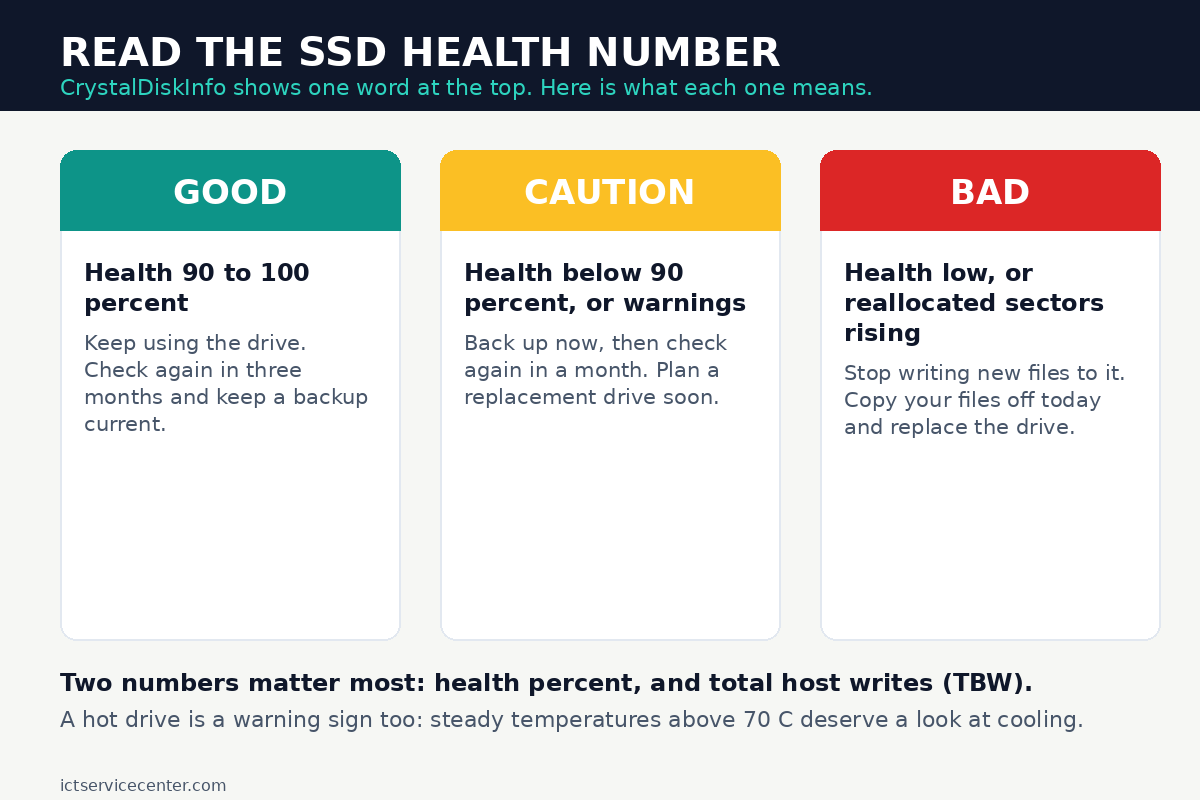
The health percent is the number to watch over time. Write it down with the date, then check again in a few months. A drive that drops a point or two in a year is wearing normally; a drive that drops fast is wearing faster than it should, and that trend matters more than any single reading.
Total Host Writes is the total amount written to the drive since it was made, usually shown in terabytes. Compare it with the TBW rating on the maker spec sheet for your exact drive model.
A drive rated at 600 TBW with 120 TB written has used a fifth of its rated endurance. A drive rated at 150 TBW with 140 TB written is nearly done, even if it still works today.
Reallocated sectors are memory cells the drive has retired and replaced with spares. A small count that stays still is not a crisis, but a count that rises between checks means the drive is losing cells faster than it should. That is one of the numbers that turns a Good status into Caution, and then into Bad.
Power On Hours and Power On Count tell you how long the drive has run and how many times it has started. They are useful when you buy a used laptop: a drive with tens of thousands of power-on hours and a low health percent has had a hard life, even if it still boots. The other half of this decision is viewing the current health of the cell.
When to back up and replace
Back up first, then decide. A health check is a warning system, and the warning is only useful if your files are safe when the drive finally stops.
If the status is Good and the health percent is above 90, keep using the drive. Check again in three months and keep a backup current. If the status is Caution, back up now, then check again in a month.
If the health percent falls again at that check, order a replacement drive and plan the swap. If the status is Bad, stop writing new files to the drive, copy your files off today, and replace it.
Do not run a full disk scan on a drive in Bad status: heavy reads on a failing drive can finish it off.
When you replace the drive, clone the old one while it still works, or install Windows fresh on the new drive and copy your files over.
A drive that is nearly full is not unhealthy by itself, but a full drive has less free space to spread wear across, so free up space when the drive passes 90 percent full: our guide to free up disk space on Windows 11 shows how.
Our guide on how to back up laptop data safely covers the backup step, and our guide on how to upgrade an SSD without losing data covers the swap itself.
Maker tools are a useful second opinion. Samsung offers Magician for its own SSDs, and other makers offer their own tools for their drives. Use the tool from the maker of your drive, not a general download site, and treat its health reading the same way: a warning there means the same as a warning in CrystalDiskInfo.
If the drive is already failing
A health check assumes the drive still works. If the laptop already loses files, freezes, or fails to boot, stop checking and start recovering. Do not keep restarting the laptop to see if it comes back.
First, copy any files you can still reach to an external drive. Then work through the symptoms in order.
Our guide on why an SSD stops working explains how to tell a dead drive from a loose connection, and our guide to an SSD not working properly walks through five diagnostic steps.
If the drive is not detected at all, the fix guides apply, not the health check, because a drive that is not detected cannot report SMART data.
Mistakes to avoid
Checking health only after a scare. A drive can wear for years without a symptom, and the first symptom is often lost files. The fix: check the health percent every few months, the way you would check tire pressure.
Reading one number and stopping. A Good status with a low health percent, or a high temperature with a Good status, still needs attention. The fix: read the status, the health percent, the total written, and the temperature together. There is more on how to check battery health on macbook in a separate guide.
Downloading CrystalDiskInfo from a mirror. Unofficial download sites bundle extra software with free tools. The fix: get it only from crystalmark.info, the official site.
Running heavy scans on a drive in Bad status. A full surface scan or defragmentation writes heavily to a drive that is already failing. The fix: copy your files off first, then replace the drive.
Treating a health check as a repair. Checking the numbers does not fix worn cells or rising reallocated sectors. The fix: treat Caution as a backup prompt and Bad as a replacement order, not as a problem the check solved.
Ignoring a falling health percent because the drive still works. A drive at 60 percent that still boots is closer to the end than a drive at 95 percent. The fix: track the number over time and replace the drive before it reaches Bad.
Frequently asked questions
How often should I check SSD health?
Every three months is enough for a drive in Good status, and monthly once it shows Caution. Write down the health percent and the date each time. A slow fall over years is normal wear, while a fast fall over weeks is a sign to back up and plan a replacement.
Is 90 percent SSD health bad?
No, 90 percent is fine for a drive that has been used for a while: it has used about a tenth of its rated endurance. Keep using it, keep a backup current, and check again in three months. Act when the number falls quickly, or when the status changes to Caution. Loaders in this spot often ask about how to maintain a ssd in laptop as well.
Can I check SSD health without installing software?
Yes. In Windows 11, open Settings, then System, then Storage, then Disks and volumes, and read the estimated remaining life for an NVMe drive. In PowerShell, Get-PhysicalDisk shows a HealthStatus of Healthy, Warning, Unhealthy, or Unknown for each drive, with no install needed.
What does Caution mean in CrystalDiskInfo?
Caution means the SMART record shows wear or warnings, such as a falling health percent or reallocated sectors. The drive may still work, but it is no longer in the clear. Back up now, check again in a month, and plan a replacement if the health percent keeps falling.
Does a full SSD wear out faster?
A nearly full drive has less free space to spread writes across, which can add wear over time, but fullness alone does not make a drive unhealthy. The health percent and total host writes show the wear. Free up space when the drive passes 90 percent full, and keep watching the health percent.
Bottom line: Run CrystalDiskInfo once, write down the health percent and the total written, and check again in three months. Good means carry on, Caution means back up now and watch it, Bad means replace the drive today. Read our maintenance guides for the next job.
Sources: Crystal Dew World, CrystalDiskInfo (crystalmark.info); Microsoft Learn, Get-PhysicalDisk (learn.microsoft.com); Samsung, Samsung Magician (semiconductor.samsung.com). Photos: Andrey Matveev, Keifer Costa, Jakub Zerdzicki via Pexels. Diagram: ictservicecenter.com.