
 By
A MacBook battery does not fail all at once. It loses capacity a little at a time, and macOS keeps score.
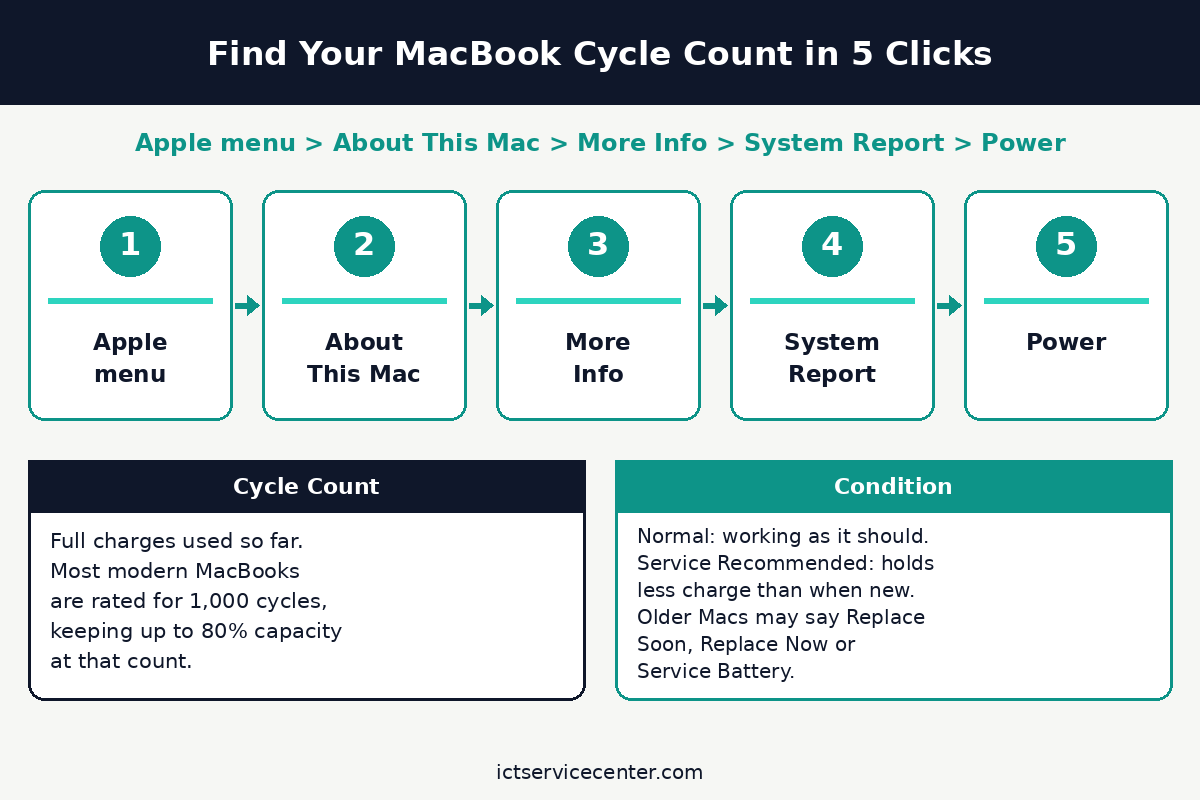
In short: Open Apple menu > System Settings > Battery and click the info button next to Battery Health to read the condition and Maximum Capacity. For the cycle count, open Apple menu > About This Mac > More Info > System Report > Power. Most modern MacBooks are rated for 1,000 cycles, keeping up to 80 percent of original capacity at that count.
Key takeaways
- Battery Health in System Settings shows the condition and Maximum Capacity as a percentage of new.
- Cycle count lives in System Information under Power. One cycle is using 100 percent of the battery capacity over one or more charges.
- Most modern MacBooks are rated for 1,000 cycles at up to 80 percent of original capacity.
- Service Recommended means the battery holds less charge than when new. Apple says you can keep using the Mac.
- Optimized Battery Charging and Charge Limit slow wear by keeping the Mac below a full charge.
1. Check battery health in System Settings

This is the fastest check and the one to trust. It works on any MacBook running macOS Ventura 13 or later.
- Click the Apple menu in the top-left corner, then choose System Settings.
- Click Battery in the sidebar, scrolling down if needed.
- Look at Battery Health. It reads Normal or Service Recommended.
- Click the info button next to Battery Health to see Battery Condition and Maximum Capacity, then click Done.
Maximum Capacity is the charge the battery can hold now, as a percentage of what it held when new. A new MacBook reads 100 percent; a healthy battery a couple of years old often reads in the high 80s or low 90s. On some Macs the info button sits next to Charging instead. If your Mac shows no Battery Health row, Option-click the battery icon in the menu bar.
2. Find your cycle count in System Information

System Settings does not show the cycle count, so this check uses System Information. The path is the same on Intel and Apple silicon Macs.
- Click the Apple menu in the top-left corner of the screen.
- Choose About This Mac.
- Click More Info, then scroll down and click System Report. On older macOS versions, System Report sits straight in the About This Mac window.
- In the left sidebar, under Hardware, click Power.
- Under Battery Information, read Cycle Count in the Health Information section, which also lists Condition and Maximum Capacity.
Shortcut: hold the Option key, click the Apple menu, then choose System Information. In Terminal, system_profiler SPPowerDataType prints the same three fields and changes nothing.
3. What your cycle count and condition mean
A charge cycle is not one trip to the charger. It is using 100 percent of the battery capacity in total, so using half today and half tomorrow adds up to one cycle.
Apple designs each MacBook battery for a maximum cycle count, keeping up to 80 percent of its original capacity at that count. Most modern MacBook Air and MacBook Pro models, including every model with Apple silicon, are rated for 1,000 cycles. Some older models were rated for 300 or 500 cycles.
| Cycle count | Condition | What it means |
|---|---|---|
| Well under the rating | Normal | The battery is aging as expected. Nothing to do. |
| Half to three quarters of the rating | Normal | Capacity has likely dropped a little, and runtime may be shorter. |
| Near or past the rating | Normal | The battery has used its rated life. Apple suggests replacing it for the best performance. |
| Any count | Service Recommended | It holds less charge than when new, or it is not working normally. Keep using it if the runtime still suits you. |
| Any count | Replace Soon, Replace Now or Service Battery | Older macOS wording. Replace Soon means capacity has dropped clearly; Replace Now and Service Battery mean service should not wait. |
Read the two numbers together. A Mac at 900 cycles with 82 percent Maximum Capacity is near the end of its rated life but still in decent shape, while a Mac at 300 cycles with 75 percent wore out early. The same two readings on a Windows laptop come from a different screen; see our guide to checking battery health on a Windows laptop.
4. What to do when it says Service Recommended

Service Recommended is a measurement, not a deadline. Apple says the battery holds less charge than when new, or it is not working normally, and you can safely keep using the Mac while you decide. Note the condition, Maximum Capacity and cycle count, and back up the Mac first.
Decide by runtime, not by the label. If the Mac still covers a full working day away from power, there is no rush. If you now carry the charger everywhere or the Mac shuts down at 20 percent, book service.
Apple covers a defective battery under the One Year Limited Warranty, and with an AppleCare plan a battery below 80 percent of its original capacity is replaced at no extra charge. Without cover there is a fee, and Apple inspects the Mac first.
Built-in batteries should be replaced only by an Apple Store or an Apple Authorized Service Provider. A battery percentage that looks stuck while charging is a separate problem from a worn battery.
Tip: Run Apple Diagnostics before you book service: hold D while the Mac starts up, or Option + D to run it over the internet, and note any battery reference code.
Most battery wear is slow and safe, but a few signs mean stop now: a bulging case, a lid that no longer closes flat, a lifting trackpad, unusual heat or a strange smell. Stop using it and stop charging it.
Warning: Do not press, puncture, bend or open a swollen battery, and do not open the Mac yourself. Contact Apple or an Apple Authorized Service Provider, and keep the Mac away from anything flammable until it is checked. A swollen battery is a physical fault no software reading can rule out.
5. Charging settings and habits that slow wear
Optimized Battery Charging learns your routine and delays charging past 80 percent when the Mac will stay plugged in. While charging is held, the battery menu shows Charging On Hold; choose Charge to Full Now if you need a full charge sooner.
To change it, open Apple menu > System Settings > Battery and click the info button next to Charging (or Battery Health). It needs macOS Big Sur 11 or later.
On a Mac with Apple silicon running macOS Tahoe 26.4 or later, you can also set a Charge Limit between 80 and 100 percent. The Mac stops near the limit and shows Charged to [percent] Limit.
Battery health management works the same way: on Apple silicon Macs, macOS watches temperature and charging patterns and may temporarily lower the maximum charge. On Intel Macs with Thunderbolt 3 ports on macOS Catalina 10.15.5 or later, the same idea appears as Manage Battery Longevity.
Leave these features on: they trim the hours the battery spends at full charge.
No habit stops a battery from aging. Keep the Mac out of heat: a Mac left in a hot car or on a sunny windowsill ages faster. Keep vents clear, and avoid heavy work on soft bedding that blocks them.
If the Mac lives on a desk, a Charge Limit of 80 percent covers most desk work. For the full routine, see the best practices for laptop battery health and how to maintain laptop battery health.
Do not drain the battery to zero on purpose: there is no memory effect to clear, and a full discharge only adds wear.
Mistakes to avoid
Trusting a third-party battery app over macOS. Apple says third-party battery apps may not be accurate, so use the readings in System Settings and System Information.
Judging the battery by cycle count alone. A low count with a low Maximum Capacity points to early wear; a high count with a high Maximum Capacity points to a battery with life left. Read them together.
Turning off Optimized Battery Charging to reach 100 percent faster. The feature delays the last part of the charge for a reason. Switching it off trades convenience now for faster wear. Use Charge to Full Now when you need a full battery.
Waiting for a magic percentage to replace the battery. There is no single number that means replace now. The right time to replace it is when the runtime no longer covers your day.
Opening the Mac to check the battery yourself. Modern MacBook batteries are glued in and wired to the board, and opening the case risks puncturing a cell.
Frequently asked questions
What is a good Maximum Capacity for a MacBook?
There is no pass mark. A new MacBook reads 100 percent, and a healthy battery a couple of years old often reads in the high 80s or low 90s. A reading above 80 percent with a Normal condition is fine.
How many cycles is a MacBook battery good for?
Most modern MacBook Air and MacBook Pro models, including every model with Apple silicon, are rated for 1,000 cycles. Some older models were rated for 300 or 500 cycles. Find your exact model in the table on Apple Support, then compare your count with its rated maximum.
Can I reset the cycle count on my MacBook?
No. The cycle count is a hardware counter of full charges used over the life of the battery. No setting, app or reset clears it, and no routine restores lost capacity. The only way to reset the count is to fit a new battery.
Why does my MacBook stop charging at 80 percent?
That is usually Optimized Battery Charging holding the charge, or a Charge Limit you set. The battery menu shows Charging On Hold or Charged to 80 percent Limit. Choose Charge to Full Now if you need a full charge sooner.
Does Service Recommended mean my MacBook is unsafe?
No. It means the battery holds less charge than when new, or it is not working normally. Apple says you can safely keep using the Mac. The signs that mean stop are physical: a bulging case, a lifting trackpad, unusual heat or a strange smell.
Bottom line: Check Battery Health in System Settings for the condition and Maximum Capacity, then check the cycle count in System Information under Power. If the condition is Normal and the capacity still covers your day, keep using the Mac. If it says Service Recommended and the runtime no longer suits you, back up and book a battery service. For more routine care, see our Care and Maintenance hub.
Sources: Apple Support, Check the condition of your Mac laptop’s battery; Apple Support, Determine battery cycle count for Mac laptops; Apple Support, If you see battery “Service Recommended” on your Mac laptop; Apple Support, About Optimized Battery Charging and Charge Limit on Mac. Photos: Karina Finger via Pexels; Anete Lusina via Pexels; Callum Hilton via Pexels; PNW Production via Pexels. Diagram: ictservicecenter.com.