
 By
You need the model number to get the right drivers, the right manual, or the right part, and it is printed in more places than you might think. Here are five ways to find it, from the sticker on the bottom to a single command.
In short: The fastest way is Settings > System > About, where Windows 11 shows the model name under the device name. If Windows will not start, flip the laptop over and read the label on the bottom. For a copyable result, press Win + R, type msinfo32, and read the System Model line, or run Get-CimInstance -ClassName Win32_ComputerSystem in PowerShell.
Key takeaways
- The model number names the product line; the serial number names your one laptop; Dell calls its serial number a Service Tag.
- The sticker on the bottom works even when Windows will not start, so check it first on a dead laptop.
- Settings > System > About and msinfo32 show the model on any working Windows 11 laptop.
- PowerShell gives a result you can copy: Get-CimInstance -ClassName Win32_ComputerSystem.
- Use the model number on the maker’s support site for drivers, manuals, parts, and warranty checks.
Model number vs serial number vs Service Tag

Three numbers sit close together on most laptops, and they do different jobs. The model number names the product line: a string like HP Pavilion 15-eg0xxx, Dell Inspiron 15 3520, or Lenovo ThinkPad E14 Gen 5. Every laptop of that design shares it, so it tells a support site which drivers and manuals fit. Loaders in this spot often ask about laptop hotspot connection issues as well.
The serial number names your one physical laptop. No other unit shares it, and it is the number a warranty check or a repair ticket runs on. It is usually printed as S/N or Serial No. on the label.
Dell does not use a separate serial number on most laptops: Dell calls its serial number a Service Tag, a seven-character code printed on the bottom label and stored in the firmware. HP adds a third code, the product number, which names the exact configuration and region. Keep the three apart and you will stop pasting the wrong code into a support form.
Method 1: Read the sticker on the bottom
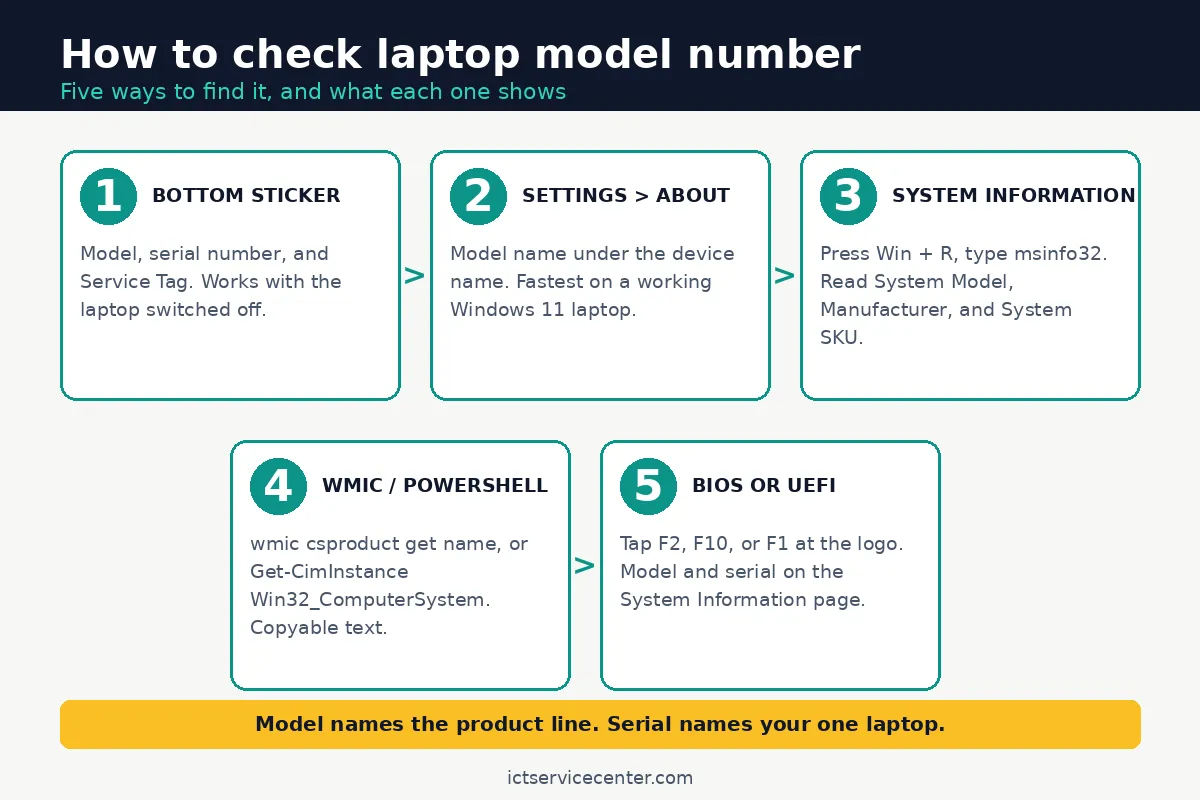
Start here: it needs no power and no working copy of Windows. Shut the laptop down, unplug it, and turn it over on a soft surface so the screen does not get scratched.
Look for a printed label near a corner or along one edge. On most laptops it lists the model name, the serial number, and a barcode together. Dell labels show Model and Service Tag, HP labels show Product, Product No., and Serial No., and Lenovo labels show the model and a serial number, sometimes under an MTM code.
On older laptops with a removable battery, the label may sit inside the battery bay. The original box carries the same numbers, and the purchase receipt usually lists the model too.
Photo the label with your phone the first time you read it. Stickers wear smooth with heat and handling, and a clear photo saves you from guessing at faded print later. Copy the numbers into a note as well. There is more on harm of leaving hp plugged in in a separate guide.

If the print is faint, try bright angled light or the phone camera zoom. Do not peel the label off: the same numbers live in Windows and in the BIOS if you need them.
Method 2: Check Settings, then System Information
On a working laptop, Windows shows the model in two built-in places. The first is the fastest; the second gives the fuller picture.
Settings > System > About
- Press Win + I to open Settings, or right-click Start and pick Settings.
- Select System, then About.
- Read the model name shown under the device name at the top of the page.
Microsoft’s own guidance confirms this path: the model name sits just below the device name. Note that the device name is the name you gave the PC, not the model.
On Windows 10 the About page may not list the model at all, so if the line is missing, move on to System Information below.
System Information (msinfo32)
- Press Win + R.
- Type msinfo32 and press Enter. The System Information window opens.
- On the System Summary page, read System Model on the right.
- Note System Manufacturer and System SKU too: the SKU often carries the exact variant code.

System Information reads these values from the firmware, so they match what the maker stored when the laptop was built. If a field is blank or reads a generic string like “System Product Name”, the maker never filled it in: use the sticker or the BIOS instead.
Method 3: Use Command Prompt or PowerShell
A single command prints the model as plain text you can copy, which beats retyping a long code from a sticker. Both commands only read information; they change nothing. Before you buy anything, it is worth looking at build and support differences to check.
In Command Prompt, the classic command is:
wmic csproduct get name
It prints the model name and nothing else. One warning: WMIC is a legacy tool that Microsoft has been removing from newer Windows builds. On Windows 11 version 24H2 and newer it may be missing entirely, so if the command errors, use PowerShell instead.
In PowerShell, run:
Get-CimInstance -ClassName Win32_ComputerSystem
The output shows the Manufacturer and Model columns, and Microsoft’s own PowerShell documentation uses this exact class for listing a computer’s manufacturer and model. For the serial number, run Get-CimInstance -ClassName Win32_BIOS and read SerialNumber; on a Dell that value is the Service Tag.
Method 4: Look in BIOS or UEFI
When Windows will not start and the sticker is worn, the firmware still knows the model. Restart and tap the setup key as soon as the maker’s logo appears. The usual keys are F2 on Dell, ASUS, and Acer laptops, F10 on HP (or Esc first, then F10), and F1 or F2 on Lenovo. If the logo flashes past, restart and start tapping earlier.
On the BIOS or UEFI screen, open the System Information or Overview page and look for System Model or Product Name, plus the serial number or Service Tag next to it. Dell’s own guide puts both on the Overview tab. When you have the numbers, pick Exit to restart. Do not change any setting while you are in there.
Which method should you use?
Any one of these gives the same model number, so use the fastest one that fits your situation and cross-check with a second method if the numbers look odd.
| Method | What it shows | Use it when |
|---|---|---|
| Sticker on the bottom | Model, serial number, Service Tag | The laptop will not start |
| Settings > System > About | Model name | Windows works and you want the fastest answer |
| System Information (msinfo32) | Model, manufacturer, SKU, BIOS version | You want the full system profile in one place |
| WMIC or PowerShell | Model, manufacturer, serial number | You want a result you can copy or paste |
| BIOS or UEFI | Model, serial number, Service Tag | Windows will not start and the sticker is worn |
If two methods disagree, trust the sticker and the BIOS over Windows: both read the number from the hardware itself, while Windows can only repeat what the firmware reports.
Look it up on the maker’s website
Once you have the model or serial number, the maker’s support site turns it into the exact drivers, manual, and warranty page for your machine. Type the number exactly as printed.
Dell owners enter the seven-character Service Tag at Dell Support, and the site shows the model, its drivers, its manual, and its warranty status. HP owners enter the serial or product number at HP Support, or press Fn + Esc in Windows to open HP System Information, which shows all three numbers in one window. Lenovo owners enter the serial number at Lenovo Support or open the Lenovo Vantage app.
ASUS owners enter the serial number at ASUS Support or open the MyASUS app, and Acer owners enter the serial number or SNID at Acer Support. On every maker site, the model page also lists the RAM type, the drive slots, and the exact service manual, so it is the place to check whether a part or an upgrade fits.
What to do with the model number once you have it
The number itself fixes nothing; it points you at the right files and parts. Start with drivers: filter by your model on the maker’s support page and install only the drivers listed for it, starting with chipset, graphics, and Wi-Fi. A driver meant for a different model in the same family can install cleanly and still cause strange faults.
Next, pull the service manual for your model. It names the exact RAM type and drive form factor, which is what you need before opening the laptop. Our guides to check what RAM your laptop has and to check if your laptop has an M.2 slot both start from the model for the same reason: two laptops that look the same can take different parts.
Use the serial number, not the model, to check your laptop warranty, since cover belongs to your one unit. The same lookup shows the repair options and the original ship date. While you are there, check your SSD health and check your laptop battery health before you spend money on an upgrade: a failing drive or battery changes what is worth fixing.
Mistakes to avoid
Mixing up the model and the serial number. The model names the product line and the serial names your one laptop. A support form that asks for the serial will reject a model name, and a driver search by serial will find nothing.
Typing the number from memory. Model codes mix letters and digits that look alike, such as O and 0 or I and 1. Copy the result from PowerShell or msinfo32 where you can, and read a sticker twice before typing it.
Using the device name as the model. The device name at the top of the About page is the name you gave the PC. The model sits on the line below it, and it is the one the support site wants.
Trusting a worn sticker without a cross-check. Heat and handling fade the print, and a half-read code is worse than no code. Confirm a faded label against msinfo32 or the BIOS before ordering parts.
Downloading drivers from a random site. Only the maker’s support page lists drivers tested for your exact model. Driver updater sites are a common way to land malware or the wrong driver, and no model number is worth that risk.
Frequently asked questions
Where is the model number on a laptop?
On the sticker on the bottom of the laptop, in Settings > System > About on Windows 11, and in System Information under System Model. The sticker is the only method that works with the laptop switched off; on older laptops the label may sit inside the battery bay.
Is the model number the same as the serial number?
No. The model number names the product line, so every laptop of that design shares it, while the serial number is unique to your one physical laptop. Dell calls its serial number a Service Tag, and HP adds a product number for the exact configuration. Warranty checks run on the serial number, not the model.
How do I find my laptop model number if it will not turn on?
Read the sticker on the bottom, which needs no power. If the print has worn off, open the BIOS or UEFI by tapping the setup key at the logo, usually F2 on Dell, ASUS, and Acer, F10 on HP, or F1 on Lenovo, and read the model on the System Information page.
What is the command to check the model number?
In PowerShell, run Get-CimInstance -ClassName Win32_ComputerSystem and read the Model column. The older Command Prompt command is wmic csproduct get name, but WMIC may be missing on Windows 11 version 24H2 and newer, so PowerShell is the safer pick.
Can I find the model number from the serial number?
Yes. Enter the serial number on the maker’s support site: Dell Support takes the Service Tag, HP Support takes the serial or product number, and Lenovo Support takes the serial number. The site then shows the model, its drivers, its manual, and its warranty status.
Bottom line: Start with the sticker on the bottom or Settings > System > About, and use msinfo32 or one PowerShell command when you need a copyable result. Keep the model for drivers and parts and the serial number for warranty, and photo the label before it wears off. More specs explainers live in our Specs Explained hub.
Sources: Microsoft Support, Find information about your Windows device; Dell Support, How to Find the Model Number of Your Dell Computer; Microsoft Learn, Collecting information about computers. Photos: Mikhail Nilov, Vasyl Vovk, kaboompics, Pixabay via Pexels. Diagram: ICT Service Center.