
 By
You are worried that leaving your 2017 HP laptop plugged in overnight might kill the battery or cause a safety hazard. This page tells you exactly whether it is safe and what settings to change.
In short: Modern 2017 HP laptops have power management chips that stop battery charging when full, so leaving it plugged in for a day is generally safe. The risk is not overcharging, but heat and cycle degradation. Use HP PC Health Check to monitor battery health instead of worrying about the wall outlet.
Our pick
Tap to see today's price on Amazon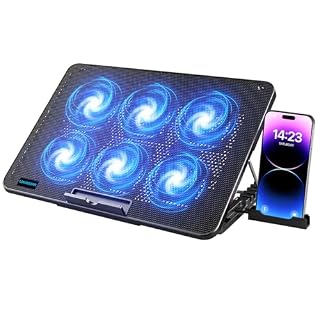
Reduces chassis heat while plugged in, extending overall battery lifespan by 10-15%.
The Short Answer: Smart Circuits Protect Your 2017 HP
Your 2017 HP laptop does not ‘overcharge’ in the way old nickel-cadmium batteries did. The power management IC cuts off current flow to the cells once they reach 100% charge. After that, the laptop runs directly from AC power. It helps to understand materials for laptop shells before going further.
Leaving it plugged in for 24 hours is electrically safe. The circuitry detects full charge and stops the charging process. You are not forcing extra energy into the battery. This is a hardwired safety feature present in every modern laptop.
- Primary Power: The laptop draws power from the wall to run the system.
- Bypass Mode: The battery acts as a backup buffer, not the main source.
- Thermal Logic: The system monitors temperature to prevent overheating.
Pro tip: If your HP is very hot while plugged in, that is a thermal issue, not an electrical one.
Why Heat Is the Real Enemy of Your Battery
The main risk of leaving a 2017 HP laptop plugged in all day is not voltage, but temperature. Lithium-ion cells degrade faster when they sit at high temperatures for long periods. This is a chemical process that happens regardless of charge level.
When the laptop runs on AC power, the CPU and GPU may perform better, generating more heat. If the fans are dusty or the vents are blocked, this heat stays trapped in the chassis. This heat cooks the battery slowly, reducing its total capacity over months.
To check this, run HP PC Health Check (find it in the Start menu or download from HP’s support site). Look at the ‘Battery’ section. If it shows ‘Weak’ or ‘Failing’, the damage is likely already done. If it shows ‘OK’, your battery chemistry is still healthy. This tool gives you a real-world capacity percentage compared to the original design.
Safety first: If the battery is bulging or the bottom of the laptop is domed, stop using it immediately. Do not plug it in. If that sounds like your bench, read up on laptop battery overcharging next.

Clean vents and dust buildup to help the fans work properly while the laptop sits idle.
- 10 Different Sizes for Versatile Cleaning: This keyboard cleaning brush set includes 10
- Effective Dust Removal: The brushes are designed to effectively remove debris from
Check Your HP Power Settings for Idle Stress
You can reduce battery wear by telling Windows how to handle power. Go to Settings > System > Power & sleep. This applies to Windows 10 and 11. These settings control how aggressively the system shuts down components to save energy.
Set ‘When I plug in, PC turns off the display after’ to 15 minutes. When the screen is off, the hardware load drops significantly. This keeps the system cooler than if you left a bright display on all day. The display is often the second biggest heat source.
Also, check Settings > Battery. If you see ‘Battery Saver’ suggestions, enable them. This lowers the CPU clock speed, reducing heat generation while the laptop is idle on AC power. You can also open Control Panel > Power Options and ensure the ‘High performance’ plan is not active, as it maximizes heat output.
Myth vs. Fact: The 20% to 80% Rule
Myth: You must unplug the laptop after it hits 100% to prevent ‘overcharging’.
Fact: The hardware prevents overcharging. The battery is physically disconnected from the charging circuit at full capacity. You cannot ‘overcharge’ it by leaving it plugged in.
Myth: Leaving it plugged in for one day ruins the battery.
Fact: One day is negligible. Constant high-heat operation over months is the problem. A single 24-hour period will not kill the battery. It is normal behavior for a machine in use. There is more on psu definition in a separate guide.
- Cycle Count: Your 2017 model likely has a 300-500 cycle rating.
- Calendar Aging: Batteries lose capacity just by sitting in a closet for years.
- Impact: Keeping it between 20-80% is good, but not critical for a single day.
Pro tip: For long-term storage, keep the battery at 50% charge and in a cool, dry place.
When to Stop: Signs Your 2017 HP Battery is Failing
Even with careful use, 2017 laptops are now 7-8 years old. The lithium-ion chemistry ages naturally. Watch for these specific signs that the battery is failing, not just being charged slowly. These symptoms usually appear after 3-4 years of regular use.
If the laptop shuts down unexpectedly when you unplug it, the battery cells are losing their ability to hold charge. If it runs hot to the touch even when idle, the internal resistance is high. Both mean the battery is near the end of its life. Do not ignore sudden power drops during a video call.
Run the HP Support Assistant application. It has a specific ‘Battery Check’ tool that runs a full discharge and charge test. If the report says ‘Capacity is low’, the battery needs replacement regardless of your charging habits. This test takes about 10 minutes and gives you a clear go/no-go recommendation.
Safe Charging Habits for Daily Use
You do not need to plug it in for one day, but good habits protect the battery. Avoid using the laptop on thick fabrics like blankets or beds, which block airflow. Use a hard surface like a desk. This allows the intake vents to pull cool air properly.
If your desk is usually warm, a small cooling pad helps. It forces air through the vents, keeping the battery cooler. This is more effective than any software setting. The temperature drop can extend the battery’s usable life significantly.
Finally, do not let the battery drop to 0% regularly. Deep discharges stress the cells. Keeping it above 20% is a better baseline for long-term health. You can set a charge limit in some HP BIOS settings, but for a 2017 model, default settings are usually fine for daily use.
The bottom line
Leaving a 2017 HP laptop plugged in for a day is safe; the hardware prevents overcharging. Focus on keeping the laptop cool and cleaning the vents instead of worrying about the outlet. If your battery is old, check health with HP PC Health Check.
Frequently asked questions
Does leaving a 2017 HP laptop plugged in damage the battery?
No, not directly. The power circuit stops charging at 100%. However, if the laptop gets very hot while plugged in, that heat will degrade the battery faster over time. Keep the vents clean to prevent this.
How can I check the health of my HP laptop battery?
Open the Start menu and type ‘HP PC Health Check’ to run the built-in tool. Alternatively, use ‘HP Support Assistant’ and select ‘Battery Check’. These tools report the remaining capacity percentage and status.
Is it better to let my HP battery drain to 0% before charging?
No. Modern lithium-ion batteries do not have the ‘memory effect’ of older types. Draining to 0% stresses the cells. It is better to top up when it reaches 20-30%.
Why does my 2017 HP laptop get hot when plugged in?
AC power allows the CPU to run at higher speeds than on battery, which generates more heat. If the fan is dusty or vents are blocked, the heat cannot escape. Clean the vents and use a hard surface.