
 By
You can find out exactly how much RAM your laptop has in under a minute, without opening the case or installing anything, and the same check tells you the speed, the type, and whether a slot is free.
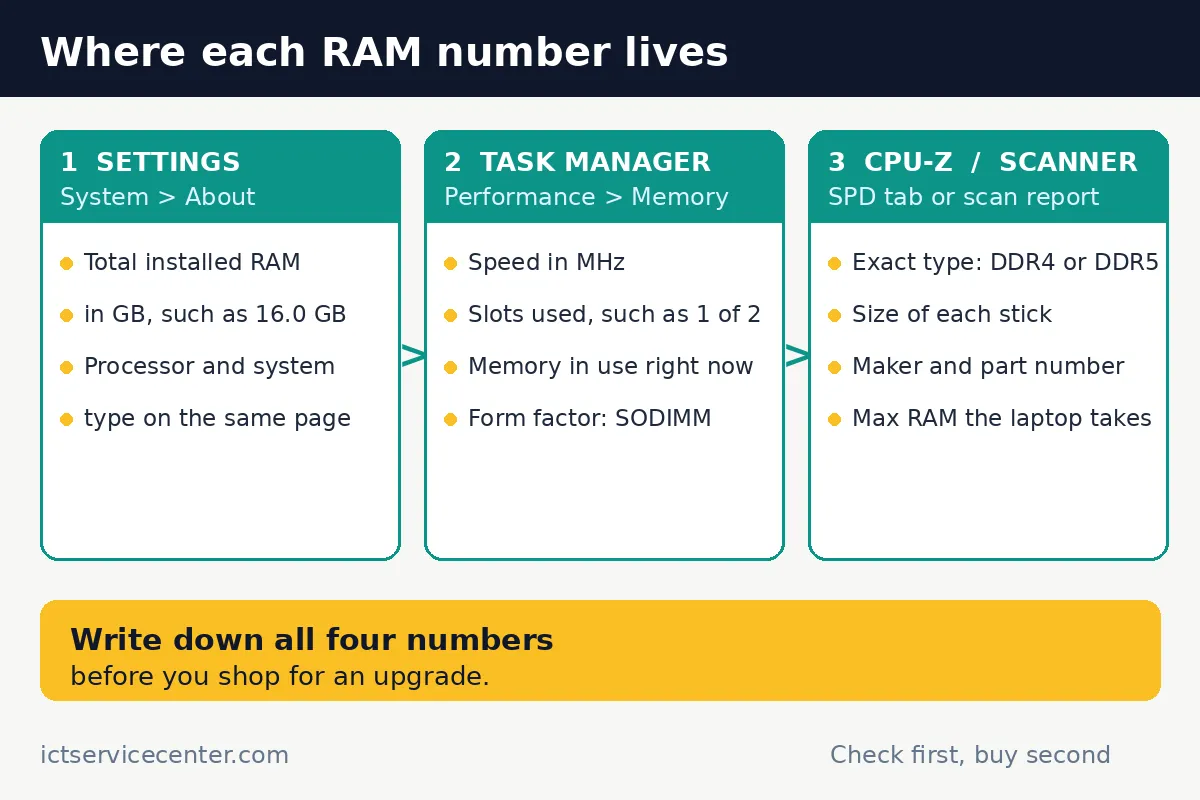
In short: Press Win + I, open Settings, then System, then About. Under Device specifications, Installed RAM shows the total memory, such as 16.0 GB. For speed, slots used, and live use, press Ctrl + Shift + Esc, open Task Manager, then Performance, then Memory.
Key takeaways
- Settings > System > About gives the total installed RAM in one number.
- Task Manager > Performance > Memory adds speed, slots used, form factor, and live use.
- Windows never names the DDR generation in Settings, so use CPU-Z or PowerShell for DDR4 vs DDR5.
- Write down the GB, speed, type, and slots used before you shop for an upgrade.
Check the total in Settings

Start with the simplest check: it answers the question most people ask, and it takes about 30 seconds. Before you buy anything, it is worth looking at ram and multitasking.
- Press Win + I to open Settings. You can also right-click Start and select Settings.
- Select System in the left pane, then scroll to the bottom and select About.
- Under Device specifications, read Installed RAM. Some builds label the same line Amount of RAM installed.
The number is the total memory Windows reports, such as 8.00 GB or 16.0 GB. Microsoft points to this page for the processor, the amount of RAM installed, and the system type, so it is also the number a support agent or an app installer will ask for.

Sometimes the line shows two numbers, such as 16.0 GB (15.7 GB usable). The smaller figure is what Windows can use, because a slice is reserved for hardware, usually graphics built into the processor. The larger figure is the amount installed, and it is the one to quote.
See speed, slots and live use in Task Manager
Settings gives the total and nothing else. Task Manager shows what the memory is doing right now, how fast it runs, and how many slots it sits in.
- Press Ctrl + Shift + Esc to open Task Manager. You can also right-click Start and select Task Manager.
- Select Performance in the left pane, then select Memory.
- Read the total in the top right, above the live graph, then read the figures under the graph.
Under the graph, In use and Available sit on one side, and Speed, Slots used, Form factor, and Hardware reserved on the other. Speed is shown in MHz, such as 3200 MHz. Slots used reads like 1 of 2, and form factor reads SODIMM on most laptops.
Check twice: once at rest, and once while the slow program runs. If the graph climbs to the top and stays there, memory is the bottleneck. If it stays low, the problem sits elsewhere.
What the numbers mean
Four numbers describe the memory in a laptop, and each one answers a different question. We go through thermal throttling laptop cpu step by step in its own article.
| Figure | Where to find it | What it tells you |
|---|---|---|
| Total RAM in GB | Settings > System > About | How much working space the laptop has |
| Speed in MHz | Task Manager > Performance > Memory | How fast data moves in and out of memory |
| Type, DDR4 or DDR5 | CPU-Z SPD tab | Which generation of stick fits the laptop |
| Slots used | Task Manager > Performance > Memory | Whether a free slot is left for an upgrade |
| Form factor | Task Manager > Performance > Memory | SODIMM for laptops, DIMM for desktops |
| Hardware reserved | Task Manager > Performance > Memory | Memory set aside for hardware, such as graphics |
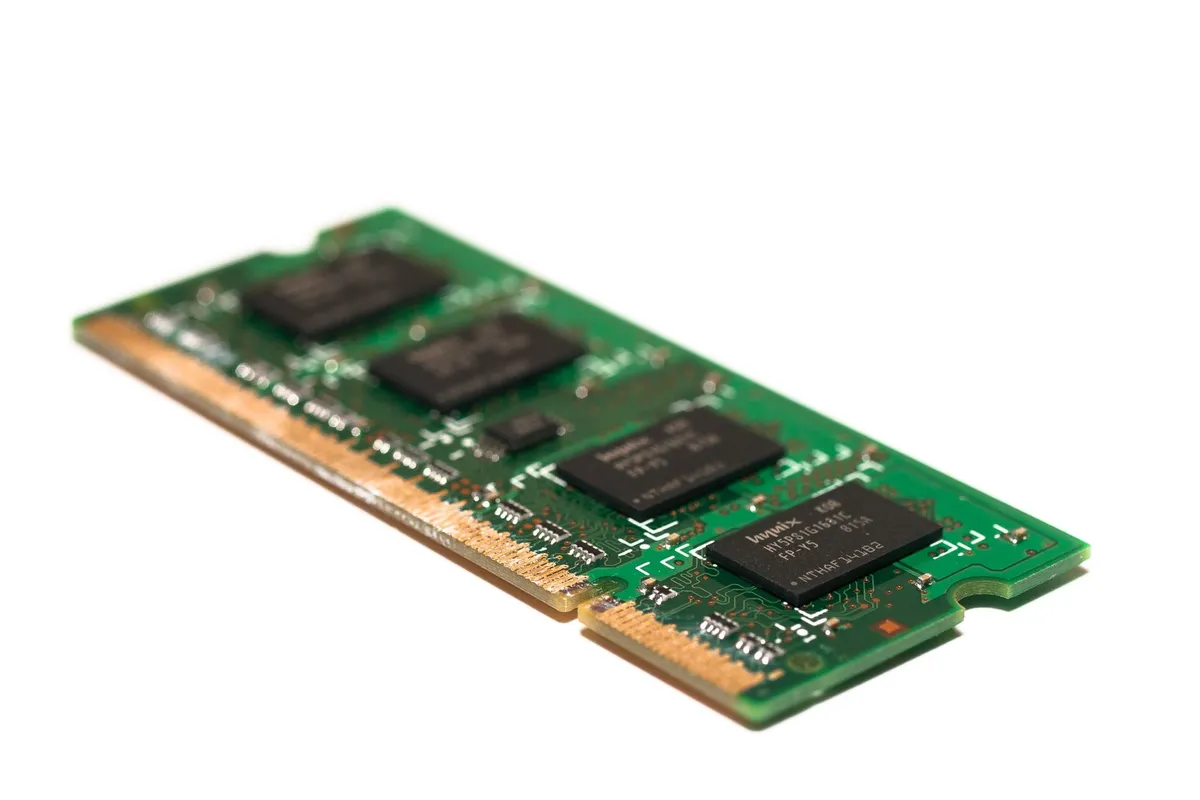
Capacity in GB is the size of the working space. More gigabytes means more programs and browser tabs can sit in memory at once.
Speed in MHz is how fast the memory moves data. Windows reports the speed the memory actually runs at.
Type, DDR4 or DDR5, is the generation. The generations are not interchangeable: a DDR4 stick will not work in a DDR5 slot, and a DDR5 stick will not work in a DDR4 slot. Our guide to DDR4 vs DDR5 explains the differences, but never guess the generation from speed alone: the ranges overlap.
Slots used tells you whether an upgrade is a simple add or a swap. One of two means one slot is free. Two of two means both slots are full, so an upgrade means replacing a stick. Two matched sticks also run in dual channel, which is faster than one stick, as our guide to single-channel vs dual-channel RAM explains.
Get the full detail with System Information and PowerShell
System Information lists the memory next to the rest of the hardware, which helps when you are writing up specs for a support request. It also separates installed memory from usable and available memory.
- Press Win + R, type
msinfo32, and press Enter. - Keep System Summary selected in the left pane.
- Scroll the right pane to the memory entries: Installed Physical Memory (RAM) is the total, Total Physical Memory is what Windows can use, and Available Physical Memory is what is free right now.
The same window lists the system manufacturer and model, the processor, and the BIOS version: the lines a maker support page needs, so note them down too. Before you buy anything, it is worth looking at finding hidden m.2 slots.
PowerShell goes one level deeper and lists each stick on its own. Open Start, type PowerShell, and run Get-CimInstance Win32_PhysicalMemory | Select-Object DeviceLocator, Capacity, Speed, Manufacturer, PartNumber. The DeviceLocator column names the slot, such as ChannelA-DIMM0, and Capacity is in bytes, so divide by 1,073,741,824 for gigabytes.
Check the exact type and free slots with CPU-Z and the Crucial System Scanner
Neither Settings nor Task Manager reliably names the DDR generation, and that is the one detail an upgrade depends on. Two free tools fill the gap: CPU-Z reads the hardware, and the Crucial System Scanner checks the model against a compatibility list.
CPU-Z is a small free tool from CPUID. Download it only from cpuid.com, never from a download site or a forum link. Open it, read the type and current speed on the Memory tab, then check each slot on the SPD tab and note the size, maker, and part number. An empty slot shows no information: that slot is free.
The Crucial System Scanner takes the other route. It scans the laptop and reports the memory installed now, the type each slot takes, the maximum memory the laptop supports, and a list of compatible upgrades. Run it only from crucial.com, and treat its list as a compatibility shortlist: match the type, form factor, and speed against the numbers you already wrote down.
Before you spend anything, confirm the laptop can be upgraded at all. Many thin laptops have memory soldered to the board, which means no slot and no upgrade. If you are unsure, our guide on whether you can upgrade the RAM in your laptop walks through the checks in order.
The same check on a Mac
A MacBook shows the total in one place and the upgrade options in another, and the second check matters because most modern MacBooks cannot take more memory after purchase.
- Click the Apple menu in the top left corner and select About This Mac.
- Read the Memory line. That is the total RAM installed, such as 8 GB or 16 GB.
- For slot detail, hold Option, open the Apple menu again, and select System Information.
- Under Hardware on the left, select Memory and look for the Memory Slots pane and the Upgradeable Memory field.
If the Memory Slots pane does not appear, upgradeable memory is not available for that Mac. Apple silicon Macs have memory built into the chip, so buy the memory you need at purchase time: it cannot be added later.
To see whether the Mac is short of memory, open Activity Monitor and select the Memory tab. The memory pressure graph uses colour: green means the Mac has enough memory, yellow means it might need more, and red means it needs more.
A red graph during normal work is the sign to close apps or plan a machine with more memory, since the memory is not user replaceable on most current models.
What to do with the numbers
Four numbers are now on paper. The next step depends on which one is the problem, and most of the time only one of them is.
If the laptop feels slow and Task Manager shows memory in use above 80 percent during normal work, the laptop is short of memory. Our guide to check if your laptop RAM is enough works through the same readings in more detail.
If the numbers say an upgrade is the fix, work out how much to aim for first. Our guide to how much RAM you need in a laptop sets out the bands by use: 8 GB for browsing and video calls, 16 GB for heavy multitasking and most games, 32 GB for video editing and virtual machines. Then buy the type and speed the laptop takes.
If a slot is free and the type matches, the upgrade itself is a short job on most laptops, and our guide to replace the RAM in a laptop covers it with the safety steps: power off, unplug, ground yourself, and seat the stick until the clips engage. If the memory is soldered, or the manual warns against opening the laptop under warranty, take it to a shop instead.
Mistakes to avoid
Reading Available as Installed. Available is what is free right now, and it changes every second. The fix: quote Installed RAM from Settings.
Guessing DDR4 or DDR5 from the speed alone. Speed ranges overlap, so a fast number does not prove DDR5. The fix: read the type in the CPU-Z SPD tab.
Buying RAM before checking slots used and the maximum. A stick that fits the slot is useless if both slots are full or the laptop caps out below the size you bought. The fix: note Slots used in Task Manager and the maximum from the scanner or the maker spec page.
Mixing up RAM and storage. A 512 GB drive is storage, not memory, and it says nothing about RAM. The fix: read Installed RAM under Device specifications, and storage under Settings, then System, then Storage.
Downloading CPU-Z or a scanner from a random site. Lookalike download pages bundle extra software with the tool. The fix: get CPU-Z only from cpuid.com and the scanner only from crucial.com.
Frequently asked questions
How much RAM does a laptop need?
It depends on the work: 8 GB covers browsing, documents, email, and video calls; 16 GB suits heavy multitasking, photo editing, and most games; 32 GB suits video editing, virtual machines, and large data sets. Check the laptop first, then match the band to the work.
Why does Windows show less RAM than the laptop came with?
Some memory is reserved for hardware, usually graphics built into the processor, so the usable figure is smaller than the installed figure. Settings may show 16.0 GB with 15.7 GB usable. The installed figure is still the amount in the machine.
Can I check the RAM type without opening the laptop?
Yes. CPU-Z is the clearest route: its SPD tab names the type, size, maker, and part number of each stick, and an empty slot shows no information. PowerShell can also list each stick. Task Manager shows speed and slots, but it does not always name the DDR generation.
Does checking RAM change anything on the laptop?
No. Every method here only reads information, and each tool leaves the laptop exactly as it found it. Nothing is installed except CPU-Z itself, and only if you choose to run it. No setting changes, and no restart is needed.
What if Task Manager shows the wrong speed or slots?
Windows reads memory details from the firmware, and the firmware can misreport them. Cross-check with CPU-Z, which reads the modules directly, and with the maker spec page for the exact model. If they disagree, trust CPU-Z and the spec page.
Bottom line: Open Settings, then System, then About for the total, Task Manager, then Performance, then Memory for speed and slots, and CPU-Z for the exact type. Write down all four numbers before you shop, and read our specs explainers next.
Sources: Microsoft Support, Find information about your Windows device (support.microsoft.com); Kingston, How to upgrade your laptop with RAM (kingston.com); CPU-Z, CPUID (cpuid.com); Apple Support, Check if your Mac needs more RAM in Activity Monitor (support.apple.com). Photos: Hanna Pad, JK Holland, William Warby, Andrey Matveev, Archie Binamira via Pexels. Diagram: ictservicecenter.com.