
 By
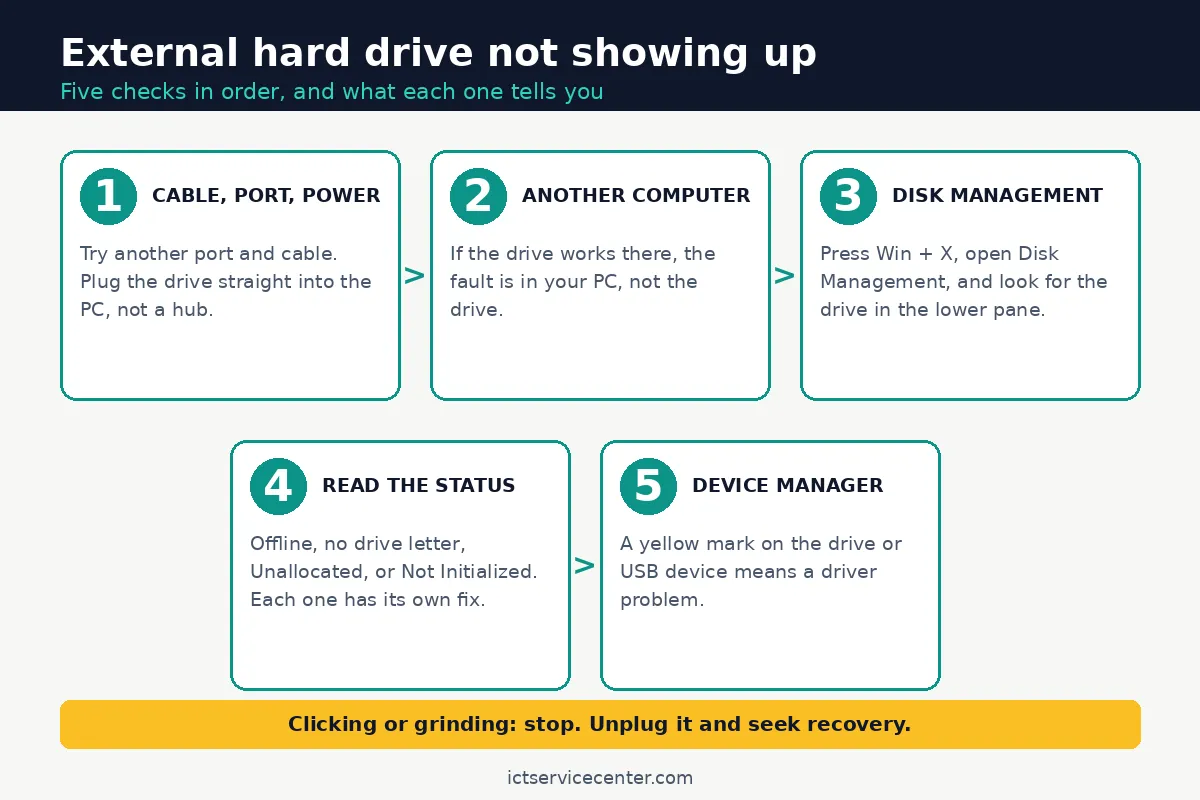
You plug in the drive, the light comes on, and nothing appears in File Explorer. Before you assume the drive is dead, work through the checks in order.
In short: Plug the drive straight into a different USB port with a different cable, and try it on another computer.
If it still does not appear, press Win + X and open Disk Management: a drive that shows there but not in File Explorer usually needs a drive letter, to be brought online, or to be initialized.
A drive that shows nowhere and clicks or grinds should be unplugged and taken to a recovery service.
Key takeaways
- Start with the cable, the port, and the power: plug the drive straight into the PC, not a hub.
- Test the drive on another computer: if it works there, your PC is at fault.
- File Explorer, Disk Management, and Device Manager each show a different layer.
- A missing letter, an offline disk, or an uninitialized disk each has its own fix.
- Never initialize or format a drive that holds files you need, and stop at once if it clicks or grinds.
What “not showing up” actually means

“Not showing up” can mean three different things. File Explorer only lists a drive Windows can read: it needs a letter and a file system Windows understands. Disk Management lists every disk Windows can see, even one with no letter.
Device Manager lists the hardware and its driver, even when Windows cannot read the disk. If that sounds like your bench, read up on laptop not recognizing usb drives next.
Plug the drive in, then check each place in turn: File Explorer under This PC, then Disk Management, then Device Manager. Where the drive drops out tells you which fix to use.
If the missing drive is the one inside the laptop, see our guide to fix a laptop hard drive that is not detected.
First, rule out the cable, port, and power
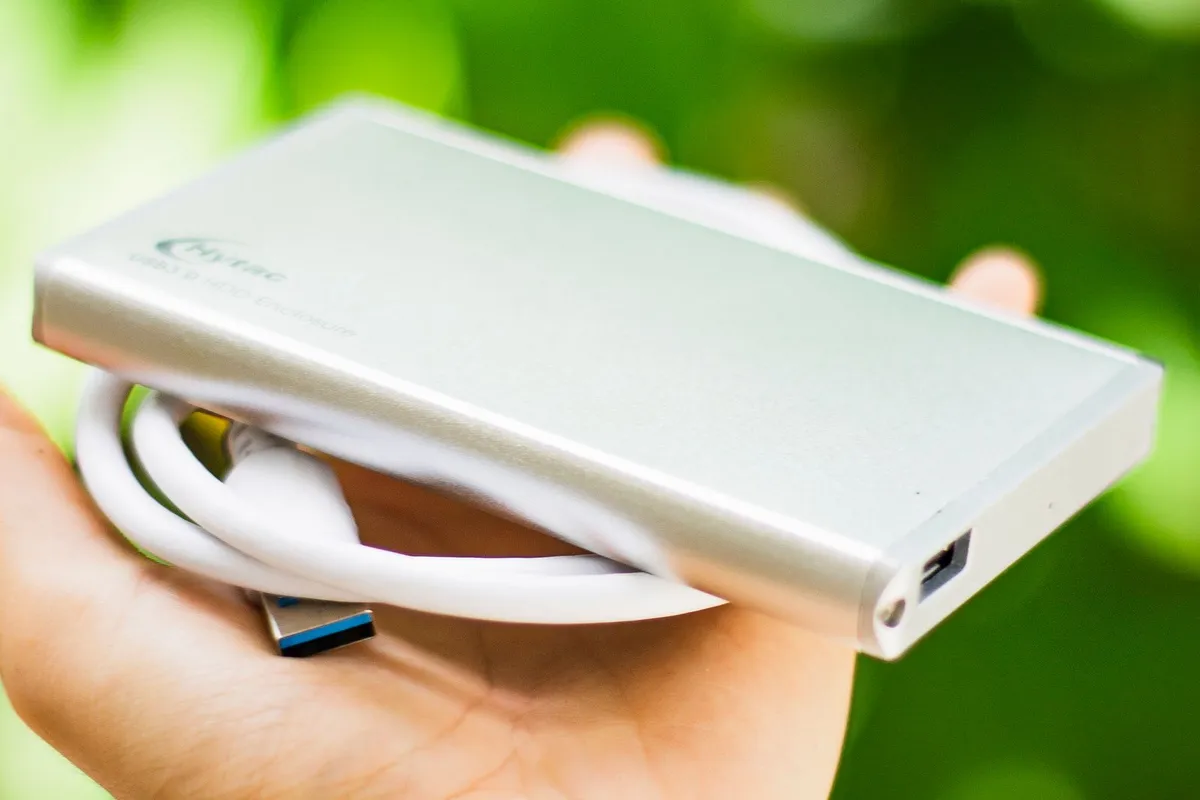
Most missing drives are a connection fault. Change one thing at a time, and check File Explorer after each change.
- Plug the drive straight into the PC, not a hub, dock, or keyboard port.
- Try a different port, on a desktop one on the back of the case.
- Swap the cable: a charge-only cable powers the light without carrying data.
- Check the power. A desktop-style drive with its own adapter must be plugged in and switched on. A portable drive draws power from the port, so try a USB 3.0 port rather than a USB 2.0 port.
- Restart the PC with the drive plugged in.
On a laptop, plug into wall power while you test: some laptops cut USB power on battery. No light and no spin on any port or cable means the drive is getting no power at all.

A spare data cable rules out the most common cause in one swap.
- 5 Gbps Fast Transfer: This micro b to usb a hard drive cable supports a standard data
- Heavy Construction: CLAVOOP external hard drive cable features an aluminum housing
A mouse working in the same port proves little: it needs far less power.
If the drive only works through a powered hub, the port was the limit: a powered hub gives the drive its own power supply. We cover broken usb-c port on laptop in a guide of its own.

A powered hub gives a thirsty drive its own power supply when a laptop port cannot.
- This 7-port USB 3.0 data hub can instantly expand 1 USB 3.0 port to 7 external USB 3.0
- Besides 7 SuperSpeed USB 3.0 ports, this USB 3.0 splitter offers a charging dedicated
If no USB device works in that port, the port itself is at fault: work through our guide to fix a USB port that is not working on a laptop.
Try the drive on another computer
This test splits the problem in half: plug the drive into a second computer and check File Explorer there.
If it appears there, the drive is fine and the fault is in your PC. Copy your files to safety first: our guide to back up laptop data safely shows the order.
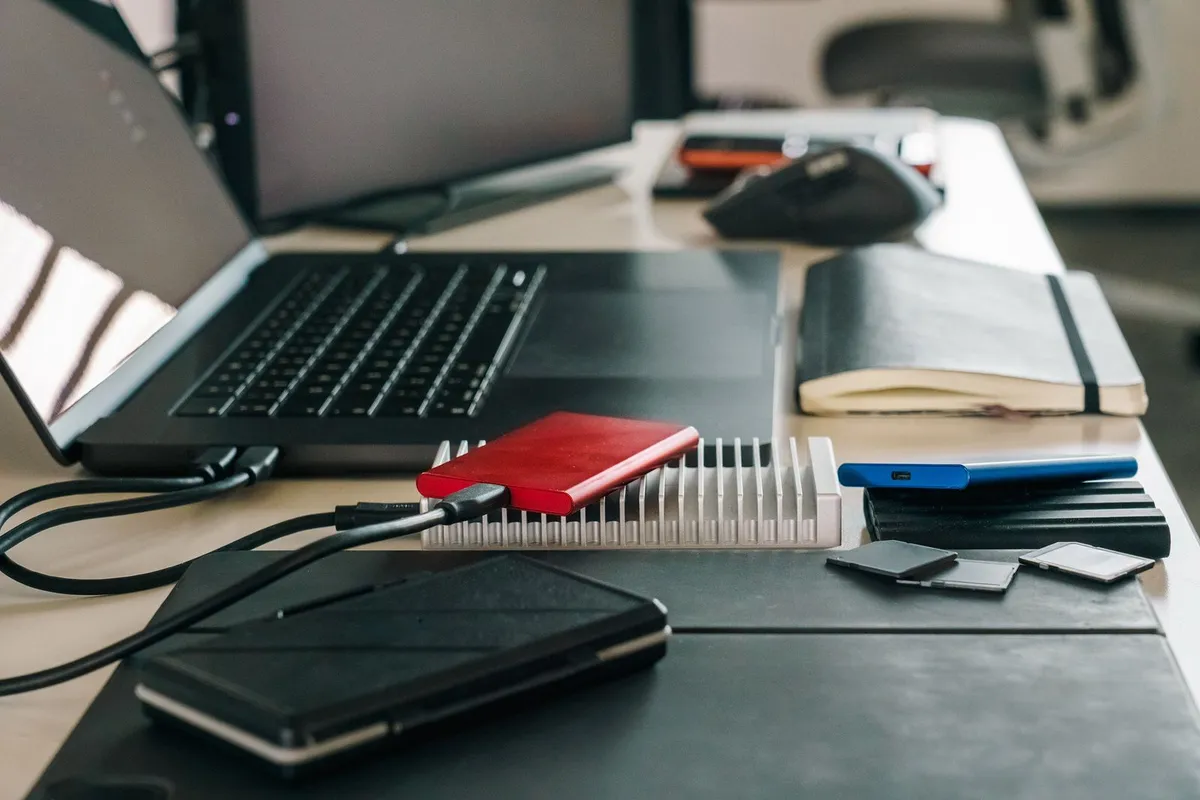
If it appears on a Mac but not on Windows, or the other way around, the file system is the likely cause: see the notes below. If it appears on no computer at all, the fault is in the drive or its enclosure.
Open Disk Management and read what it says
Disk Management settles most cases: it shows every disk Windows can see, whether or not File Explorer lists it. Open it with Win + X, or Win + R, then type diskmgmt.msc and press Enter. You need an administrator account.
Look in the lower pane, where each disk is a row, and match your drive by its size: a drive sold as 1 TB shows as about 931 GB. If it is not there, select Action > Rescan Disks. Then match what you see to a row in this table. The other half of this decision is laptop sd card not detected.
| Symptom | Likely cause | Fix |
|---|---|---|
| Nothing happens when you plug it in | No power, dead cable, or dead port | Try another cable, port, and computer |
| “USB device not recognized” message | Driver problem or a faulty cable | Update or reinstall the driver from Device Manager |
| Drive listed in Disk Management, missing from File Explorer | No drive letter | Assign a letter with Change Drive Letter and Paths |
| Disk shows as Offline | Windows took the disk offline | Right-click the disk and select Online |
| Disk shows as Unknown, Not Initialized | No partition table, or a brand-new disk | Initialize only if the disk holds no files you need |
| Disk shows as Unallocated | No partition exists | Create a New Simple Volume on an empty disk only |
| Drive listed as RAW | File system damage | Recover the files first, then format |
If the drive appears nowhere here, skip ahead to Device Manager: the problem sits in the device or its driver.
Fix the drive letter, the offline disk, and the uninitialized disk
Take the fix that matches what you saw, and skip the rest.
Assign or change the drive letter
A healthy partition with no letter is invisible to File Explorer.
- Find your drive’s volume in the lower pane.
- Right-click the volume and select Change Drive Letter and Paths.
- If it has no letter, select Add. If its letter clashes with another drive, select Change.
- Select Assign the following drive letter, pick a free letter, select OK, and confirm with Yes.
Check This PC: the drive should now be listed. If Change Drive Letter and Paths is grayed out, the volume is not ready for a letter.
Bring an offline disk online
A disk marked Offline is visible but switched off. Right-click its label on the left and select Online.
Initialize a disk that has never held data
Initializing a disk erases all data on it. Only initialize a brand-new disk, or one whose files you have copied elsewhere. If it holds files you need, recover them first.
A new disk must be initialized before Windows can store files on it; the default style is GPT. Some USB drives cannot be initialized at all.
- Right-click the disk label and select Initialize Disk.
- Leave the partition style on GPT and select OK.
- Right-click the Unallocated space and select New Simple Volume.
- In the wizard, accept the default size, assign a letter, and pick NTFS.
- Select Finish.
Fix the driver in Device Manager
If Disk Management shows nothing, look at the driver next: Device Manager shows the drive and its USB connection even when Windows cannot read the disk, and a yellow mark means a problem. It helps to understand high disk usage while downloading before going further.
- Press Win + X and select Device Manager.
- Expand Disk drives and look for your drive, then Universal Serial Bus controllers for Unknown device or a USB Mass Storage Device with a yellow mark.
- Right-click it and select Update driver, then Search automatically for drivers.
- If Windows finds nothing, uninstall the device, then unplug the drive and plug it back in: Windows reinstalls the driver.
- Restart the PC if it still does not appear.
For a yellow-marked device, read the code under Device status in its Properties. If the drive appears after a restart but vanishes later, turn off USB selective suspend in Control Panel > Power Options > Change plan settings > Change advanced power settings > USB settings > USB selective suspend setting, setting both On battery and Plugged in to Disabled.
When the drive itself is the problem
If it fails on every machine, the fault is in the drive, its enclosure, or its file system.
If the drive clicks, grinds, or beeps, stop
A healthy drive hums. Clicking, grinding, or repeated beeping means a mechanical fault, and every extra minute of power makes recovery harder. Unplug the drive at once and do not open it, format it, or run repair tools on it: opening a drive lets in dust, and a repair tool can overwrite files a recovery service could have saved.
If the file system is the problem
A drive listed as RAW has file system damage. Do not format it until the files are copied off: formatting erases them.
A Mac-formatted drive will not show in File Explorer: macOS uses APFS, which Windows cannot read. If the drive must move between Windows and a Mac, exFAT is the format both can read, but changing the format erases the drive, so copy the files off first. If an SSD appears but behaves badly, check your SSD health before you trust it with files.
Test the enclosure or dock
The enclosure can fail while the drive inside is fine. Test the bare drive in a spare enclosure or a SATA-to-USB dock: if it works there, replace the enclosure.
If the drive appears and then vanishes, that is a different fault: see our guide to an external SSD that keeps disconnecting. When a drive has failed these checks, replace it: our roundup of the best external SSDs for laptops covers portable drives.
On a Mac, check Disk Utility
The same cable, port, and second-computer checks apply on a Mac. Open Finder > Settings > General and make sure External disks is ticked: a mounted drive can still be hidden. Then open Disk Utility from Applications > Utilities: if the drive is listed, click Mount, or run First Aid if it will not mount. If it is not listed, the fault is the cable, the port, or the drive.
Mistakes to avoid
Formatting or initializing a drive that still holds files. Both steps erase the drive, so copy the files off first.
Keeping a clicking drive powered on. Clicking means a mechanical fault, so unplug it and seek recovery.
Testing with the same cable and port. Change one thing at a time instead: a new cable, a different port, another computer.
Pulling the drive out without ejecting it. Unplugging a drive mid-write can corrupt it, so eject it first and wait for the safe-to-remove message.
Putting a clicking drive in the freezer. The cold does not fix a mechanical fault, and condensation can finish the drive.
Frequently asked questions
Why does my drive show in Disk Management but not in File Explorer?
File Explorer only lists a drive with a letter and a file system Windows can read, while Disk Management lists every disk Windows can see. A drive in that gap usually has no letter, is offline, or is uninitialized. Fix it in Disk Management.
How do I get Windows 11 to recognize my external hard drive?
Plug it into a USB port with a different cable, then try another computer to find out whether the fault is the drive or the PC. If it works elsewhere, open Disk Management with Win + X and fix its status: assign a letter, bring it online, or initialize it.
Can I recover files from a drive that is not showing up?
Often, yes, if it still spins and shows in Disk Management. Copy the files off on a computer that does see it, or get them recovered before you format or initialize anything. If it clicks or grinds, stop and seek recovery.
Why does my drive work on another computer but not mine?
The drive is fine and the fault is in your PC: its port, its cable, or its driver. Try a different port and cable on your PC, then open Device Manager, find the drive under Disk drives or Universal Serial Bus controllers, and update or reinstall the driver.
Should I format my external hard drive if Windows asks me to?
Not if it holds files you need: formatting erases them. Close the prompt, open Disk Management, and check the drive status first. If it is listed as RAW, recover the files before you format, and only format a brand-new drive or one whose files you have already copied elsewhere.
Bottom line: Start with a different cable and port, try another computer, then open Disk Management and fix what its status row says. Never format a drive that holds files you need. More fixes live in our Troubleshooting hub.
Sources: Microsoft Learn, Initialize new disks; Microsoft Learn, Change a drive letter; Microsoft Support, Fix USB-C problems in Windows. Photos: Luis Quintero, Nothing Ahead, Jakub Zerdzicki, Uwukuri Emery, AEN Studio via Pexels. Diagram: ICT Service Center.