
You press power, the fans spin, but the screen stays black or says "Operating System Not Found." Your laptop hard drive is not detected, and your data feels gone. This page walks you through 7 fixes in order, from free software checks to hardware tests, so you know exactly what is broken and what to do next.
In short: Most hard drive not detected issues are software or loose connection problems, not dead drives. Check BIOS and Device Manager before opening the case. If the drive is missing from BIOS, it is a hardware fault: replace the drive or the laptop.
Quick picks
Our shortlist for this job · tap one to see today's price
Lets you plug your internal 2.5-inch drive into any USB port to test it on another computer.
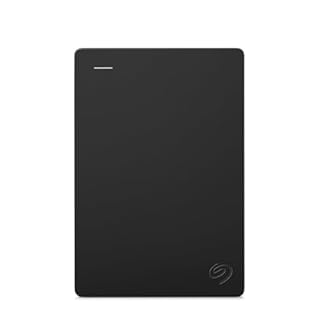
A reliable external drive to copy your files to if your main laptop drive is failing.
Why Your Laptop Hard Drive Is Not Detected
When a laptop hard drive is not detected, the computer cannot find the storage device during boot. The cause is usually one of four things: a loose physical connection, a BIOS setting error, a corrupted Windows driver, or a physically dead drive. Knowing which one it is saves you money. Loaders in this spot often ask about install new ssd as well.
The sound your laptop makes is a big clue. If you hear a repeating click from the internal drive, the mechanical head is broken. If the drive is silent, it may not be getting power. If you have an SSD, there is no moving part, so failure is usually electronic.
For external drives, the issue is often simpler. A bad USB cable, a dead USB port, or a driver conflict in Windows prevents the drive from showing up. Start with these free checks before opening your laptop.
Pro tip: If you recently dropped or bumped your laptop, a loose connector is the most likely cause. Try Fix 1 first.
Fix 1: Check Physical Connections and Power
This is the first step for internal drives. A bump can dislodge the SATA cable or the drive itself. Power off, unplug the charger, and remove the battery if it is removable. Then open the back panel.
- Locate the hard drive bay.
- Disconnect the drive and inspect the SATA connector and cable for bent pins or dust.
- Reinsert the drive firmly until it clicks.
For external drives, try a different USB port on your laptop. Avoid USB hubs; plug the drive directly into the computer. If the drive has a power light on but Windows does not see it, the data cable or the enclosure board is likely failing.
Safety first: Always disconnect the battery before opening the laptop to avoid shorting the motherboard. There is more on our notes on 5 simple steps in a separate guide.
Fix 2: Verify Detection in BIOS or UEFI
BIOS is the firmware that talks to hardware before Windows loads. If the drive is not here, Windows will never see it. This is the most important test to tell if you have a software or hardware problem.
Restart your laptop and press the BIOS key repeatedly (usually F2, F10, Del, or Esc) as the logo appears. Go to the Boot or Storage menu. Look for a list of installed drives.
- Drive is listed: The hardware is fine. Your problem is in Windows (boot file or driver). Move to Fix 4.
- Drive is NOT listed: The hardware is failing. Move to Fix 6 to test on another computer.
Also check the SATA mode. Some laptops use RAID. If you recently reset the BIOS, this setting may have changed. Set it back to the original mode (often AHCI) if you know it.
Pro tip: If you hear a clicking noise from the drive, stop. Do not keep powering it on. Clicking means the head is stuck and the drive is dying.
Fix 3: Use Disk Management in Windows
Sometimes the drive is detected by the hardware but Windows has not assigned it a drive letter. It shows up as “Unknown” or “Unallocated” in Disk Management. This is common after a Windows update.
- Press Windows Key + X and select Disk Management.
- Look for a drive that has no letter (E:, F:, etc.).
- If it says “Unallocated,” right-click it and choose New Simple Volume. Warning: this erases data.
- If it says “Unknown,” right-click it and choose Initialize Disk.
If the drive appears here but has no letter, right-click the partition and select Change Drive Letter and Paths. Assign a new letter. This often fixes the “hard drive not recognized” error immediately. Before you buy anything, it is worth looking at laptop hard drive not detected.
Fix 4: Update or Reinstall Hard Drive Drivers
Corrupted drivers can hide a working drive from Windows. This is a very common cause if the problem started after a major system update. Do not panic yet. The drive is likely fine.
Open Device Manager by right-clicking the Start button. Expand Disk drives. If you see your drive with a yellow exclamation mark, right-click it and select Update driver. Choose “Search automatically for drivers.”
If that does not work, right-click the drive and select Uninstall device. Do not check the box to delete the driver software. Restart your laptop. Windows will automatically reinstall the correct driver on boot. Also check the IDE ATA/ATAPI controllers section in Device Manager and update the SATA AHCI Controller driver there.
Fix 5: Reset BIOS SATA Mode to AHCI
Many laptops, especially business models from Dell and Lenovo, use RAID mode for their hard drives. If your BIOS settings reset or you installed a new drive, the mode might be set incorrectly. This prevents the drive from showing up in the boot list.
Enter BIOS again (see Fix 2). Look for SATA Mode or Storage Configuration. If it is set to RAID, try changing it to AHCI. Save and exit. If the drive was always in AHCI mode, do the reverse.
Be careful here. If your Windows is already installed on the drive, changing the mode from AHCI to RAID can make Windows fail to boot. If this happens, you will need to reinstall Windows or use the original factory settings. It helps to understand laptop battery not detected before going further.
Fix 6: Test the Drive on Another Computer
This is the definitive test. If the drive works on another computer, your laptop’s motherboard or port is broken. If it fails on every computer, the drive itself is dead. You need a USB-to-SATA adapter to test an internal drive.
Use a tool-free USB enclosure to plug your 2.5-inch SATA drive into any computer’s USB port. This lets you back up files or confirm the drive is dead without opening another laptop.
Connect the drive. Wait for it to spin up. If the other computer sees it as a new external drive, your laptop has a hardware fault. If it is not detected there either, the drive is failing and needs replacement.
Lets you plug your internal 2.5-inch drive into any USB port to test it on another computer without opening a case.
- Feature - BENFEI Type-C/Type-A 2.5 inch Hard Drive Enclosure easily hook up your 2.5
- Speed - Up to 5 Gbps data transfer rate with supports UASP SATA III transmission
Fix 7: Replace the Hard Drive or SSD
If the drive is not detected in BIOS, does not work on another computer, or makes clicking sounds, it is physically failed. You cannot fix a broken magnetic head or a dead controller chip. Replace the drive.
Most modern laptops use 2.5-inch SATA HDDs or M.2 NVMe SSDs. You can buy a new drive and install it yourself. Many of these come with a USB enclosure so you can use the new drive externally for backup, or install it internally for speed.
If your data is critical and the drive is partially working, try to back it up to an external drive immediately. Do not rely on a failing drive. A new external drive is the safest place to put your files while you sort out the internal hardware. We go through improve old pc speed step by step in its own article.
A reliable place to copy your files to before you replace the failing internal drive.
- Easily store and access 1TB to content on the go with the Seagate Portable Drive, a USB
- Designed to work with Windows or Mac computers, this external hard drive makes backup a
Common Myths About Hard Drive Not Detected
Myth: “If the drive is not detected, it is definitely dead.” Fact: Many times it is just a loose cable or a BIOS setting. Check the free software fixes first.
Myth: “You need a technician to test a drive.” Fact: With a USB adapter, you can test a 2.5-inch drive on any computer in minutes. No special tools needed.
Myth: “External drives not showing up in Windows means the drive is broken.” Fact: It is usually a bad cable, a dead USB port, or a driver conflict. Try a different port and cable first.
The bottom line
Start with the free checks: verify the drive in BIOS and Disk Management. If it is missing from BIOS, test it on another computer using a USB adapter. If it fails there, replace the drive. Most readers should get the USB enclosure to diagnose the issue before buying a new laptop or paying for a repair.
- Feature - BENFEI Type-C/Type-A 2.5 inch Hard Drive Enclosure easily hook up your 2.5
- Speed - Up to 5 Gbps data transfer rate with supports UASP SATA III transmission
Frequently asked questions
Why is my laptop not detecting my hard drive after a drop?
A drop can loosen the SATA connector or cable. Power down, open the case, and reseat the drive firmly. If the drive is still not detected in BIOS, the drop may have damaged the internal mechanics or the motherboard port.
Can I recover data from a hard drive that is not detected?
If the drive spins up and is detected on another computer via USB, you can copy your files immediately. If the drive is silent, clicking, or not detected anywhere, professional data recovery is the only option, and it is expensive. Backup regularly to avoid this.
What is the difference between HDD and SSD when not detected?
HDDs have moving parts, so they fail mechanically with clicking or grinding sounds. SSDs have no moving parts, so failure is usually electronic or controller-based. If an SSD is not detected, it is more likely to be a dead controller or a loose M.2 connection.
Does a laptop hard drive not detected error mean I need a new laptop?
No. The hard drive is just one component. You can usually replace the drive yourself with a new SSD or HDD. If the motherboard SATA port is dead, a repair shop can sometimes fix it, but replacing the drive is cheaper and faster.
How do I tell if my USB external hard drive is bad or just not detected?
Try the drive on a different computer and use a different USB cable. If it works elsewhere, your laptop’s USB port or driver is the issue. If it is not detected anywhere, the drive’s controller or enclosure board has likely failed.