
 By
You slide the SD card in, wait, and nothing happens: no drive in File Explorer, no chime, no photos to copy.
In short: Work through the card, the reader, and Windows, in that order. Check the lock switch and seating, try a second card and a USB reader to find which part fails, recover your files first, then assign a drive letter in Disk Management or reinstall the reader driver.
Key takeaways
- Test the card and the reader separately to find which part fails.
- Copy your files off before any repair: format and CHKDSK both write to the card.
- A card in Disk Management but not in File Explorer usually needs a drive letter, not a new card.
- A locked card is still detected, so the lock switch does not explain a missing one.
- If a USB reader reads the card and the built-in slot reads nothing, the reader is the problem.
Work out where the problem stops
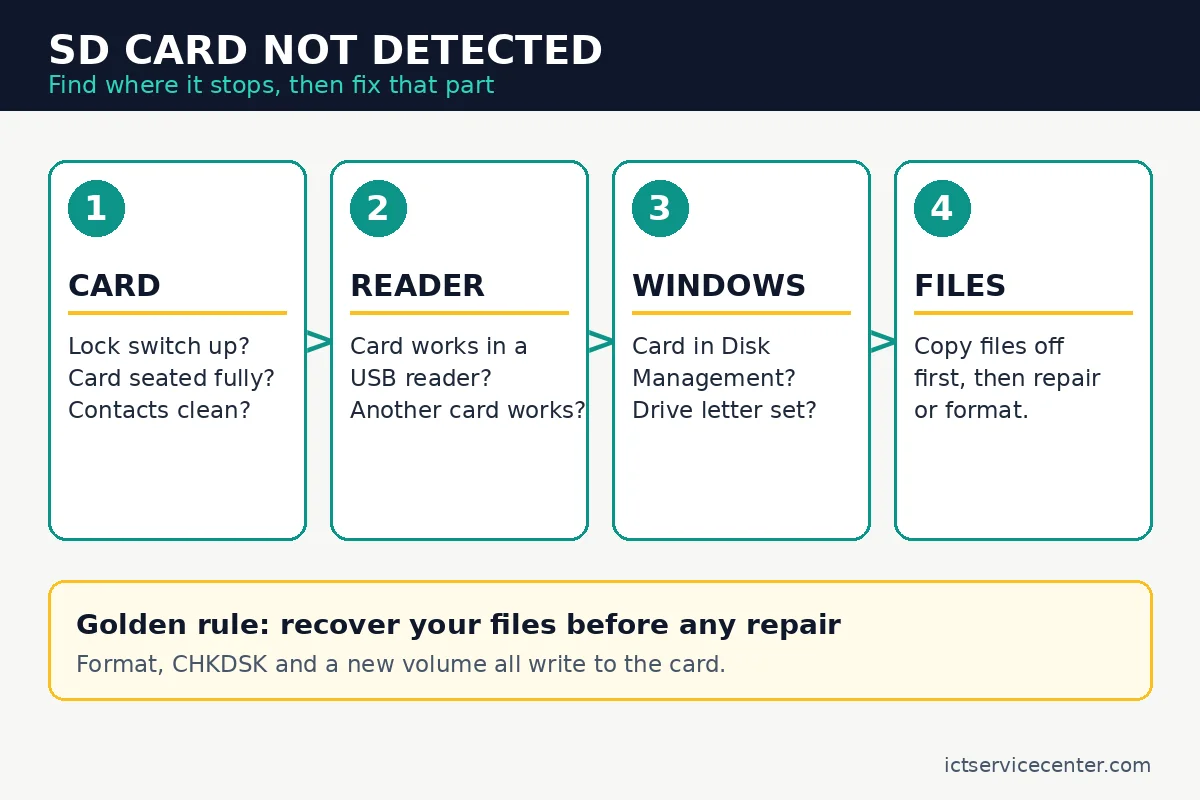
An SD card problem has three possible stopping points: the card, the reader, and Windows. Finding which one stops the card saves you from replacing the wrong part. Open File Explorer, look under This PC, then open Disk Management. Where the card appears tells you where to work next.
| Symptom | Likely cause | Fix |
|---|---|---|
| Card appears nowhere, not even in Disk Management | Card, adapter, or reader fault | Try another card and a USB reader |
| Card shows in Disk Management but not in File Explorer | Missing drive letter or offline disk | Assign a drive letter or bring the disk online |
| Reader is missing from Device Manager | Driver problem or disabled reader | Reinstall or enable the reader driver |
| Card appears but Windows asks you to format it | Damaged file system | Recover your files first, then repair or format |
Two-minute checks: lock switch, seating, and contacts
Do these first, with the card out of the laptop.
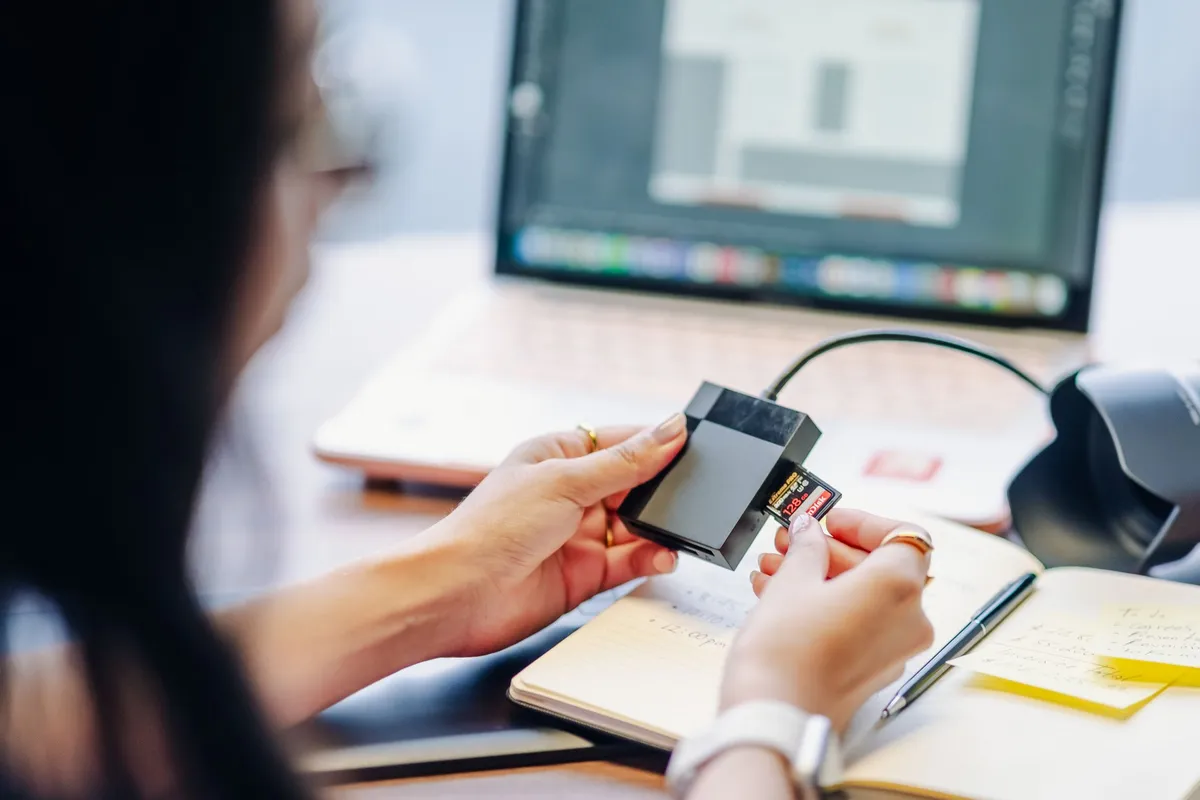
Look at the small switch on the side of a full-size SD card or a microSD adapter, and slide it up, away from the Lock mark.
A card in the locked position is still detected by Windows, so the switch does not explain a card that never appears, but a loose switch can slide while you push the card in, and the repairs below need to write to the card. A microSD card on its own has no switch.
Push the card in until it sits flush or clicks into place. Many laptop slots are spring loaded, so a card halfway in will not connect. If you use a microSD card in an adapter, push the small card fully into the adapter first.

Wipe the gold contacts gently with a soft, dry cloth. Never use water or cleaning fluid on the card. Blow dust out of the slot with short bursts of compressed air, holding the can upright.
Restart the laptop with the card removed, then insert it again once Windows has started. If it appears, the reader or driver only needed a clean start.
Try another card and another reader
Borrow a second SD card that works and try it in the same slot. Then try your card in a camera, a phone, or a second laptop.
- Insert a known-good card into the slot. If it appears, your card is the problem.
- Insert your card into a camera or another laptop. If it appears there, the laptop reader or driver is at fault.
- If neither card works in the slot, test your card in a USB reader.
- If the card works in the USB reader, the built-in reader is the problem.
A USB reader is the cheapest way to prove the point, and it doubles as a workaround if the built-in reader is dead. Plug it into a USB port on the laptop itself for the test, not into a hub.
If the laptop has trouble with USB devices in general, our guide on why a laptop does not detect USB devices covers the USB side, and our guide to fixing a USB port that is not working on a laptop covers a faulty port.
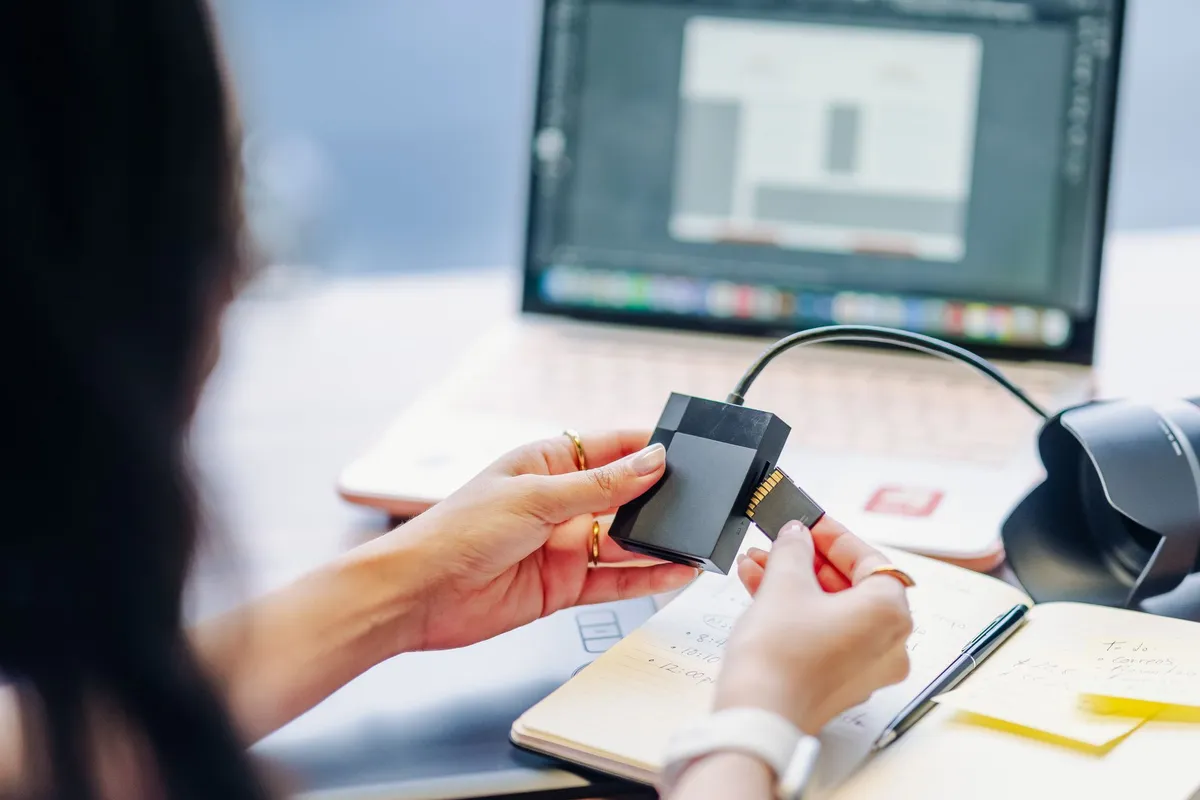
Check that the reader supports your card type. Older built-in readers may not read SDXC cards over 32 GB or newer SDUC cards, even though the card fits. Your laptop manual lists the supported types and capacities.

A USB reader tells you in one minute if the card works, and it keeps you working if the built-in reader is dead.
- Experience blazing-fast 5Gbps data transfer with this USB 3.0 SD Card Reader, ensuring
- Save time and boost productivity with dual card slots that allow simultaneous reading
Some laptops have no built-in slot and rely on a hub. If you use one, test the card in a reader plugged straight into the laptop, and read our guide to the best USB-C hub for a laptop if you need a hub with a card slot you can rely on.
Recover your files before you fix anything
Stop here if the card holds photos or files you cannot replace. Every repair below writes to the card, and a write to a failing card can finish it off.
Do not format the card, run CHKDSK, or create a new volume until your files are copied somewhere safe. Format erases everything, and a new volume overwrites the file table recovery tools need.
If the card appears in File Explorer, copy the files to the laptop or an external drive now, then open a few copies to check they are intact. Our guide on how to back up laptop data safely covers the copy step.
If the card appears in Disk Management but Windows cannot open it, recovery software can still read it. Recover the files to a different drive, never back onto the same card.
If the card is not detected anywhere and the files are irreplaceable, stop testing it. Repeated attempts can make a failing card worse, so take it to a data recovery service and tell them what you have tried.
Give the card a drive letter in Disk Management
If Disk Management sees the card but File Explorer does not, Windows has the card and only lost the way to show it. A missing drive letter is the usual cause. You need an administrator account for this step.
- Right-click Start and select Disk Management.
- Find the card by its capacity. If it is absent, select Action, then Rescan Disks, and look again.
- If the disk shows as Offline, right-click it and select Online.
- Right-click the card volume and select Change Drive Letter and Paths.
- Select Add if the volume has no letter, or Change to replace one. Pick Assign the following drive letter, choose an unused letter, then select OK and Yes.
- Open File Explorer and look for the card under This PC.
Microsoft documents this drive-letter procedure in its Disk Management guide. If the volume shows as unallocated space or RAW, do not format it yet: recover your files first. The same detection split applies to internal drives, and our guide to a laptop SSD not showing up walks through it for an SSD.
Reinstall the card reader driver
If the card works in a USB reader but the built-in slot reads nothing, the reader driver is the next suspect: a broken driver, a disabled reader, or none at all.
- Press Win + X and select Device Manager.
- Look for the reader under Memory technology devices, Disk drives, or Universal Serial Bus controllers. The name varies by maker and often includes Realtek.
- If the reader shows a yellow warning, right-click it and select Update driver, then Search automatically for drivers.
- If the reader shows a down arrow, right-click it and select Enable device.
- If the update finds nothing, right-click the reader, select Uninstall device, and restart. Windows reinstalls the driver when it starts.
- Check Settings, then Windows Update, then Advanced options, then Optional updates, for a reader driver update.
If Windows finds nothing, get the driver from the laptop maker site for your exact model, never from a driver download site. If the trouble started right after a driver update, the Driver tab in the reader properties may offer Roll Back Driver.
On some laptops the reader can also be turned off in BIOS or UEFI settings. On many Dell models you press F2 at the Dell logo and look for a Secure Digital card or Card Reader setting. Check your maker manual for the key and setting name.
Repair the file system, or accept the reader is faulty
Only use the repair steps below after your files are safe.
If the card is detected but Windows cannot read it, run a file system check from an administrator Command Prompt. Type chkdsk X: /f, replacing X with the card drive letter, and press Enter. Let it finish before removing the card. CHKDSK can fix file system errors, but it cannot fix a card Windows cannot detect, and it cannot repair physical damage.
If the check fails or the card shows as RAW, formatting is the last software step. In Disk Management, right-click the card volume, select Format, and choose exFAT for cards over 32 GB or FAT32 for cards of 32 GB and under. This erases everything, so do it only when the files are already copied or the card holds nothing you need.
Call the reader faulty when no card works in the built-in slot, the same cards work in a USB reader, and a reinstall changes nothing. Cleaning the slot is worth one try, and a USB reader works as a long-term workaround.
Replacing a built-in reader usually means opening the laptop: the reader sits on the main board or a small daughter board. Get a repair quote first, and weigh it against the laptop age and a USB reader.
Mistakes to avoid
Formatting the card first. Format is the fastest way to lose photos that were still recoverable. The fix: copy the files first.
Running CHKDSK before copying files. CHKDSK writes to the card while it repairs the file system. The fix: copy what you can reach first.
Calling the card dead after one test. One failed insertion proves nothing. The fix: test the card in a second device and a second card in the slot.
Forcing the card into the slot. A card pushed in at the wrong angle can bend the pins inside the reader. The fix: check the contact side and push gently until it clicks.
Downloading drivers from random driver sites. Third-party driver sites bundle extra software and the wrong drivers. The fix: use Windows Update or the maker support site for your exact model.
Frequently asked questions
Why does an SD card work in a camera but not in a laptop?
The card itself is fine, so the fault sits in the laptop: the built-in reader, its driver, or a missing drive letter. Test the card in a USB reader on that laptop. If it works there, the drive-letter and driver steps below are next.
How do I know if an SD card reader is broken?
Test it with two cards and two readers. If no card works in the built-in slot, the same cards work in a USB reader, and a driver reinstall changes nothing, the built-in reader is faulty. A slot that feels loose points the same way.
Can a locked SD card stop a laptop from detecting it?
No. The lock switch blocks writing, not reading, so a locked card still appears in File Explorer. Check the switch anyway, because a loose switch can slide while you insert the card, and the repairs below need to write to the card. Slide it up, away from the Lock mark, first.
Should I format an SD card a laptop cannot detect?
No. Format only after your files are safe, and only on a card Windows can see. If the card does not appear in Disk Management, formatting is not possible, and the problem is the card, the reader, or the driver. Recover the files first, then format.
Does a microSD card need an adapter for a laptop?
Yes, if the laptop has a full-size SD slot. Push the microSD card fully into the adapter, then push the adapter into the slot. Test the adapter too, because a worn adapter fails while the small card still works. A USB reader that takes microSD cards directly removes the adapter from the chain.
Bottom line: Test the card in another device, test another card in the slot, recover your files, then fix the drive letter or driver. If a USB reader works and the built-in slot reads nothing, use the USB reader and get a repair quote first. Read our troubleshooting guides for the next fix.
Sources: Microsoft Learn, Change a Drive Letter (learn.microsoft.com); Microsoft Q&A, Windows 11 not Recognizing SD Card (learn.microsoft.com); Microsoft Q&A, SD card reader not working on my device (learn.microsoft.com). Photos: Julio Lopez, Lisa Fotios, Romka via Pexels. Diagram: ictservicecenter.com.