
 By
The best mini PC for home office work is a quiet box with 16 GB of RAM, two video outs, and a footprint smaller than a hardback book. The five picks below meet that bar, and each one can drive two monitors.
In short: Pick a mini PC with 16 GB of RAM, a solid-state drive, and two HDMI or DisplayPort outs so two monitors just work. Check the listing for the exact ports, the RAM, and whether the RAM and storage can be upgraded later, because those facts decide whether the machine still suits your desk in two years.
Key takeaways
- Look for 16 GB of RAM and a solid-state drive for office work.
- Two video outs matter more than raw speed when you run two monitors.
- Check the ports, the RAM, and the upgrade path on the listing before you buy.
- A small fan or a fanless design keeps the machine quiet during calls.
- Measure the desk first, and check VESA mounting if space is tight.
Quick picks
Our shortlist for this job · tap one to see today's price
Two HDMI outs, 16 GB of RAM, and a low-noise fan cover the daily office load without fuss.

A VESA mount lets it hide behind the monitor and frees the whole desk surface.

It keeps the cost down while still giving 16 GB of RAM and a solid-state drive.
A Ryzen chip with built-in graphics handles many open apps and two screens at once.
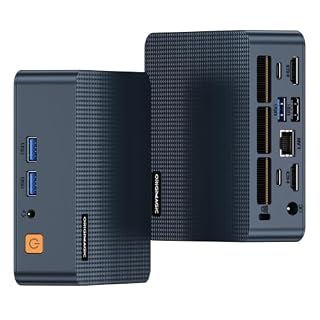
A Thunderbolt or USB-C video out can drive a monitor and carry data on one cable.
Who a mini PC suits in a home office
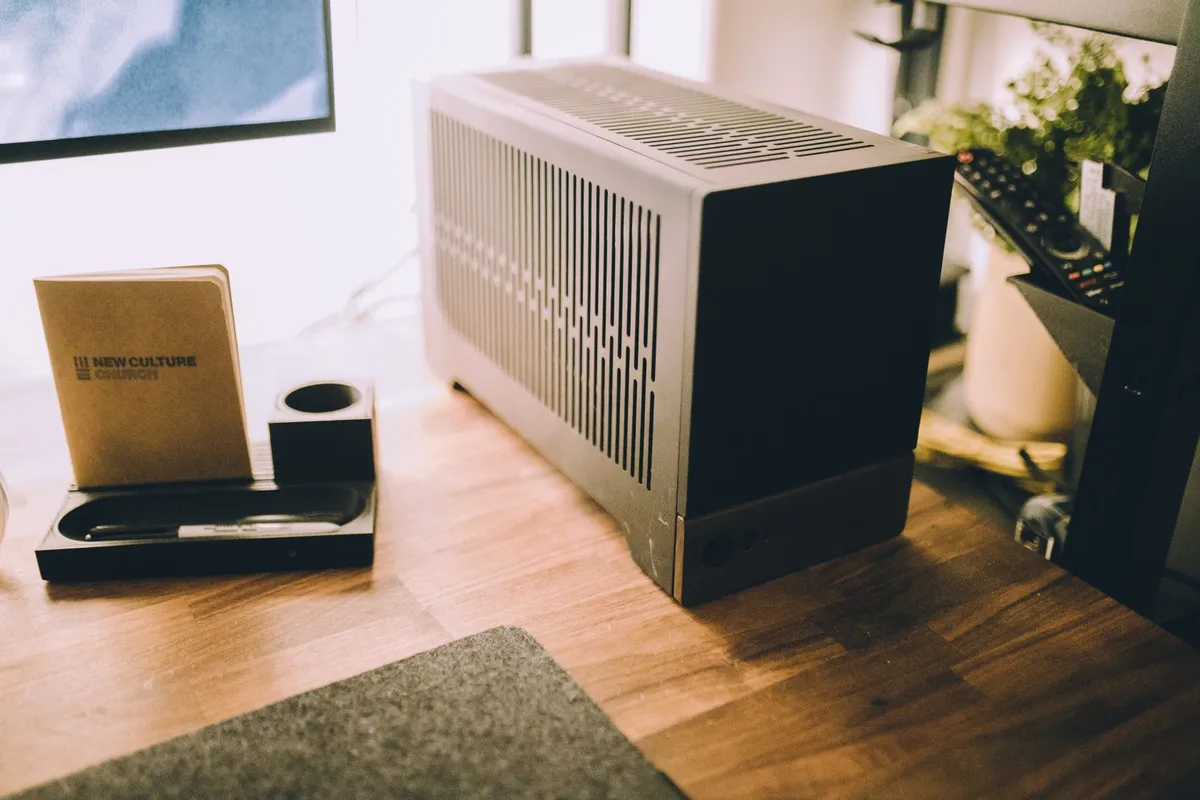
A mini PC suits a home office when the desk is small, the work is mostly documents, email, video calls, and a browser with many tabs, and the machine stays in one place all week.
It gives you a full desktop Windows machine without the tower under the desk, and it stays out of the way on a kitchen table or a spare bedroom desk. It helps to understand selecting capable hardware before going further.
It is not the right call for everyone. If you carry the computer between rooms or to a client site every day, a laptop for working from home is the better tool, because a mini PC needs a monitor, keyboard, and mouse wherever it goes.
For long video projects or demanding games, a full desktop with a separate graphics card fits better, and how a mini PC compares with a full desktop tower sets out that trade.
Start by listing what the machine must do each day. Email and a browser need little, while video calls need a steady connection and a quiet fan, because the microphone picks up a loud fan.
Two monitors need two video outs or a dock, and a dozen open browser tabs need 16 GB of RAM. Match the picks below to that list. If you are new to the form factor, what a mini PC is explains the size first.
What to check before you buy
Read the full spec sheet, not just the headline. It shows the ports, the RAM, the storage, and the size, and those four facts decide whether the machine fits your desk.
First, count the video outs. A home office with two monitors needs two HDMI ports, two DisplayPorts, or one USB-C port that carries video plus a second video port or a dock. One HDMI port alone means one monitor, or an extra adapter you did not plan to buy. Look at the photo of the back of the machine, not just the front, because front ports are often USB only.
Second, check the RAM: 16 GB is the sensible floor for office work. With 8 GB, a browser with many tabs, a video call, and a document open at once can slow the machine to a crawl. Check whether the RAM is soldered or slotted: slotted RAM in SO-DIMM slots can be upgraded later, while soldered RAM is fixed for the life of the machine.
Third, check the storage. A solid-state drive is a must, and 512 GB leaves room for Windows, apps, and files, while 256 GB fills up fast. Check for a second M.2 slot for another drive.
Fourth, check the noise. A small fan can whine at speed, and fanless models stay silent but cost more. Look for a low-noise note on the listing. If the machine will sit next to the microphone, quiet cooling matters more than a slightly faster chip. The other half of this decision is compact audio workstation.
Fifth, check the processor. Office work does not need a gaming chip. A modern Intel Core or AMD Ryzen chip with built-in graphics handles documents, video calls, and two monitors, and the maker pages linked below list display support for each processor.
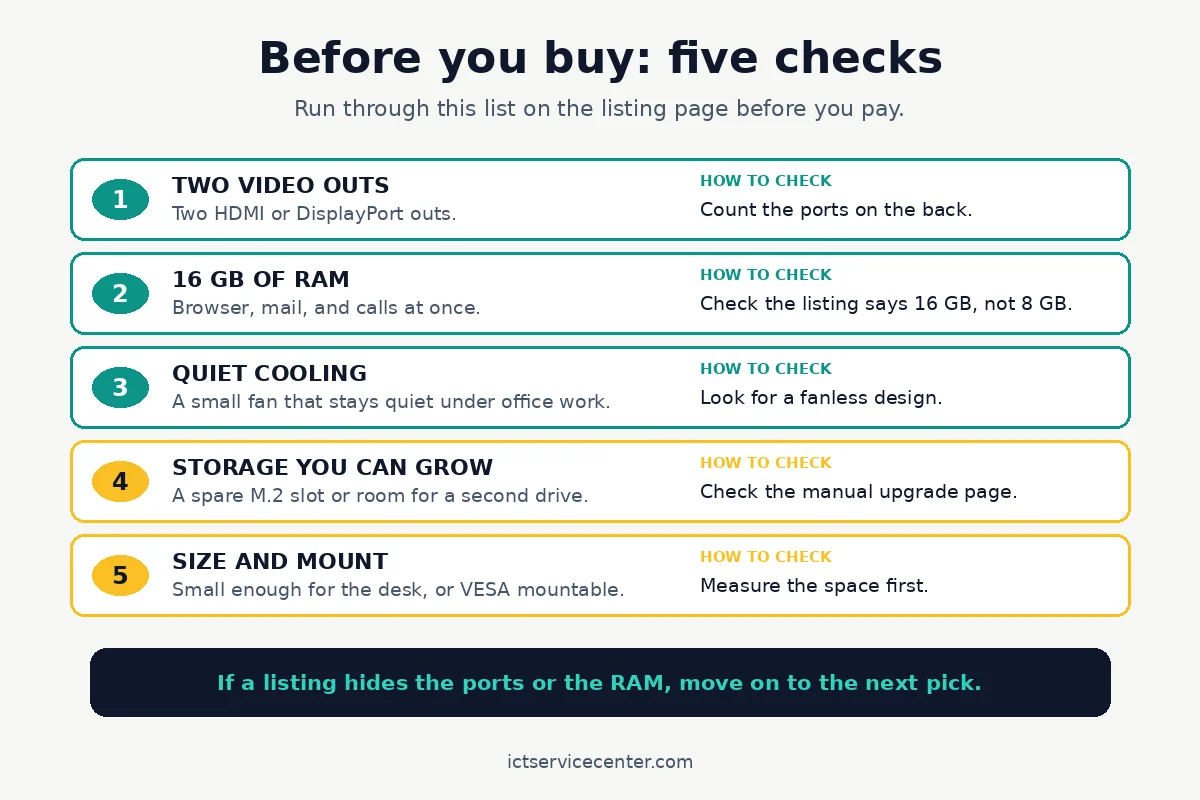
Finally, measure the desk. The monitor, keyboard, and cables still need room, so measure the depth of the desk and the space behind the monitor. Many mini PCs ship with a VESA mount that bolts to the back of the monitor. Check the VESA size on both, and keep the vents clear once it is bolted on.
The 5 picks at a glance
The table below sums up the five picks. Read it as a shortlist: the right pick is the one that matches your desk and your must-have list.
| Pick | Good for | Video outs | RAM to look for | Why it fits a home office |
|---|---|---|---|---|
| Quiet all-rounder | Everyday office work | Two HDMI | 16 GB | Quiet fan, two monitors, no extra parts |
| Smallest desk pick | Tiny desks and VESA mounts | HDMI and DisplayPort | 16 GB | Hides behind the monitor |
| Budget office pick | Low cost office work | Two HDMI | 16 GB | Low cost, right RAM and storage |
| Heavy multitasking pick | Many apps and tabs at once | HDMI and DisplayPort | 16 GB or 32 GB | Strong chip for many open apps |
| One-cable desk pick | A clean desk with one cable | USB-C video and HDMI | 16 GB | One cable carries video and data |
The 5 picks in detail
Each pick below is a type of mini PC to look for. Listings change, so check the ports, RAM, and upgrade path on the exact listing you open.
1. Quiet all-rounder with dual HDMI
This is the pick for most home offices. Two HDMI outs mean two monitors plug straight in with the cables you already own. A low-noise fan keeps calls clear, and 16 GB of RAM keeps a browser, mail, and a video call running at once.
Two HDMI outs, 16 GB of RAM, and a low-noise fan cover the daily office load without fuss.
- Unbeatable Fanless Performance for Demanding Tasks --MeLE Quieter 4C fanless mini pc is
- The Secret to a Perfectly Clean & Silent Workspace -- Zero noise. Zero clutter. This
2. Smallest desk pick with a VESA mount
This pick is for desks where every inch counts. It bolts to the back of the monitor with a VESA mount, so the desk holds only the monitor, keyboard, and mouse.
It still needs two video outs, so check for HDMI and DisplayPort on the back, and leave a gap behind the monitor so air can move past the vents. There is more on budget desktop picks in a separate guide.
Measure twice before you order the mount. Check the VESA size on the monitor and on the mount. If the monitor has no VESA holes, this pick is the wrong one, and the quiet all-rounder above is the better buy.
A VESA mount lets it hide behind the monitor and frees the whole desk surface.
- Transform your monitor into a high-performance, DIY All-in-One system. The unique
- Experience firm, steady with every tap or swipe. The low center of gravity and rigid
3. Budget office pick
This pick keeps the cost down without dropping the parts office work needs. Look for 16 GB of RAM and a solid-state drive, and skip any budget listing that still ships with 8 GB of RAM or a spinning hard drive. If you need two monitors, confirm the second video out exists before you pay.
It keeps the cost down while still giving 16 GB of RAM and a solid-state drive.
- BALANCED PERFORMANCE FOR DAILY WORK & ENTERTAINMENT --- GMKtec NucBox M5S mini PC is
- 16GB DDR4 RAM + 256GB PCIe SSD – EASY UPGRADES WITH FLEXIBLE EXPANSION --- M5S comes
4. Heavy multitasking pick with a Ryzen chip
This pick is for people who keep many apps open at once: a browser with twenty tabs, a spreadsheet, mail, and a video call. A Ryzen chip with built-in graphics handles that load and drives two screens without a separate graphics card. Look for 16 GB of RAM as the floor, and 32 GB if the budget allows.
Check the cooling and the manual for the RAM slots, because this is the pick where a later RAM upgrade pays off most.
A Ryzen chip with built-in graphics handles many open apps and two screens at once.
- BALANCED PERFORMANCE FOR DAILY WORK & ENTERTAINMENT --- GMKtec NucBox M5S mini PC is
- 16GB DDR4 RAM + 256GB PCIe SSD – EASY UPGRADES WITH FLEXIBLE EXPANSION --- M5S comes
5. One-cable desk pick with USB-C video
This pick is for a clean desk. A Thunderbolt or USB-C port that carries video can drive a monitor and carry data on one cable, so the desk has fewer wires to manage. It works best with a monitor that has a USB-C in port, or with a dock that splits the cable. Check that the USB-C port carries video, because a data-only port will not drive a monitor.
A Thunderbolt or USB-C video out can drive a monitor and carry data on one cable.
- Powerful When You Need it, Efficient When You Don't - Experience smarter computing with
- Dual Thunderbolt 4– 40Gbps Speed & 8K Display Support - Unlock powerful connectivity
How to set up two monitors with a mini PC
Setting up two monitors is a short job once the ports are right. Plug each monitor into its own video out, plug in the power, and turn the monitors on, then turn on the mini PC. Windows should spot both screens.
If one screen stays dark, check the input source on that monitor and check that the cable is fully seated at both ends. For the detail, see our notes on laptop budget tiers.
Once both screens light up, open Settings > System > Display and press Identify to see which number belongs to which screen. Drag the numbered boxes into the same order as the monitors on your desk, then press Apply.
Press Win + P and choose Extend so the desktop stretches across both screens. For the full walkthrough, dual-monitor setup steps cover the same settings in more detail. Microsoft Support explains these steps in its guide to using multiple monitors in Windows.
If the mini PC has only one video out, a dock or a USB display adapter can add the second screen. A docking station adds ports when one cable is not enough. A cheap HDMI splitter is not a fix, because it shows the same picture on both screens instead of extending the desktop.
Pick a monitor that suits office work: a 24-inch or 27-inch screen with an HDMI or DisplayPort in port, a stand that adjusts in height, and a matte screen that cuts glare. Two matching monitors look tidier, but two different sizes still work if the heights line up. Set both to their native resolution in Settings > System > Display so text stays sharp.
Mistakes to avoid
Buying 8 GB of RAM to save money. Office work with a browser, mail, and calls open at once needs 16 GB. The fix is simple: buy the 16 GB version now, because a slow machine costs more in lost time than the RAM costs.
Assuming one HDMI port can run two monitors. One port drives one screen. The fix is to count the video outs on the listing before you buy, or budget for a dock that adds the second out.
Skipping the upgrade check. Some mini PCs have soldered RAM and a single drive slot with no spare. The fix is to open the manual and check the RAM type and the spare M.2 slot before you pay.
Blocking the vents. A mini PC pushed against a wall or buried under papers runs hot, and a hot machine spins its fan louder. The fix is to leave a gap around the vents.
Buying the wrong cable. HDMI, DisplayPort, and USB-C cables look alike in a drawer but fit different ports. The fix is to match the cable to the port on the listing, and buy the cable with the machine.
Frequently asked questions
Is a mini PC good enough for working from home?
Yes, for most office work. A mini PC with 16 GB of RAM, a solid-state drive, and a modern processor handles documents, email, video calls, and a browser with many tabs. Only heavy video editing and demanding games need a full desktop with a separate card.
Can a mini PC run two monitors?
Yes, if it has two video outs, or one USB-C port that carries video plus a dock. Check the listing for two HDMI ports, two DisplayPorts, or a mix of both. Plug each monitor into its own out, then open Settings, System, Display, and choose Extend.
How much RAM does a home office mini PC need?
Look for 16 GB as the floor. That keeps a browser with many tabs, a mail app, and a video call running at once without slowing down. With 8 GB the same load can stutter, and 32 GB gives more headroom for dozens of open tabs.
Are mini PCs noisy?
Most are quiet during office work, but a small fan can be heard when it spins up. Fanless models stay silent, while fanned models stay quiet if the vents have air space. If the box sits by the microphone, look for a low-noise note on the listing.
Can I upgrade a mini PC later?
It depends on the model. Many mini PCs have two SO-DIMM RAM slots and a spare M.2 slot for a second drive, while some have soldered RAM that cannot change. Check the manual for the RAM type and the drive slots before you buy. Power off and unplug it before you open it.
Is a mini PC better than a laptop for a home office?
It depends on how you work. A mini PC gives more ports, a bigger screen choice, and a tidy desk, and it stays put. A laptop wins if you move between rooms or travel, because the screen, keyboard, and battery travel with you.
Bottom line: Buy the quiet all-rounder with two HDMI outs and 16 GB of RAM for the safe choice, then check the ports and the upgrade path on the exact listing before you pay. For more buying help, see the Buying Guides hub.
Sources: Microsoft Support, Multiple monitors in Windows; Intel, NUC products; AMD, Ryzen processors. Photos: Josh Sorenson via Pexels; Matheus Bertelli via Pexels; Andrey Matveev via Pexels; Pew Nguyen via Pexels.