
 By
One cable should turn your laptop into a full desk setup. A docking station does that, and it charges the laptop at the same time.
In short: The best docking station for laptop dual-monitor setups is the CalDigit TS4, a Thunderbolt 4 dock that suits a two-monitor desk with charging over one cable.
The Anker 563 is the best budget pick, the OWC Thunderbolt Dock is the best pick for a Mac desk, the CalDigit SOHO Dock is the best travel pick, and the Plugable TBT4-UD5 is the best Thunderbolt 4 pick for Windows.
Before you buy, check three things: your laptop port, its charging wattage, and how many monitors its chip supports.
Key takeaways
- A dock has its own power brick and charges the laptop. A hub draws power from the laptop.
- Thunderbolt 4 guarantees 40 Gbps, dual 4K monitors, and up to 100W charging on at least one port.
- USB Power Delivery 3.1 raises the ceiling to 240W, so check your laptop charger wattage against the dock.
- Your laptop chip sets the monitor limit. A dock cannot add a second display your laptop does not support.
- Match the dock video outputs to your monitors, and check the listing before you order.
A Thunderbolt 4 dock built for a two-monitor desk; check the listing to match its video outputs to your monitors.
Covers the desk basics, monitor, wired network and laptop charging, at a lower cost than a Thunderbolt dock.
Built for Mac desks, with the ports a MacBook needs for monitors, drives and wired network; check the listing for your macOS version.
A compact dock that fits in a laptop bag and still drives a monitor and charges the laptop; check the listing for its display and charging limits.
A full Thunderbolt 4 dock for Windows laptops, with the bandwidth for dual 4K monitors and fast external drives; check the listing for port details.
Dock vs hub: who needs a docking station
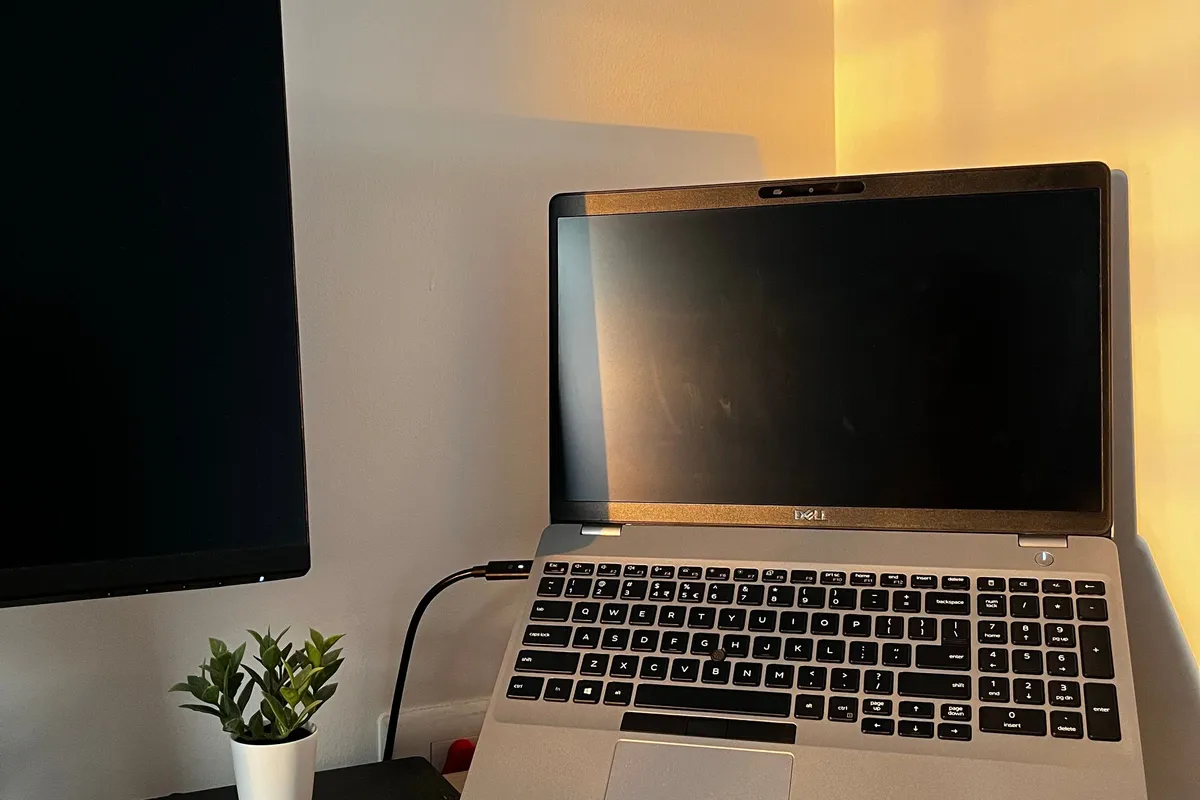
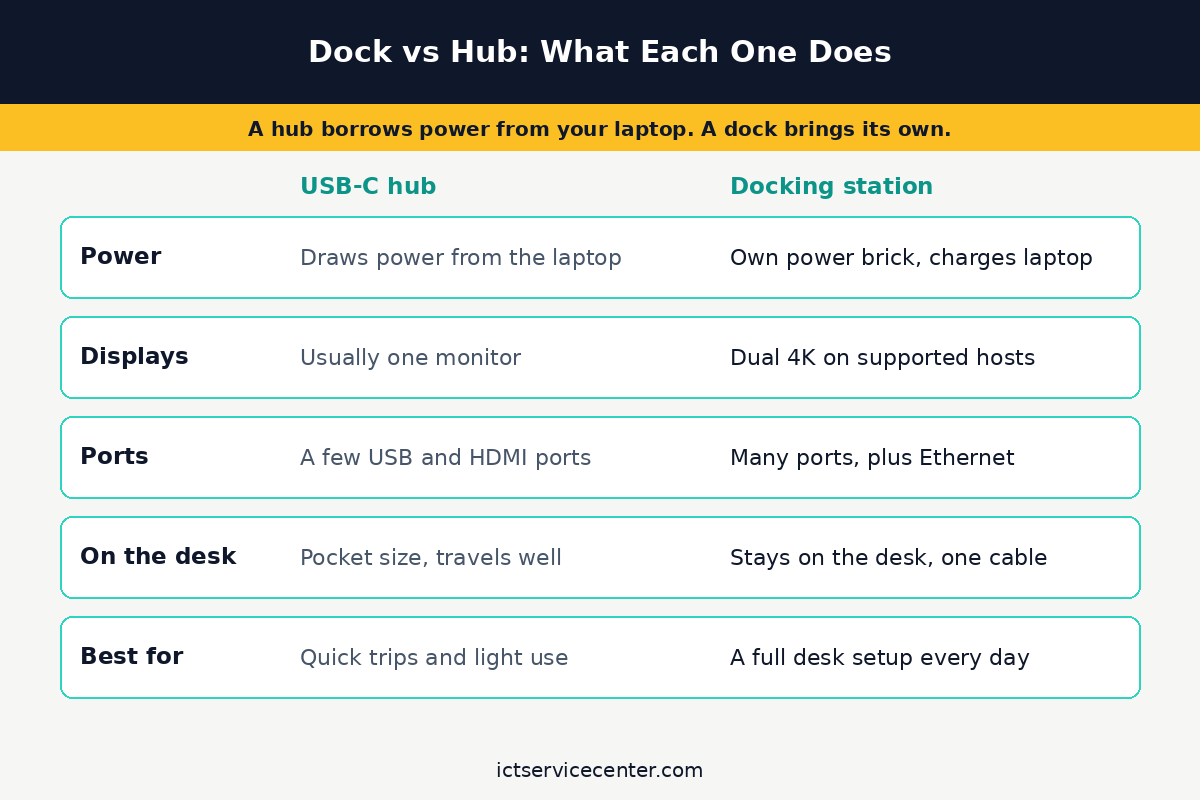
A hub and a dock look alike, and both plug into one USB-C port. The difference is power and permanence. A hub is small, draws power from the laptop, and adds a few ports for a trip or a quick desk session.
A dock has its own power brick, charges the laptop, and stays on the desk with everything plugged in. You plug one cable into the laptop and the whole desk wakes up: monitors, keyboard, mouse, wired network, and charging. It helps to understand portable laptop charging solutions before going further.
Buy a dock when your laptop lives at one desk most of the day. Two monitors, a wired network connection, and a set of peripherals that never move are the signs.
Buy a hub when you travel, work from different rooms, or use one monitor and a couple of accessories.
Our guide to the best USB-C hub for laptop covers the travel side in full, and it is the right read if you are still deciding between the two.
Power delivery is the first spec to check, and it is the one buyers skip most often. USB Power Delivery is the standard that lets a charger and a laptop agree on voltage and current over one USB-C cable.
The USB-IF says USB PD Revision 3.1, announced in 2021, delivers up to 240W over a full-featured USB Type-C cable, where the earlier limit was 100W. That ceiling is a maximum, not a promise.
The power your laptop gets is set by the weakest link: the dock, the cable, and the laptop itself.
Check the wattage on your laptop charger first. It is printed on the brick or listed in the laptop specs. Then check the charging wattage on the dock listing.
A dock that delivers less than your laptop charger can still work, but the battery may drain slowly under heavy load, and charging will take longer. A dock that matches or beats your charger keeps the battery full while you work.
If your laptop needs more than 100W, look for a dock that lists a higher figure, and check that the cable in the box supports it.
CalDigit TS4: best for dual 4K monitors
The CalDigit TS4 is the best docking station for laptop dual-monitor desks. It is a Thunderbolt 4 dock, so it connects over one Thunderbolt cable and carries video, data, and charging together.
Thunderbolt 4 guarantees 40 Gbps of bandwidth, support for two 4K displays or one 8K display, and up to 100W of charging on at least one port.
That guarantee is what makes a Thunderbolt dock a safe pick for a two-monitor desk: the standard itself promises the display support, not just the dock maker.
This pick suits a permanent desk with two monitors. One monitor connects to the DisplayPort output and the second runs through a downstream Thunderbolt port, so check the listing to match the video outputs to your monitors before you order.
Our guide to the best monitor for laptop helps you pick screens with the right inputs. The dock also covers the rest of the desk: wired Ethernet, USB ports for keyboard and mouse, and card slots for camera cards.
Plug it into a Thunderbolt or USB4 port on your laptop. A plain USB-C port may not carry two monitors, even though the plug fits. On Windows laptops with Thunderbolt 4, two 4K monitors are the expected result.
On a Mac, the chip sets the limit, so check your exact model against Apple support before you buy. Check the listing for the charging wattage and compare it with your laptop charger, and confirm the Thunderbolt cable is in the box.
Before you buy anything, it is worth looking at data analysis desktop picks.
A Thunderbolt 4 dock built for a two-monitor desk; check the listing to match its video outputs to your monitors.
See options on AmazonAnker 563: best budget docking station
The Anker 563 is the best budget docking station for laptop owners who want a real desk setup without paying for Thunderbolt. It is a USB-C dock, not a Thunderbolt dock, and that is the reason it costs less. It still gives you the core of a desk setup: a monitor connection, wired Ethernet, USB ports for a keyboard and mouse, and charging for the laptop over the same cable.
This pick suits a one-monitor desk, a first dock, or a home office where the laptop also travels. Check the listing for how many monitors it drives and at what resolution, since budget docks vary more than Thunderbolt docks.
Some drive one monitor, some drive two at lower refresh rates, and the listing is the only place that states it plainly. Check the charging wattage too, and compare it with your laptop charger before you order.
Keep the expectations honest. A USB-C dock does not have the 40 Gbps guarantee that Thunderbolt 4 carries, so it will not drive two 4K monitors as surely as the TS4 above.
For one monitor, a keyboard, a mouse, and a wired network connection, it is enough, and the money saved can go toward a better monitor.
If you later add a second monitor, check whether the dock or your laptop supports it first, rather than assuming it will work.
Covers the desk basics, monitor, wired network and laptop charging, at a lower cost than a Thunderbolt dock.
See options on AmazonOWC Thunderbolt Dock: best docking station for Mac
The OWC Thunderbolt Dock is the best docking station for a Mac desk. It is built for the way MacBooks connect: one Thunderbolt cable carries the monitors, the drives, the wired network, and charging. OWC has made Mac docks for years, and the port layout fits a MacBook desk, with the ports a Mac owner actually uses up front and the permanent connections at the back.
Mac display limits come from the chip, not the dock, so check your exact model before you buy.
Apple says MacBook Pro models with the M4 chip or M4 Pro chip support up to two external displays at the same time, with two displays up to 6K at 60Hz or 4K at 144Hz over Thunderbolt or HDMI.
Apple also says a supported hub or daisy-chaining can route displays through one Thunderbolt port, but it does not increase the maximum number of displays. Connect the display with the highest resolution first, as Apple recommends.
That limit matters most on base-model MacBooks, which support fewer external displays than the Pro and Max chips. If your Mac supports only one external display, no dock adds a second one on its own.
Some docks use DisplayLink software to work around the limit, so check the listing for whether the dock needs extra software and whether it supports your macOS version.
Check the charging wattage against your MacBook charger too, and confirm the Thunderbolt cable is in the box. We go through premium 2 in 1 devices step by step in its own article.
Built for Mac desks, with the ports a MacBook needs for monitors, drives and wired network; check the listing for your macOS version.
See options on AmazonCalDigit SOHO Dock: best travel docking station
The CalDigit SOHO Dock is the best travel docking station for laptop owners who want a desk setup away from home.
It is small enough to fit in a laptop bag, and it still does the job of a dock: one cable to the laptop, a monitor on the desk, and charging while you work.
That combination is what separates it from a pocket hub, which adds ports but does not charge the laptop or hold a monitor connection as firmly.
This pick suits hotel desks, client offices, and a second workspace at home. It works best with one monitor, so check the listing for whether it drives one or two displays and at what resolution.
Check the charging wattage as well: a travel dock that charges slowly will leave you hunting for the laptop charger at the end of the day.
Pair it with a portable monitor or the screen at your destination, and keep the cable short so the bag stays light.
Think about what else travels with you. A compact dock pairs well with a small keyboard, a travel mouse, and a short Thunderbolt or USB-C cable. Our guide to the best laptop accessories for work from home covers the rest of a portable desk setup.
A compact dock that fits in a laptop bag and still drives a monitor and charges the laptop; check the listing for its display and charging limits.
See options on AmazonPlugable TBT4-UD5: best Thunderbolt 4 dock for Windows
The Plugable TBT4-UD5 is the best Thunderbolt 4 dock for Windows laptops.
It is a full Thunderbolt 4 dock, so it carries the same guarantees as the TS4: 40 Gbps of bandwidth, two 4K displays or one 8K display, and up to 100W of charging on at least one port.
On a Windows laptop with a Thunderbolt 4 port, that adds up to a one-cable desk with room for fast external drives, a wired network, and a full set of peripherals.
This pick suits Windows laptops that already have a Thunderbolt port. Look for the lightning mark beside the USB-C port, or check the laptop specs for Thunderbolt 4 or USB4.
A Windows laptop with only a plain USB-C port will not get the full display support from this dock, so confirm the port before you order.
Check the listing for the video outputs, and match them to your monitors: one monitor may use HDMI and the other DisplayPort, and the listing states which outputs the dock provides.
The bandwidth also matters for storage. Thunderbolt 4 reserves enough of its 40 Gbps for video and still leaves room for fast external drives, so a photo or video library on an external SSD stays quick while both monitors run. Check the charging wattage against your laptop charger, and confirm the dock ships with a Thunderbolt cable, since a plain USB-C cable will not carry the full signal.
A full Thunderbolt 4 dock for Windows laptops, with the bandwidth for dual 4K monitors and fast external drives; check the listing for port details.
See options on AmazonHow to choose the right docking station
Start with the laptop, not the dock. Check the port first: a Thunderbolt 4 dock needs a Thunderbolt or USB4 port to give you its full display support, and a USB-C dock needs a USB-C port with video output.
Look for the lightning mark beside the port, or check the laptop specs. Then check the charger wattage printed on your laptop power brick, and compare it with the charging wattage on the dock listing.
Next, check how many monitors your laptop chip supports, and at what resolution. On a Mac, Apple lists the limit per chip, and a dock cannot raise it.
On Windows, the graphics chip and the port set the limit, and the dock listing states what it supports. Then match the dock video outputs to your monitor inputs.
A dock with DisplayPort only will not help a monitor with only HDMI unless you buy an adapter, so check both lists before you order.
If a monitor stays dark after you connect it, our guide to an external monitor that is not working walks through the checks.
| Dock | Best for | Check first on the listing |
|---|---|---|
| CalDigit TS4 | Dual 4K desk | Monitor inputs and charging wattage |
| Anker 563 | Budget desk | How many monitors it drives |
| OWC Thunderbolt Dock | Mac desk | macOS support and display limit |
| CalDigit SOHO Dock | Travel | Size, charging wattage, one monitor or two |
| Plugable TBT4-UD5 | Windows Thunderbolt | Thunderbolt port on your laptop |
Finally, count the ports you use every day and check the dock has them all. Keyboard, mouse, wired network, external drive, card reader, and headset each need a home. A dock that covers the monitors but leaves your drive unplugged is the wrong dock.
Check the cable in the box too: a Thunderbolt dock needs a Thunderbolt cable to reach its full speed and display support, and the listing states whether one is included.
Mistakes to avoid
1. Buying a Thunderbolt dock for a laptop with no Thunderbolt port. The plug fits a plain USB-C port, but the dock will not give you its full display support. Check the laptop specs for Thunderbolt 4 or USB4 before you order.
2. Ignoring the charging wattage. A dock that delivers far less than your laptop charger will charge slowly, and the battery can drain under heavy load. Compare the dock wattage with the wattage printed on your laptop charger.
3. Assuming any dock adds a second monitor to a Mac that supports one. The display limit comes from the chip. Check your exact model against Apple support, and check whether the dock needs DisplayLink software before you buy.
4. Buying before checking monitor inputs. A dock with DisplayPort only will not connect to a monitor with only HDMI. Check both lists, and buy the adapter at the same time if you need one. Our guide to how to connect a monitor to a PC covers the cable and port combinations.
5. Using the wrong cable. A plain USB-C cable will not carry the full Thunderbolt signal, so a second monitor may stay dark or run at a lower resolution. Use the Thunderbolt cable that ships with the dock, or buy a certified one.
6. Forgetting the everyday ports. Monitors get all the attention, but the keyboard, mouse, drive, and headset need ports too. Count them before you buy, or you will end up with a hub on top of your dock.
Frequently asked questions
Do I need a docking station or a USB-C hub?
Buy a docking station when your laptop stays at one desk with two monitors, a wired network, and peripherals that never move. A dock has its own power brick and charges the laptop. Buy a hub when you travel or use one monitor and a few accessories, since a hub is smaller and draws power from the laptop.
Can a docking station charge the laptop?
Yes, if it lists power delivery and the wattage matches your laptop charger. Check the charging wattage on the dock listing and compare it with the wattage printed on your laptop power brick. A dock that delivers far less will charge slowly, and the battery may drain under heavy load.
Can any laptop run two monitors through a dock?
No. The laptop chip sets the monitor limit, and a dock cannot raise it. On a Mac, Apple lists the limit per chip, and some base models support only one external display. On Windows, the graphics chip and the port set the limit. Check your exact model before you buy a dock for a second monitor.
Will a Thunderbolt dock work with a USB-C laptop?
It will connect, since Thunderbolt uses the USB-C plug, but it will not give you its full display support from a plain USB-C port. Thunderbolt 4 guarantees 40 Gbps, dual 4K monitors, and up to 100W charging, and those guarantees need a Thunderbolt or USB4 port on the laptop. Check the laptop specs first.
What wattage docking station do I need?
Match the dock charging wattage to your laptop charger wattage. Check the figure printed on your laptop power brick, then check the same figure on the dock listing. USB Power Delivery 3.1 allows up to 240W, but the dock, the cable, and the laptop each set their own limit, so the weakest link decides what you get.
Bottom line: Buy the CalDigit TS4 for a dual 4K desk, the Anker 563 for a budget desk, the OWC Thunderbolt Dock for a Mac, the CalDigit SOHO Dock for travel, and the Plugable TBT4-UD5 for a Windows Thunderbolt laptop. Check your laptop port, charger wattage, and monitor limit first, then match the dock outputs to your monitors. More buying guides: see the Buying Guides hub.
Sources: USB-IF, USB Charger (USB Power Delivery); Apple Support, How many displays can be connected to MacBook Pro; Anker Support, Everything you need to know about Thunderbolt 4. Photos: Nikhil Soni, Rann Vijay, Perttu Lähteenlahti, Paras Katwal, Elijah Pilchard and Maurício Mascaro via Pexels. Diagram: ictservicecenter.com.