
 By
Laptop prices run from a few hundred dollars to several thousand, and the spec sheets all look alike after a while. The right amount to spend is the amount that covers the work you actually do, with a little room to grow.
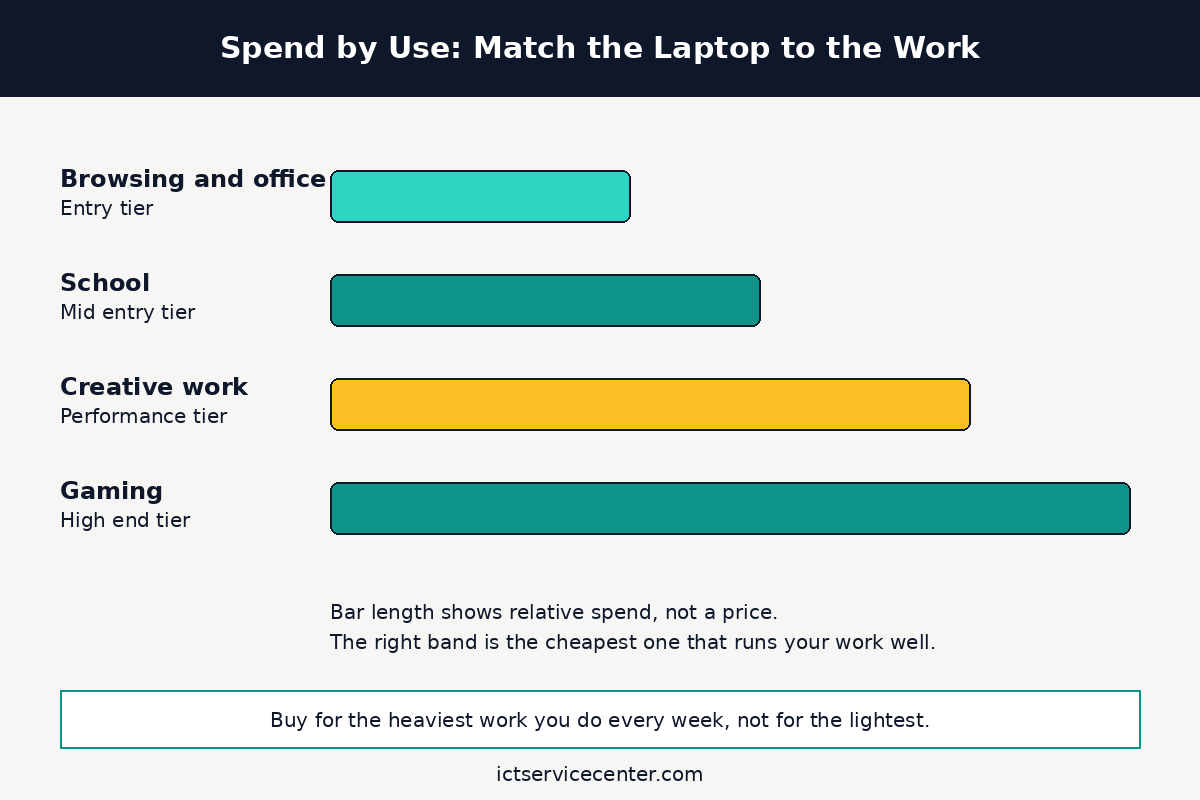
In short: Most people should spend 300 to 600 dollars for browsing and office work, 500 to 900 dollars for school, 1,000 to 2,000 dollars for creative work, and 900 to 2,500 dollars for gaming. Start from the heaviest work you do every week, pick the band that covers it, and put the rest of your effort into RAM, storage and screen quality.
Key takeaways
- Buy for the heaviest work you do every week, not the lightest work you do most days.
- Browsing and office work needs 8GB of RAM and a solid-state drive, not a fast processor.
- School laptops need 16GB of RAM, 512GB of storage, light weight and a battery that lasts the day.
- Creative work pays for RAM, storage and screen quality before it pays for a faster chip.
- Gaming laptops need a dedicated graphics card, and the card matters more than the processor.
Start with the work, not the price

The mistake most buyers make is starting with a budget number and then hunting for the fastest machine inside it. Start the other way round. Write down the heaviest work you do in a normal week: the biggest spreadsheet, the longest video call, the game you play most, the photo set you edit. That one task sets the band.
Then check how long you plan to keep the laptop.
A machine you will replace in two years can sit at the bottom of its band, while one you want to last four or five years should sit near the top, with more RAM and storage than you need today.
HP makes the same point in its buying guide: start with the primary use, then set the price range around it.
Three specs decide most of the price. RAM decides how many things the laptop can hold open at once, storage decides how much you can keep and how fast it opens, and the screen decides how pleasant the machine is to look at for hours.
The processor matters, but less than the ads suggest: a mid-range chip with 16GB of RAM feels faster in daily use than a top chip with 8GB. For the full spec ladder, read our guide to what to look for when buying a laptop.
Browsing and office work: 300 to 600 dollars
This band covers email, browsing, video calls, documents and spreadsheets. A Chromebook fits here for many people, and a Windows laptop with a modest chip fits just as well.
Buy 8GB of RAM and a 256GB solid-state drive as the floor. Crucial recommends 8GB for casual use, and that covers a browser with a dozen tabs, a mail app, a video call and a document open at once.
A 256GB drive holds the system, your apps and your files, as long as photos live in cloud storage or on an external drive. The screen should be 1080p, which is the resolution where text looks sharp at normal reading distance.
Check the brightness figure on the listing if you work near a window.
Do not pay for a faster processor here: the difference is invisible in a browser, and the money is better kept for a better screen or a lighter body. Do pay attention to the keyboard and the trackpad, since you will touch them for hours. For help picking the chip itself, see our guide to choosing a laptop processor for daily use.
School: 500 to 900 dollars

This band covers classes, research, essays, group projects and video lectures, carried between rooms all day. The laptop needs to be light, tough enough for a bag, and able to run from morning to afternoon on one charge.
Buy 16GB of RAM and a 512GB solid-state drive. A research session means a browser with twenty tabs, a PDF reader, a notes app and a video lecture open at once, and 8GB will slow down under that load.
That matches the 16GB level Crucial recommends for office programs with multitasking. A 512GB drive holds the system, apps, class files and a photo library without constant juggling.
For the RAM numbers behind this, see our guide to how much RAM you need in a laptop.
Weight and battery matter as much as specs here. Look for a machine under 1.5 kg with a battery the maker rates at 8 hours or more, and treat that rating as optimistic: real use with Wi-Fi and video will give you less.
A 14-inch screen suits most students: big enough to split a document and a browser, small enough for a bag. Check the course requirements first, since some engineering and design courses need a machine from a higher band.
For student picks by use, see our guide to the best laptop for school students.
Creative work: 1,000 to 2,000 dollars
This band covers photo editing, video editing, illustration, music production and design work. A slow export or a crashing timeline costs lost hours, not just money.
Buy 16GB of RAM as the floor and 32GB for 4K video, large photo libraries or 3D work. Intel recommends 32GB for resource-heavy multitasking such as video editing, and that matches what a timeline needs: the app, the media cache and the preview renderer all want memory at once.
Buy a 512GB solid-state drive as the floor and 1TB when project files live on the machine. A fast NVMe drive cuts import and export times you feel every session. For storage sizes by use, see our guide to choosing laptop storage.
The screen deserves a share of this budget. Look for a panel that covers close to 100 percent of the sRGB color space, since a screen that cannot show the colors will not show your edits honestly. A dedicated graphics card helps with video effects, 3D rendering and large photo exports, while a machine with integrated graphics will cope with light photo work and struggle with the rest.
Gaming: 900 to 2,500 dollars

This band covers a laptop that plays modern games at good settings. The range is wide because games vary: a laptop that runs an indie game well costs far less than one that runs a new AAA title at high settings.
Buy a dedicated graphics card first, then worry about the rest. The card decides which games run and how smooth they look, far more than the processor does. Intel advises comparing the card against the recommended specs of the games you play.
A mid-range card with 16GB of RAM plays most games well at 1080p, while a high-end card with 32GB suits 1440p or 4K play and streaming. Intel recommends 16GB for modern gaming and 32GB when gaming runs alongside streaming or other background apps.
The screen matters too: a 120Hz or 144Hz panel shows motion more smoothly than a 60Hz panel. Storage should be a 512GB NVMe drive at least, since modern games are large and a small drive means constant uninstalls.
Battery life is the weakest part of this band, so treat the laptop as a machine that lives near a power outlet. A thin laptop with a powerful card can throttle under sustained load, so check the cooling and vent layout before you pay.
What to check before you pay
Use this table as a last check before you order. If a laptop misses one of these lines, it belongs in a lower band.
| Use | RAM | Storage | Screen | Graphics |
|---|---|---|---|---|
| Browsing and office | 8GB | 256GB SSD | 1080p | Integrated |
| School | 16GB | 512GB SSD | 1080p, 14 inch | Integrated |
| Creative work | 16 to 32GB | 512GB to 1TB NVMe SSD | 1080p or better, wide color | Dedicated for video and 3D |
| Gaming | 16 to 32GB | 512GB NVMe SSD or more | 120Hz or higher | Dedicated |
Check the upgrade path before you pay. Open the maker support page or service manual: soldered RAM cannot be added later, and a single storage slot limits the drive you keep.
A laptop with one free RAM slot or a second drive bay can start cheaper and grow later, which changes the band you need today.
Also check the warranty, since a cheap laptop with a one-year warranty can cost more over three years than a mid-range machine with better build.
Compare the total cost, not the sticker. A laptop that needs a new charger, a sleeve, a mouse and a monitor adapter on day one is not the bargain it looked like. List the extras before you buy and add them to the band total.
If they push you into the next band, step down a tier on the laptop itself. For the trade-offs between a cheap machine and a dear one, see our comparison of a budget laptop against a premium laptop.
Mistakes to avoid
- Buying for the lightest work, not the heaviest. A laptop that handles email will still choke on a 4K video edit or a modern game. Fix it by listing that task first, then picking the band that covers it with room to spare.
- Paying for a top processor with too little RAM. A fast chip with 8GB of RAM will stutter under a dozen tabs, while a mid-range chip with 16GB will not. Fix it by spending on RAM first, then storage, then the processor.
- Skipping the solid-state drive. A laptop with a spinning hard drive feels slow from the first boot. Fix it by treating an SSD as a requirement in every band, not an upgrade.
- Ignoring the screen. A dim, low-resolution panel makes every hour worse, and it cannot be fixed later. Fix it by checking resolution, brightness and color coverage on the listing.
- Buying a gaming laptop for school or office work. A gaming machine is heavy, loud and short on battery, a poor trade for classes or meetings. Fix it by matching the band to the work.
Frequently asked questions
How much should I spend on a laptop for college?
Most students should spend 500 to 900 dollars. That band buys 16GB of RAM, a 512GB solid-state drive, a 14-inch 1080p screen, light weight and a battery that lasts the school day. Spend more only when the course needs it, so check the course requirements first.
Is 8GB of RAM enough in a laptop?
It is enough for browsing, email, documents and video calls, which is the office band. It is not enough for heavy multitasking, photo editing or modern gaming, where 16GB is the safer floor. Many thin laptops have soldered RAM that cannot be upgraded, so buy the memory you will need in two years, not just the memory you need today.
Should I spend more on the processor or the screen?
Spend on the screen first when the laptop is for work you look at all day. A sharp, bright panel improves every hour on the machine, while a faster processor is invisible in a browser and a word processor. Spend on the processor only when your work is processor-heavy, such as video rendering or compiling code.
Is a cheap laptop a false economy?
It can be, when the cheap machine has too little RAM, a spinning hard drive or a poor screen. Those flaws make the laptop feel slow from the first week and cannot be fixed cheaply later. A cheap laptop is good value when it has 8GB of RAM, a solid-state drive and a 1080p screen, since those three specs carry the whole experience.
When is the best time to buy a laptop?
Buy when you need it, unless a known sale is a few weeks away. New models usually arrive in spring and autumn, and the outgoing model often drops in price when its replacement lands. A good deal on the wrong band is still the wrong laptop, so pick the band first and then watch for a sale inside it.
Bottom line: Match the band to your heaviest weekly work: 300 to 600 dollars for browsing and office, 500 to 900 for school, 1,000 to 2,000 for creative work, and 900 to 2,500 for gaming. Spend on RAM, storage and screen first. For more buying guides, see the Buying Guides hub.
Sources: Intel, How to Pick the Best Gaming Laptop; HP, What to Look for When Buying an Intel Laptop; Crucial, How Much RAM Memory Does My Computer Need. Photos: Polina Zimmerman, Moses Londo, KATRIN BOLOVTSOVA, Brett Stone and Kaboompics via Pexels. Diagram: ictservicecenter.com.