
 By
You sit down, plug in one cable, and your laptop becomes a full desk setup. That is the whole point of a docking station.
In short: A laptop docking station is a powered box that connects to your laptop through one USB-C or Thunderbolt cable and gives it the ports of a desktop PC: monitors, keyboard, mouse, ethernet, extra USB ports, and charging.
You leave everything plugged into the dock, so one cable connects and disconnects your whole desk. A dock differs from a hub because it has its own power supply and enough power to charge the laptop while it drives two monitors.
Key takeaways
- A docking station turns one USB-C or Thunderbolt cable into a full desk: monitors, keyboard, mouse, ethernet, and charging.
- A dock has its own power supply and charges your laptop. A hub draws power from the laptop.
- Your laptop port must support video output (DisplayPort Alt Mode, Thunderbolt, or USB4) for a dock to drive a monitor.
- Check the dock power delivery wattage against your laptop charger wattage before you buy.
- Most docks drive one or two external monitors. The limit comes from your laptop graphics.
What a docking station does
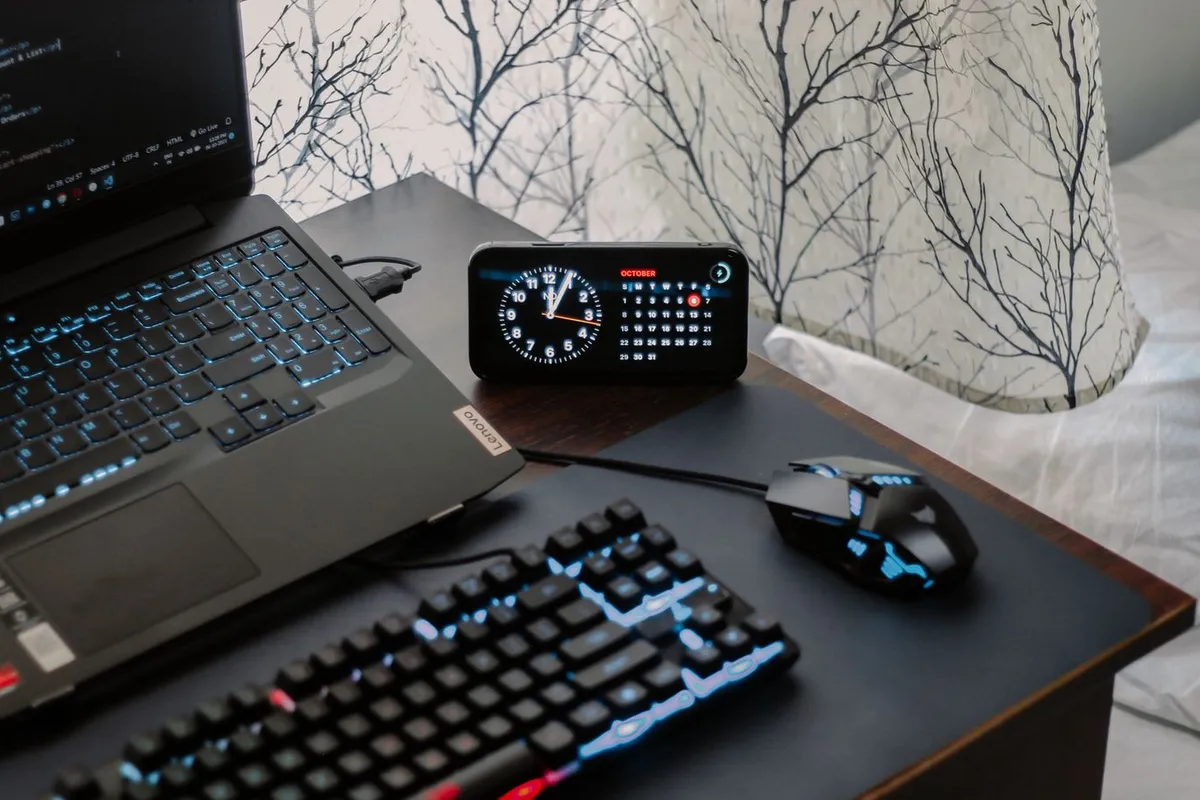
A docking station is a box that sits on your desk and acts as a port station for your laptop. Monitors, keyboard, mouse, and network cable all stay plugged into the dock. Your laptop connects with a single USB-C or Thunderbolt cable, and that one cable carries video, data, network, and power at the same time.
When you arrive at your desk, you plug in that one cable. The monitors wake up, the keyboard and mouse work, and the laptop starts charging. When you leave, you unplug the same cable and take the laptop with you.
Most docks also have their own AC adapter, so you do not need the laptop charger at your desk at all.
That power supply is the feature that separates a dock from a small adapter, and it is the one to check first when you compare models.
The one-cable setup: how a dock works
Think of the dock as a junction box. One cable runs from the dock to your laptop, and everything else runs from the dock to your gear. The laptop sees the dock as several devices at once: a display adapter, a USB hub, a network card, and a charger.
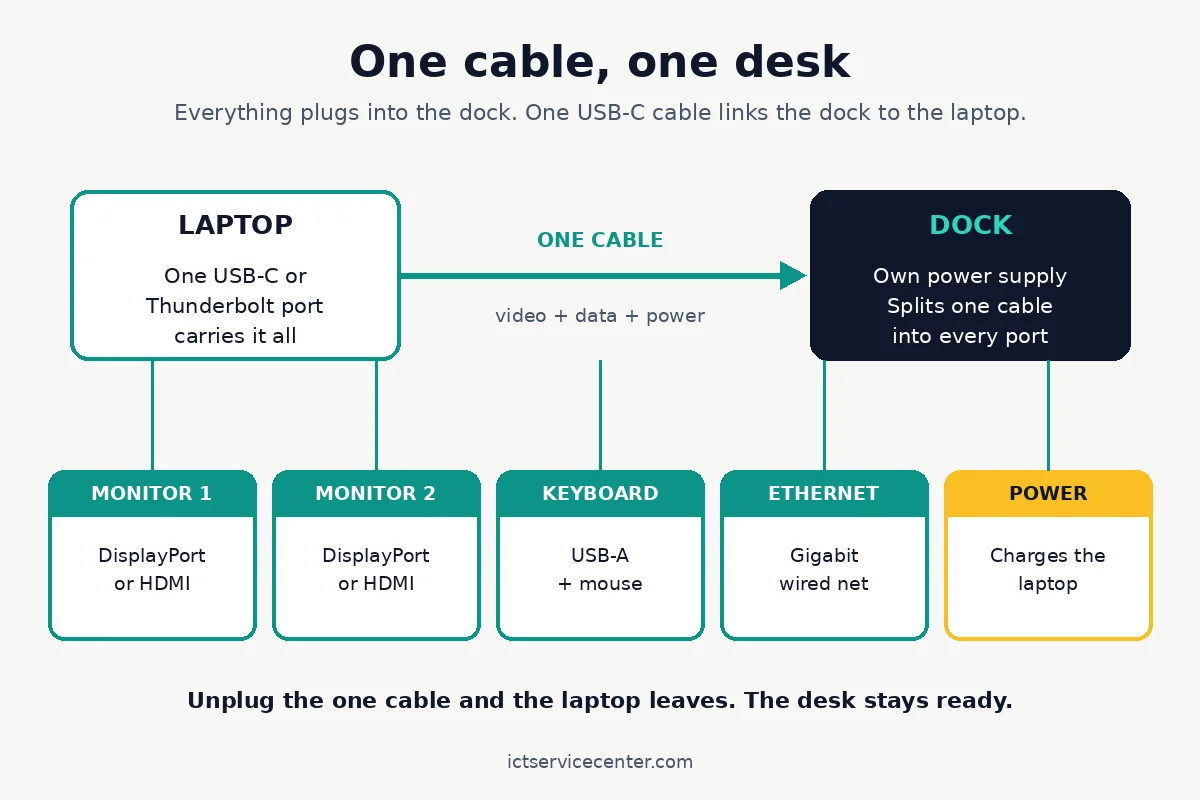
Inside the dock, a chip splits the single USB-C connection into separate channels. Video goes to the DisplayPort or HDMI outputs, keyboard and mouse signals go to the USB ports, network traffic goes to the ethernet port, and power delivery runs in parallel, so the laptop charges while all of this happens.
Tip: Use the cable that came with the dock. A plain charging cable may carry power but no video. If the dock came with a cable, that cable is the one the maker tested.
The ports you will find on a dock
A typical USB-C dock has two or three video outputs (DisplayPort and HDMI), three to six USB-A ports, one or two USB-C ports, a gigabit ethernet port. Thunderbolt docks add more USB-C ports and higher video bandwidth, and they usually cost more.
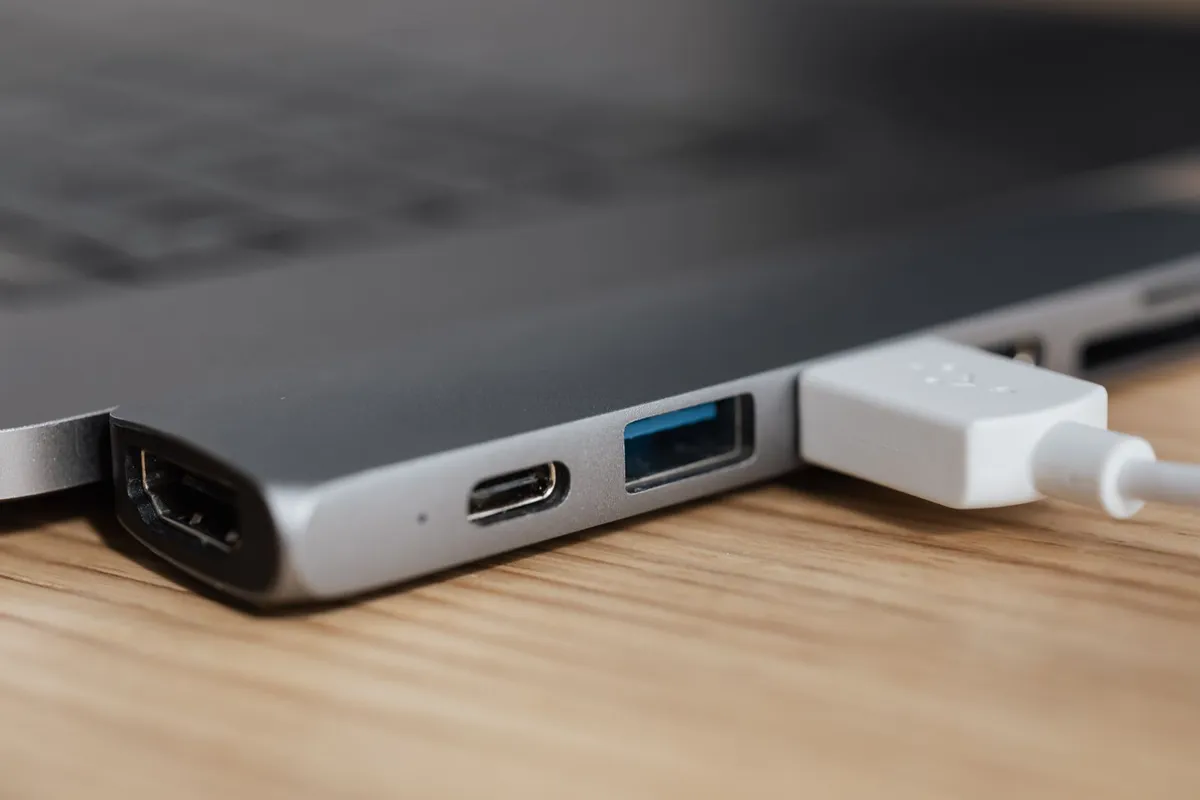
Video outputs matter most. DisplayPort is the safer pick for a second monitor, because it supports Multi-Stream Transport (MST), which can carry two independent monitor signals through one port on supported hardware. HDMI works well for a single monitor, and most docks include at least one HDMI port for older screens.
USB-A ports run at 5 or 10 gigabits per second, which is fast enough for a keyboard, mouse, printer, or flash drive. An external SSD belongs on the fastest port the dock offers, usually a USB-C port marked 10 Gbps or a Thunderbolt port. For the speed numbers, read our guide to USB-C vs Thunderbolt 4 vs USB4.
Charging: how much power a dock delivers
A dock charges your laptop through USB Power Delivery (PD) over the same cable that carries video and data.
The USB-IF sets the limits: USB PD 3.0 delivers up to 100 watts (20 volts at 5 amps), and USB PD 3.1 adds an Extended Power Range that reaches up to 240 watts (48 volts at 5 amps).
Most docks sit in the 60 to 100 watt range. See the USB-IF page on USB Power Delivery for the official numbers.
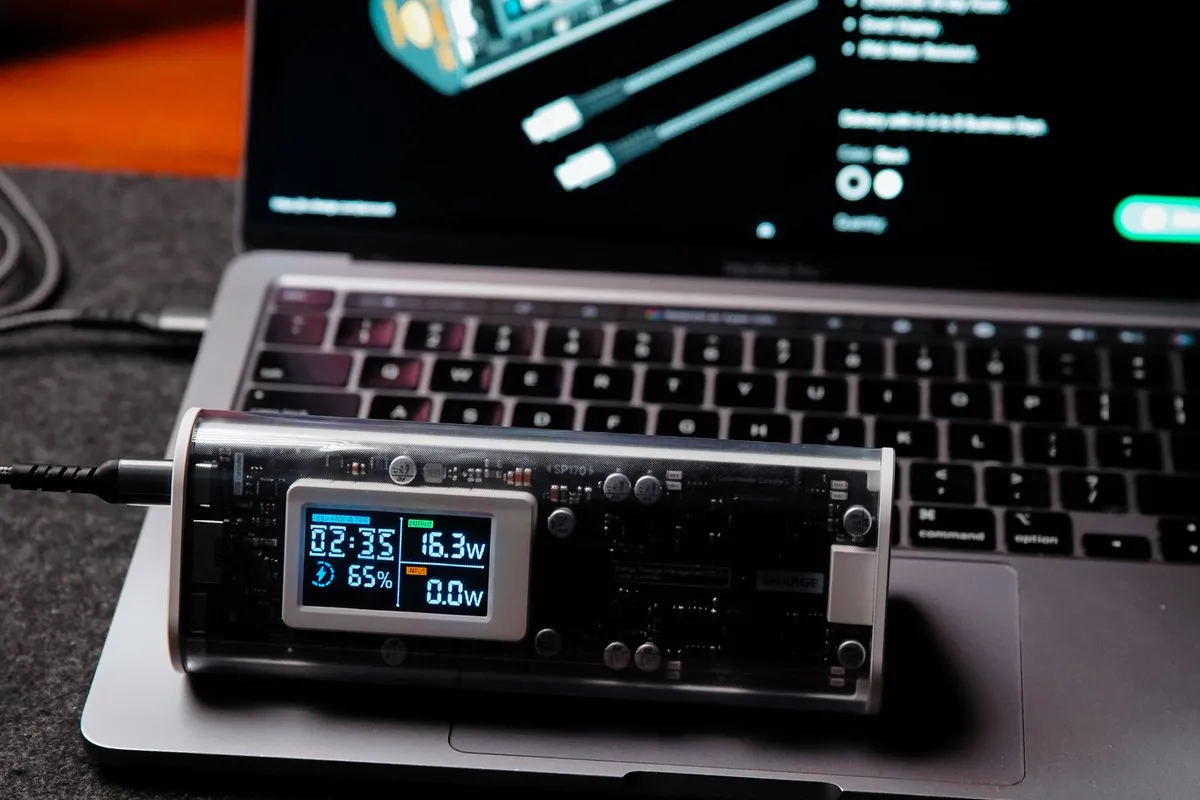
Some docks deliver more: Dell lists up to 130 watts of power delivery from the WD19 dock with its 180 watt adapter. The exact number is in the dock manual, so check it before you buy: Dell WD19DCS docking station user guide (PDF).
The rule is simple. Find your laptop charger wattage on the brick label or the maker spec page. The dock should deliver at least that much.
If the dock delivers less, the laptop will still charge while it idles, but it may charge slowly or even lose charge while you run heavy work.
Watch for one trap: a dock can list a high adapter wattage and still deliver less to the laptop, because part of the power runs the dock itself.
Dock vs hub: the real differences
A dock and a hub look similar and both add ports, but they are built for different jobs. A hub is a small, portable adapter that draws its power from the laptop. A dock is a larger, stationary box with its own power supply.
| Feature | Docking station | USB-C hub |
|---|---|---|
| Power supply | Own AC adapter, charges the laptop | Draws power from the laptop, usually cannot charge it |
| Monitors | One or two, often at 4K | Usually one, sometimes two at lower refresh rates |
| Ports | Many: video, USB-A, USB-C, ethernet, audio, card reader | Few: one video output, two or three USB ports |
| Size | Stays on the desk | Fits in a bag |
| Cost | Higher, for a permanent desk setup | Lower, for travel and occasional use |
| Best for | A fixed desk with two monitors | A laptop bag and hotel-room desks |
If you want a hub for travel, our guide to the best USB-C hub for a laptop covers the portable side. If your desk stays in one place, a dock is the better buy. Many people end up with both: a dock at home and a hub in the bag.
Monitors: how many screens a dock can run
Most USB-C and Thunderbolt docks run two external monitors, though Thunderbolt docks reach higher resolutions and refresh rates. A few docks claim three, and that is only true if your laptop graphics can drive three screens at once.
The limit comes from three places, and the lowest one wins: the laptop graphics chip maximum display count, the dock video outputs and bandwidth limit, and the cable. A DisplayPort 1.4 connection carries more than an older HDMI 1.4 one.
Resolution and refresh rate trade against each other. Two 4K monitors at 60 Hz need far more bandwidth than two 1080p monitors at 60 Hz. If a dock advertises dual 4K, check whether that means 4K at 60 Hz or 4K at 30 Hz. At 30 Hz the mouse feels sluggish.
Once the monitors are connected, Windows handles the layout. Press Win + P and choose Extend, then open Settings > System > Display to arrange the screens in the order they sit on your desk. If a monitor does not appear, use the Detect button.
Microsoft covers these steps in its guide to using multiple monitors in Windows. For the full walkthrough, read our guide to setting up dual monitors on a laptop.
Who needs a docking station, and who does not
You need a dock if your laptop is your main computer and you sit at the same desk most days. Two monitors, a full-size keyboard, a mouse, and a wired network connection are the classic signs.
You do not need a dock if you mostly work from the couch, a cafe, or a different desk every day. A small hub covers the occasional monitor and USB drive, and it fits in your bag.
What it means for you comes down to one question: how many cables do you plug in each morning? If the answer is three or more, a dock will save you time and wear on your laptop ports. If the answer is one cable, a dock is probably more than you need.
How to check your laptop before you buy one
A dock only works if your laptop port can carry video and power. Run these checks before you spend anything.
- Find your laptop exact model number on the sticker on the bottom panel or in Settings > System > About.
- Open the maker support page for that model and look for the port list. You want a line that reads “USB-C with DisplayPort”, “Thunderbolt 4”, or “USB4”. A plain “USB-C” line with no video note means the port may carry no video. Our explainer on what a Thunderbolt port is on a laptop shows how to tell them apart.
- Look at the port itself. A small “D” logo next to the USB-C port means DisplayPort Alt Mode. A lightning bolt means Thunderbolt. No symbol means you must check the spec page.
- Check your charger wattage on the charger brick label, such as 45W, 65W, or 90W. The dock must deliver at least that much.
- Count your monitors and check their inputs: HDMI, DisplayPort, or USB-C. Pick a dock with matching outputs so you do not need adapters.
- Check your operating system. Most docks work with Windows 10 and 11, but some features may need a driver from the dock maker.
Mistakes to avoid
Buying a dock before checking the laptop port. A dock cannot add video output to a USB-C port that does not support it. Check the port first.
Picking a dock with too little charging power. A 45 watt dock on a laptop that ships with a 90 watt charger will charge slowly or lose charge under load.
Using the wrong cable. The cable in the box is part of the dock. A cheap charging cable may carry power only, so the monitors stay dark. Any longer cable must be rated for video and the same power delivery wattage.
Expecting three monitors from a laptop that supports two. The dock cannot add displays beyond what your graphics chip supports. Check the spec sheet for its maximum display count first.
Skipping the dock firmware update. Dock makers release firmware that fixes flicker, wake problems, and charging faults. Check the maker support page after setup.
Plugging the dock into a USB-A port with an adapter. USB-A cannot carry video or power delivery. A dock must connect through USB-C, Thunderbolt, or a maker-specific connector.
Frequently asked questions
What is a laptop docking station in simple terms?
A docking station is a powered box that gives your laptop the ports of a desktop PC. You plug your monitors, keyboard, mouse, and network cable into the dock once, then connect your laptop with one USB-C or Thunderbolt cable. One cable connects your whole desk and charges the laptop.
Is a docking station the same as a USB-C hub?
No. A hub is a small portable adapter that draws power from the laptop and usually adds one monitor and a few USB ports. A dock has its own power supply, charges the laptop, drives two monitors, and offers more ports. A hub suits travel, a dock suits a fixed desk.
Do all laptops work with a docking station?
No. Your laptop needs a USB-C port that supports video output, through DisplayPort Alt Mode, Thunderbolt, or USB4. A port that only moves data and power will not drive a monitor. Check the maker spec page for your exact model.
How much power should a docking station deliver?
At least as much as your laptop charger supplies. If your charger is 65 watts, pick a dock that delivers 65 watts or more. Most docks deliver 60 to 100 watts, and some reach 130 watts. A dock that delivers less will charge slowly and may lose charge under heavy work.
Can a docking station run two monitors?
Most docks can, if your laptop graphics support two external displays. Connect both monitors to the dock, press Win + P, choose Extend, then arrange the screens in Settings, System, Display. If only one lights up, check the dock display limits and the cable.
Bottom line: A docking station is one cable between your laptop and a full desk. Check that your laptop port carries video, match the dock charging wattage to your charger, and count your monitors before you buy. If you are ready to pick one, our best docking station for a laptop guide compares five docks for dual monitors. You can also browse our Specs Explained guides.
Sources: USB-IF, USB Charger (USB Power Delivery); Dell, WD19DCS Docking Station User Guide; Microsoft Support, How to use multiple monitors in Windows. Photos: Arjunn. la, kaboompics, Rubaitul Azad, Alejandro Orozco, Markus Spiske via Pexels. Diagram: ICT Service Center.