
 By
Every one of these plugs looks the same, so the names get mixed up. The plug shape tells you almost nothing about speed, charging, or video.
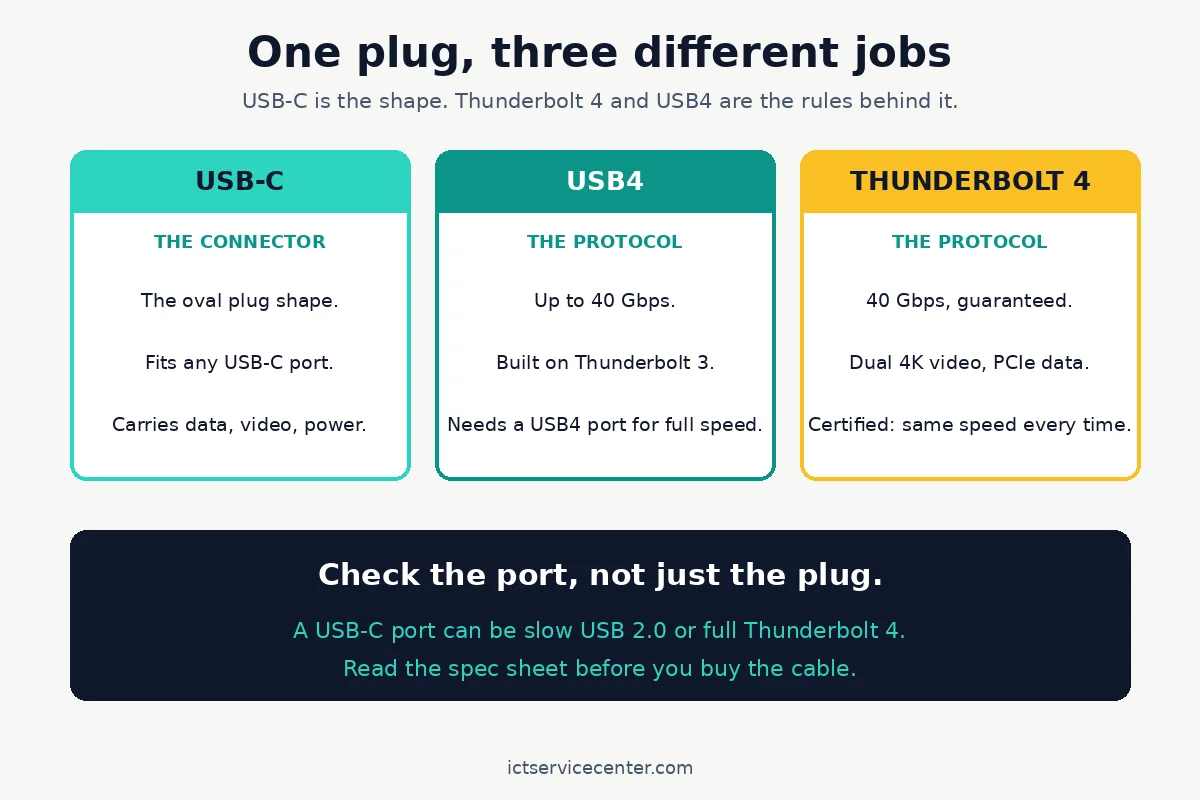
In short: USB-C is only the connector shape, while Thunderbolt 4 and USB4 are protocols that use that shape. Thunderbolt 4 guarantees 40 Gbps data, dual 4K video, and charging on certified ports. USB4 can reach 40 Gbps, but its minimum is 20 Gbps, and some features are optional. A plain USB-C port may be far slower, so read the port spec before you buy a cable or a dock.
Key takeaways
- USB-C describes the oval plug. It says nothing by itself about speed or power.
- Thunderbolt 4 is the strictest: 40 Gbps, dual 4K video, and certified cables.
- USB4 reaches 40 Gbps at best, but 20 Gbps is the minimum a USB4 port must offer.
- Charging and video depend on the port and the cable together, not on the plug shape.
- Look for the lightning mark, the USB4 mark, and the watt rating before you spend.
What each name actually means

The confusion starts because all three names share one plug. USB-C is the physical connector: the small, flat, oval plug that fits either way up. It can carry data, video, and power on the same cable, but it cannot tell you how fast any of those jobs will run.
Thunderbolt 4 is a protocol from Intel that runs over a USB-C connector. It is a certification as well as a spec, so a port can only carry the name if it passes Intel’s checks, and every certified port offers the same minimum speed, video support, and charging behavior.
USB4 is a protocol from the USB Implementers Forum, known as USB-IF. It is built on the Thunderbolt 3 protocol, and it also runs over a USB-C connector.
USB4 raises the ceiling to 40 Gbps, but it leaves more to the maker: a USB4 port must support at least 20 Gbps, and features such as PCIe data tunneling can vary.
If you want to know what a Thunderbolt port looks like on a laptop, start with the lightning symbol beside the port, then confirm the details in the spec sheet.
When a listing says only “USB-C”, ask which protocol the port supports, how fast it moves data, how much power it takes in, and which monitors it can drive.
USB-C vs Thunderbolt 4 vs USB4: the comparison
The table below puts the three side by side. Read the USB-C column with care: its numbers change with the protocol behind it, from 480 Mbps on a cheap laptop to 40 Gbps on a newer one.
| Feature | USB-C (connector only) | Thunderbolt 4 | USB4 |
|---|---|---|---|
| What it is | Plug shape and cable form | Intel protocol and certification | USB-IF protocol |
| Top data speed | 480 Mbps to 40 Gbps, by protocol | 40 Gbps, guaranteed | Up to 40 Gbps |
| Minimum data speed | None; can be USB 2.0 | 40 Gbps | 20 Gbps |
| Power delivery | By port; often 15W to 60W | Charges the laptop, commonly up to 100W | Varies; up to 240W where supported |
| Video | By port; may carry none | Dual 4K, or one 8K | DisplayPort Alt Mode; count varies |
| PCIe data | Only if the protocol adds it | Required, at 32 Gbps | Optional |
| Compatibility | Fits every USB-C port | USB4 and USB-C devices; full speed needs a Thunderbolt port | USB-C devices; Thunderbolt support varies |
| Cable identification | Often unmarked | Lightning symbol | USB4 logo and speed marking |
Two rows matter most: the minimum speed, 40 Gbps for Thunderbolt 4 against a 20 Gbps floor for USB4, and PCIe data, which Thunderbolt 4 requires and USB4 leaves optional.
Speed, explained in plain terms
Speeds here are quoted in gigabits per second, written as Gbps. A 40 Gbps link moves data at up to 5 gigabytes per second in theory, but real transfers run slower because of overhead and the drive inside the enclosure. Do not expect a file copy to hit the headline number.
USB4 at 40 Gbps can match Thunderbolt 4 for a single fast drive, since USB4 is built on the Thunderbolt 3 protocol. The catch is that not every USB4 port reaches 40 Gbps; some laptops ship USB4 ports capped at 20 Gbps.
If the spec sheet says “USB4 20 Gbps”, believe it. To learn how USB moves data between devices helps here: the slowest part of the chain sets the speed for the whole transfer.
One more trap: USB 3.2 Gen 1 runs at 5 Gbps, Gen 2 at 10 Gbps, and Gen 2×2 at 20 Gbps, all over a USB-C plug. A cable labeled only “USB 3.2” could be any of those three, so look for the number in Gbps.
Power delivery and charging
USB Power Delivery, usually shortened to USB PD, lets a USB-C cable carry charging power as well as data. The current version, USB PD 3.1, allows up to 240W. But the ceiling is not a promise: each laptop and charger supports a specific wattage, and the cable must be rated for it too.
Thunderbolt 4 requires at least one port that can charge the laptop, and most Thunderbolt 4 laptops charge at up to 100W over that port. That is enough for most thin and light laptops. Larger gaming and workstation laptops often need more power, so they keep a separate barrel charger as well.
USB4 charging varies more. A USB4 port may support USB PD charging up to the full 240W range, but that is not guaranteed by the USB4 name alone. Some USB4 laptops charge over USB-C, while others treat the port as data only. Look for the charging wattage in the spec sheet, not just the words “USB PD”.
Use a charger and cable rated for at least the wattage your laptop needs. If a cable gets hot during charging, unplug it and stop using it. If your laptop will not charge over USB-C at all, read the guide on a USB-C port that has stopped working to rule out the common causes first.
Video and monitors
Video over USB-C works through DisplayPort Alt Mode, which lets a USB-C port carry a DisplayPort video signal alongside data. Thunderbolt 4 requires it, with enough bandwidth to drive two 4K monitors at once, or a single 8K monitor. That is why Thunderbolt docks are the standard choice for a two-monitor desk: one cable carries both screens, the network, and the charging power.
USB4 also supports DisplayPort Alt Mode, but the monitor count and resolution depend on the laptop: some drive two 4K monitors, and some drive only one, so check the spec sheet.
A plain USB-C port may carry no video at all. Many budget laptops include a USB-C port that handles data and charging only, with no DisplayPort Alt Mode, so a monitor plugged into that port stays dark even with a good cable. Before you buy a USB-C monitor or a dock, confirm that the port supports video output, and read the guide to connecting a monitor to a PC first.
Cables: how to read the markings
Cables are where most of the money is wasted, because a cable that looks right can be the slowest part of the chain.
A Thunderbolt 4 cable carries the lightning symbol and a “4” on the connector, and certified cables are tested to hold 40 Gbps at their rated length.
A USB4 cable carries the USB4 logo with a speed marking, usually 20 or 40 Gbps, plus a wattage marking. A plain USB-C cable may carry no marking at all, which usually means it is a basic charge and sync cable.
Length matters too. Passive Thunderbolt cables hold full speed up to about 0.8 meters, while active cables hold 40 Gbps at 1 or 2 meters, but cost more.
Charging cables have their own marking to check: the wattage. A 60W cable is fine for a small laptop, but it will limit one that needs 100W. A 240W cable costs more, but it covers every laptop that charges over USB-C today. Keep one good 100W or 240W cable at your desk.
How to choose: who each one is for
Choose Thunderbolt 4 if you run a dock with two monitors, a fast external SSD, and a wired network on one cable. Video editors, photographers with large files, and anyone who docks and undocks several times a day will feel the benefit, because the certified minimum means the setup works the same way on every Thunderbolt 4 laptop.
Choose USB4 if your laptop already has it and your workload is lighter. A single 4K monitor, a backup drive, and a phone charger on one cable are well within the reach of a 40 Gbps USB4 port, and a 20 Gbps port still handles that load.
Choose plain USB-C, or rather accept it, when the job is simple. Charging a phone, connecting a mouse receiver, or moving files to a flash drive does not need Thunderbolt or USB4 speeds.
The mistake is paying for a Thunderbolt dock to serve a port that cannot use it. To see how Thunderbolt works under the hood before you decide, read the protocol guide first.
If you need more ports on a laptop that lacks Thunderbolt, a good USB-C hub for a laptop can add them, within the speed limit of the port it plugs into.
Mistakes to avoid
Assuming every USB-C port is the same. The plug shape hides large differences in speed, video, and charging. The fix is to read the spec sheet for each port, because two ports on the same laptop can differ.
Buying a Thunderbolt dock for a USB-only port. The dock will still work, but only at the speed of the port, and its video outputs may stay dark. The fix is to confirm Thunderbolt or DisplayPort Alt Mode support before you order.
Using a phone cable for a fast drive. Most phone charging cables run at USB 2.0 speeds of 480 Mbps, so a fast SSD will crawl. The fix is to use a cable rated for the speed you need, and to keep fast cables labeled.
Ignoring the wattage on the cable. A 60W cable will limit a laptop that needs 100W. The fix is to match the cable wattage to the charger wattage, and to replace any cable that gets hot while charging.
Expecting two 4K monitors from any USB-C port. Only ports with enough video bandwidth can drive two high-resolution screens. The fix is to check the monitor count in the spec sheet, and to test with one monitor first if the spec is unclear.
Frequently asked questions
Is USB-C the same as Thunderbolt 4?
No. USB-C is the plug shape, while Thunderbolt 4 is a protocol that uses that shape. A USB-C port can run USB 2.0, USB 3.2, USB4, or Thunderbolt 4. Check the lightning symbol and the spec sheet to find out what yours can do.
Is USB4 faster than Thunderbolt 4?
No. Both top out at 40 Gbps, but Thunderbolt 4 guarantees 40 Gbps on every certified port, while USB4 only guarantees 20 Gbps as a minimum. Thunderbolt 4 also requires PCIe data and dual 4K video, while USB4 leaves some features optional.
Can I plug a Thunderbolt device into a USB4 port?
Sometimes, but not always at full speed. A USB4 port accepts USB-C devices, and many work with Thunderbolt devices at USB speeds. A Thunderbolt-only device may run slowly or not work at all on a USB4 port without Thunderbolt support, so check the spec sheet first.
Do I need a special cable for Thunderbolt 4?
Yes. Use a certified Thunderbolt 4 cable with the lightning symbol and a “4” on the connector. A plain USB-C cable may fit the port but will not carry 40 Gbps data or dual 4K video. Keep the cable short, since passive cables hold full speed best up to 0.8 meters.
Can USB-C charge my laptop?
It can, if the port supports USB Power Delivery and the charger and cable match the wattage your laptop needs. Many thin laptops charge at up to 100W over USB-C, while larger laptops may need a separate charger. Check the wattage in the spec sheet.
How do I check what my USB-C port supports?
Look for a lightning symbol beside the port, which marks Thunderbolt, and read the spec sheet for the protocol, speed in Gbps, charging wattage, and monitor count. On Windows, open Settings, then System, then About, and note the exact model name.
Bottom line: Start with the port, not the plug. If you dock two monitors and move large files, Thunderbolt 4 is worth it. If your work is lighter, a 40 Gbps USB4 port does the same daily jobs for less. Check speed, wattage, video support, and monitor count before you buy. For more laptop comparisons, browse the Comparisons hub.
Sources: USB-IF: USB4, Intel: Thunderbolt Technology Overview, Apple Support: About the Thunderbolt ports. Photos: Rann Vijay, ready made, Daniel Eliashevsky, Get Lost Mike via Pexels; diagram by ICT Service Center.