
 By
Your laptop plays video with no sound at all, and the speaker icon looks normal. The fix is usually a wrong output device, a muted app, or a tired audio driver.
In short: Check volume and mute first, then confirm Windows 11 is sending sound to the right device in Settings > System > Sound.
If the right device is selected and still silent, run the Audio troubleshooter, restart the Windows Audio service, and reinstall the audio driver in Device Manager.
If headphones work and the built-in speakers do not, the fault is in the speakers, the jack, or the wiring, not in Windows.
Key takeaways
- Most no-sound faults come from the wrong output device, a muted app, or a driver problem after an update.
- Test with headphones first to split the fault into software or hardware.
- Reinstall the audio driver from Device Manager and let Windows load a fresh copy on restart.
- Do not reinstall Windows to fix sound. That step comes last, after the driver and hardware tests.
The 2-minute checks that fix most silent laptops
Start with the simple checks. Many silent laptops have one muted app, one wrong setting, or a headphone plug that Windows still thinks is connected. For the detail, see our notes on cursor moving alone.
Press a volume key and watch the on-screen bar. If it does not move, click the speaker icon in the taskbar, raise the volume to at least 50, and make sure mute is off. Check the physical mute key too.
Play sound from two different places, such as a video in a browser and a song in a media app. If one app is silent and the other plays fine, the fault is in that app. Right-click the speaker icon, choose Open volume mixer, and look at the slider for the silent app. Then restart with Start > Power > Restart, not sleep, to clear a stuck audio service.
If the speaker icon shows a small cross or a red circle, Windows cannot find an audio device at all. Skip the volume checks and go to the driver section.
Match the symptom to the cause
Sound faults look the same on the surface, so work from the symptom.
| Symptom | Likely cause | Fix |
|---|---|---|
| No sound from anything, volume looks normal | Wrong output device or muted app | Select the right device in Sound settings and check the volume mixer |
| Headphones work, built-in speakers do not | Speaker fault, loose jack, or driver error | Reinstall the audio driver, then run the jack test below |
| Speakers work, headphones do not | Faulty jack, plug, or headphone detection | Try known-good headphones and clean the jack with compressed air |
| Sound stopped right after a Windows update | Driver replaced or broken by the update | Roll back the audio driver, or reinstall it from Device Manager |
| Bluetooth headset connects but stays silent | Wrong profile or stale pairing | Remove the device, pair it again, and set it as the output |
| No audio device listed at all | Disabled device, missing driver, or hardware fault | Enable the device and reinstall the driver |
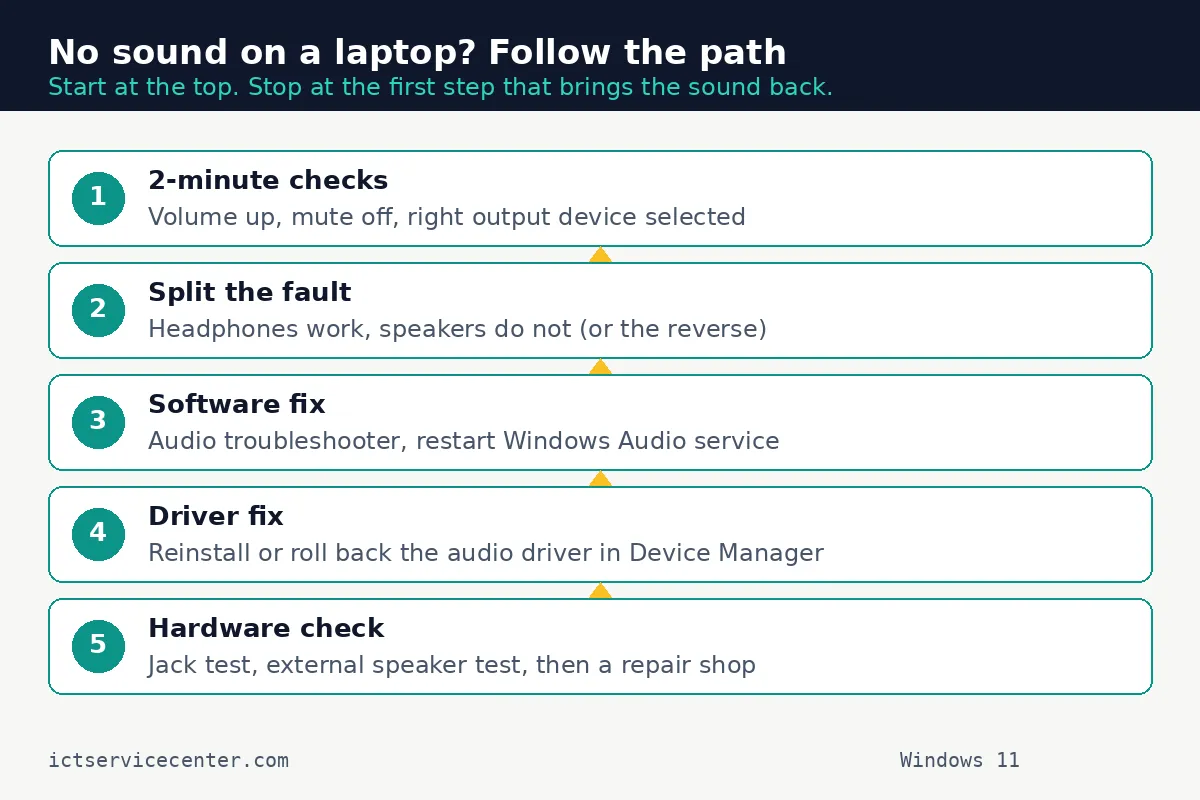
Find your row, try its fix, and test after each step. If it works, stop.
Check the output device, volume, and audio enhancements
Windows 11 can send sound to a monitor, a TV, a Bluetooth headset, or a dock while the laptop speakers sit idle.
Go to Start > Settings > System > Sound. Under Output, look at the device name. If it names a monitor, a TV, or a headset you are not using, choose Speakers instead. If the volume bar moves but you hear nothing, the fault is further down the chain. There is more on repairing disconnected wireless adapters in a separate guide.
- Open Settings > System > Sound and choose the built-in speakers.
- Click the speaker icon in the taskbar and raise the volume to at least 50.
- Right-click the speaker icon, choose Open volume mixer, and raise the app volume.
- Click All sound devices. If your speakers are disabled, select them and choose Allow.
- Open the speaker properties and turn off Audio enhancements and spatial sound. Test again.
Audio enhancements are sound processing added by the laptop maker or the driver, and they can clash with a driver after an update. Turning them off is safe and easy to reverse. Also check the app itself, since players, browsers, and call apps each have their own volume and output settings.
Run the troubleshooter, restart the audio services, and fix the driver
If the output device is right and the volume is up, the fault is usually in software.
First, run the built-in troubleshooter: Start > Settings > System > Troubleshoot > Other troubleshooters, find Audio, and select Run. It can reset the audio service, restore a default device, and flag a driver problem.
Next, check the audio services. Press Win + R, type services.msc, and press Enter. Find Windows Audio and Windows Audio Endpoint Builder. Both should show Running and Automatic. If either one is stopped, right-click it and choose Start. If either one is set to Manual or Disabled, double-click it, set Startup type to Automatic, and start it.
If sound is still missing, reinstall the audio driver. This is the most useful fix for sound that stopped after an update, and it does not delete your files. Press Win + X, choose Device Manager, expand Sound, video and game controllers, right-click your audio device, and choose Uninstall device. Restart, and Windows will load a fresh copy.
Download drivers only from Windows Update or your laptop maker support page, using your exact model number. Do not install a driver from a third-party driver site. A wrong driver can make the fault worse. If that sounds like your bench, read up on boosting low laptop volume next.
If the fault started right after a Windows update, try a driver roll back first. In Device Manager, right-click the audio device, choose Properties, open the Driver tab, and select Roll Back Driver if it is available.
If the button is greyed out, reinstall the driver as above. Our guide to audio that stopped working after a Windows update covers the same steps with the update checks. If Device Manager shows no audio device, click Action > Scan for hardware changes.
Bluetooth vs speakers, and the headphone jack test
Bluetooth sound and speaker sound take different paths, so a fault in one does not prove a fault in the other. Test the speakers, then a wired headset, then a Bluetooth device.
If Bluetooth connects but stays silent, the pairing may be stale or Windows may be using the wrong Bluetooth profile. Go to Start > Settings > Bluetooth & devices > Devices, select the headset, and choose Remove device. Turn the device off and back on, put it in pairing mode, and pair it again. Then set it as the output in Settings > System > Sound.

If wired headphones are not detected at all, read our guide to laptop headphones that are not detected. For the jack itself, plug in headphones you know work on another device and push the plug in fully. Rotate it gently.
If sound comes and goes as you move the plug, the jack is loose or worn, and no driver change will fix it. Power the laptop off, then clear dust with a short burst of compressed air held upright.
Do not use liquids or a metal tool. The full steps are in our guide to fixing a laptop audio jack problem.
Test the built-in speakers on their own. Unplug every headset, speaker, and dock, set the output to the built-in speakers, and play sound at a moderate volume. A faint buzz, a crackle, or sound from one side only points to the speakers or their wiring. Our guide to laptop speakers with no sound covers the speaker-only fault in depth.
Hardware causes: when the speakers themselves are dead
Software fixes cannot repair a dead speaker. If headphones work clearly, the driver reinstalls cleanly, and the built-in speakers stay silent at full volume, the speakers, the cable, or the jack board are the prime suspects.
Listen closely at full volume on a quiet desk. A faint sound, a buzz, or a rattle points to a damaged speaker cone. Sound from one side only points to a failed speaker or a loose cable.
Test with an external speaker you already own. If it plays sound normally, the laptop audio system is working and the built-in speakers are the fault.
Our guide to external speakers that are not working with a laptop helps when the external speaker stays silent too. Do not open the laptop unless you are comfortable working inside one and the warranty has expired.
Power it off, unplug it, and disconnect the battery first, and never open a laptop with a swollen battery.
When to repair or replace
Take the laptop to a repair shop when the driver and service steps are done, headphones work, and the speakers stay silent. Tell the shop what you tested.
Check the warranty first. A laptop still under warranty should go to the maker or an authorised repairer, because opening it yourself can void the cover. Note the model number and whether the fault followed an update or a drop.
Weigh the repair against the age of the laptop. A speaker or jack repair is usually worth doing on a laptop under four years old that is otherwise fast and healthy.
On a laptop over six years old with a weak battery and a slow drive, put the repair cost toward a replacement and use a headset or an external speaker in the meantime. For more fixes, browse the Troubleshooting hub.
Mistakes to avoid
Reinstalling Windows first. A clean install wipes your apps and settings, and it rarely fixes a fault a driver reinstall would fix in five minutes.
Changing three settings at once. Change one thing and test it, or you will not know which step fixed the fault.
Installing a driver from a random driver site. Third-party driver tools can install the wrong driver. Use Windows Update or your maker support page, with your exact model number.
Ignoring the volume mixer. A single muted app looks exactly like a broken laptop. Check the mixer before you uninstall anything.
Forcing a headphone plug or poking the jack with a metal tool. A bent plug or a shorted jack turns a small fault into a board repair.
Frequently asked questions
Why is there no sound on the laptop all of a sudden?
The most common causes are a wrong output device, a muted app, or a driver problem after an update. Check the output in Settings > System > Sound, raise the volume in the mixer, and restart. If that fails, run the Audio troubleshooter and reinstall the driver.
How do I get sound back after a Windows 11 update?
Open Device Manager, expand Sound, video and game controllers, right-click the audio device, and try Roll Back Driver first. If it is greyed out, uninstall the device and restart so Windows loads a fresh driver. Then check Windows Update for a newer driver.
Why do headphones work but the laptop speakers do not?
Headphones and speakers use different hardware paths, so working headphones point to a speaker, cable, or jack fault rather than a Windows fault. Confirm the output is set to the speakers and reinstall the driver. If the speakers stay silent after that, they need a repair.
Why is my Bluetooth headset connected but there is no sound?
Windows may be sending sound to the speakers instead of the headset, or the pairing may be stale. Remove the device in Settings > Bluetooth & devices, pair it again, and set it as the output in Settings > System > Sound.
How do I know if the laptop speakers are broken?
If headphones play clearly, the driver reinstalls cleanly, and the speakers stay silent at full volume, the speakers or their cable are the likely fault. A buzz or sound from one side only also points to damaged speakers. Take the laptop to a shop for a quote.
Should I reinstall Windows to fix no sound?
No, not as a first step. Reinstalling Windows wipes your apps and settings and rarely fixes a fault that a driver reinstall would fix in minutes. Try the output device, the troubleshooter, the services, and the driver first. Reinstall only if a shop advises it after those tests.
Bottom line: Check the output device and the volume mixer, test with headphones to split the fault, then run the troubleshooter and reinstall the audio driver. If the speakers stay silent after that, book a speaker or jack repair.
Sources: Microsoft Support: Fix sound or audio problems in Windows; Microsoft Support: Fix Bluetooth problems in Windows; Microsoft Learn: Audio drivers. Photos: MART PRODUCTION, Johnny Mckane, Anna Shvets, Burst, Robn Biswaro via Pexels; diagram by ICT Service Center.