
Your laptop cursor is frozen, jumping, or moving on its own, and you need it back under control right now. This page gives you the quickest safe fixes, in the right order, plus the signs that point to a part you should replace.
In short: Most 'cursor not working' problems are a software or driver setting, not a broken part. Clean the touchpad, update or reset the driver, and adjust your sensitivity settings first. If the pointer still misbehaves after those steps, the trackpad ribbon cable or a swollen battery underneath is likely the cause.
Quick picks
Our shortlist for this job · tap one to see today's price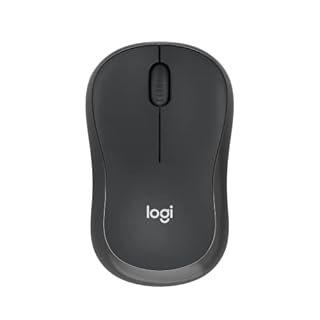
Gives you a reliable pointer instantly so you can finish your work while you fix the laptop's internal touchpad.

Picks up the grime that makes the touchpad feel dead or sensitive when you wipe it by hand.

Replaces the pointing surface for the HP Chromebook 14 G5 so the cursor moves properly again.
Why Your Laptop Cursor Is Misbehaving
The symptom looks different depending on the underlying cause. The cursor might stop moving completely, only move when you press hard, jump around randomly, or act like it is ‘clicking’ on its own. Mapping the symptom to the cause is the fastest way to fix it. Before you buy anything, it is worth looking at fixing touchpad movement.
- Cursor is frozen or not moving: Usually a failed driver or a software conflict.
- Cursor jumps randomly or moves on its own: Often the Mouse Keys accessibility feature is on, or the pad is sensing moisture, crumbs, or electrical interference.
- Cursor is sluggish or you have to press hard: The touchpad sensitivity is set too low, or the pad’s surface is dusty.
- Cursor only dies when the laptop is hot or bent: The internal ribbon cable is loose or frayed.
- Cursor dies and battery life is suddenly worse: A swollen battery is pressing up against the touchpad from underneath.
Pro tip: Before touching any hardware, back up your files and plug in a USB or Bluetooth mouse. A working external pointer gives you time to troubleshoot without losing your place.
Start With the Quick Software Fixes
Run through this sequence before you open anything or buy parts. These fixes take a few minutes and solve the majority of ‘cursor not working’ issues.
- Restart the laptop. This clears temporary driver memory leaks and clears the software conflicts that usually cause the pointer to freeze.
- Turn off Mouse Keys. This accessibility feature makes the cursor move with the numeric keypad. Go to Settings > Accessibility > Mouse > Mouse keys (Windows 11) or Settings > Accessibility > Mouse and Touchpad > Mouse Keys (Windows 10) and ensure it is off. On a Mac, go to System Settings > Accessibility > Point and Scroll and check the keyboard settings.
- Unplug external USB chargers. Cheap, unshielded power adapters can create the electrical interference that makes a cursor move on its own. Unplug non-essential peripherals and see if the movement stops.
- Test in Safe Mode. If a third-party app is making the cursor jump, start your PC in Safe Mode (hold Shift while clicking Restart in the Start menu). If the cursor acts perfectly in Safe Mode, your problem is a piece of software you recently installed.
Pro tip: If you cannot move the cursor to click your way through Settings, use your keyboard instead: press Windows + I to open Settings, then use the Tab key to navigate.
A quiet, compact Bluetooth mouse acts as a reliable pointer while you work through these settings.
- Pair and Play: With fast, easy Bluetooth wireless technology, you’re connected in
- Less Noise, More Focus: Silent mouse with 90% reduced click sound and the same click
Clean the Touchpad and Adjust Your Settings
Grime and moisture under your palm is the number one cause of a cursor that doesn’t respond or moves on its own. A grain of sugar or a smudge of coffee can register as a phantom click.
Power down the laptop, unplug it, and wipe the touchpad with a slightly damp, lint-free microfiber cloth. Dry it completely before turning the laptop back on. If the pad feels ‘gummy,’ a keyboard cleaning kit will make the wipe-down much easier than using a bare cloth.
Next, adjust how the pad senses your touch. Open Settings > Bluetooth & devices > Touchpad on Windows (or System Settings > Trackpad on macOS). Lower the Pointer speed or sensitivity slider. This stops the cursor from overshooting or jumping when you make quick gestures. We cover knowing when tools fail in a guide of its own.
How to tell it worked: Put your palm flat on the trackpad and rest your thumb on the edge. If the cursor no longer drifts under your palm, your palm rejection is working correctly. If it still moves, your issue is likely the hardware beneath the pad.
Safety first: If a liquid like coffee or milk just spilled, do not turn the laptop back on. Let it air dry completely for at least 24 hours to prevent an electrical short.
The swabs and brushes reach under the keys and pad so you can wipe away the moisture causing the ghost clicks.
- The macbook cleaning kit computer screen cleaner comes with a number of accessories
- The laptop screen cleaner keyboard cleaner can pull out the keycaps of gaming keyboards
Fix the Driver: Update, Roll Back, or Reset
Windows Update often installs a generic driver that conflicts with your specific hardware. A bad driver is the most common reason for a ‘cursor not moving’ issue that starts out of nowhere.
Open Device Manager (type it in the Start menu). Expand Mice and other pointing devices. Right-click your touchpad (often listed as Synaptics, ELAN, or I2C HID) and click Update driver.
If that doesn’t help, right-click it again and choose Uninstall device. Check the box to delete the driver software, then restart your laptop. Windows will automatically grab a fresh, working driver on reboot.
If the problem started right after a Windows update, right-click the device in Device Manager, select Properties, and go to the Driver tab. Click Roll Back Driver if that option is available. This reverts to the last known good version. We go through fixing unresponsive display controls step by step in its own article.
How to tell it worked: Restart your laptop. Wait a minute after Windows boots. Open a web browser and click a link. If the cursor moves smoothly and no longer freezes, the new driver fixed it.
Spot the Hardware Problems That Won't Fix Themselves
If the quick fixes and driver updates didn’t change anything, the problem is likely physical. These are the three hardware failures that cause a laptop cursor to stop working.
| Symptom | What is Actually Broken |
|---|---|
| Cursor freezes when you flex the laptop chassis | The ribbon cable connecting the touchpad to the motherboard is loose or frayed. |
| Ghost touches in one specific spot on the pad | Moisture damage or a failing electrical component inside the pad. |
| Cursor dies and the laptop gets a worse battery life | A swollen battery is pressing up against the touchpad’s underside. |
For most of these, you will need to open the laptop. Run your manufacturer’s built-in hardware diagnostic first (usually F12 or F2 at boot on Dell, HP, or Lenovo machines). This confirms to you that it is a hardware failure, not a settings issue.
How to Stop the Cursor Problem from Coming Back
Preventing the next ‘cursor not working’ episode takes just a couple of seconds a month.
First, make it a habit to unplug your USB charging block when you use your laptop on a desk. This prevents the low-level electrical interference that causes the pointer to jump randomly on its own.
Second, do a quick check of your touchpad’s settings every few months. Sometimes a Windows update will reset your Pointer Speed to a level that is too high, making the cursor feel ‘crazy’ and hard to control.
Third, wipe the pad down with a dry cloth if you work near your desk with food or drinks. The buildup of crumbs and skin oils is what makes a previously working trackpad suddenly stop responding to light touches.
The bottom line
Start with the software fixes: restart, turn off Mouse Keys, and update your driver. These steps solve the overwhelming majority of 'cursor not working' issues without opening your laptop.
If the cursor still freezes or moves on its own, it is a hardware failure: either a swollen battery or a frayed ribbon cable. Your next step is to run your manufacturer's built-in hardware diagnostic to confirm which part you need to replace.
- Pair and Play: With fast, easy Bluetooth wireless technology, you’re connected in
- Less Noise, More Focus: Silent mouse with 90% reduced click sound and the same click
Frequently asked questions
Why is my laptop cursor moving on its own?
First, check if the Mouse Keys accessibility feature is accidentally on in your settings. Second, unplug your USB charger; unshielded chargers cause the interference that makes the pointer jump. Finally, wipe the pad down. A smudge or a crumb can register as a phantom click and move the cursor by itself.
My cursor is moving but I cannot click anything. What now?
Your clicker is likely stuck or your click speed is set too fast. Press and hold the top two buttons of the trackpad for ten seconds to reset the click switch. Then, open your mouse settings in Windows or macOS and set your click speed to ‘Fast’ (the middle of the scale), which is the most reliable setting.
How do I fix a cursor that only works when I press hard?
This means your touchpad sensitivity is set too low. Open Settings, go to Bluetooth & devices, then Touchpad. Drag the Pointer speed slider further to the right until the cursor moves smoothly under a light touch. Test it in a text editor to make sure it isn’t overshooting.
Why does my cursor freeze when I turn the laptop?
The internal ribbon cable that connects the touchpad to the motherboard is frayed or unseated. Opening and closing the laptop flexes the chassis, which breaks the bad cable connection. This is a hardware repair: the cable needs to be cleaned and re-plugged into the board.
Is my laptop touchpad permanently broken?
Only if a software fix and a driver update cannot solve it. Before you buy a part, run your manufacturer’s built-in hardware diagnostic (usually F12 or F2 at boot). If the diagnostic fails on the pointing device, you will need a replacement part for your specific laptop model.