Fix Laptop Headphones Not Detected in Windows
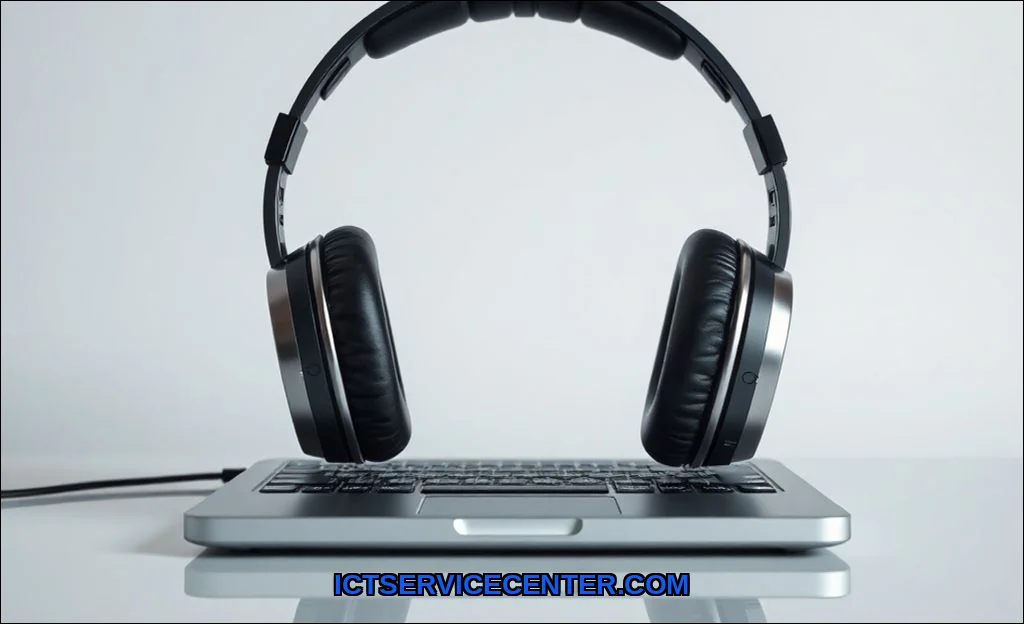
I was deep into a project, relying on my wired headphones for focus, when my laptop suddenly stopped recognizing them. The audio just snapped back to the speakers. No warning. It’s a jarring, frustrating experience that pulls you right out of your flow. I’ve been there more times than I’d like to admit, across countless laptops and operating systems. This isn’t just a minor glitch; it feels like your machine is rejecting a fundamental connection.
Over the years, I’ve developed a systematic approach to diagnosing this exact problem. It blends quick physical checks with deeper software dives, and I’ve learned that the fix often lies in a place you wouldn’t initially suspect. Sometimes, the solution is a simple setting. Other times, it requires a bit more elbow grease. And in a few stubborn cases, I’ve had to get creativelike using a SABRENT USB External sound adapter as a reliable workaround when the internal audio hardware just gives up. Let’s walk through exactly what I do, step by step.
My Headphones Just Stopped Working. Here’s What I Did First
Panic is the enemy of troubleshooting. My first move is always to rule out the obvious. I treat this like a detective eliminating the simplest suspects. Is the headphone plug fully seated? I give it a firm, deliberate push into the 3.5mm audio jack. I then gently wiggle the plug while it’s insertedif I hear crackling or a brief burst of sound, I know the connection is physically flaky.
Next, I test the headphones themselves. I plug them into my phone. If they work perfectly there, the problem is isolated to the laptop. This simple test immediately tells me whether I’m dealing with a device-specific issue or a pair of dead headphones. I also check for mute buttons or inline volume controls on the headphone cable; it’s embarrassingly common to accidentally toggle these.
The Quick Checks I Always Perform (Before Diving Deeper)
Before opening any system menus, I run through a 60-second ritual. These steps have saved me hours of unnecessary driver hunting.
- Reboot. It’s clich because it works. A fresh start can clear stuck audio processes.
- Check the default playback device. In Windows, I right-click the sound icon and select “Open Sound settings.” Under Output, I make sure my headphones are selected, not the laptop speakers. Windows sometimes fails to auto-switch.
- Run the built-in hardware and devices troubleshooter. I search for “troubleshoot settings” in the Start menu and let Windows do its initial diagnosis. It catches basic issues about 40% of the time in my experience.
- For USB-C headphones, I try a different port. Some ports are data-only, especially on thinner laptops where thermal design compromises port functionality.
Walking Through the Software & Driver Fixes That Actually Worked
If the quick checks fail, the problem is usually in the software layer. This is where most guides get generic, but I’ve found specific actions yield better results.
First, I dive into the Windows Audio service. I press Win + R, type `services.msc`, and find “Windows Audio.” I right-click, select Restart. If its status isn’t “Running,” I start it and set it to Automatic. This is a core component that, if halted, breaks all audio.
Next, I tackle the audio driver. I don’t just update; I clean-reinstall. In Device Manager, under “Sound, video and game controllers,” I right-click my audio device (often Realtek Audio) and select “Uninstall device.” I check the box that says “Delete the driver software for this device.” Then I restart. Windows will install a fresh, generic driver. Often, this generic driver works better than a corrupted manufacturer one. If not, I then go to my laptop maker’s support site (Dell, HP, Lenovo) and download the latest audio driver specifically for my modelnot just the chipset from Realtek’s site.
For modern laptops with USB-C audio, I also check for “USB Audio Class” drivers in Device Manager. These are separate and can conflict.
When It’s a Hardware Problem: How I Figured It Out
Software didn’t fix it. Now it’s time to consider the physical components. A hardware fault can be subtle.
The 3.5mm audio jack itself can fail. Lint and pocket debris get packed into the port over time. I shine a flashlight in and use a plastic toothpick to gently clear it out. For a more advanced check, I’ll plug in a different pair of known-working wired headphones. If they also fail, the jack is likely the culprit.
I also consider the possibility of a motherboard-level issue, especially if the laptop has had other recent power or charging irregularities. On some Dell and Lenovo models, I’ve entered the BIOS/UEFI (spamming F2 or F12 at boot) to see if audio can be disabled thereensuring it’s enabled is a critical step.
This is where my external USB sound card, like the SABRENT adapter, becomes a permanent solution. It bypasses the broken internal hardware entirely, providing a new, stable audio port. It’s a $10 fix that can save a $1000 laptop.
Dealing with Specific Brands and Weird Scenarios I’ve Encountered
Not all laptops are created equal. Some have unique audio quirks.
- HP laptops with their proprietary audio software (like Bang & Olufsen) can override Windows settings. I often disable or uninstall that suite entirely and let Windows handle audio. HP’s own guide to common laptop issues sometimes has model-specific tips worth checking.
- Dell machines, especially XPS models, have aggressive power management for the audio jack. In the Realtek Audio Console (if installed), I disable any “jack detection” power-saving features.
- Front vs. Rear Panel Jacks: While more common on desktops, some gaming laptops have separate jacks. Software can be configured to treat them as different devices. I ensure I’m plugging into the correct one for output.
- “Headphones work on phone but not on laptop”: This classic long-tail scenario usually points to a driver or port configuration issue on the laptop, not the headphones. It confirms the headphones are fine.
My Final Checklist When Nothing Else Seems to Work
You’ve tried everything. The frustration is real. Here’s my last-resort protocol before considering professional repair.
- System Restore: If the problem started recently, I roll Windows back to a point before the issue began.
- Clean Boot: I use `msconfig` to start Windows with only essential services and startup programs. This rules out third-party software conflicts.
- Check for Windows Updates: A pending major feature update can sometimes resolve deep-seated driver conflicts.
- Test on a Live Linux USB: This is the ultimate hardware test. If the headphones work booting from a Ubuntu USB stick, the problem is 100% within Windows or its drivers.
- Accept the Workaround: If the internal jack is dead, a USB or USB-C audio adapter is a perfectly valid, high-quality permanent solution. My SABRENT adapter has been a lifesaver on more than one “retired” laptop.
Fixing a laptop that’s not detecting headphones is a process of elimination. Start simple, then go deep. Most of the time, it’s a software ghosta driver needing a refresh or a service that’s stuck. The key is methodical testing. Don’t assume the worst. Work through the physical connection, the Windows sound settings, the drivers, and finally the hardware itself. Remember, an external USB audio adapter isn’t a defeat; it’s a smart, reliable workaround that gets you back to your audio in minutes. Keep calm, test systematically, and you’ll almost always find the culprit.