
 By
Your laptop charged fine yesterday, then a Windows update installed and the battery percentage will not move. Work through the fixes in order, starting with the charger.
In short: A laptop that stops charging after a Windows update usually has a broken battery driver or a charge limit the update switched on. Check the charger and the charge limit first, then reinstall the ACPI battery driver in Device Manager. If that fails, roll back the update, and use Windows RE only as a last step before a repair shop.
Key takeaways
- Check the charger, the outlet, and the charge limit first.
- A stuck percentage at 50% or 80% is usually a charge limit, not a dead battery.
- Reinstalling the ACPI battery driver fixes most update-linked charging faults.
- Roll back the update only after the quick checks and the driver reinstall fail.
- If the battery is swollen or not detected, stop and take the laptop to a repair shop.
Start with the 2-minute checks
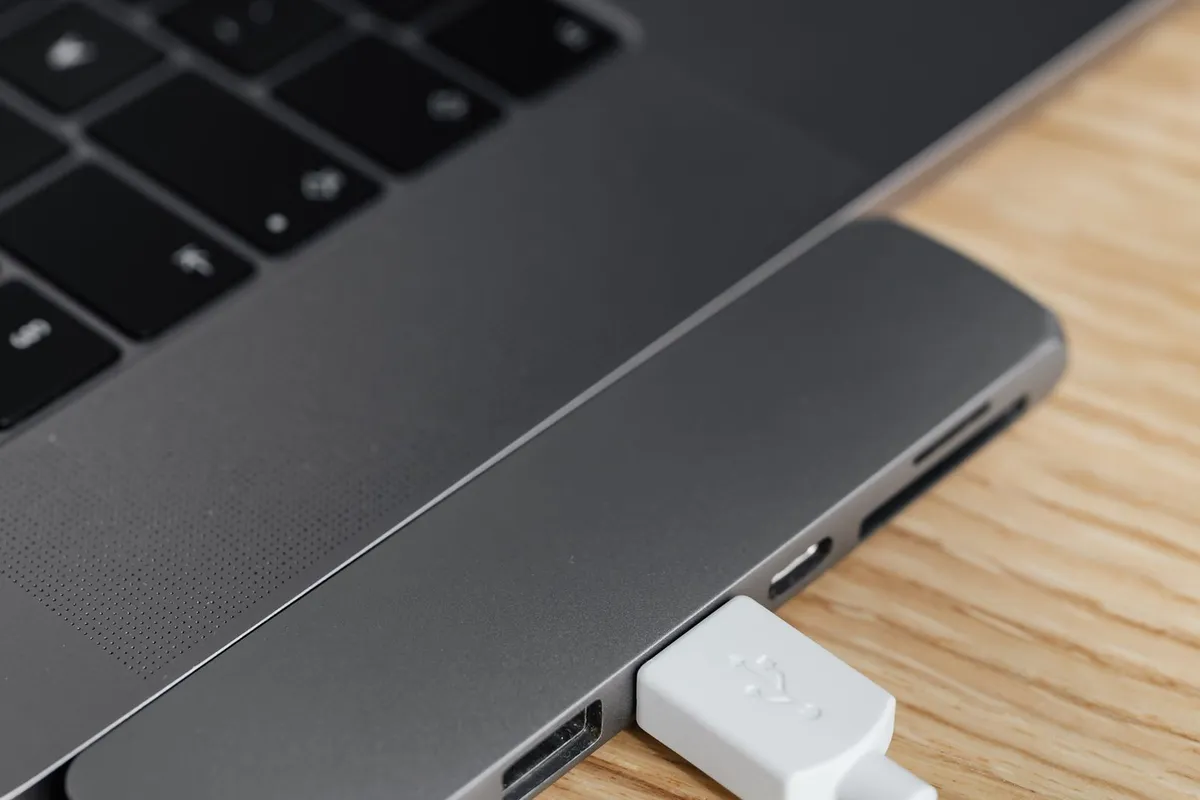
An update gets the blame for many faults it did not cause, and a loose charger cable is the most common.
Unplug the charger from the laptop and the wall, then plug it back in firmly at both ends. Check the port and the tip for bent pins, dust, or a loose fit, and try a different outlet. If the charger has a light, check that it comes on.
Next, open Settings > System > Power & battery and read the status line: the exact words point at a different fix.
| Symptom | Likely cause | Fix |
|---|---|---|
| Plugged in, not charging | Broken battery driver | Reinstall the ACPI driver |
| Stuck at 50% or 80% | Charge limit on | Turn the limit off |
| No plug symbol | Charger or port fault | Test another charger |
| Battery not detected | Driver missing, or dead battery | Reinstall driver, check health |
| Black screen after the update | Stuck graphics driver | Win + Ctrl + Shift + B |
| Charges only when off | Charger wattage too low | Match the original wattage |
Now check the charge limit. Many laptops cap the charge to protect the battery, and an update can switch it on. On a Surface, Smart charging stops at 80% and Battery Limit at 50%. Other makers use their own apps: Dell Power Manager, Lenovo Vantage, MyASUS, and HP Support Assistant. Turn the limit off to test: if the percentage climbs, the laptop was never broken.
Check the wattage too: it is printed on the charger brick, and the laptop needs at least that much power to run and charge at once. A phone charger may keep the laptop running but never add charge. Borrow a matching charger to test before you buy.
If the charger is dead, match the wattage and the connector on the original charger exactly.
A 65 watt USB-C charger suits most thin laptops, but match the wattage printed on your original charger brick first.
See options on AmazonIf the quick checks change nothing, the fault is in software. For the same fault with no update involved, read our guide to fixing a laptop battery that is not charging.
Reinstall the battery driver
Windows reads the battery through the Microsoft ACPI-Compliant Control Method Battery driver. The update can leave it broken, so Windows cannot see the battery charge at all. Microsoft’s fix for a Surface that will not charge is to remove this driver and let Windows reinstall it.
- Keep the charger plugged in, then press Win + X and select Device Manager.
- Select the arrow next to Batteries to expand the category.
- Right-click Microsoft ACPI-Compliant Control Method Battery and select Uninstall device. On a Surface it may be called Surface Battery.
- Leave the box for deleting the driver software unchecked, then confirm the uninstall.
- Select the computer name at the top of the list, open the Action menu, and select Scan for hardware changes.
- Select Start > Power > Restart and wait for the laptop to come back up.

After the restart, open Settings > System > Power & battery and watch the status line. The fix worked if it reads “Charging” and the percentage climbs. If the entry is missing, select View > Show hidden devices first. Do not uninstall the Microsoft AC Adapter entry too.
Use Restart, not Shut down, for this test: a shutdown can keep the old driver state.
Roll back the update in Settings
If the driver reinstall did not help, remove the update itself. Microsoft says to uninstall an update only when it is causing errors, and this case fits. Uninstalling an update does not touch your files, but it removes that update’s security fixes.
- Select Start > Settings > Windows Update.
- Under More options, select Update history.
- Under Related settings, select Uninstall updates.
- Find the update from the day the charging stopped and select Uninstall.
- Restart the laptop when asked, then check the battery status again.
Some updates cannot be uninstalled, and Microsoft says so on the same page. If the update has no Uninstall button, skip to the Safe Mode section. If the fault followed a new Windows version, look in Settings > System > Recovery for Go back, which returns the laptop to the previous version, keeps your files, and is usually available for 10 days.

If the laptop is slow too, our guide to a laptop that is slow after a Windows update covers the matching checks.
Reset the graphics driver and restart cleanly
This step matters when the screen stays black after the update: a black screen can look like a charging fault, while the laptop charges fine.
Press Win + Ctrl + Shift + B together. Microsoft documents this shortcut as a way to reset the graphics driver: you should hear a beep or see the screen flicker if it works. If the picture comes back, save your work and restart, then check the battery status.
A full restart is worth doing on its own: updates leave drivers half-finished, and a restart finishes them. Use Start > Power > Restart and check the battery status first.
Roll back the driver in Safe Mode
Safe Mode starts Windows with only the drivers it needs, which makes it the right place to undo a bad driver update. Use it when the laptop will not charge in normal mode.
- Select Start > Settings > System > Recovery, then select Restart now next to Advanced startup. If you cannot reach Settings, hold Shift while you select Start > Power > Restart.
- On the blue screen, select Troubleshoot > Advanced options > Startup Settings > Restart.
- When the list of startup options appears, press F5 for Safe Mode with Networking.
- Open Device Manager, expand Display adapters, right-click your graphics card, and select Properties. On the Driver tab, select Roll Back Driver if it is active.
- Do the same for the battery driver under Batteries.
- Restart the laptop normally and check whether the battery charges.
The roll back button is greyed out when Windows has no older driver saved. In that case select Update driver instead, or get the driver from the laptop maker’s support site.
Back up your files before you roll back drivers or uninstall updates. A roll back should not delete files, but any driver change can go wrong.
Uninstall the update in Windows RE
Windows RE, the Windows Recovery Environment, is the last software step. Use it when you cannot reach Settings, or when the update will not uninstall from inside Windows. To reach it, open Settings > System > Recovery and select Restart now next to Advanced startup, or hold Shift while you select Power > Restart.
- Reach Windows RE and wait for the blue Choose an option screen.
- Select Troubleshoot > Advanced options > Uninstall Updates.
- Select Uninstall latest quality update for a monthly patch, or Uninstall latest feature update after a version upgrade.
- Follow the prompts on screen, then let the laptop restart into Windows.
- Check the battery status as soon as the desktop appears.
If your drive is encrypted with BitLocker, have your recovery key ready: Microsoft warns that some Windows RE tools ask for it. If charging returns, let Windows install the next update when it arrives. Our guide to repairing Windows without reinstalling covers the other tools on the same screen.
When to repair or replace
Software fixes have a limit. Stop here and book a repair if the battery is swollen, the base bulges, or the trackpad has lifted. Do not open the laptop and do not try to charge it: a swollen battery is a fire risk. Stop too if the laptop turns off when you unplug it, if the port is loose or damaged, or if the battery is not detected.
Before you pay for a repair, check the battery health so you can describe the fault to the shop. Our guide to how to check laptop battery health shows how to read the battery report Windows builds for you. If the report shows a worn-out battery, replace it. If it shows a healthy battery that will not charge, tell the shop the steps you tried, in order.
A laptop that shows a battery that is not detected at all needs different checks, since a missing battery points at the battery or the board. Follow that guide first if the battery icon shows a red X.
Mistakes to avoid
1. Buying a new charger before testing the old one. A charger that looks dead may only be loose at the wall, and a new charger will not fix a driver fault. Test another outlet first.
2. Uninstalling every battery entry at once. Removing the AC Adapter entry too muddies the test. Uninstall the ACPI battery entry only, then scan for hardware changes.
3. Rolling back the update before the two-minute checks. A rollback removes security fixes, and it wastes time if the fault is a charge limit or a loose cable. Work in order: charger, charge limit, driver, then the update.
4. Turning off Windows Update so the update never comes back. That leaves the laptop without security fixes. Let the next update install, and check the battery after it.
5. Opening the laptop to test the battery yourself. A swollen battery can catch fire, and opening the base can void the warranty. Take a swollen laptop to a repair shop.
6. Ignoring a charge limit and replacing the battery. A battery that stops at 50% or 80% is usually following a limit in the maker app, not failing. Check the limit before buying a battery.
Frequently asked questions
Why does a laptop stop charging after a Windows update?
Most often the update left the battery driver broken, so Windows can no longer read the battery or tell it to charge. An update can also switch on a charge limit, or leave the screen black. Check the charger, the charge limit, and the driver before you blame the battery.
Can a Windows update damage a laptop battery?
No, an update cannot damage the battery itself. It can only change the software that talks to the battery, such as the battery driver or a power setting. A worn-out battery may show its age after an update, but the update did not wear it out.
How do I know if the charger or the update is the fault?
Check the timing and the battery icon. If the laptop charged fine the day before the update and the icon says “Plugged in, not charging” after it, the update is the likely cause. If the icon shows no plug symbol, or the charger light stays dark, test another charger first.
Will uninstalling the update fix the charging problem?
It will if the update itself caused the fault: within minutes of the restart, the battery status should read “Charging” again. Microsoft advises removing an update only when it is causing errors, and notes that some updates cannot be removed.
What if the laptop still will not charge after every fix?
Then the fault is in the hardware: the battery, the charging port, or the board. Check the battery health report first, then take the laptop to a repair shop with the steps you already tried. Do not open the laptop yourself, and stop charging it at once if the battery is swollen, hot, or smells strange.
Bottom line: Check the charger, the outlet, and the charge limit first, then reinstall the ACPI battery driver and restart. Roll back the update only if the driver fix fails, and use Windows RE only when you cannot reach Settings. If the battery is swollen or not detected, take the laptop to a repair shop. More fixes: see the Troubleshooting hub.
Sources: Microsoft Support, How to uninstall a Windows Update; Microsoft Support, Surface battery won’t charge or Surface won’t run on battery; Microsoft Support, Troubleshooting blank screens in Windows; Microsoft Support, Windows Recovery Environment. Photos: Kaboompics, Amar Preciado, Biswamangal Jana, Pande Budiarta and Alexey Demidov via Pexels. Diagram: ictservicecenter.com.