
 By
A steady click from your laptop is easy to ignore for a day, and unwise to ignore for a week. The sound tells you which part is failing, and the first step is different for each one.
In short: A rhythmic click that gets worse when you open files usually comes from a failing hard drive: back up now and stop using the drive. A click that speeds up as the laptop gets hot usually comes from the fan, and one that only happens when you move the lid usually comes from the hinge. An SSD has no moving parts, so it cannot click.
Key takeaways
- Back up first if the click is rhythmic and the laptop has a hard drive.
- Find the source first: listen at the vents, the hinge, and the drive bay.
- Soft clicks while a drive reads and writes are normal. Hard clicks that repeat are not.
- Never run a disk scan on a drive that keeps clicking.
- Power off and unplug the laptop before you open the case, and disconnect the battery first.
Two-minute checks: find where the click comes from
Do these checks before you open anything.
- Stop and listen. Close every app, wait 30 seconds, and put your ear near each side of the laptop. Note whether it comes from a vent, the hinge, or the drive bay.
- Open a large file. If the click gets faster while the drive works, the hard drive is the likely source.
- Move the lid slowly up and down. If the click happens only while the lid moves, the hinge is the likely source.
- Press Ctrl + Shift + Esc, select Performance, then Disk. The panel shows whether your drive is an HDD or an SSD.
- Mute the laptop. If the click stops, the speakers or the audio driver are the likely source.
- Note when the click started: after a drop, it points at hardware; after a Windows update, at a driver or a fan profile.
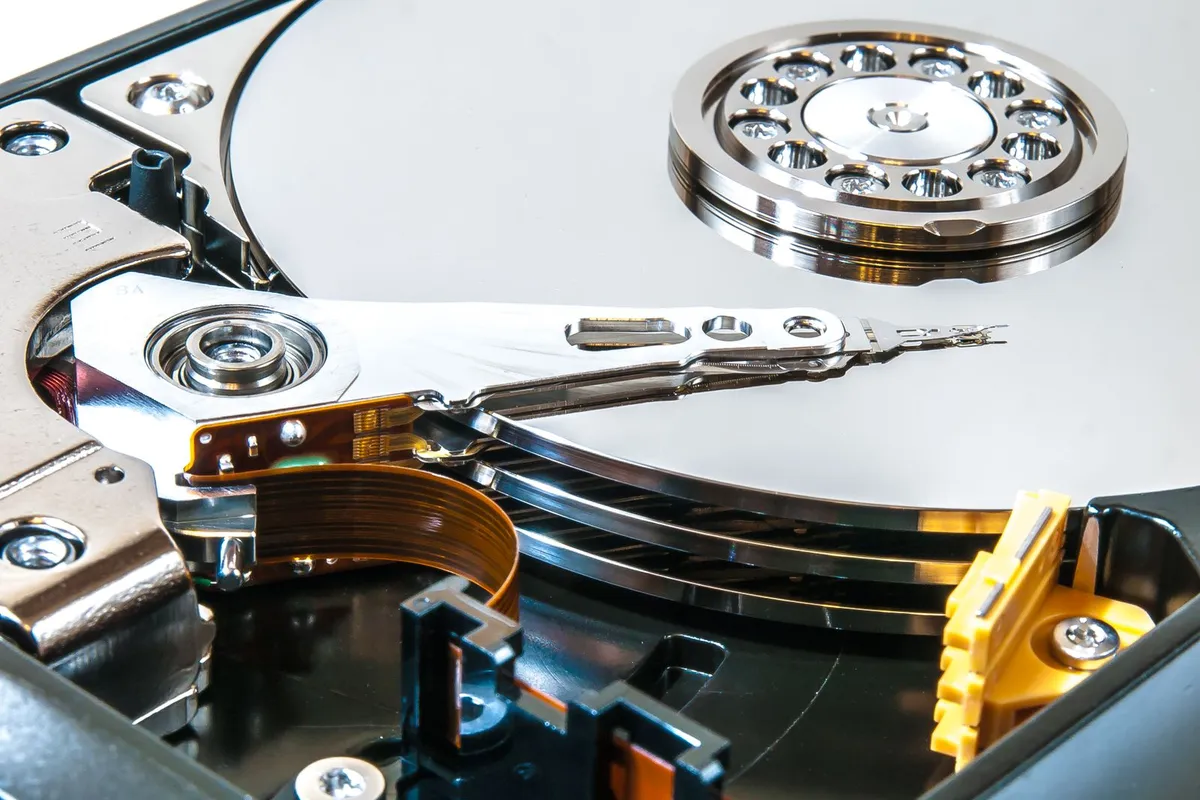
If the click is rhythmic and the laptop has a hard drive, back up your files first. It helps to understand laptop is getting hot while charging including charger before going further.
If the click is loud, rhythmic, and new, back up your files before you run any test. A failing drive can stop with no further warning, and every minute it runs can make recovery harder.
Match the sound to the cause
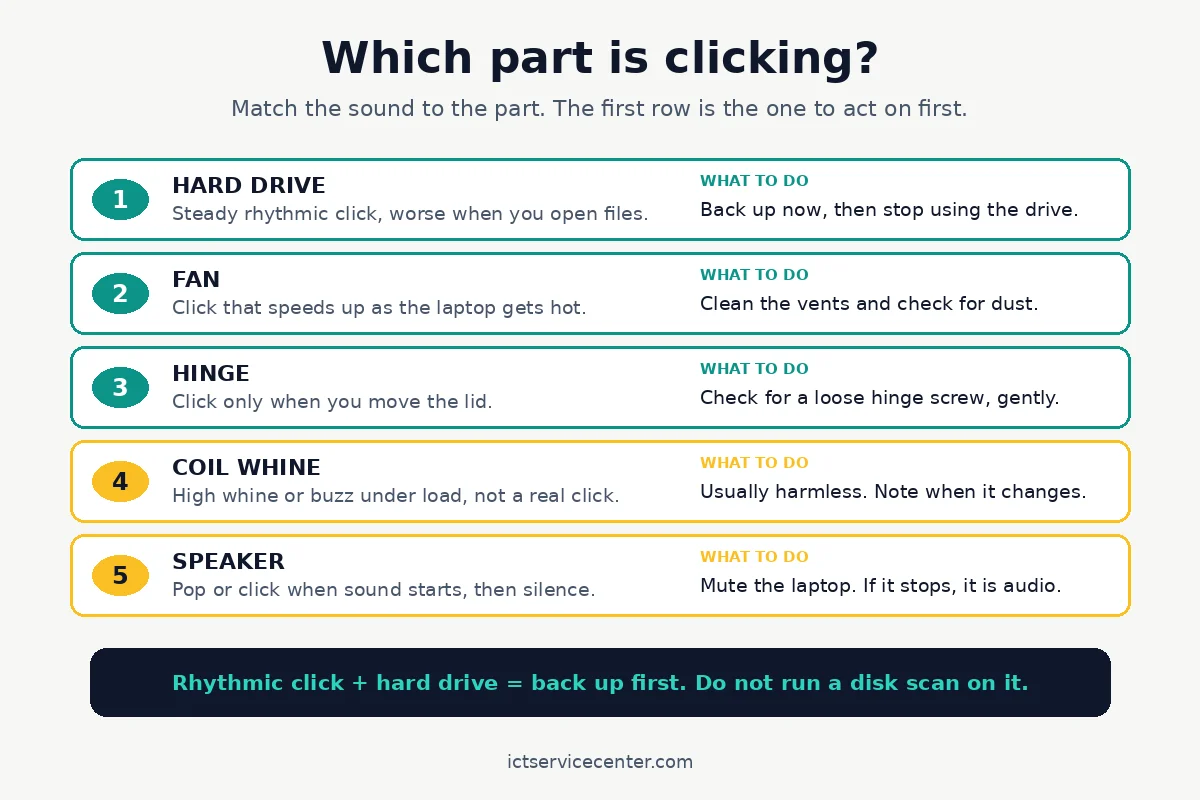
Five parts make the sounds readers call a click. The diagram maps each sound to its part, and the table gives the fix.
| Symptom | Likely cause | Fix |
|---|---|---|
| Steady rhythmic click, worse when files open | Failing hard drive heads | Back up now, then replace the drive |
| Click that speeds up as the laptop heats up | Dusty or worn fan | Clean the vents, check the fan |
| Click only when the lid moves | Loose hinge or pinched cable | Tighten or replace the hinge |
| High whine or buzz under load | Coil whine from the board or charger | Usually harmless |
| Pop when sound starts, then silence | Speaker or audio driver | Mute to test, update the audio driver |
| Single soft click at startup or shutdown | Normal drive head parking | No action needed |
A clicking hard drive: back up first, then test
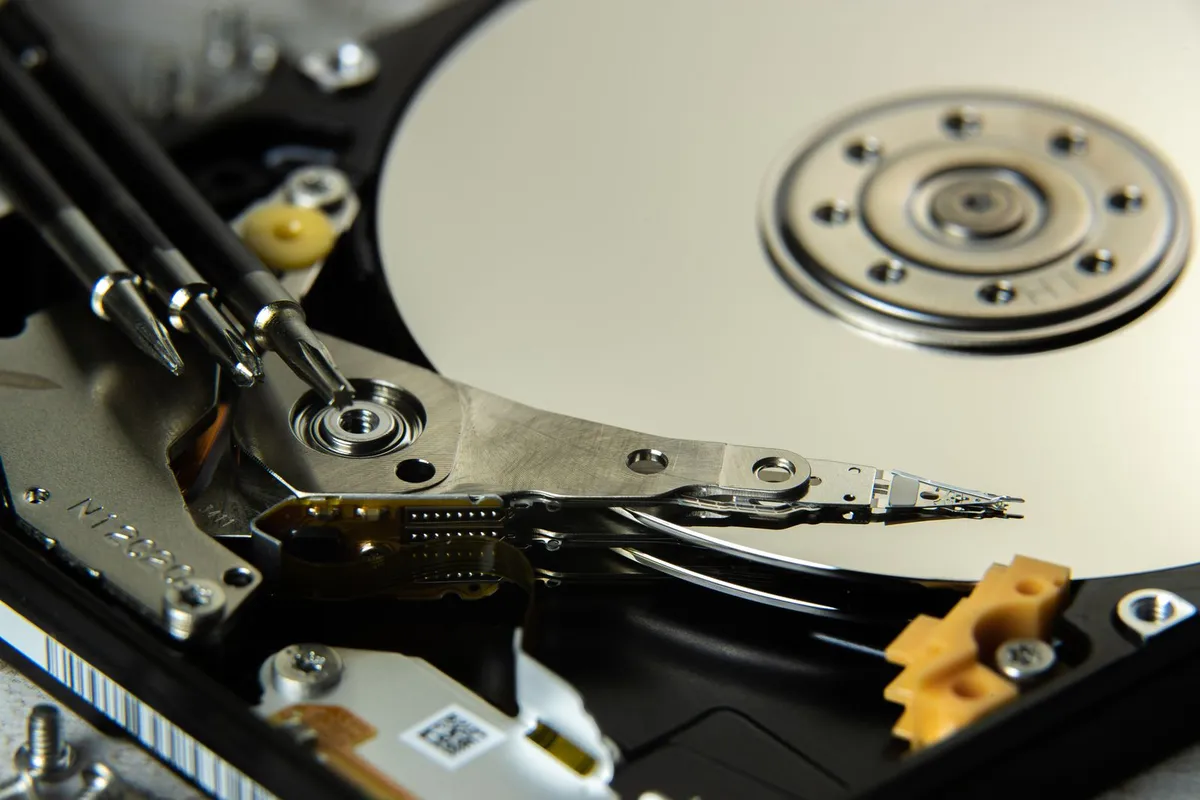
A hard drive stores files on spinning discs, and a small arm moves the read/write heads across them. When the heads cannot find their position, the arm resets and tries again: that reset is the click you hear. When it repeats, makers call it the click of death.
Not every click is a failure. Seagate explains that soft clicks or chatter while a drive reads and writes are normal, and a single hard click can be the heads parking.
The line is the pattern: soft clicks are fine, while hard clicks that repeat, or clicks joined by grinding, point at a physical fault. Seagate says the same in its guide to noisy disk drives: test the drive, and replace it if it fails.
Back up before you test anything. Plug in an external drive and copy your Documents, Desktop, Pictures, and any other folders you cannot lose. Microsoft explains how to set up File History in its guide to backing up with File History.
Do not run chkdsk or a surface scan on a drive that keeps clicking: a scan forces the heads across the whole disc and adds stress to a part that is already failing. Recovery software cannot fix a mechanical fault either. Before you buy anything, it is worth looking at restoring missing audio output.
Once your files are safe, test the drive with the maker tool: Seagate offers SeaTools and Western Digital offers its Dashboard. A failed test means the drive needs replacing, not repairing. If your hard drive is not detected at all, that guide covers the next steps.
If your laptop has only an SSD, the drive cannot be the source: an SSD has no moving parts, so it makes no sound at all. Read how an SSD differs from a hard drive, and check the health of your SSD to rule the drive out.
A clicking fan: dust, a loose blade, or a worn bearing
A fan click is easy to tell from a drive click: it comes from a vent, it speeds up as the laptop gets hot, and it often fades when the fan slows down.
Dust is the most common cause: a clump on a blade throws the fan off balance, and the blade taps the case once per turn. A cable that has slipped against the fan makes a similar sound, and a worn bearing makes a rougher click.
Start by cleaning the vents. Power the laptop off and unplug it. Hold the fan still with a finger or a cotton swab, then blow short bursts of compressed air into the vents. Hold the fan still: a free blast can spin it far faster than it was built to spin.

A can of compressed air clears the dust that makes a fan rattle, and it costs less than a shop visit.
- Powerful 150,000RPM Airflow & 3 Speeds: Turbo motor and 3-level (Low/Medium/High)
- Long-Lasting 8000mAh Battery: Rechargeable air duster supports extended cleaning on a
If the click stays after cleaning, open the case only if you are comfortable doing so, and only after the laptop is off, unplugged, and the battery is disconnected. Check for a cable resting against the fan and move it clear. If the blades are chipped or the bearing grinds when you turn the fan by hand, the fan needs replacing.
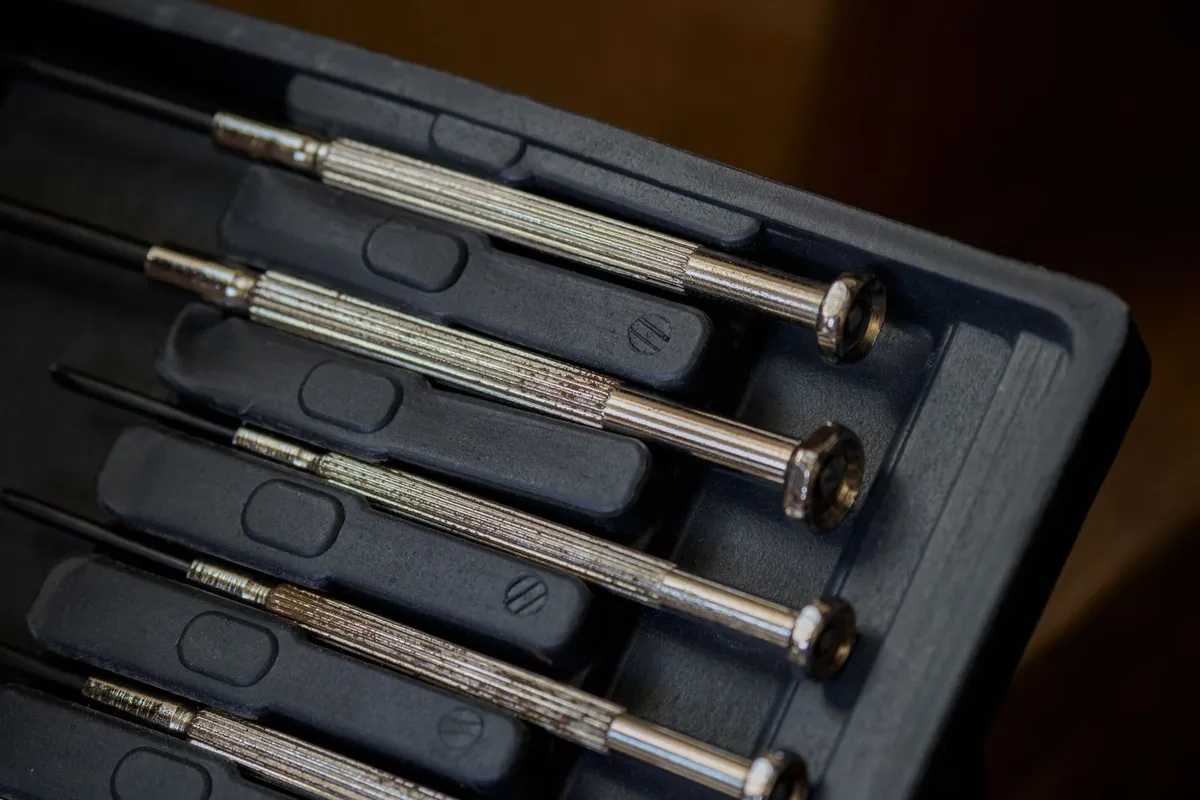
You will need a Phillips #0 screwdriver and a small tray to keep the screws in order. Keep them grouped by length: a long screw in a short hole can crack the board. Our guide to fix a noisy laptop fan walks through the full cleaning and replacement path.
A click from the hinge or the case
A hinge click is the easiest to find: it happens only when you move the lid. Open and close the screen slowly and listen at each hinge. A single click at one point in the travel usually means a hinge screw has worked loose.
A click joined by a wobble, or a lid that will not hold its angle, points at a cracked mount. It helps to understand diagnosing silent operation before going further.
Tightening a hinge screw is a small job, but it means opening the case. Power the laptop off, unplug it, and disconnect the battery first. Remove the bottom panel with a Phillips #0 screwdriver and tighten the hinge screws a quarter turn at a time. Do not force a screw that will not turn.
Take the laptop to a shop if the screen bezel is separating from the lid, if you can see a crack near a hinge, or if the lid feels loose after tightening.
A cracked hinge mount can pull the screen cable apart when the lid moves.
A click from the palm rest when you press down is usually a loose clip or a swollen battery: if the bottom of the laptop is bulging, do not open it and do not charge it.
Coil whine and speaker clicks are not the same problem
Two other sounds get reported as a click, and both need a different response.
Coil whine is a high whine or buzz that rises and falls with the load on the laptop: loudest when a game or a heavy app runs, and gone when the laptop idles.
It comes from coils on the motherboard or in the charger vibrating as power flows through them, and in most cases it is harmless.
Speaker clicks are short pops when sound starts or stops. Mute the laptop: if the click stops, the speakers or the audio driver are the source. Update the audio driver through Windows Update first, then through your laptop maker support site. If the pop stays, test with headphones: the same pop there points at the driver, not the speakers.
When to repair or replace
Take the laptop to a shop when the drive clicks hard and keeps clicking, when the fan grinds after cleaning, or when the hinge mount is cracked. Those faults need parts and tools most readers do not have at home. A drive replacement is the most urgent: a clicking hard drive can fail at any time, so start with the backup.
If you replace the drive yourself, match the new drive to the old one: a 2.5 inch SATA drive replaces a 2.5 inch SATA drive, and an M.2 drive must match the slot length and key.
An SSD is the usual replacement, and it also makes the laptop faster.
Our guide to replace a laptop hard drive covers the swap, and iFixit publishes a model-specific guide for most laptops, such as its Asus R541U hard drive replacement guide: search iFixit for your exact model first.
Weigh the age of the laptop before paying for a repair. On a laptop that is otherwise sound, a drive or fan replacement is a small job. With a cracked hinge mount and a failing drive, both repairs can cost more than the machine is worth.
Mistakes to avoid
Running a disk scan on a clicking hard drive. A scan forces the heads across the whole disc while the drive is already failing. Copy your files first.
Opening the hard drive itself. The drive is sealed, and the platters are ruined by dust in seconds outside a clean room. No home repair can fix a clicking drive from the inside.
Blowing compressed air into a spinning fan. A free blast spins the fan far faster than its bearing was built for. Hold the fan still, then use short bursts.
Ignoring a rhythmic click because the laptop still works. A drive can click for days and then stop without warning.
Frequently asked questions
Is a clicking laptop hard drive always failing?
Not always. Soft clicks while the drive reads and writes are normal, and a single hard click can be the heads parking. A hard click that repeats in a steady rhythm, especially with grinding, usually means the drive is failing. Back up first, then test the drive with the maker tool.
Can an SSD make a clicking noise?
No. An SSD has no moving parts, so it cannot click, whir, or grind. If your laptop has only an SSD and you hear a click, the sound comes from the fan, the hinge, the speakers, or the board. Check the drive type in Task Manager under Performance, then Disk.
How do I know if the click is the fan or the hard drive?
Listen at the vent and at the palm rest, then open a large file. A fan click comes from a vent, speeds up as the laptop gets hot, and fades when the fan slows. A drive click comes from the drive bay, gets worse while files open, and keeps a steady rhythm.
Should I keep using a laptop with a clicking hard drive?
Only long enough to back up your files. Copy the files you cannot lose to an external drive first, then stop using the laptop until the drive is replaced. Every hour a failing drive runs adds risk, and a scan adds more stress, not less.
Why does a laptop click only when the lid opens?
A click that happens only while the lid moves comes from the hinge or a cable near it. A hinge screw may have worked loose, or the mount may be cracked. Tighten the hinge screws a quarter turn at a time with the laptop off and the battery disconnected.
Bottom line: Find the source first, then act on it. A rhythmic click from a hard drive means back up now and replace the drive. A fan click means clean the vents, and a hinge click means check the screws. For more fixes, browse the Troubleshooting hub.
Sources: Seagate Support, What should I do for a noisy disk drive?; Microsoft Support, Backup and restore with File History; iFixit, Asus R541U Laptop Hard Drive Replacement. Photos: William Warby, Sergei Starostin, Brett Jordan, 500photos.com, Bulat843 via Pexels. Diagram: ICT Service Center.