Laptop Fan Not Working? Fix Overheating & Noise Issues
Contents
Your laptop’s fan is its first line of defense against heat. When it stops working properly, it’s more than just an annoyanceit’s a signal that your system’s health is at risk. You might hear strange noises, feel excessive heat, or notice a sudden drop in performance. The good news is that many fan issues can be resolved with a calm, methodical approach. Before you worry about major repairs, there are several steps you can take to diagnose and often fix the problem yourself.
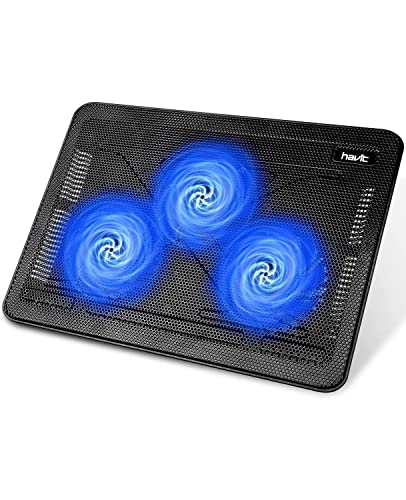
For initial troubleshooting and to give your laptop some breathing room, using a cooling pad can be a smart temporary measure. It elevates the chassis and provides supplemental airflow, which can help manage system temperature while you work on a solution. For this, many users find value in a tool like the havit HV-F2056 156-17 cooling pad, which offers a balance of quiet operation and effective cooling power.

How Your Laptop Stays Cool
Laptop cooling is a compact, finely-tuned system. A fan pulls cool air in through vents, directs it over a heat sink (a block of metal fins attached to the processor), and expels the warmed air. This process is managed by the laptop’s firmware and sensors. In gaming laptops and high-performance business laptops, you’ll often find separate fans for the CPU and GPU, making the system more complex. When any part of this chain failsbe it a clog, a software glitch, or a hardware faultthe entire system can overheat, leading to thermal throttling (where your CPU slows down to prevent damage) or a sudden shutdown.
Initial Diagnosis: Is Your Fan Actually Failing?
Start by observing the symptoms. A laptop fan not spinning at all is a clear sign, but other issues are subtler. Listen for grinding or rattling sounds, which often point to bearing failure. Feel if the laptop is overheating even when performing simple tasks. Check if you’re getting a specific fan error message on boot, like a “90B” error on some Lenovo models, which indicates a cooling system failure detected by the hardware.
- Fan making noise: Usually indicates physical obstruction or bearing wear.
- Laptop overheating but fan is running: Could be a clogged heat sink or dried-out thermal paste.
- Fan spins then stops: Often a software or sensor issue.
- Performance drops during use: A classic sign of thermal throttling.
This initial assessment helps you decide whether you’re facing a software setting, a physical blockage, or a hardware repair.
Software Fixes: BIOS and Power Management
Before opening your laptop, exhaust the software solutions. These are often the quickest fixes for erratic fan behavior or a fan that’s not responding.
First, check your Power Options in Windows. A “Power Saver” plan can aggressively limit fan activity. Switch to “Balanced” or “High Performance” and see if the fan responds. Next, open Task Manager (Ctrl+Shift+Esc) and look for any processes using high CPU, as this can cause the fan to work harder than necessary.
The most powerful software tool is your BIOS settings. Restart your laptop and press the key to enter BIOS/UEFI (often F2, F10, or Delete). Look for a section called “Hardware Monitor,” “Fan Control,” or “PC Health.” Here, you might find settings for fan speed control. Some systems have an option to “Reset to Defaults,” which can clear any corrupted fan profiles. Be cautious and note any changes you make.
For persistent issues, an EC (Embedded Controller) reset can work wonders. This clears temporary power and hardware settings stored by a secondary microcontroller. The procedure varies by brand:
- Dell & Lenovo: Shut down, unplug, and hold the power button for 15-30 seconds.
- HP: Often requires a specific key combination during startup; check your model’s manual.
This simple step can resolve phantom fan errors without any disassembly.
Physical Cleaning: Removing Dust and Debris
Dust is the most common enemy of computer cooling. Over time, it creates an insulating blanket on the heat sink and clogs fan blades. If you’re wondering how to clean a laptop fan without opening it, you can use short bursts of compressed air through the external vents. Hold the fan blade still with a toothpick to prevent it from spinning uncontrollably (which can generate current and potentially damage the fan’s circuitry).
For a thorough clean, however, internal access is needed. This involves removing the bottom panel. Once inside, use the compressed air to blow dust out of the heat sink fins and fan assembly. Our detailed guide on how to clean a laptop fan properly walks you through this safe, step-by-step process for various laptop models. If your laptop fan is not working after cleaning, you may have accidentally disconnected a cable or, more rarely, damaged the fan with static or physical force.
Advanced Hardware Checks and Repairs
If software and cleaning don’t solve it, a hardware issue is likely. Start by learning how to test if a laptop fan is broken. With the bottom panel off and the laptop powered on, visually confirm the fan spins. If it doesn’t, listen closely for a faint hum or try to feel for a tiny vibration, indicating it’s receiving power but is stuck.
Use a multimeter to check for voltage at the fan connector when the system is under load. No voltage points to a motherboard issue. Voltage present but no spin confirms fan failure. Common hardware problems include:
- Bearing Failure: The fan shaft wears out, causing grinding noises and eventual stoppage.
- Disconnected or Damaged Cable: The thin wire from the fan to the motherboard can come loose or fray.
- Heat Sink Clogged with Compacted Dust: Even if the fan spins, airflow is blocked.
- Dried Thermal Paste: The paste between the CPU and heat sink hardens, losing its ability to transfer heat efficiently.
Replacing a fan or repasting thermal compound requires careful disassembly. For comprehensive, model-specific teardown guides, a trusted resource like iFixit’s PC and Laptop repair library is invaluable. Remember, in compact Ultrabooks, components are tightly integrated, making repairs more delicate.
When to Seek Professional Help
Recognize your limits. Seek a professional technician if:
- The fan connector is soldered directly to the motherboard.
- You suspect a deeper motherboard power issue (no voltage to the fan).
- The repair requires complete disassembly of the keyboard and display assembly.
- You’re uncomfortable handling delicate ribbon cables and small screws.
- The problem recurs immediately after a repair you performed.
A professional can properly diagnose differences between CPU and GPU fan failures and has the tools for soldering or component-level repair.
Preventing Future Fan Problems
Consistent care prevents most cooling issues. Use your laptop on hard, flat surfaces to allow for proper air intake. Avoid blankets, pillows, or your lap for extended intensive use. Regularly clean external vents with a soft brush. Consider using a cooling pad for extended gaming or rendering sessions.
Monitor your system’s health. Use free software to keep an eye on your system temperature. Also, good laptop storage management practices can prevent your drive from working overtime and generating excess heat. Plan for an internal cleaning every 12-18 months, depending on your environment.
A malfunctioning fan is a problem that demands attention, but it’s rarely a catastrophe. By following a logical pathfrom software checks and simple resets to careful cleaning and informed hardware assessmentyou can usually identify and often solve the issue. You protect your investment, restore performance, and gain a deeper understanding of the machine you rely on every day. Start with the simplest solution, and proceed with patience and care.