
 By
A student laptop has one job that a general budget laptop does not: it has to survive four years of classes, essays, video calls, and a backpack, on a $400 budget.
In short: The best laptop for students under $400 is the one that fits your school first. If your classes run in a browser, a Chromebook with 8GB of RAM or more is the cheapest safe choice.
If your course needs full Windows software, buy a Windows 11 laptop with an SSD and at least 8GB of RAM, and aim for 16GB if the listing offers it. Never buy a laptop with 4GB of RAM or 32GB of storage.
Key takeaways
- Check what your school requires before you compare models: browser apps point to a Chromebook, desktop software points to Windows.
- 8GB of RAM is the floor, 16GB is the aim, and 4GB is a deal breaker at any price.
- Every Chromebook has a fixed update end date, so check it on Google’s Auto Update page before you buy.
- Storage should be an SSD of at least 128GB; 256GB is the safer size for four years of files.
- Weight and battery life matter as much as speed when the laptop rides in a backpack all day.
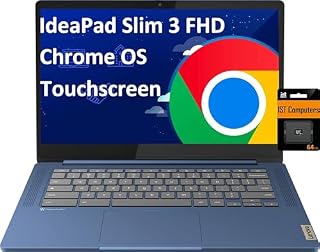
A light 14-inch Chromebook with a full keyboard, suited to browser-based classes and school accounts.

Chromebook Plus models carry faster chips and more memory, which keeps many tabs and video calls moving.

A full-size Windows 11 laptop with a number pad, suited to spreadsheets, essays, and long study sessions.

A roomy 15-inch screen and full Windows 11 for students who work at a desk most of the day.

A lighter 15-inch Windows laptop that is easier to carry between classes, the library, and home.
Start with your school, not the spec sheet
Most budget roundups start with processors and screen sizes. That is the wrong order for a student. Your school decides which laptop works, and a laptop that cannot run your class software is a bad buy at any price. The other half of this decision is best editing laptops.
Ask three questions before you look at a single model. First, does your school use Google Classroom, Microsoft Teams, or a mix of both? Second, does any course need software that only runs on Windows or Mac, such as a full desktop version of Office or a design program? Third, are you allowed to install your own software, or is the laptop managed by the school?
If every class lives in a browser, a Chromebook covers the whole school day and costs less than a Windows laptop with the same feel. If one required course needs a Windows-only program, a Chromebook cannot run it, and the cheaper laptop becomes the wrong laptop. Check the course list for the coming term too.
Talk to the school IT desk if the answers are unclear. They can tell you in one minute whether a Chromebook is allowed on the school network and whether any class needs Windows. Our guide to which laptop specs matter most explains the same school-first order in more detail.
Chromebook or Windows for school
A Chromebook runs ChromeOS, which is built around the Chrome browser and web apps. It starts fast, updates itself, and is hard to break with a bad download, which suits students whose schoolwork lives in Google Docs and Slides. A Windows 11 laptop runs the full desktop version of Word, Excel, and PowerPoint, plus the specialist software many college courses demand.
The trade is simple. Chromebooks give you more speed and battery life per dollar, but they only run what the browser and the Play Store offer. Windows laptops run almost everything, but at $400 they come with less memory than a Chromebook at the same price.
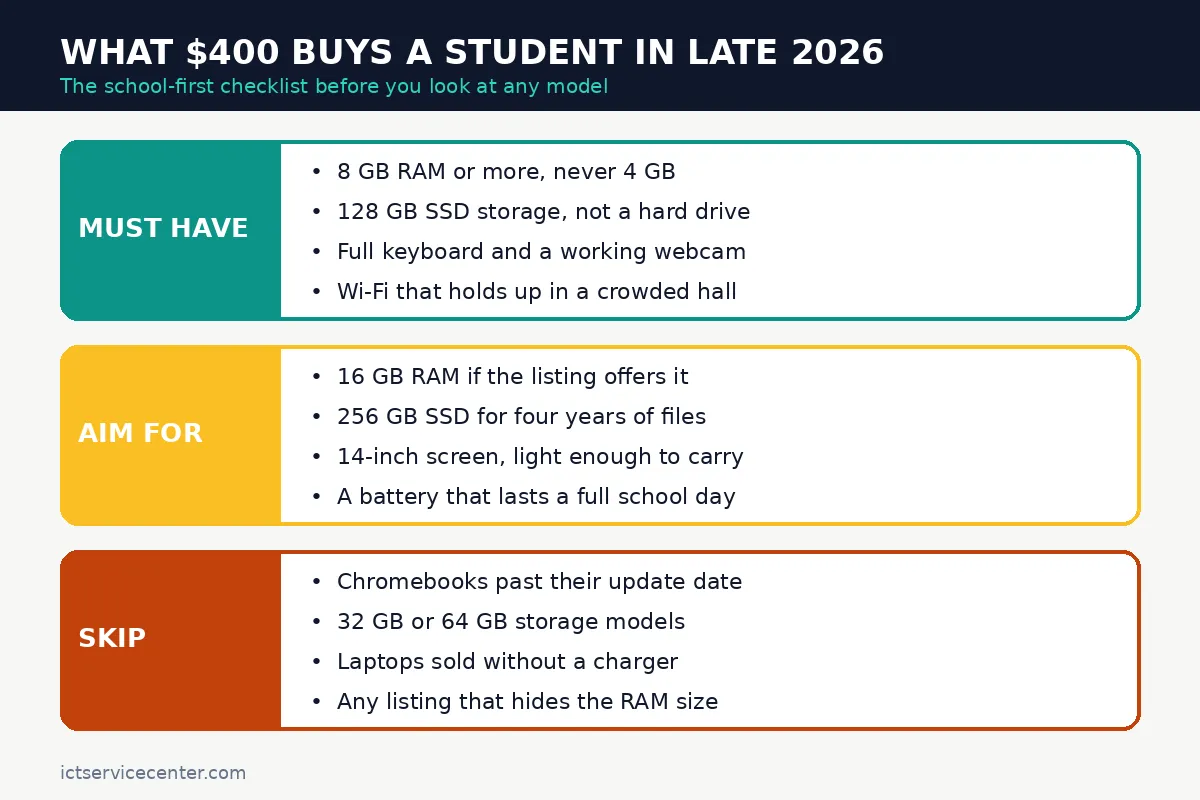
The diagram below sums up the school-first checklist. Treat anything in the skip column as a hard no, even on a steep discount. Loaders in this spot often ask about ergonomic laptop stands as well.
| School need | Chromebook | Windows 11 laptop |
|---|---|---|
| Classes in a browser, Google Docs, video calls | Best fit, and the cheapest good option | Works, but costs more for the same feel |
| Full desktop Office, specialist course software | Not a fit, web versions only | Best fit, check the software list first |
| Offline work on planes, buses, and dead zones | Limited, most apps need a connection | Best fit, files live on the laptop |
| Long update life with little upkeep | Best fit, updates are automatic | Good, but needs regular Windows updates |
| Light bag and all-day battery | Best fit at this price | Possible, but check weight and battery claims |
One Chromebook detail catches buyers out. Every Chromebook model has a fixed date when Google stops sending it updates, called the Auto Update Expiration date.
Google’s policy now gives ChromeOS devices 10 years of updates from the platform release date, not from the day you buy it, so a model that has sat on a shelf for years has fewer years left.
Look the exact model up on Google’s Auto Update policy page before you pay.
What $400 buys in late 2026
Four hundred dollars buys a capable student laptop in late 2026, but only if you spend it on the right parts. RAM and storage decide whether the laptop still feels fine in year three, more than the screen or the processor. A fast-looking laptop with 4GB of RAM will stutter with a browser, a video call, and a document open at once, which is a normal school day.
RAM is the first number to check. At this budget, 8GB is common and is the floor for schoolwork in late 2026.
If a listing offers 16GB at the same price, take it, because 16GB is the amount that keeps a laptop comfortable through four years of heavier browsers and bigger assignments. Crucial’s guide to how much RAM you need makes the same point: more memory helps most when many apps run at once, which is exactly how students work.
Never accept 4GB, and treat any listing that hides the RAM size as a listing to close. Microsoft’s Windows 11 requirements list 4GB of RAM and 64GB of storage as the minimum to install, and those minimums are not enough for comfortable schoolwork, so shop above them.
Storage is the second number. Buy an SSD, never a spinning hard drive, because an SSD makes the whole laptop feel faster when it starts and opens files.
Take at least 128GB, and aim for 256GB if the price allows, since essays, photos, and course files add up over four years.
If you are torn between sizes, our comparison of 512GB vs 1TB storage for college shows how quickly student files fill a small drive.
Screen size is a comfort choice, not a speed choice. A 14-inch laptop is easier to carry and fits on a small lecture desk, while a 15.6-inch screen is easier on the eyes for long essays. Weight matters more than most buyers expect: a laptop that feels light in the store feels heavy after a week of carrying it with books.
The five picks at a glance
These five laptops cover the two systems and the two screen sizes most students choose. Two are Chromebooks for browser-based schoolwork, and three are Windows laptops for courses that need desktop software.
| Laptop | System | Screen | Best for | Check before buying |
|---|---|---|---|---|
| Lenovo IdeaPad Slim 3 Chromebook 14 | ChromeOS | 14-inch class | Everyday browser schoolwork | Update end date and RAM size |
| Acer Chromebook Plus 514 | ChromeOS | 14-inch class | Heavier tabs and video calls | Update end date on Google’s list |
| HP 15.6 inch Laptop | Windows 11 | 15.6-inch class | Full Office and long essays | RAM size and SSD, not hard drive |
| Lenovo IdeaPad 1 15 inch laptop | Windows 11 | 15-inch class | Desk-based study and spreadsheets | RAM size and storage type |
| ASUS Vivobook Go 15 | Windows 11 | 15-inch class | Carrying between classes | Weight, RAM size, and storage type |
If you want the wider view beyond student needs, our general best budget laptop under $500 roundup covers the same price range without the school filter. There is more on balancing performance for school in a separate guide.
The five picks, one by one
1. Lenovo IdeaPad Slim 3 Chromebook 14, best Chromebook for everyday schoolwork
This is the pick for a student whose whole school day happens in a browser. Google Docs, Slides, Classroom, and video calls all run well on a 14-inch Chromebook, and the Slim 3 line is light enough to carry.
Before you buy, confirm two things on the listing: the RAM size and the update end date. Take 16GB if it is offered. Then look the exact model up on Google’s Auto Update policy page, because the update date, not the sale price, decides how many school years this laptop will last.
A light 14-inch Chromebook with a full keyboard, suited to browser-based classes and school accounts.
- Lenovo Ideapad Slim Chromebook 3 3i. Everything is Original from Lenovo, one-year
- 8-core MediaTek Kompanio 520; 4GB Soldered LPDDR4x-3733, 64GB eMMC Storage + 64GB SD
2. Acer Chromebook Plus 514, best Chromebook Plus for heavier schoolwork
Chromebook Plus is Google’s label for Chromebooks that meet a higher bar for speed, memory, and screen quality, and the Acer Chromebook Plus 514 is the student pick. It suits students who keep many tabs open and join video calls while taking notes. The Plus label means the listing should show more memory than a basic Chromebook.
The update date matters even more here, because you are paying for a laptop that should last. Google’s own Auto Update list shows recent Chromebook Plus 514 models with updates running into the 2030s, but the date depends on the exact model number, so check it before you pay.
Chromebook Plus models carry faster chips and more memory, which keeps many tabs and video calls moving.
- The Best of Google, in a Laptop: Chromebooks run ChromeOS, the fast, secure operating
- Try Google AI Pro, with 5TB of Storage, and more for 12 Months at No Cost: Boost your
3. HP 15.6 inch Laptop, best Windows laptop for the money
This is the default Windows pick for students who need full desktop software. The 15.6-inch screen gives essays and spreadsheets room to breathe, and the number pad helps with maths and data entry. Windows 11 runs the full desktop versions of Word, Excel, and PowerPoint, plus the course software Chromebooks cannot run.
Check that the storage is an SSD and the RAM is at least 8GB, and walk away from any listing that pairs Windows 11 with a hard drive or 4GB of RAM. Our guide to how much to spend on a laptop explains why the cheapest Windows listing is often the most expensive mistake. If that sounds like your bench, read up on choosing the right performance specs next.
A full-size Windows 11 laptop with a number pad, suited to spreadsheets, essays, and long study sessions.
- Reach out and control your PC with just pinch, tap, or swipe, for a totally intuitive
- Experience acceleration for your work and creativity in a laptop powered by an AMD
4. Lenovo IdeaPad 1 15 inch laptop, best big-screen Windows pick
The IdeaPad 1 is for the student who studies mostly at a desk and wants the biggest screen for the money. A 15-inch display makes split-screen research easier. It is the most desk-friendly laptop in this roundup, and the one to choose if portability is not your main worry.
The same checks apply: SSD storage, at least 8GB of RAM, and a clear listing. Compare the RAM and storage figures, not just the model name, because one model name can hide very different configurations.
A roomy 15-inch screen and full Windows 11 for students who work at a desk most of the day.
- UNOPENED RETAIL PACKAGING, sold as configured by Lenovo. Includes one year of Courier
- Powered by the AMD Ryzen AI 7 445 processor, the 15.3-inch Lenovo IdeaPad 5a 2-in-1 is
5. ASUS Vivobook Go 15, best light Windows laptop for carrying
The Vivobook Go 15 is the Windows pick for students who walk everywhere. It pairs a 15-inch screen with a lighter body than most budget Windows laptops, so you get the big screen without the heavy bag.
Weight is the reason to choose this one, so check the listed weight before you buy. A light laptop still needs the same RAM and SSD checks as the rest, and a listing that hides either figure is a warning.
A lighter 15-inch Windows laptop that is easier to carry between classes, the library, and home.
- Missions accomplished! ASUS Vivobook Go 15 offers smooth everyday performance with an
- Striking 15.6-inch FHD Display Experience vivid and immersive visuals with a 15.6‑inch
How to buy without wasting money
Timing helps at this budget. Back-to-school sales, holiday sales, and student discount programs can move a $450 laptop into your range. Set the price you will pay before you start shopping.
Refurbished laptops can stretch $400 further, but only from a seller with a real return policy and a warranty you can read before you pay.
A refurbished laptop from the maker or a certified seller is a different purchase from a used laptop on a marketplace with no returns. Our refurbished laptop buying checklist walks through the checks that separate a good deal from a bad one.
Loaders in this spot often ask about best laptop backpack for college as well.
Whatever you buy, check the warranty the day it arrives. Check the laptop warranty with the serial number on the maker’s site, and note the end date and what it covers. Keep the receipt and the box until the return window closes, and test the keyboard, the webcam, and the Wi-Fi in the first week.
Mistakes to avoid
Buying 4GB of RAM. A 4GB laptop feels slow on a normal school day, with a browser, a document, and a video call open at once. Fix: treat 8GB as the floor and 16GB as the aim.
Choosing a Chromebook without checking the update date. A Chromebook past its update date stops getting security fixes, which is a poor fit for a school network. Fix: check the exact model on Google’s Auto Update policy page before you pay.
Accepting a hard drive instead of an SSD. A spinning hard drive makes even a new laptop feel old when it starts and opens files. Fix: confirm the storage type in the listing.
Buying the wrong system for your course. A Chromebook cannot run Windows-only course software, and no sale price fixes that. Fix: check the course software list with the school IT desk first.
Ignoring weight and battery life. A heavy laptop with a short battery stays at home, which defeats the point of buying a laptop for school. Fix: favour the lighter laptop when the specs are otherwise equal.
Skipping the warranty check. A warranty that started months before you bought the laptop leaves you less cover than you expect. Fix: check the serial number on the maker’s site in the first week.
Frequently asked questions
Is a Chromebook enough for college?
Yes, if your classes run in a browser and your school uses Google tools. A Chromebook handles documents, slides, research, and video calls well, and it starts fast with little upkeep. It is not enough if a required course needs full Windows or Mac software.
Is 8GB of RAM enough for a student laptop?
Yes, 8GB is enough for the schoolwork most students do in late 2026, including a browser with many tabs, a document, and a video call. It is the floor, not the ceiling: 16GB is the safer choice if the listing offers it.
Can a student laptop under $400 last four years?
Yes, if you buy the right specs and the right system. An SSD, at least 8GB of RAM, and a Chromebook with years of updates left give a laptop a fair chance at four years, and a laptop bought on the checklist in this article should still feel fine in its final year.
Should students buy a refurbished laptop to save money?
A refurbished laptop can be a good deal if it comes from the maker or a certified seller with a clear warranty and return policy. Check the battery health, the RAM, and the storage before you pay, and avoid marketplace listings with no returns.
What size laptop is best for carrying to class?
A 14-inch laptop is the easiest size to carry and fits most lecture desks, which makes it the best default for students who walk between classes. A 15.6-inch laptop suits students who study mostly at a desk and want a bigger screen. Weight matters more than screen size once you add books to the bag.
Do students need a dedicated graphics card?
No, most students do not. Built-in graphics handle documents, video calls, streaming, and light photo work without trouble. Only students in courses that need 3D design, video editing, or gaming should look for a dedicated graphics card, which rarely sells under $400.
Bottom line: Check your school’s software needs first, then buy a Chromebook for browser classes or a Windows 11 laptop for desktop software, with at least 8GB of RAM, an SSD, and a screen size you can carry all day.
Sources: Microsoft Learn, Windows 11 requirements; Google, Auto Update policy; Crucial, How much RAM do I need. Photos: Ludovic Delot, Yan Krukau, Startup Stock Photos, Mikhail Nilov via Pexels. Diagram: ICT Service Center. Browse more in our Buying Guides.