
 By
Your laptop is plugged in, the charging light is on, and the battery percentage still falls. That is usually a charger that cannot keep up with the laptop, not a broken battery.
In short: A laptop battery drains while plugged in when the power going in is less than the power going out.
The causes are a charger with too little wattage, a USB-C cable or port that caps the power, a heavy workload that outruns the adapter, a charge limit that stops charging at 80 percent, or a worn battery.
Check the wattage on the charger first, then test the laptop under load.
Key takeaways
- A battery that falls while plugged in means the laptop is using more power than the charger supplies.
- Read the wattage printed on the charger and compare it with the wattage your laptop needs.
- With USB-C, the charger, cable and port must agree, or power drops to the lowest of the three.
- Gaming and video editing can draw more power than a small adapter can give.
- A charge that stops at 80 percent is usually a setting, not a fault.
First, work out whether the charger is the problem
- Read the battery icon. If it says “Plugged in, charging” and the percentage still falls, the charger is too weak for the load. If it says “Plugged in, not charging”, the laptop is not taking power, which is a different fault.
- Push every connection in firmly. Seat the connector fully in the laptop port, then check the wall plug and the power strip.
- Try another wall outlet. A dead outlet or faulty strip can leave the charger with no power.
- Feel the charger brick. Slightly warm means it is working; stone cold after several minutes means it is getting no power or has failed inside.
- Watch the percentage with light work only. Close games and video editors, open one browser tab, and watch the battery for ten minutes. If the level climbs, the charger copes with light work only.

If the laptop never charges at all, work through our guide to a laptop battery that will not charge at all. It helps to understand excessive heat when plugging in before going further.
Check the wattage on the brick
Wattage decides this problem: a charger can only deliver the watts printed on it, and a laptop that needs more will take the shortfall from the battery.
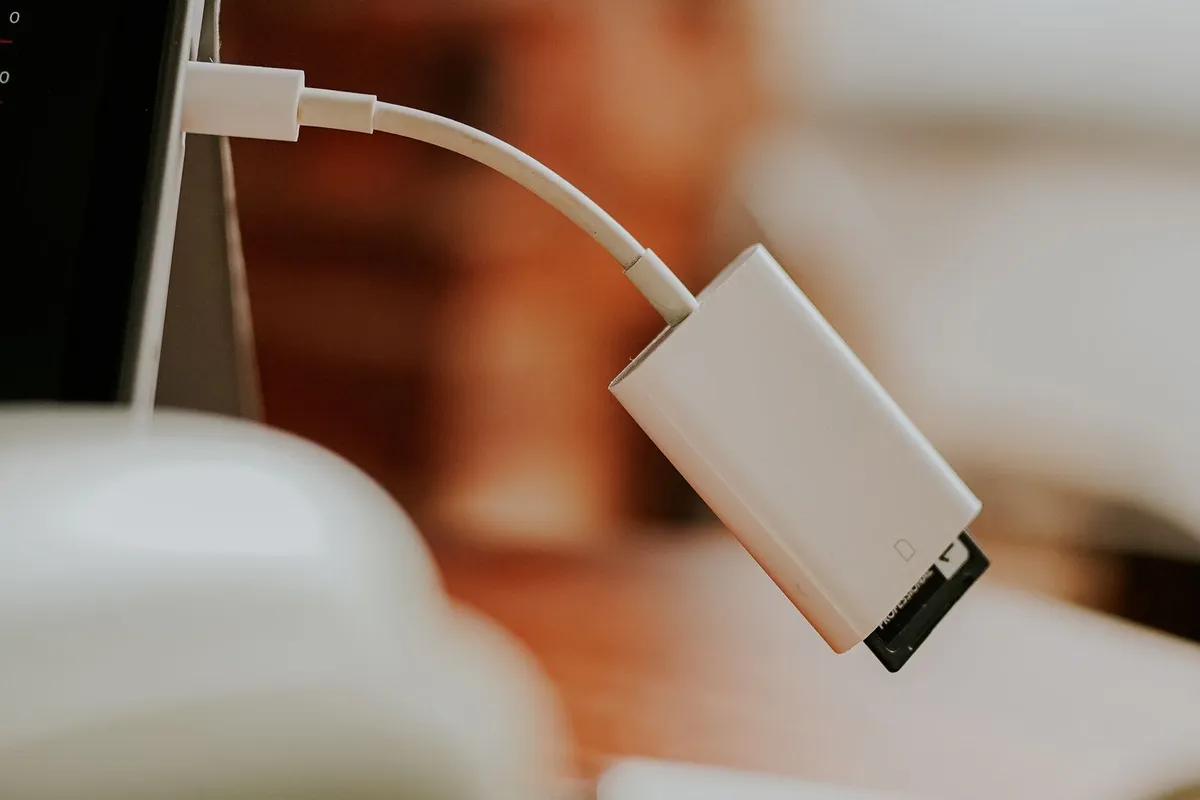
Read the small print on the charger brick. It lists an output, usually as volts and amps, such as “Output: 20V, 3.25A”. Multiply the two numbers to get watts: 20 times 3.25 is 65 watts. Some bricks print the wattage directly, such as “65W”.
Then find the wattage your laptop needs: check the sticker on the bottom of the laptop, the manual, or the maker support page for your exact model. Thin ultrabooks often need 45 or 65 watts; larger laptops with a graphics card often need 90 to 180 watts. If the brick is rated below that number, you have found the cause.
A phone charger is the usual suspect. A 30 watt phone charger can run a laptop for light work, but it cannot keep up once apps are running. If the brick is rated below what the laptop needs, replace it with a charger rated at or above the required wattage, then retest for ten minutes. The battery should hold steady or climb.

Match the wattage to your laptop's required wattage first, then pick a charger rated at or above that number, so the battery gains charge even under a heavy load.
- Specification: Input:100-240V, Output:20V/5A. Inrush Current:16A max
- Strong Compatibility: JEIBAO 100w usb c laptop charger is compatible with ThinkPad
Do not use a damaged charger or cable. A frayed cable, a cracked brick, or a plug that sparks is a fire risk. Stop using it and replace it.
USB-C Power Delivery: the charger, cable and port must agree
USB-C charging is a negotiation: the charger, the cable and the laptop agree on a voltage and a current, and the power that flows is the lowest limit of the three. There is more on why laptop gets hot charging in a separate guide.
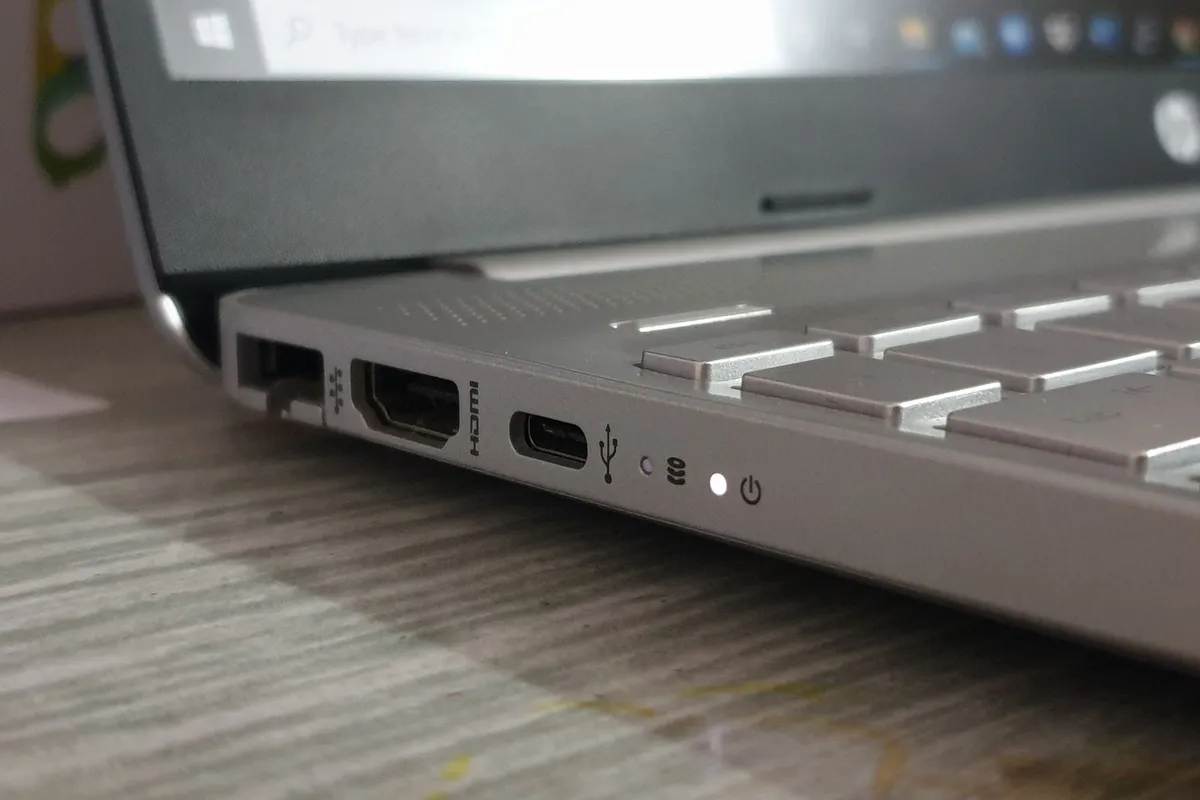
The USB Power Delivery standard sets the tiers. Standard Power Range runs up to 100 watts at 20 volts and 5 amps. Extended Power Range, added in USB PD 3.1, runs up to 240 watts, with steps of 140 watts at 28 volts, 180 watts at 36 volts, and 240 watts at 48 volts. Cables are now labelled for 60 watts or 240 watts.
That gives you three places to check. First, the charger wattage, as above.
Second, the cable: a thin phone cable may only carry 60 watts or less, and it will cap a 100 watt charger at 60 watts, so use the cable that came with the charger or one rated for the same wattage.
Third, the port: not every USB-C port supports charging, so use the one marked with a small plug symbol, and test each port if there is more than one.

A cable rated below your charger caps the power your laptop can draw, so the cable must match the charger wattage.
- Experience the safest charging with over 38 million global users. At INIU, we use only
- Experience peak efficiency with the INIU 240W USB-C cable. Designed to handle
If the port itself is loose, dirty or damaged, the connection can drop in and out, which also looks like slow charging. Our guide to a USB-C port that is not working walks through the port checks, and our guide to USB-C vs Thunderbolt 4 vs USB4 explains the port types.
When heavy work outruns the charger
Some laptops only drain while plugged in under heavy work. A game, a video render or a long video call with screen sharing can push the processor and the graphics card to full power at the same time, drawing more watts than a small adapter can supply. The battery covers the gap.

Apple notes the same effect on Macs: heavy work can use more power than the adapter supplies, so the battery can fall while plugged in.
Test it before you buy anything. Open Task Manager with Ctrl + Shift + Esc, go to the Processes tab, and sort by the Power usage column to see which apps draw the most power. Then close the heavy app and watch the battery icon for ten minutes. If the level starts to climb, the load was outrunning the charger.
Also check the background: a cloud sync or a browser with dozens of tabs can add a surprising amount of draw. Open Settings > System > Power & battery > Battery usage to see the heaviest apps from the last day. We go through battery not holding charge step by step in its own article.
If the battery only drains during heavy work and recovers during light work, the adapter is undersized for that workload. If it drains fast during light work too, our guide to why a laptop battery drains fast in general covers the other causes, from background apps to a worn battery.
Charge limits and a worn battery can look the same
On a Mac, Optimized Battery Charging learns your routine and delays charging past 80 percent when it expects the Mac to stay plugged in. The battery menu shows “Charging On Hold” while it waits. Newer Macs add a Charge Limit setting between 80 and 100 percent, and “Charge to Full Now” in the battery menu gives a full charge right away.
Windows laptops have their own versions: Lenovo Vantage, Dell Power Manager and MyASUS each offer a charge limit or battery care mode that caps the charge below 100 percent. Check that app first if the level stops at 80 or 60 percent. A limit is a choice, not damage.
Then check the battery health. On Windows, open Command Prompt as an administrator, type powercfg /batteryreport and press Enter. Windows saves an HTML report and prints the file path.
Open it and compare Design Capacity with Full Charge Capacity in the Installed batteries section: if Full Charge Capacity is far below Design Capacity, the battery is worn.
Apple designs Mac batteries to hold up to 80 percent of their original capacity at their maximum cycle count. Our guide to how to check your laptop battery health in Windows walks through the report step by step.
Other signs: the laptop dies at 20 or 30 percent indoors, or only works while plugged in. Microsoft advises keeping the battery between 20 and 80 percent several times a week to slow wear, and avoiding heat, which can permanently reduce capacity.
Stop using the laptop if the battery is swollen. A battery that bulges, lifts the trackpad, or splits the case is damaged. Do not charge it, do not press on it, and never try to open it yourself. Read what to do if a laptop battery is swollen and take the laptop to a repair shop. The other half of this decision is freezes during battery video playback.
How to tell which cause is yours
Work through the four checks in order: each one rules out a cause.
- Close the heavy apps and watch the battery for ten minutes. If the level climbs again, the load was outrunning the charger.
- Read the wattage on the brick. If it is rated lower than the laptop needs, replace it.
- Swap the cable and try the other USB-C port. If the battery starts climbing, the cable or the port was the weak link.
- Check the charge limit and the battery report. A level stuck at 80 percent is usually a setting; a low Full Charge Capacity means a worn battery.
Symptom, cause and fix at a glance
| Symptom | Likely cause | Fix |
|---|---|---|
| Battery falls only while gaming or rendering | Heavy load outruns the adapter | Use a charger rated for the laptop |
| Battery falls during light work too | Charger wattage is below what the laptop needs | Replace it with a charger rated for the laptop |
| Battery climbs with one cable but not another | Cable caps the power below the charger rating | Use a cable rated for the charger wattage |
| Charge stops at 80 percent and never climbs | A charge limit is on | Turn off the limit or choose Charge to Full Now |
| Battery dies at 20 or 30 percent indoors | Worn battery with low Full Charge Capacity | Replace the battery |
Mistakes to avoid
- Buying a new battery before checking the charger. A battery that only drains under load is usually healthy, so read the wattage on the brick first.
- Using a phone charger for a laptop and expecting a full charge. A 30 watt charger can run a laptop for light work, but not for heavy apps.
- Ignoring the cable. A 100 watt charger still only delivers 60 watts through a 60 watt cable. Match the cable to the charger.
- Charging a swollen battery to test it. A bulging battery is damaged. Do not charge it or press on it. Take the laptop to a repair shop.
- Assuming every USB-C port charges the laptop. Some ports carry data only, so use the charging port named in the manual.
Frequently asked questions
Why does a laptop battery drain while plugged in during gaming?
A game pushes the processor and the graphics card to full power at once, and together they can draw more watts than a small adapter supplies. The battery covers the shortfall, so the percentage falls. Close the game for ten minutes: if the level climbs, the adapter is too small for that load.
Can a phone charger charge a laptop?
Only if its wattage matches what the laptop needs. A 30 watt phone charger can run a thin laptop for light work, but it will not keep up once apps are running. Check the required wattage in the manual, and use a charger rated at or above that number.
Is it safe to use a higher-wattage charger?
With USB-C Power Delivery, yes: the charger and the laptop agree on a voltage and current, and the laptop only draws the power it needs, so a 100 watt charger is safe on a laptop that needs 65 watts. A barrel-plug charger must match the voltage exactly.
Why does a MacBook stop charging at 80 percent?
That is usually Optimized Battery Charging or a Charge Limit, which slow battery wear. Optimized Battery Charging delays charging past 80 percent when it expects the Mac to stay plugged in, and the battery menu shows “Charging On Hold”. Choose “Charge to Full Now” from the battery menu for a full charge right away.
How do I know if a battery is worn out?
Open Command Prompt as an administrator, type powercfg /batteryreport, and open the HTML file it saves. Compare Full Charge Capacity with Design Capacity in the Installed batteries section. If Full Charge Capacity is far below Design Capacity, the battery is worn.
Bottom line: A battery that drains while plugged in is usually a power maths problem, not a dead battery. Read the wattage on the brick and match the cable and port to it. If the level climbs when the heavy apps close, buy a stronger charger. If it stops at 80 percent, check the charge limit. For more fixes, see our troubleshooting hub.
Sources: Microsoft Support, Caring for your battery in Windows; USB-IF, USB Charger (USB Power Delivery); Apple Support, About Optimized Battery Charging and Charge Limit on Mac. Photos: Alexey Demidov, Amar Preciado, Rajat Yadav, SK P, Mizuno K via Pexels.