
 By
Your AirPods can pair with a Windows laptop or a Mac in a few minutes. The steps differ only a little, and the case button is the part most people miss.
In short: Put both AirPods in the case and open the lid. Hold the setup button on the back until the light flashes white, or double-tap the front for AirPods 4, AirPods 5, or AirPods Pro 3. Then open Bluetooth settings, pick your AirPods, and click Connect on a Mac or Done on Windows.
Key takeaways
- AirPods pair with any laptop over Bluetooth, but on Windows they act as plain headphones.
- A white flashing light means the AirPods are ready to pair. A green or amber light means they are not.
- AirPods 4, AirPods 5, and AirPods Pro 3 use a double-tap on the front of the case. Older models use the setup button on the back.
- On a Mac signed in to the same Apple Account, AirPods set up with an iPhone often connect on their own.
- If the AirPods never appear in the list, remove them, reset them, and pair again.
Before you start
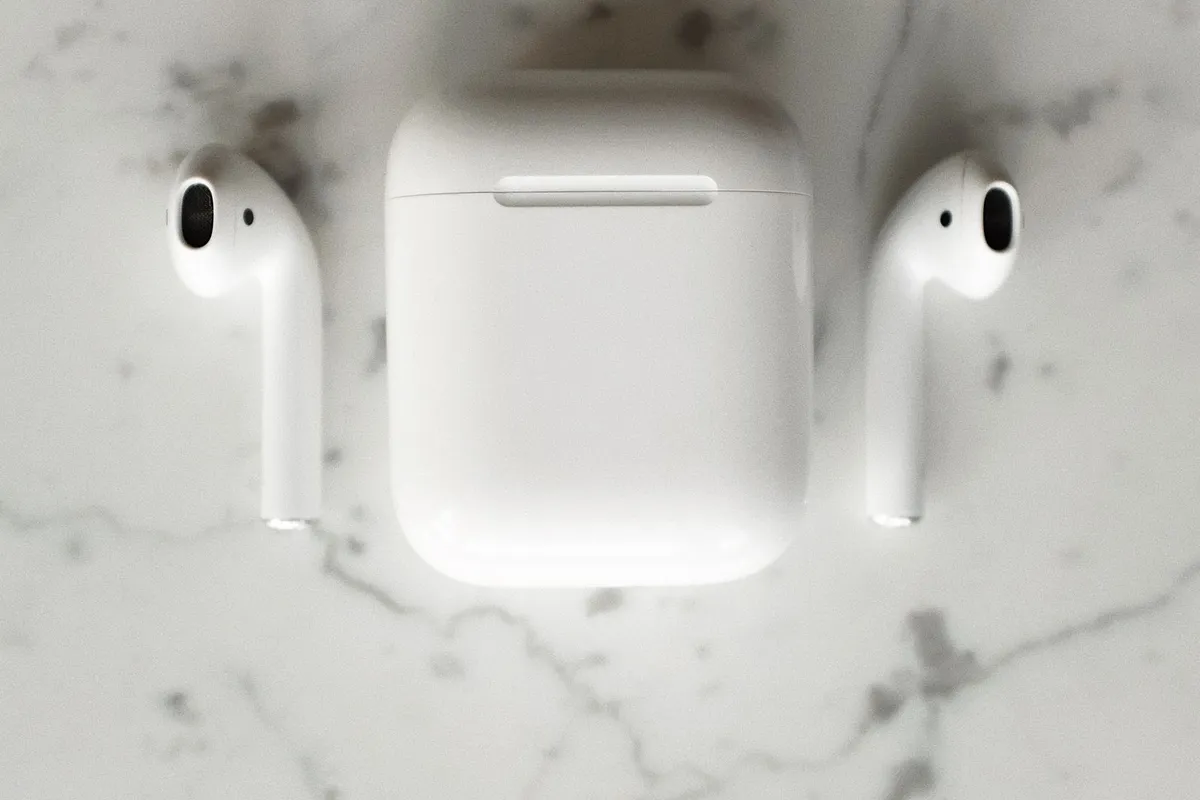
Charge comes first. Put both AirPods in the case and plug it in if no light shows when you open the lid. Green means a full charge, amber means less than one full charge remains, and no light means the case needs a few minutes on the charger.
Next, check that Bluetooth is on. On Windows, open Settings > Bluetooth & devices and look for the toggle at the top. On a Mac, open System Settings > Bluetooth from the Apple menu. If the toggle is missing on Windows, the laptop may not see its Bluetooth adapter. Our guide to how Bluetooth communication works explains what the radio in your laptop does.
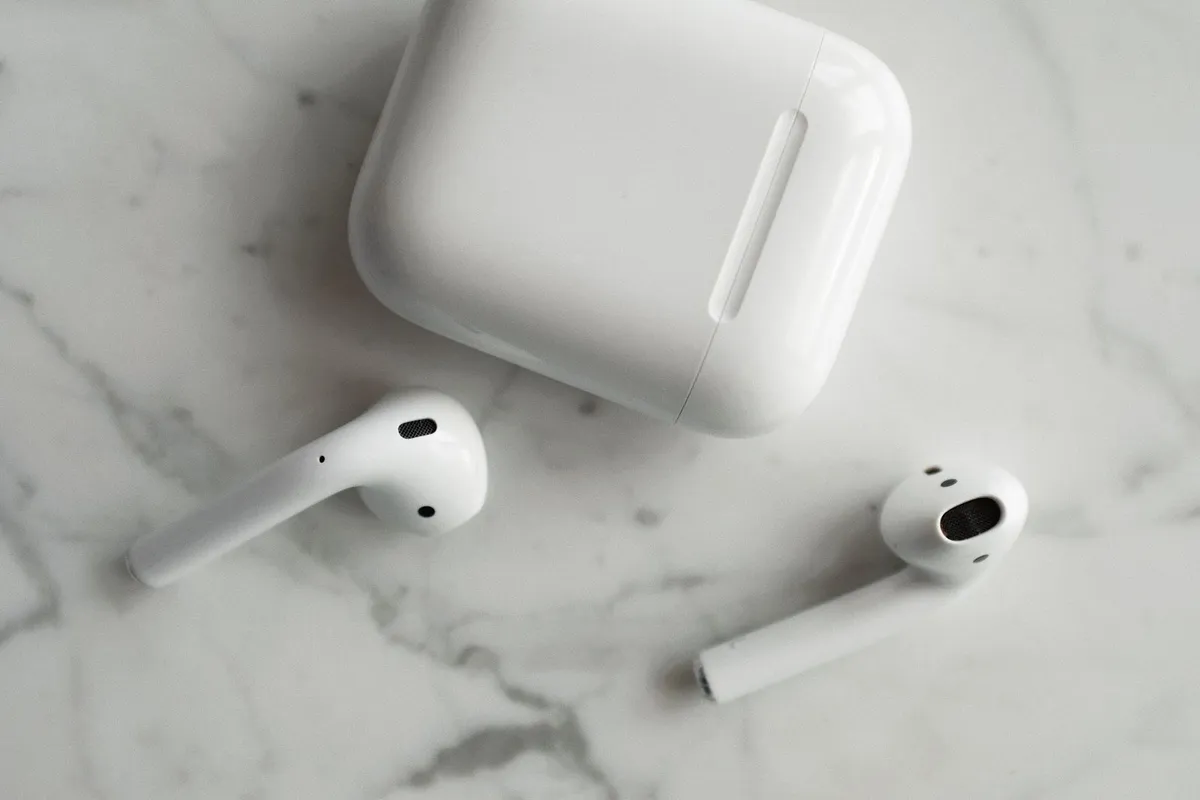
Keep the case close to the laptop, with the lid open and both AirPods inside. A closed lid or a case in another room is the most common reason the AirPods never appear. If your phone is nearby, move it away or turn its Bluetooth off, since AirPods paired with that phone may connect to it instead.
Put your AirPods in pairing mode
In pairing mode the AirPods announce themselves to nearby devices, and the status light shows it: it flashes white. A steady green or amber light is only a charge level, so wait for the white flash first.
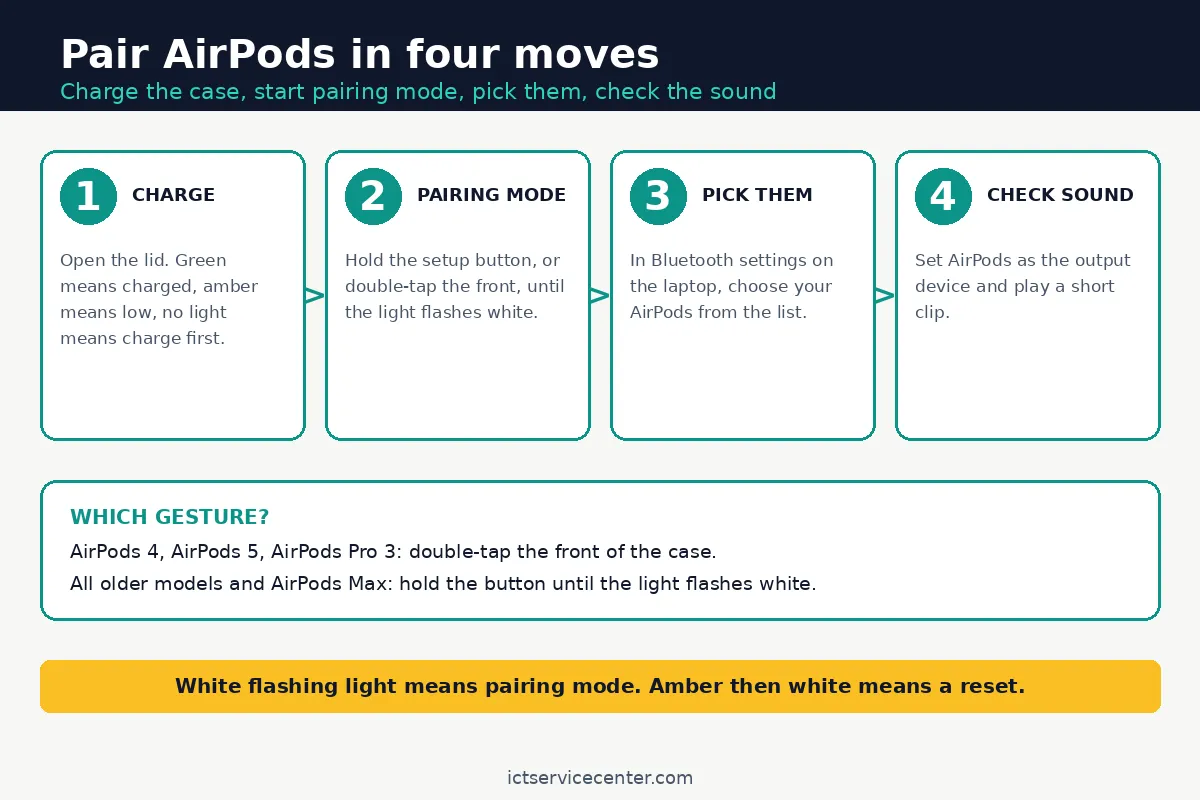
How you start pairing mode depends on the model. AirPods 4, AirPods 5, and AirPods Pro 3 have no button on the back of the case, so you tap the front instead. Every other model uses the round setup button on the back.
| Model | How to start pairing mode | Where the light is |
|---|---|---|
| AirPods 1, 2, or 3; AirPods Pro 1 or 2 | Hold the setup button on the back for about 5 seconds, until the light flashes white | Front of the case, or inside it on the earliest models |
| AirPods 4 or 5; AirPods Pro 3 | Double-tap the front of the case until the light flashes white | Front of the case |
| AirPods Max | Hold the noise control button for about 5 seconds, until the light flashes white | Bottom of the right ear cup, next to the charging port |
Do not hold the setup button for 15 seconds here: about 5 seconds starts pairing mode, but about 15 seconds resets the AirPods instead. If the light flashes amber and then white, you held it too long, and you will need to pair them with your phone again too.
Pair AirPods to a Windows laptop
On Windows, AirPods pair like any other Bluetooth headphones, and Microsoft documents the same path for all Bluetooth audio devices. The job takes about two minutes once the AirPods are in pairing mode.
- Select Start, then open Settings > Bluetooth & devices. Make sure the Bluetooth toggle is On.
- Put both AirPods in the case, open the lid, and start pairing mode until the light flashes white.
- Click Add device at the top of the Bluetooth & devices page, then choose Bluetooth.
- Wait for your AirPods to appear. They may show as AirPods, AirPods Pro, or AirPods with your name after them. Click the name.
- Click Done when Windows says the device is ready.
- Go to Settings > System > Sound and check that AirPods is the Output device. Play a short clip to confirm.
Once paired, Windows connects to the AirPods on its own whenever they are in range, the lid is open, and Bluetooth is on. Windows treats them as standard Bluetooth headphones, so Siri, automatic switching, and firmware updates are not available.
If the AirPods do not appear, open Settings > Bluetooth & devices > Devices and set Bluetooth devices discovery to Advanced, then try again. If they still do not appear, our guide to a laptop not connecting to Bluetooth devices walks through the next checks.
Pair AirPods to a Mac
Pairing to a Mac is usually faster. If you already set the AirPods up with an iPhone signed in to the same Apple Account as your Mac, you may not need to pair at all: put the AirPods in your ears, click Control Center, click Sound, and choose your AirPods.
If they do not appear in Control Center, pair them by hand. Apple documents these steps for every current Mac.
- Choose System Settings from the Apple menu, then click Bluetooth. Make sure Bluetooth is on.
- Put both AirPods in the charging case and open the lid.
- Start pairing mode: double-tap the front for AirPods 4, AirPods 5, and AirPods Pro 3, or hold the setup button on the back for other models, until the light flashes white.
- Click Connect next to your AirPods in the Nearby Devices list.
- Click Control Center, click Sound, and check that your AirPods are the output device. Play a short clip to confirm.
For AirPods Max, hold the noise control button until the light flashes white, then click Connect. AirPods 2 and later, and all AirPods Pro models, can switch on their own between a Mac, an iPhone, and an iPad on the same Apple Account. That switching does not extend to a Windows laptop.
Check the sound and the microphone
Pairing is only half the job: the AirPods can be paired and still silent if the laptop sends audio to its own speakers. On Windows, open Settings > System > Sound and look at the Output list. On a Mac, click Control Center, then Sound. Pick your AirPods, then play a song for a few seconds.
If you hear nothing, check the volume, then check that the AirPods are charged and in your ears.
If the laptop still plays through its speakers, the output choice is the usual cause, and our guide to laptop headphones not detected covers the case where the AirPods never appear as an output choice.
If no sound comes out anywhere, our guide to no sound on a laptop in Windows 11 has the wider checks.
Test the microphone too. On Windows, open Settings > System > Sound, scroll to Input, pick your AirPods, and watch the input level move as you speak. On a Mac, open System Settings > Sound > Input and pick your AirPods there.
If the mic stays silent in a call but works in the sound settings, the app may need microphone permission, as our guide to a laptop microphone not working explains.
On Windows, music can sound thinner during a call, because calls use the hands-free Bluetooth profile, which trades music quality for a working microphone. Full quality comes back when the call ends.
Switch AirPods between a laptop and a phone
AirPods connect to one device at a time, apart from automatic switching among Apple devices on the same account.
To move them from a phone to a laptop, disconnect them from the phone first, then pick them on the laptop: on Windows, Settings, Bluetooth & devices, and Connect; on a Mac, Control Center, Sound, and your AirPods.
You do not need to pair again, and if the AirPods keep jumping back to your phone, turn the phone Bluetooth off while you connect.
What to do when AirPods will not show up
Most pairing failures come from three causes: the AirPods are not in pairing mode, they are out of charge, or they are still connected to another device. Work through them in order.
- Charge the case for a few minutes, then open the lid and check for a light. No light means no charge.
- Close the lid for 15 seconds, open it again, and start pairing mode again. Watch for the white flashing light.
- Move the phone or tablet the AirPods last used out of range, or turn its Bluetooth off.
- Remove the AirPods from the laptop list and pair again: on Windows, go to Settings > Bluetooth & devices > Devices, click the three dots, and choose Remove device; on a Mac, go to System Settings > Bluetooth, click the info button, and choose Forget This Device.
- Reset the AirPods if removing them did not help. Put them in the case, close the lid, and wait 30 seconds. Open the lid, then hold the setup button about 15 seconds until the light flashes amber, then white. For AirPods 4, 5, and Pro 3, double-tap the front three times instead.
- Restart the laptop and try the pairing steps once more with a fresh Bluetooth scan.
On Windows, open Device Manager, expand Bluetooth, and look for a warning mark on the adapter. A missing or flagged adapter points at a driver problem, not an AirPods problem. Our guide to Bluetooth not working on a laptop walks through the driver, service, and settings fixes. Keep this article for pairing and use that guide for repairs.
Mistakes to avoid
Holding the setup button too long. About 5 seconds starts pairing mode, but about 15 seconds resets the AirPods. White flashing means pairing mode, amber then white means a reset.
Trying to pair with the lid closed or the AirPods out of the case. Pairing mode needs both AirPods inside and the lid open. Taking them out or closing the lid ends it.
Pairing while the AirPods are still connected to a phone nearby. AirPods in range of a paired phone may connect to it first. Disconnect them from the phone, or move the phone away.
Skipping the Sound output check. Pairing does not move the audio by itself. If sound still comes from the laptop speakers, open the Sound settings and pick your AirPods.
Expecting Siri and automatic switching on Windows. Those features need Apple devices and an Apple Account. On Windows, the Apple-only features do not work.
Frequently asked questions
Can AirPods connect to a Windows laptop?
Yes. AirPods pair with a Windows laptop as standard Bluetooth headphones: put them in pairing mode, open Settings, go to Bluetooth and devices, click Add device, choose Bluetooth, and pick your AirPods. Audio and calls work, but Siri, automatic switching, and firmware updates need an Apple device.
Why do AirPods not show up in the Bluetooth list?
They are usually not in pairing mode, out of charge, or still connected to another device. Check for a white flashing light, charge the case, and turn off Bluetooth on the phone they last used. If they still do not appear, remove them, reset them, and pair again.
How do I reset AirPods?
Put them in the case, close the lid, and wait 30 seconds. Open the lid, then hold the setup button about 15 seconds until the light flashes amber, then white. For AirPods 4, AirPods 5, and AirPods Pro 3, double-tap the front three times instead.
Can I use AirPods on two laptops at once?
No. AirPods connect to one device at a time, apart from automatic switching among Apple devices on the same account. Disconnect them from the first laptop, then pick them on the second. Both laptops remember them, so no fresh pairing is needed.
Can AirPods work with a laptop that has no Bluetooth?
No. AirPods connect only over Bluetooth, so a laptop with no Bluetooth adapter cannot see them. Most laptops have Bluetooth built in. If yours does not, a USB Bluetooth adapter adds it, as Microsoft notes on its pairing support page.
Bottom line: Charge the case, open the lid, and get the white flashing light first: hold the setup button for older models, or double-tap the front for AirPods 4, AirPods 5, and AirPods Pro 3. Then pick the AirPods in Bluetooth settings and check the Sound output. If they never appear, remove them, reset them, and pair again.
Sources: Apple Support, Set up AirPods with your Mac and other Bluetooth devices; Apple Support, How to reset your AirPods and AirPods Pro; Microsoft Support, Pair a Bluetooth device in Windows. Photos: ready made, Youssef Samuil, Darina Belonogova via Pexels. Diagram: ICT Service Center.