
 By
Your laptop sits at 0 percent, and the update bar has not moved. Work through the fixes in order, starting with the two-minute checks.
In short: Windows Update stuck at 0 usually means the download never started, the update service stalled, or the update cache is corrupt. Restart the laptop and check your internet connection first, then run the Windows Update troubleshooter. If that fails, restart the service, reset the cache by renaming its folders, and repair system files with DISM and SFC.
Key takeaways
- First confirm the update is really stuck: restart, then check for updates again.
- Run the troubleshooter before you touch any service or folder.
- Restarting the update service fixes a stalled download.
- Rename the SoftwareDistribution folder instead of deleting it.
- Run DISM first, then SFC, and wait until the SFC scan reaches 100 percent.
Start with the 2-minute checks

An update at 0 percent is not always broken. A large update on a slow connection can sit at 0 while it downloads in the background. Before you fix anything, check whether the update is really stuck. It helps to understand resolving charging inconsistencies before going further.

Restart the laptop with Start > Power > Restart, then open Settings > Windows Update and select Check for updates. If the update starts downloading, it was never stuck. Microsoft lists a restart as the first step for an update stuck at 0 percent or 100 percent.
Next, check the internet connection: open Settings > Network & Internet > Wi-Fi and confirm the laptop is connected. A dropped connection stops the download at 0, and the update screen will not always say so. Move closer to the router, or plug in an Ethernet cable and try again.

Check the disk space too: Microsoft says a 64-bit PC needs at least 20 GB free, and a nearly full drive leaves the update stuck at 0. Freeing space is covered in its own section below.
| Symptom | Likely cause | Fix |
|---|---|---|
| Stuck at 0, no error code | Download never started, or cache is corrupt | Restart, then run the troubleshooter |
| Stuck at 0, error 0x80240034 | Update interrupted, or connection dropped | Check the internet, restart the service |
| Stuck at 0, error 0x8007000d | Corrupt files in the update cache | Reset the cache by renaming the folders |
| Stuck at 0, error 0x800f0922 | Not enough free disk space | Free up space, 20 GB on a 64-bit PC |
If the laptop is slow as well as stuck, our guide to a laptop that is slow after a Windows update covers the matching checks.
Run the Windows Update troubleshooter
The troubleshooter checks the update services and files for you, and it fixes the common faults on its own. On Windows 11, Microsoft runs it through the Get Help app, and you can also start it from Settings.
- Select Start, type get help, and open the Get Help app.
- Type windows update troubleshooter in the search box and press Enter.
- Select Start on the Windows Update troubleshooter and follow the prompts.
- If Get Help cannot run it, open Settings > System > Troubleshoot > Other troubleshooters instead.
- Under Most frequent, find Windows Update and select Run.
- Follow the on-screen instructions, then select Check for updates again.
On Windows 10 the Settings path is different: Settings > Update & Security > Troubleshoot > Additional troubleshooters, then Windows Update > Run the troubleshooter. Test the update again after it runs. If it finds nothing, the fault is deeper, and the next sections take over. The other half of this decision is clearing temporary storage.
Sign in with an administrator account first: some updates need administrator access.
Restart the Windows Update service
Windows Update runs as a service in the background, and it can stall after a failed download or a hard shutdown. Restarting it clears the stall without touching your files.
- Press Win + R, type services.msc, and press Enter.
- Find Windows Update in the list of services.
- Right-click Windows Update and select Stop.
- Wait until the service shows a blank status, then right-click it again and select Start.
- Close the Services window, open Settings > Windows Update, and select Check for updates.
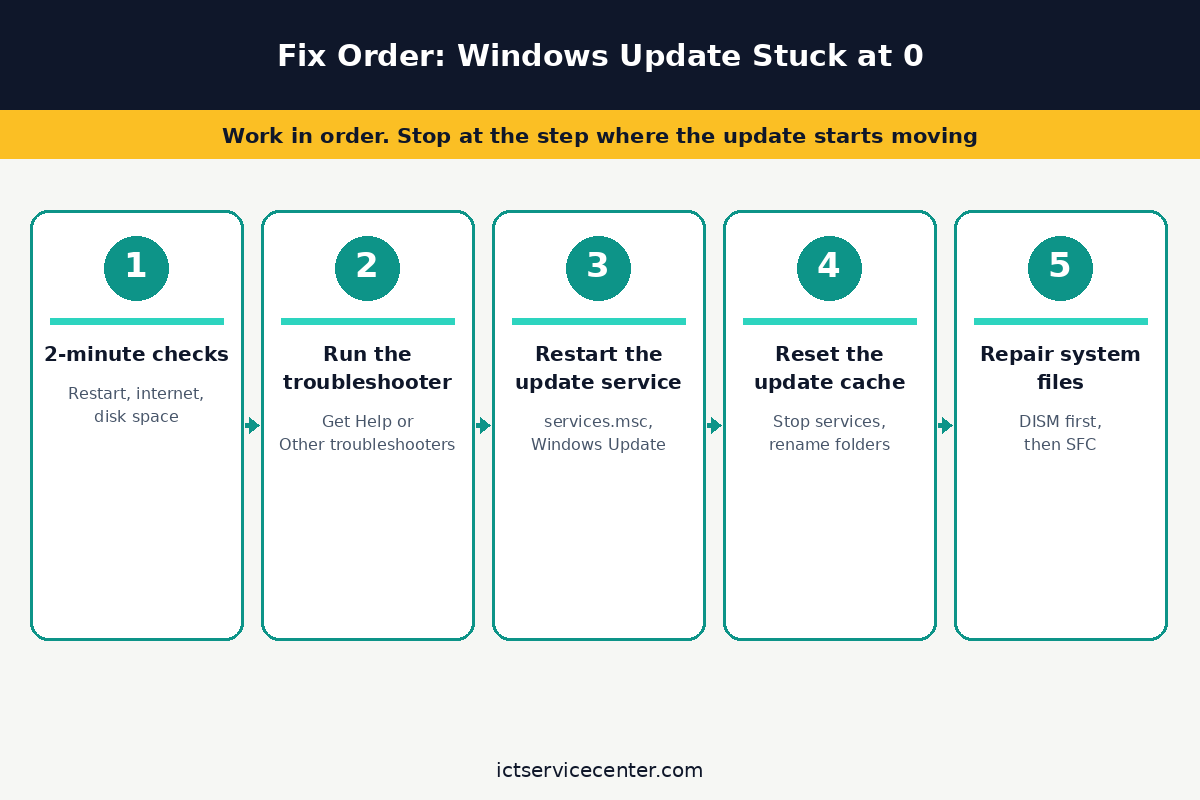
The fix worked if the percentage starts to climb, even slowly. If it jumps straight back to 0, the cache is the problem. If the service will not stop, restart the laptop and try again.
Reset the update cache the safe way
Windows stores downloaded update files in C:\Windows\SoftwareDistribution. When a file in that folder is corrupt, the same update fails the same way every time, and it stays at 0. The fix is to force Windows to rebuild the folder from scratch, using the exact commands Microsoft documents for this step.
Back up your files before you run these commands. Renaming the folders does not touch your documents, but a backup costs nothing if a step goes wrong. Do not delete the whole Windows folder, and do not delete the SoftwareDistribution folder itself: rename it, so the old files stay on the drive as a backup.
- Type command prompt in the search box on the taskbar, then select Run as administrator and select Yes.
- Type net stop bits and press Enter, then wait for the service to stop.
- Type net stop wuauserv and press Enter, then wait for the service to stop.
- Type ren %systemroot%\softwaredistribution softwaredistribution.bak and press Enter.
- Type ren %systemroot%\system32\catroot2 catroot2.bak and press Enter.
- Type net start bits and press Enter, then type net start wuauserv and press Enter.
- Close the Command Prompt window and restart the laptop.
Renaming works because Windows builds a clean folder when the service starts again, and downloads the update files fresh. The .bak folders hold the old files, and you can delete them later once updates work again.
After the restart, check for updates again: the download starts from 0, which is normal, and the fresh download should now move past 0. It helps to understand run command prompt to repair the system before going further.
Repair system files with DISM and SFC
If the cache reset did not help, the fault may sit in the Windows files themselves. DISM fixes the Windows image that holds the repair files, and SFC scans protected system files and replaces the damaged ones. Run DISM before SFC, because SFC needs a healthy image to repair from.
- Type command prompt in the search box on the taskbar, then select Run as administrator and select Yes.
- Type DISM.exe /Online /Cleanup-image /Restorehealth and press Enter.
- Wait until the command reports that the restore operation completed successfully.
- Type sfc /scannow and press Enter.
- Wait until the scan verification reaches 100 percent, then close Command Prompt.
- Open Settings > Windows Update and select Check for updates.
DISM can take several minutes, and SFC can take longer on a slow drive. Do not close the window early: wait until the verification is 100 percent complete. If SFC reports that it found corrupt files but could not fix some of them, run DISM once more and then run SFC again. Our guide to repairing Windows without reinstalling covers the other built-in repair tools on the same path.
Free up disk space and try a clean boot
An update that cannot fit on the drive will not start. Microsoft says a 64-bit PC needs at least 20 GB of free space for an upgrade, and 16 GB for a 32-bit PC. Open Settings > System > Storage and read the free space figure. Our guide to how to free up disk space on Windows 11 walks through the larger wins.
If space is fine, a background program may be blocking the update. Microsoft calls the test for this a clean boot: Windows starts with only the drivers and startup programs it needs. Sign in as an administrator, type msconfig in search, and open System Configuration.
On the Services tab select Hide all Microsoft services and then Disable all. On the Startup tab select Open Task Manager, and on the Startup apps tab disable each enabled item. Restart, then try the update again.
If the update installs in a clean boot, a program you disabled was blocking it: turn items back on in groups until the fault returns, then reset to a normal start in msconfig with Normal Startup and Enable all.
When to repair or replace
If every fix in this guide fails and the same update sticks at 0, the next step is a repair install or a clean install of Windows, not more cache resets.
Microsoft offers a clean installation tool on its software download page: download it and read the notes on that page first.
A clean install wipes the drive, so back up every file you care about first, and have your Microsoft account sign-in ready before you start.
Take the laptop to a repair shop instead if the update fails alongside other signs of hardware trouble: the drive makes clicking sounds, the laptop shuts down on its own, or files go missing. A failing drive corrupts update files as fast as you replace them, and no cache reset will fix that. If you suspect the drive, run chkdsk /f C: from an administrator Command Prompt first.
If the update did install and the laptop stopped charging instead, our guide to a laptop that stopped charging after a Windows update covers that case. If the laptop is old and the update keeps failing while the battery also dies fast, check the battery first: our guide to how to check laptop battery health shows how to read the report.
Mistakes to avoid
1. Forcing the laptop off mid-update. Holding the power button during an install can corrupt the files the update was writing. Use Start > Power > Restart instead.
2. Deleting the SoftwareDistribution folder outright. Deleting removes the backup and the download history in one move. Rename it to softwaredistribution.bak instead.
3. Running SFC before DISM. SFC repairs from the Windows image, so a damaged image leaves SFC with nothing good to repair from. Run DISM first, then SFC.
4. Closing Command Prompt before SFC reaches 100 percent. An interrupted scan leaves the repair half done. Wait for the 100 percent message, even if the scan looks slow.
5. Skipping the backup before a cache reset or a clean install. The rename is safe, but a clean install wipes the drive. Back up your files before you start.
6. Turning off Windows Update so the stuck update never comes back. That leaves the laptop without security fixes, and the next update will hit the same fault. Fix the cause and let the update install.
Frequently asked questions
How long should I wait before I call an update stuck at 0?
Microsoft gives no fixed time: the download time depends on your connection speed and the size of the update. If the number has not moved after a restart and a fresh check, treat it as stuck and move on to restarting the service and resetting the cache.
Will restarting the laptop during a stuck update damage it?
A normal restart from the Start menu is safe while the update is still downloading at 0 percent, because nothing has been installed yet. The risk comes from forcing the laptop off during the install phase. Use Start, then Power, then Restart.
Is it safe to delete the SoftwareDistribution folder?
It is safer to rename it than to delete it. Renaming to softwaredistribution.bak keeps the old files as a backup, and Windows builds a clean folder when the service starts again. Stop the update services first, because Windows locks the folder while they run.
Why does Windows Update keep getting stuck at 0 after every fix?
The usual causes are too little free space, damaged system files, or a program that blocks the download. Check for 20 GB free on a 64-bit PC, run DISM and then SFC, and try a clean boot. If it still fails, a repair install or a clean install is the next step.
What if the update downloads but will not install?
That is a different stage of the same fault. Microsoft says an update that reaches 51 to 99 percent and will not finish should be checked again, or run through the troubleshooter. If that does not help, reset the cache with the rename steps above, then run DISM and SFC.
Bottom line: Restart the laptop and check the internet first, then run the Windows Update troubleshooter. If the update still sits at 0, restart the service, reset the cache by renaming the folders, and repair system files with DISM and then SFC. Back up your files before the command-line steps. More fixes: see the Troubleshooting hub.
Sources: Microsoft Support, Troubleshoot problems updating Windows; Microsoft Support, Windows Update Troubleshooter; Microsoft Support, Use the System File Checker tool to repair missing or corrupted system files; Microsoft Support, How to perform a clean boot in Windows. Photos: Karolina Grabowska, Lukas Blazek, Burak The Weekender, Geordie McLeod and Yan Krukau via Pexels. Diagram: ictservicecenter.com.