
 By
Water on a laptop is a race against the clock: the first thing you do matters more than anything you do an hour later.
In short: Power the laptop off at once, unplug the charger and every accessory, and take out the battery only if it slides out from the outside with a latch.
Blot the outside dry, stand the laptop open like a tent over a towel, and leave it off for at least a full day. Do not charge it, press the power button to check it, or use rice or a hair dryer.
Key takeaways
- Power off first, before you save files: a powered circuit and water together cause the damage.
- Only a battery that slides out with a latch comes out. A sealed battery stays inside.
- Blot, never rub, and drain the laptop in a tent position so water runs out, not deeper inside.
- Plain water is the easiest spill to survive; coffee, milk, and sugary drinks leave residue that needs a repair bench.
- Even if the laptop turns on again, back up your files first and book an inspection.
The first 30 seconds: power off and unplug
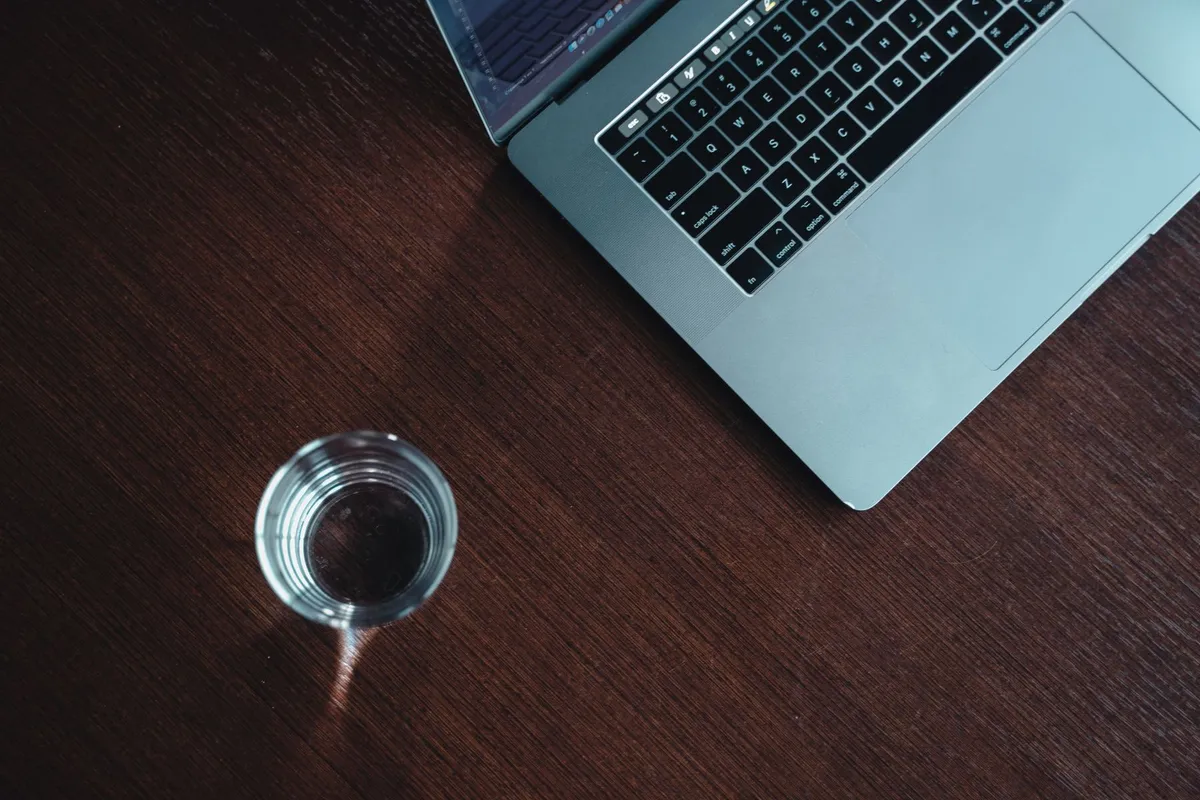
Do not stop to save your work or check whether the keyboard still types. Every second the laptop runs with water inside is another chance for a short circuit. There is more on takes too long to boot in a separate guide.
- Hold the power button until the screen and every light go dark. Do not use the Start menu: it takes too long.
- Unplug the charger from the laptop, then from the wall, with dry hands.
- Unplug every accessory: mouse, USB drive, monitor, dock, headphones, and network cable.
- Move the laptop away from the puddle, but keep it still. Do not shake it or tip it.
- If the laptop already shut itself off, leave it off. Do not press the power button to check.
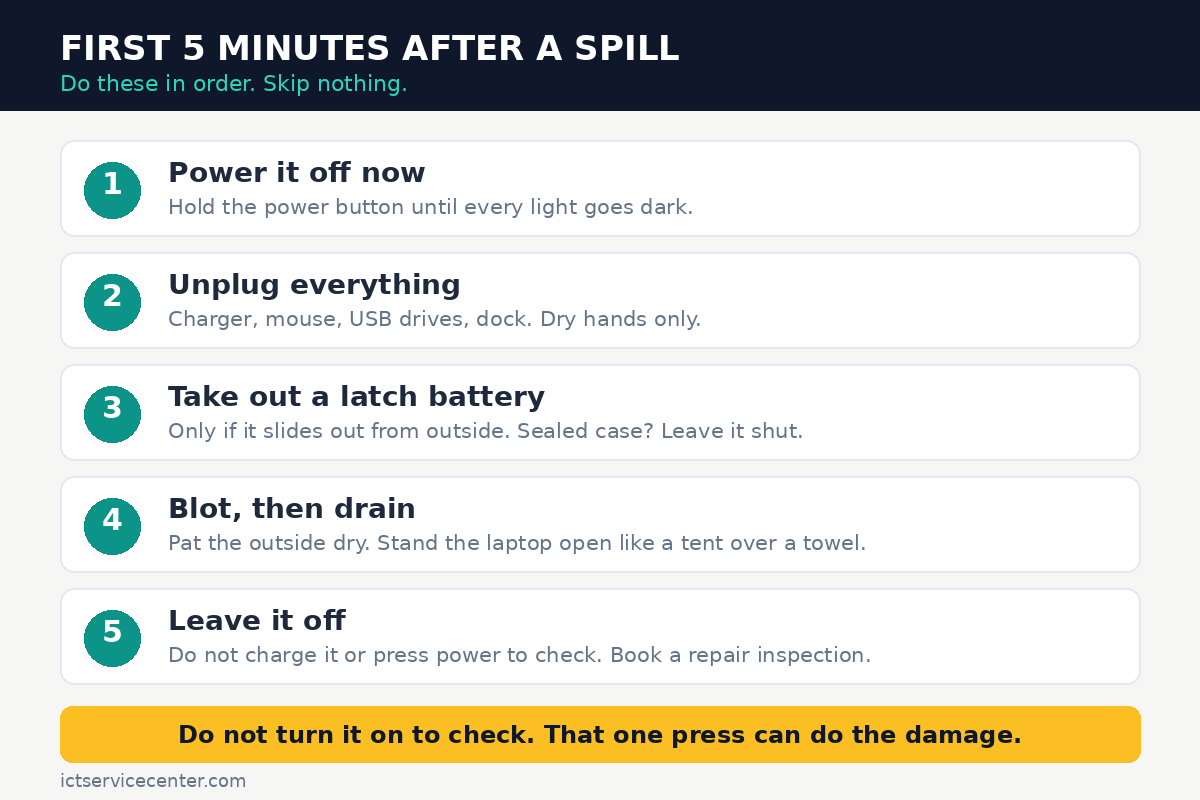
If the spill reached the charger, the power strip, or the wall outlet, do not grab a wet plug or a wet adapter. Switch the power off at the breaker first, or unplug at the wall end with dry hands.
On a MacBook, shut it down from the Apple menu if the screen still responds, or hold the power button until it turns off. A MacBook with Apple silicon can turn itself on when you connect power or open the lid, so keep the charger unplugged until it is dry.
What to do with the battery
The battery is the last power source inside the laptop. How far you can go depends on the model.
If your laptop has a battery that slides out with a latch or a slider, usually an older model, take it out now and wipe it dry.
If the battery is sealed inside the case, which covers most modern laptops, leave the case closed. Do not open the laptop to reach it: opening the case is technician work, and it can complicate an accidental damage claim. With a sealed battery the machine is off but not fully de-energized inside. No latch on the underside means sealed: leave it shut.
If the battery looks swollen, feels hot, smells odd, or hisses, stop handling it and keep it away from anything flammable. Our guide to a swollen laptop battery covers what to do next, and a swollen battery is never a job to open or puncture at home. Loaders in this spot often ask about closing lid powers off laptop as well.
Blot it dry and drain it
Once the power is off, remove the water you can reach. Work gently: lift it off, do not push it deeper into the keyboard or the vents.
- Blot the keyboard, palm rest, and screen with a soft, dry, lint-free cloth. Pat, do not rub, and do not press the keys.
- Wipe the ports and the edges of the case, but do not push cloth or cotton buds into any port or vent.
- Open the lid to about 90 degrees and stand the laptop upside down like a tent over a dry towel, keyboard down and hinge at the top. Water then runs back out through the keyboard.
- Leave it in that position in a dry room with airflow, away from radiators, heaters, and direct sun.
A soft microfibre cloth is the right tool for blotting: it lifts water without leaving fibres behind.

A soft lint-free cloth lifts water without pushing it deeper or scratching the screen.
- Ultra-soft microfiber fabric gives a scratch-free clean and helps trap dirt and debris
- Use as a dust cloth on furniture, shelves and hard surfaces, or wipe down kitchen
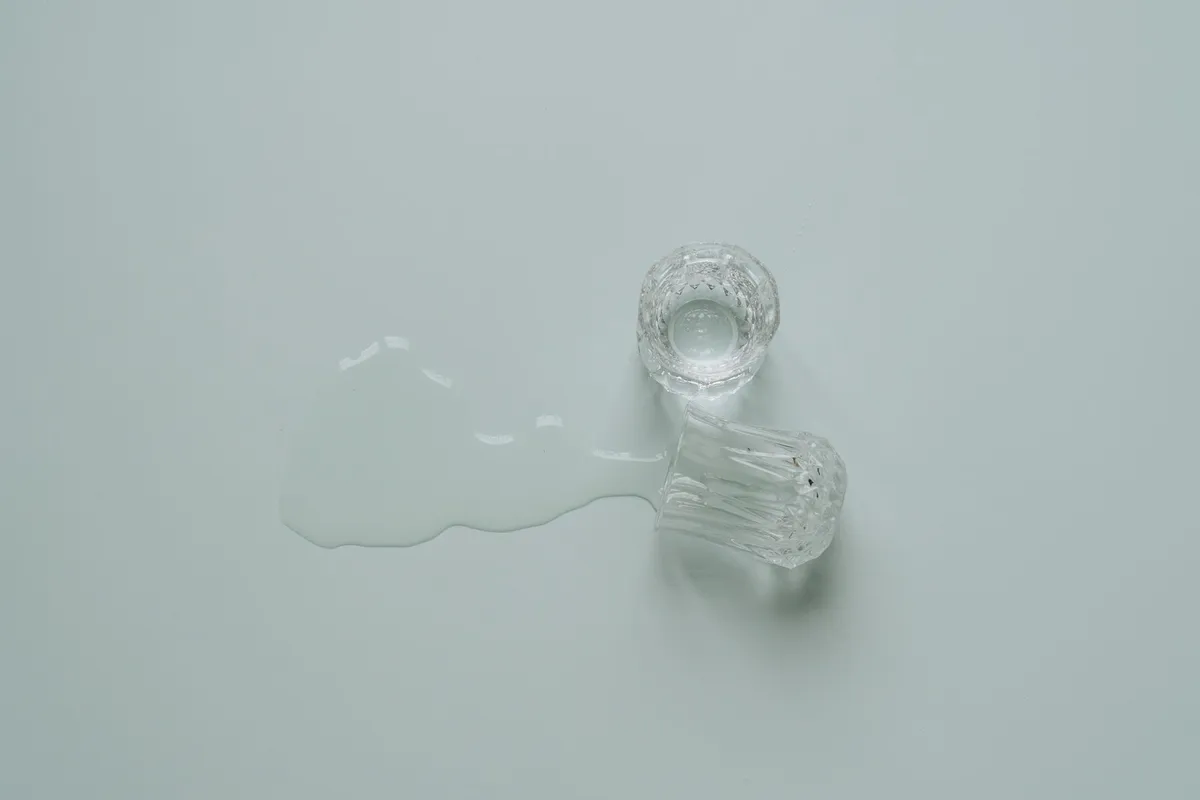
Some makers build drainage holes into the keyboard that drain through the bottom, so check your laptop manual first: if it gives its own spill instructions, follow those. Do not shake the laptop: shaking spreads water to parts that were still dry.
If water got into a USB-C port, Apple says to disconnect the cable and leave the device in a dry area with airflow for at least a day: charging through a wet connector can corrode the pins.
What spilled matters as much as how much
Plain water is the easiest spill to survive, because once it dries it leaves almost nothing behind. It is still not harmless: water shorts a powered circuit. But a small spill of plain water, handled fast, is the most likely to end well.
Coffee, tea with sugar, milk, juice, and soft drinks are a different problem: the sugar, acids, and milk solids stay on the board and under the keys after the liquid dries, and corrosion follows over days and weeks.
If the spill was anything but plain water, plan on a repair bench even if the laptop seems fine. Milk is a common case: our guide to fix a laptop cursor after spilling milk covers what milk does to a keyboard and trackpad.
We cover laptop turns off immediately after turning on in a guide of its own.
How long to wait before you turn it on
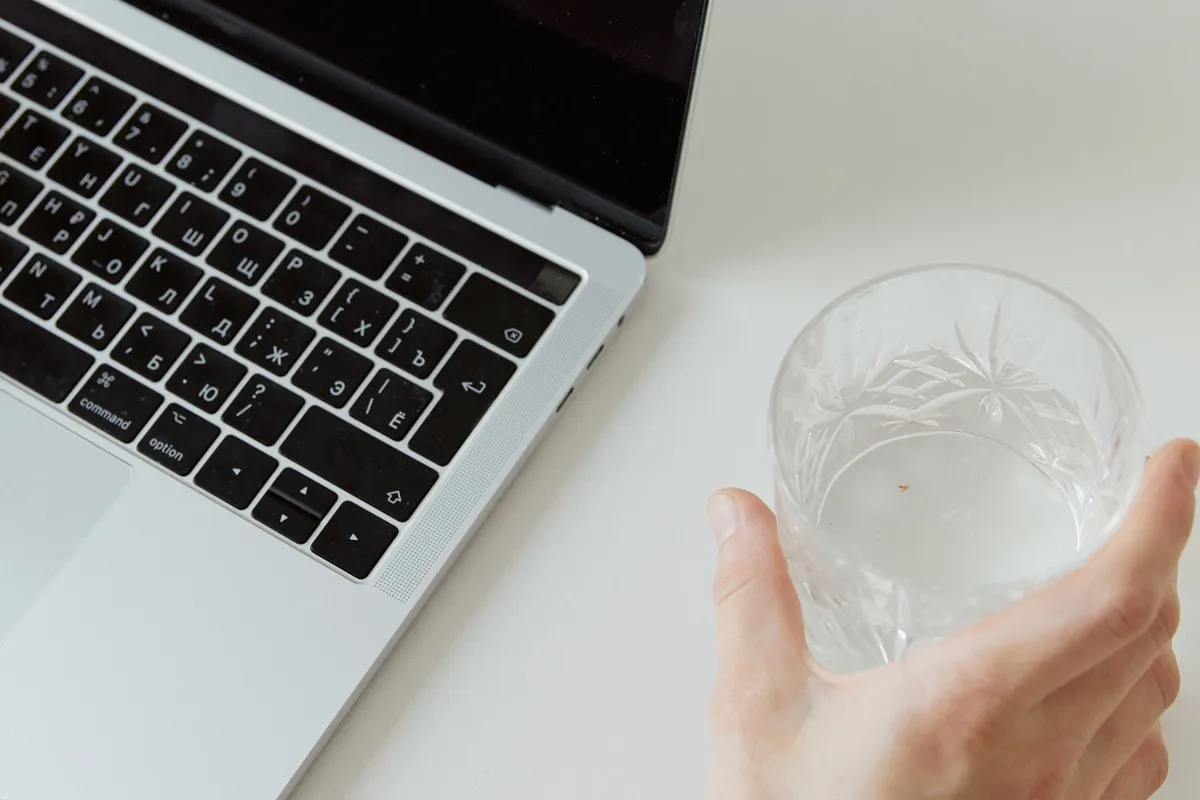
Leave the laptop off and open in the tent position for at least a full day. A big spill, a spill that reached the vents, or a sugary drink needs longer: water hides under the keyboard film, around the battery, and inside the hinge.
Silica gel packets can help during the wait by pulling moisture from the air. Put the laptop and the packets in a large container with the lid ajar, away from the vents and ports.

Sealed packets pull moisture from the air around the laptop during the drying wait.
- Silica gel desiccant is a highly active adsorption material, has good thermal
- Our desiccants are transparent silica gel beads. It is non-toxic and has no color or
Do not use a hair dryer, heater, or radiator to speed things up: heat can warp keys, damage the battery, and drive water deeper. Do not use compressed air either: it pushes water further into the case.
Do not put the laptop in rice. Rice does not dry the inside of a laptop, and rice dust and grains get into the keyboard, the ports, and the fan. Apple warns against rice for the same reason.
After at least a day, look the laptop over before you touch the power button. The keyboard and ports should feel and look dry, with no water under the screen or on the palm rest. If you see moisture anywhere, or you are not sure, give it another day.
If it turns on: what to check and back up first
A laptop that turns on after a spill is not yet in the clear: corrosion can show up days or weeks later, so treat the first start as a chance to save your files.
- Back up your files first, before you test anything else. Copy anything you cannot replace to an external drive or cloud storage.
- Test the keyboard key by key in a text file, then the trackpad, USB ports, and speakers, one device at a time.
- Look at the screen on plain white and plain black backgrounds, and watch for cloudy patches, lines, or spots.
- Listen to the fan and feel the base: a fan that runs hard at idle, or a base that gets hot fast, can mean water reached the board.
| Symptom | Likely cause | Fix |
|---|---|---|
| Some keys stick or repeat | Residue under the keys from a sugary drink | Back up files, then book a keyboard clean |
| Screen shows cloudy patches or lines | Water reached the display layers | Do not press on it; book a display inspection |
| Laptop works for a day, then shuts off | Corrosion spreading on the board | Back up files, then stop using it |
If the laptop will not turn on at all after drying, do not keep pressing the power button: our guide on a laptop will not turn on walks through the checks in order. Set up a backup now with our guide to the best backup methods for a laptop.
When to stop and take it to a shop
Take it to a repair shop, or to the maker service centre, if the laptop will not turn on after a full day of drying, if it turns on but shuts off again, or if the screen, keyboard, or a port behaves oddly. Take it in if the spill was coffee, milk, juice, or a soft drink, or if water reached the vents or the laptop sat in a puddle.
Take it in sooner if you hear hissing, smell something odd, or feel heat from the battery area: those are signs of a battery problem, and a damaged battery is not a home repair. The same applies if the laptop was on and charging when the spill happened.
This article covers the first minutes after a spill. The later cleaning and repair is a different job, covered by our guide to fix a laptop after water damage. If only the keyboard is acting up, our guide to fix laptop keyboard water damage covers keyboard repair and replacement.
Before you hand it over, write down what spilled, how much, where it landed, and whether it was on or charging. Tell the shop it has been off and dry for a day, and do not turn it on in the shop.
Mistakes to avoid
Turning it on to see if it still works. That one press sends current through wet circuits and can turn a small spill into a dead board. The fix: leave it off for at least a full day.
Saving your files before you power it off. Every second of typing with water inside adds risk. The fix: power off first, then back up once it is dry.
Using rice to dry it out. Rice does not reach the water inside a laptop, and grains and dust get into the keyboard, ports, and fan. The fix: air dry in the tent position.
Drying it with a hair dryer or a heater. Heat warps keys, harms the battery, and drives water deeper. The fix: room-temperature air and time, at least a full day.
Opening the case to reach a sealed battery. The case hides thin cables and a battery that a tool can damage. The fix: leave it shut and let a technician disconnect the battery.
Treating a working laptop as a saved laptop. Corrosion spreads slowly, so a laptop that works today can fail next week. The fix: back up your files, then book an inspection.
Frequently asked questions
Can I use a hair dryer to dry a wet laptop?
No. A hair dryer blows hot air that can warp keys, harm the battery, and push water deeper into the case. Let the laptop air dry in the tent position in a dry room, and leave it off for at least a full day.
How long should a laptop dry after a water spill?
At least a full day in the tent position, longer for a big spill or a sugary drink. Water hides under the keyboard film, around the battery, and inside the hinge, so a dry-looking keyboard does not mean a dry board. If you see moisture, give it another day.
Will rice save a wet laptop?
No. Rice cannot reach the water inside a laptop, and rice dust and grains get into the keyboard, the ports, and the fan. Apple warns against rice for the same reason. Air dry the laptop with silica gel packets nearby instead.
What if only a few drops landed on the keyboard?
Power it off anyway, blot the drops dry, and leave it off for a few hours at least. A few drops can still run between the keys and onto the board. If the drops were coffee or juice, book an inspection, because residue stays after the liquid dries.
Does warranty cover water damage?
Usually not. Apple states that damage from liquid exposure is not covered by the Apple One Year Limited Warranty, though an AppleCare plan can add accidental damage protection for a service fee. Check your own warranty before you book service.
Bottom line: Power off, unplug, blot, drain in the tent position, and leave the laptop alone for at least a full day. Back up your files the moment it starts again, and book an inspection even if it seems fine. Keep drinks on the far side of the desk from now on, and browse our troubleshooting guides.
Sources: Apple Support, About liquid damage to Mac computers and accessories not covered by warranty (support.apple.com); Apple Support, Important safety information for your Mac (support.apple.com); Apple Support, If you see a liquid-detection alert on your iPhone (support.apple.com). Photos: Tima Miroshnichenko, alleksana, Darina Belonogova, MART PRODUCTION via Pexels. Diagram: ictservicecenter.com.