
 By
You close the lid to carry the laptop to another room, and when you open it the laptop is off and your work is gone.
In short: A laptop that shuts down when the lid is closed usually has its lid-close action set to Shut down instead of Sleep. Change it to Sleep for both On battery and Plugged in. If it is already Sleep, check the power plan, fast startup, and the drivers.
Key takeaways
- Check the lid-close action first: it is the cause in most cases, and it is a two-minute fix.
- Set the action for On battery and Plugged in separately: the two columns can differ.
- Fast startup can make a shutdown look like a lid fault, so test with a full Restart.
- Never put a running laptop in a bag: check it is off or asleep first.
- If the setting says Sleep and the laptop still powers off, the fault is the battery, the lid sensor, or the drivers.
Start with the 2-minute checks

First, find out what Windows is told to do when the lid closes. Windows keeps one lid action for battery power and a separate one for plugged-in power, and a laptop that sleeps at a desk but shuts down on the train usually has the On battery column set to Shut down.
On newer Windows 11 builds, open Settings > System > Power & battery, then Lid & power button controls. Next to Closing the lid will make my PC, choose Sleep for Plugged in and for On battery. The change applies at once, so close the lid and test it.

If your build has no lid controls in Settings, use Control Panel instead: Microsoft documents this route for every Windows 11 version.
- Open Control Panel.
- Select System and Security, then Power Options, then Choose what the power buttons do.
- Select Change settings that are currently unavailable.
- Under When I close the lid, set the action for On battery and for Plugged in.
- Select Save changes, then test the lid.
Save your work before you test: Shut down closes every open app.
| Symptom | Likely cause | Fix |
|---|---|---|
| Shuts down every time the lid closes | Lid action set to Shut down | Change the lid action to Sleep |
| Shuts down on battery only | On battery set to Shut down, or weak battery | Fix the On battery setting |
| Shuts down only when plugged in | Plugged in set to Shut down, or plan change | Fix the Plugged in setting |
| Lid closes, laptop stays on, then dies in the bag | Lid action is Do nothing | Set it to Sleep or Hibernate |
| Setting says Sleep, laptop still powers off | Fast startup, driver, or sensor fault | Restart fully and update the drivers |
| Laptop is hot when you take it out of the bag | Running sealed in the bag | Shut it down before bagging it |
The opposite fault is covered in our guide to a laptop not waking up from sleep.
What each lid action actually does
The lid setting offers four choices.
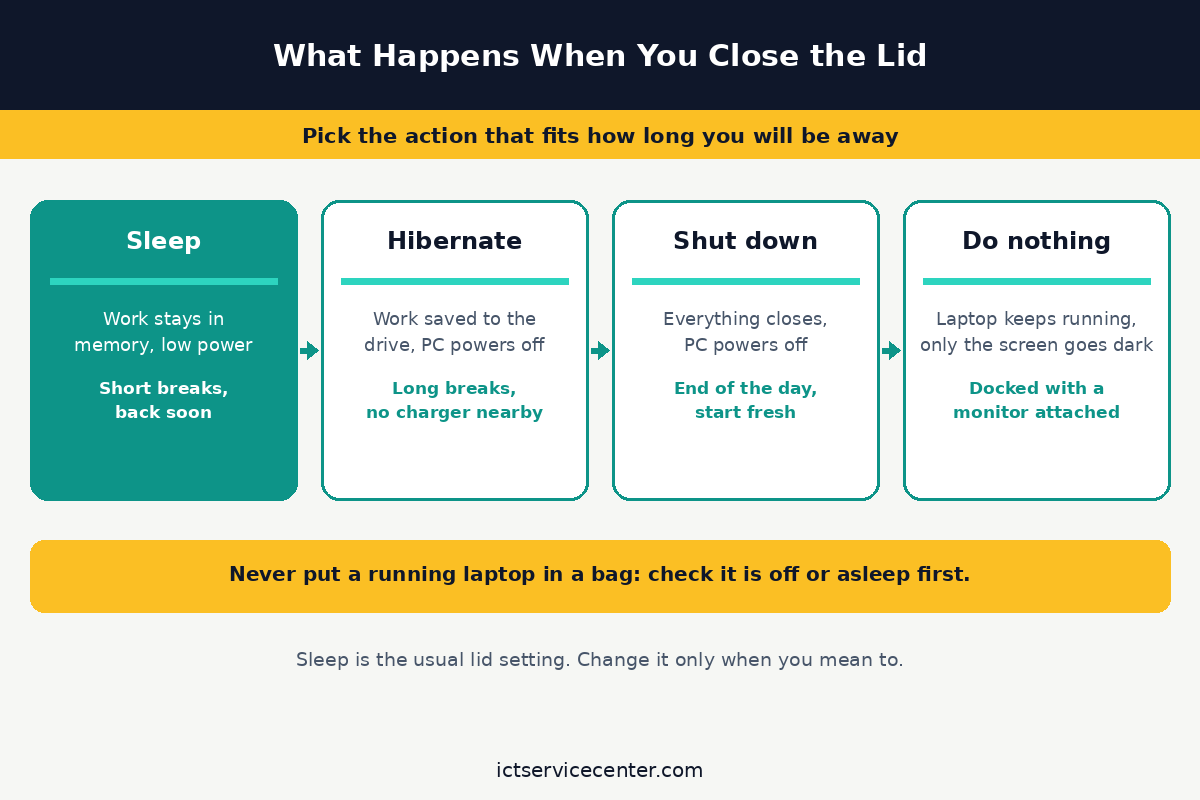
Sleep keeps your work in memory at very low power, and you are back where you left off when you open the lid. Microsoft says to use it for a short break, and Windows saves your work and turns the PC off if the battery runs too low.
Hibernate saves your open work to the drive and powers the laptop off, using less power than sleep. Microsoft says to use it when you will be away longer and cannot charge the laptop.
Shut down closes every app and turns the laptop off, and anything unsaved is lost. It suits the end of the day, but almost never the lid, because closing a lid is not the same as finishing work.
Do nothing keeps the laptop running with the lid closed, and only the screen goes dark. Use it only when docked with a monitor, or when a download must keep running. In a bag it builds heat with nowhere to go.
Check the power plan and fast startup
If the lid action is already Sleep and the laptop still powers off, check the power plan and fast startup. The lid action belongs to the power plan, so a plan change can change what the lid does: check each plan you use.

Fast startup is the trickier suspect. With it on, Shut down is not a full shutdown: Windows closes your apps, logs you off, then saves the kernel to a hibernation file and loads it back at the next start. That saved state can carry a power fault into the next session, so a lid problem can survive a shutdown.
Restart is the test, because Restart always performs a full boot and never uses fast startup. Select Start > Power > Restart, wait for the desktop, then close the lid. If the laptop sleeps now, fast startup was holding the fault in place.
To turn it off, open Control Panel > System and Security > Power Options > Choose what the power buttons do, select Change settings that are currently unavailable, clear Turn on fast startup (recommended), and select Save changes.
If the checkbox is missing, run powercfg -h on as administrator, then look again.
If the laptop shuts down only when unplugged, the battery may be the fault: a weak battery can fail the move into sleep. Our guide to a laptop that turns off when unplugged walks through the battery checks.
When the lid closes but the laptop stays hot in the bag
Some laptops do the opposite: the lid closes, the laptop keeps running, and hours later the bag is hot and the battery is flat. That happens when the lid action is Do nothing, or when the lid sensor never tells Windows the lid closed.
Never leave a hot laptop running sealed in a bag. Before you bag it, check it is off or asleep: the power light should be off or blinking slowly, the fan quiet, and the base cool. If the base is warm, open the lid and shut the laptop down first. If the battery is swollen or the base bulges, do not charge it: take it to a repair shop.
Soft surfaces make it worse at home: a laptop left running on a bed or a sofa sinks into the fabric and blocks the vents, so keep it on a hard, flat surface.
If the fan runs loud or the base feels hot, our laptop overheating fix guide covers the vent and fan checks.
Check that nothing presses the power button inside the bag: a charger brick can wake a sleeping laptop, which will run until the battery dies.
Update the lid and power drivers
When the setting is right and the laptop still powers off, Windows may not be hearing the lid. A small sensor in the lid tells Windows when it closes, and the chipset driver passes that signal on. If either is out of date or broken, the signal never arrives, and Windows can shut the laptop down instead of sleeping it.
Start with the chipset driver, since it carries the power and lid signals for the whole board. Get it from the laptop maker’s support site, not a driver download site: find your exact model, download it, install it, and restart. Check for a BIOS or UEFI update for the same model too, and read the release notes first: only install it on a plugged-in laptop.
- Press Win + X and select Device Manager.
- Expand System devices and find ACPI Lid.
- Right-click ACPI Lid, select Update driver, then Search automatically for drivers.
- If the best driver is already installed, right-click ACPI Lid again, select Uninstall device, and restart: Windows reinstalls it on the next start.
- Do the same for the battery entry under Batteries if the laptop misreports its charge.
- Restart once more, then close the lid and check whether the laptop sleeps.
If the screen stays black when you open the lid, update the graphics driver from the maker or from Intel, AMD, or Nvidia.
When to repair or replace
Software fixes have a limit. Book a repair if the lid action is Sleep, the drivers are current, and the laptop still powers off when the lid closes. The usual causes are a dead lid sensor, a damaged hinge, or a weak battery.
Check the battery before you pay for a repair, so you can describe the fault to the shop. Our guide to how to check laptop battery health shows how to read the battery report Windows builds for you. If the report shows a worn-out battery, a replacement is the fix; if it is healthy, tell the shop the steps you tried, in order.
Take the laptop to a repair shop at once if the battery is swollen, the base bulges, or the trackpad has lifted: do not open the laptop and do not try to charge it.
Stop too if the hinge is cracked or loose, or if the screen flickers when you move the lid.
If the battery is not detected at all, follow our guide to a laptop battery that is not detected first, since a missing battery points at the battery or the board.
Mistakes to avoid
1. Setting the lid action to Shut down and then forgetting it. Shut down closes every app each time you close the lid. Use Sleep for the lid, and Shut down from the Start menu when you are done.
2. Changing only the Plugged in column. The fault often lives in the column you did not check. Set both, then test the lid on battery and on the charger.
3. Using Do nothing so a download can finish, then bagging the laptop. A sealed bag traps the heat from a running laptop. Leave it open on a hard surface until the download finishes, then set the lid action back to Sleep.
4. Testing the lid fix with Shut down instead of Restart. With fast startup on, Shut down saves the old kernel state, so a fault can survive it. Test with Restart.
5. Updating the BIOS on battery power. If the update loses power halfway, the laptop may not start. Plug the charger in and read the maker’s notes first.
Frequently asked questions
Why does a laptop shut down when the lid closes instead of sleeping?
Because the lid-close action is set to Shut down, which closes every app and powers the laptop off. Change it to Sleep for both On battery and Plugged in, in Settings or in Control Panel, then test the lid again.
Is it bad to close the lid while the laptop is still running?
It depends on the lid setting. With Sleep or Hibernate, closing the lid is fine: the laptop powers down and waits. With Do nothing, it keeps running, which is fine on a desk with a monitor but risky in a bag, where heat builds and the battery drains.
Why does a laptop shut down on battery when the lid closes, but not when plugged in?
Because the lid action is set separately for each power source: the On battery column is set to Shut down while Plugged in is set to Sleep. Fix the On battery column. If both already say Sleep, check the battery health, since a weak battery can fail the move into sleep.
How do I stop a laptop from shutting down when the lid closes?
Open Settings, go to System, then Power and battery, then Lid and power button controls, and set Closing the lid will make my PC to Sleep for both Plugged in and On battery. On older builds, use Control Panel, then Power Options, then Choose what the power buttons do.
The lid setting says Sleep, but the laptop still shuts down. Why?
Then the setting is not the fault. Test with a full Restart first, since fast startup can carry a power fault across shutdowns. Then update the chipset and ACPI Lid drivers and check the battery health. If the laptop still powers off, the lid sensor or hinge is likely damaged, and a repair shop should look at it.
Bottom line: Set the lid-close action to Sleep for both On battery and Plugged in, and test the lid. If it still powers off, restart fully to clear fast startup, update the chipset and lid drivers, and check the battery. If it still shuts down, the lid sensor or the battery needs a repair shop. More fixes: see the Troubleshooting hub.
Sources: Microsoft Support, Shut down, sleep, or hibernate your PC; Microsoft Learn, Distinguishing Fast Startup from Wake-from-Hibernation; HP, How to Optimise Hybrid Boot Fast Startup in Windows 10 & 11. Photos: prasun_16, PNW Production, Pramod Tiwari, Gülşah Aydoğan and Mikhail Nilov via Pexels. Diagram: ictservicecenter.com.