The Essential Parts of a Laptop and Their Functions
Contents
You open your laptop, it fires up in seconds, you load a few browser tabs, maybe a spreadsheet, maybe a game. Everything works. But the moment you try to edit a 4K video or run a simulation, the fan screams and the whole thing grinds to a crawl. That’s when you realize: you don’t actually know what’s inside the machine that’s letting you down.
This article walks you through each major part of a laptop and explains exactly what it does for real-world tasks. No fluff, no marketing claims. By the end you’ll know which component matters most for gaming, which one kills multitasking, and why you shouldn’t let a salesperson talk you into a ‘better’ spec you don’t need. I’ll also point you to a targeted upgrade that can revive an aging accessory.

Dasdffvf
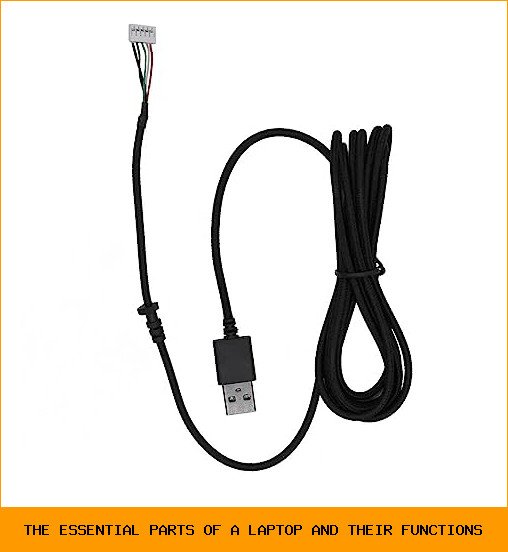
Dasdffvf USB Cable Cord PVC Mice Line…
- for desktop or laptop use, this cable ensures that you can work or play with confidence and ease.
- For 6400DPI Cable for gamers and professional precisions and durability.
- Gamers, designers, and office workers will appreciate the precisions and responsiveness of this line cable.
If you own a high-precision gaming mouse like the DeathAdder Essential but its original cable is frayed or unreliable, a replacement line makes a noticeable difference. The Dasdffvf USB Cable Cord PVC Mice Line Replacement Wire for DeathAdder Essential 6400DPI Repair Part restores smooth, lag-free tracking without spending money on a whole new mouse. Gamers and designers who rely on consistent cursor movement will appreciate the heavy-duty construction. It’s one of those small fixes that stops a tiny annoyance from becoming a productivity killer.
1. Central Processing Unit (CPU) – The Brain That Does the Math
The CPU is the chip that executes every instruction your software throws at it. When you press a key, the CPU decodes that keystroke, looks up what the operating system should do, and tells other parts to respond. It does this billions of times per second.
Two main manufacturers dominate laptop CPUs: Intel (Core i3, i5, i7, i9) and AMD (Ryzen 3, 5, 7, 9). The number of cores and threads matters more than raw clock speed for most modern workloads. A Core i5 or Ryzen 5 with six cores handles office work, light video editing, and gaming perfectly. An i7 or Ryzen 7 with eight or more cores is for heavy rendering, programming compiles, or running virtual machines.
Real-world advice: Unless you do professional video editing or 3D modeling, skip the top-tier CPU. The extra cost rarely translates to faster everyday use. Battery life often takes a hit, too.
2. RAM (Random Access Memory) – Your Short-Term Workspace
RAM is where the laptop keeps data it needs right now. Open a browser tab – that page loads into RAM. Open a dozen tabs, a document, and Spotify – all compete for the same pool. When RAM fills up, the laptop starts using your storage drive as fake RAM (called swapping), which slows everything down dramatically.
How much do you need?
- 8 GB: Minimum for casual browsing, email, streaming. You’ll feel the pinch with 5+ browser tabs and a Word doc.
- 16 GB: The sweet spot for most people. Handles heavy Chrome usage, light photo editing, and even some games.
- 32 GB: Overkill unless you run virtual machines, do professional video editing, or work with huge datasets.
RAM speed (measured in MHz) also matters – DDR4 runs at 2400–3200 MHz, while DDR5 starts around 4800 MHz. The difference is noticeable in CPU-heavy tasks but not in simple web browsing.
3. Storage Drive (SSD vs. HDD) – Where Your Files Live Long-Term
Every laptop has a drive that stores your operating system, applications, and personal files. Two types exist: traditional Hard Disk Drives (HDD) and modern Solid-State Drives (SSD).
SSDs have no moving parts. They load Windows in under 15 seconds, launch apps instantly, and survive bumps better. Most laptops sold today use NVMe (Non-Volatile Memory Express) SSDs that read data at 3,000–7,000 MB/s. That’s 10–20 times faster than a SATA SSD and 50 times faster than an HDD.
HDDs are cheaper per gigabyte but slow and fragile. They spin a magnetic disk at 5,400 or 7,200 RPM. You’ll feel the lag every time you open a large file or boot up. I’d never recommend an HDD as the primary drive in 2026 – even budget laptops should have at least a small SSD for the OS.
Laptop storage is often soldered or uses a proprietary connector, so upgrading after purchase is harder than on desktops. If you’re buying, check whether the SSD is replaceable. Some ultrabooks (like certain MacBooks) are sealed shut.
4. Graphics Processing Unit (GPU) – The Visuals and Compute Accelerator
The GPU renders everything you see on the screen. Two kinds exist in laptops: integrated graphics (built into the CPU) and dedicated graphics (a separate chip with its own video memory).
Integrated graphics (Intel Iris Xe, AMD Radeon 680M) are good enough for 4K video playback, office work, and older games at low settings. They share system RAM, which limits performance. Modern integrated GPU can match entry-level dedicated chips from a few years ago.
Dedicated GPUs (NVIDIA GeForce RTX 3050/4060/4090, AMD Radeon RX 7000 series) have their own VRAM and cooling. They handle gaming, 3D rendering, GPU-accelerated tasks (like video encoding in Premiere Pro). The higher the VRAM (4 GB, 6 GB, 8 GB, 12 GB), the more complex textures and models the GPU can handle.
Honest take: If you don’t game or do GPU-accelerated work, a dedicated GPU is wasted money and battery drain. Integrated graphics have gotten shockingly good – a Ryzen 7 7840U with Radeon 780M can play many AAA titles at 1080p low settings.
| Component | Intel Example | AMD Example | Best For | Price Range |
|---|---|---|---|---|
| CPU – Entry | Core i3-1315U | Ryzen 3 7320U | Basic browsing, office | Budget |
| CPU – Mid | Core i5-1345U | Ryzen 5 7530U | Everyday multitasking, light gaming | Mainstream |
| CPU – High | Core i7-13700H | Ryzen 7 7840HS | Video editing, compiles | Premium |
| RAM – Standard | 16 GB DDR4 3200 | 16 GB DDR5 4800 | General use | $40-60 |
| RAM – Fast | 32 GB DDR5 5600 | 32 GB DDR5 5600 | Workstations, VMs | $80-120 |
| Storage – SSD | 512 GB NVMe PCIe 4.0 | 1 TB NVMe PCIe 4.0 | Fast boot, apps | $50-100 |
| Storage – HDD | 1 TB 5400 RPM | 2 TB 5400 RPM | Backup, media files | $40-60 |
| GPU – Integrated | Intel Iris Xe | AMD Radeon 680M | Streaming, office | Included in CPU |
| GPU – Dedicated | NVIDIA RTX 4060 8GB | AMD RX 7600M 8GB | Gaming, rendering | $200-400 extra |
5. Motherboard, Battery, Cooling, and Peripheral Connections
The motherboard ties everything together. It holds the CPU, RAM slots, storage connectors, and ports (USB, HDMI, Thunderbolt). On a laptop’s internal design, the motherboard is custom-shaped to fit the chassis. That means you can’t swap it for a different model – repairs require exact replacement parts.
Battery capacity is measured in watt-hours (Wh). A 50 Wh battery gives 6–8 hours of light use; a 90 Wh battery can last 12+ hours. But real-world battery life depends heavily on CPU load and screen brightness – manufacturers’ claims are almost always optimistic.
Cooling systems use heat pipes and fans to pull heat away from the CPU and GPU. When they clog with dust, performance throttles. Learn how to clean laptop vents and dust regularly – it’s the single best maintenance habit for longevity.
Peripheral connections include USB-A, USB-C/Thunderbolt 4, HDMI, audio jack, and sometimes an SD card reader. For gamers using a precision mouse like the DeathAdder Essential, a damaged USB port or frayed cable creates input lag. Replacing that cable with the Dasdffvf model eliminates a weak link.
FAQ: 5 Real Questions People Ask About Laptop Parts
1. Which part of a laptop affects gaming performance the most?
The dedicated GPU, hands down. A laptop with a powerful RTX 4060 but a mid-range CPU will run modern games well, while a laptop with a top i9 but integrated graphics will stutter. CPU matters for physics and frame pacing, but GPU is the bottleneck in 90% of games.
2. Can I upgrade my laptop’s RAM or storage after buying it?
It depends on the model. Many business laptops (Lenovo ThinkPad, Dell Latitude) use standard SO-DIMM slots and a removable M.2 SSD. Ultrabooks (MacBook Air, Dell XPS) often solder everything to the motherboard. Check a teardown video before buying if you plan to upgrade later.
3. How much RAM do I really need for multitasking?
16 GB is the practical minimum if you keep 10+ browser tabs, Slack, Spotify, and a few office apps open simultaneously. 8 GB forces swapping, which makes everything sluggish. 32 GB only helps if you run virtual machines, large databases, or heavy creative software.
4. Is an Intel or AMD CPU better for a laptop in 2026?
Both are excellent. AMD’s Ryzen 7xxx and 8xxx series often have better integrated graphics and longer battery life in light workloads. Intel’s 13th and 14th Gen chips pull ahead in single-threaded tasks (like gaming) when paired with a dedicated GPU. For pure productivity, I’d pick AMD. For gaming, Intel still has a slight edge.
5. Does a laptop’s screen resolution affect performance?
Yes. A 4K screen demands much more GPU power to render than a 1080p screen. On the same hardware, you’ll get 40–60% lower frame rates at 4K compared to 1080p. For gaming, a 1440p display with high refresh rate (120 Hz or 165 Hz) is the sweet spot. For office work, 1080p is perfectly fine and saves battery.
Closing Takeaways
- CPU determines raw compute speed – choose i5/Ryzen 5 for most users, not the most expensive chip.
- 16 GB RAM is the baseline for smooth multitasking in 2026; 8 GB is a bottleneck.
- NVMe SSD is non-negotiable for the OS drive – never buy an HDD-only laptop today.
- Dedicated GPU only pays off if you game or render; integrated graphics handle everything else well.
- Distinctions between a gaming laptop and a normal laptop often come down to GPU and cooling, not the CPU.
- A frayed peripheral cable undermines your input precision – replace it early instead of buying a whole new device.
- Dust-clogged vents kill performance faster than any component age – clean them every six months.