
 By
Your laptop worked fine yesterday, then Windows 11 26H2 installed, and now the screen stays black, Wi-Fi will not connect, or the whole machine crawls. Most of these problems have a quick fix.
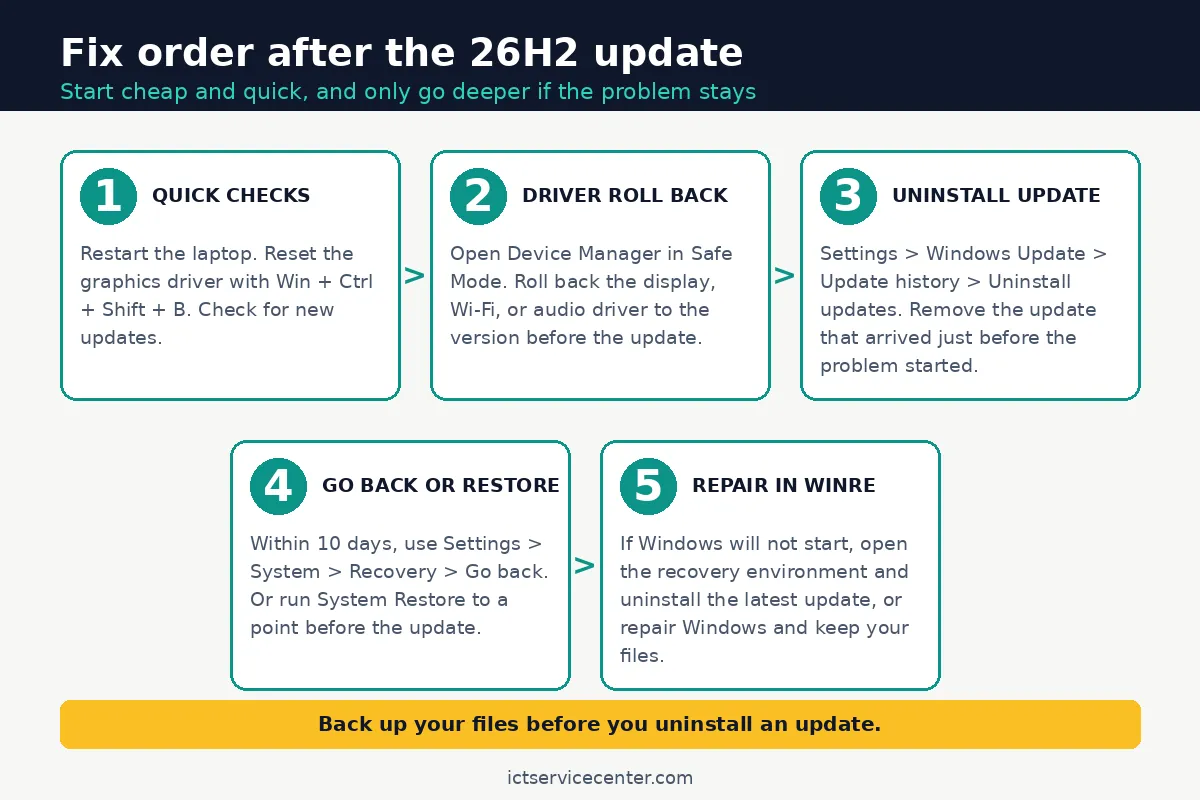
In short: First check that 26H2 is really the cause: open Settings > System > About and match the install date in Update history to the day the problem started. Then work in order: restart and install the latest update, reset the graphics driver with Win + Ctrl + Shift + B, roll back the driver that changed, and only then uninstall the update or use System Restore.
Key takeaways
- Windows 11 26H2 reached all eligible devices in November 2026, and Microsoft lists only one open known issue, for servers.
- Most 26H2 problems on a laptop are driver problems, so check the driver before you remove the update.
- Install the latest cumulative update first: it carries Microsoft’s confirmed fixes for the black screen, USB audio, and Remote Desktop issues.
- Back up your files before you uninstall an update or roll back a driver.
What Microsoft lists as 26H2 known issues
Windows 11, version 26H2, the Windows 11 2026 Update, reached general availability on September 29, 2026, and Microsoft opened it to all eligible devices in November 2026. It shares the same core system files as 24H2 and 25H2, so for many laptops the move is a small package and one restart.
Microsoft keeps a public list of known issues for 26H2, and as of November 23, 2026, nearly everything on it is already fixed. USB audio devices might fail to start or produce no sound. Some USB Audio Class 1.0 devices showed Code 10 in Device Manager, and Microsoft marks this resolved in the November 10, 2026 update, KB5132061.
Black screen after sign-in, seen mainly on Azure Virtual Desktop hosts, is resolved in KB5127648 (October 13, 2026). Remote Desktop failures for non-admin users (error 0xC000000D) are resolved in KB5127936 (October 28, 2026). Domain trust loss is resolved in KB5124010, and apps closing during AC-3 audio decoding in KB5127648. The one issue Microsoft still lists as confirmed, SQL Server linked server connections staying open, affects servers, not laptops.
First, prove the update caused it
Check the version first: open Settings > System > About and look at the Version line. If it reads 26H2, the update is on the laptop. Press Win + R, type winver, and press Enter: 26H2 uses build numbers that start with 26300.
Then check the date in Update history. If the problem started within a day or two of the most recent update, the update is the likely cause. If the dates are weeks apart, look elsewhere: a new app, a new driver, or a hardware fault.
Work in this order
- Restart, then install the latest cumulative update.
- Reset the graphics driver with Win + Ctrl + Shift + B.
- Roll back or update the driver for the part that broke.
- Run the system file check.
- Uninstall the update, or use Go back or System Restore.
Match your symptom to the fix
Find your symptom in the table.
| Symptom | Likely cause | Fix |
|---|---|---|
| Black screen after sign-in, cursor visible | Graphics driver or Explorer did not start | Win + Ctrl + Shift + B, restart Explorer, install KB5127648 or later |
| Wi-Fi asks for the password again or will not connect | Wi-Fi driver or saved network profile mismatch | Forget and rejoin the network, Network reset, update the driver |
| USB headset or speaker has no sound, Code 10 | USB Audio Class 1.0 issue in early 26H2 builds | Install KB5132061 or later, reinstall the audio driver |
| Slow boot, fans loud, apps open slowly | Startup apps, a stalling driver, low free disk space | Trim startup apps, free 20 GB, run SFC |
| Apps crash on launch or close without warning | Damaged system files or an outdated app | Run SFC and DISM, update the app |
| Laptop keeps restarting after the update | Driver conflict or a bad update install | Roll back the display driver in Safe Mode |
Fix the screen, Wi-Fi, and audio problems
Black screen after sign-in
Press Win + Ctrl + Shift + B. The screen will blink and the graphics driver restarts. If the desktop appears, you are done: the driver had stalled. If you see only a cursor, press Ctrl + Shift + Esc, choose Run new task, type explorer.exe, and press Enter to restart the part of Windows that draws the desktop.
If the screen stays black, restart into Safe Mode from Settings > System > Recovery: pick Restart now next to Advanced startup, then choose Troubleshoot > Advanced options > Startup Settings > Restart and press F5.
In Safe Mode, open Device Manager, expand Display adapters, right-click your graphics adapter, open the Driver tab, and pick Roll Back Driver. If it is greyed out, pick Update driver, or download the driver from your laptop maker’s support site.
Our guide to a black screen after a Windows update covers telling a driver fault from a hardware fault.
Wi-Fi will not connect or keeps asking for the password
Start with the network, not the driver: open Settings > Network & internet > Wi-Fi and choose Forget. Rejoin it and type the password fresh: a saved profile can hold a setting the new build rejects.
If that fails, use Network reset under Advanced network settings, restart, and rejoin. If it still refuses, update the Wi-Fi driver in Device Manager, or download it from the maker’s support site with another device.
USB audio has no sound or shows Code 10
This is the one symptom Microsoft ties to 26H2 by name: install the latest cumulative update. Open Settings > Windows Update, install everything offered, and restart. The November 10, 2026 update, KB5132061, resolves the USB Audio Class 1.0 problem.
If the sound is still missing, unplug the device, uninstall it in Device Manager, plug it back in, and let Windows install the driver again. If it still shows Code 10, try another USB port and test it on another PC.
Our guide to laptop audio not working after an update covers the built-in speakers next.
Note the driver version and date on the Driver tab before you roll back a driver, so you know which version to ask the maker for if the roll back makes things worse.
Fix a slow boot and crashing apps
A feature update can slow the laptop for a day, but a slow boot that lasts a week is a problem to fix. Open Task Manager with Ctrl + Shift + Esc, open Startup apps and disable anything with a high startup impact.
Then check Settings > System > Storage: the system drive needs at least 20 GB free. Our guide to a laptop slow after a Windows update covers these checks in full.
For apps that crash, check the system files. Right-click Start, open Terminal (Admin), and run sfc /scannow, then DISM /Online /Cleanup-Image /RestoreHealth if SFC reports damage it could not repair. Both tools only repair system files. After that, update the crashing app, and test it in a new local user account: if it works there, your own user profile is damaged, not the app.
If the laptop keeps restarting on its own, treat it as a driver conflict: roll back the display driver in Safe Mode, and check the pattern.
Restarts during heavy use point at the graphics driver, while restarts at the sign-in screen point at a bad update install. Our guide to a laptop that keeps restarting randomly lists the hardware checks.
A laptop that will not charge needs its own steps: see our guide to a laptop not charging after a Windows update.
Uninstall the update or go back
Remove the update only when you have proved it is the cause. Removing it also removes its security fixes, and Windows will offer it again unless you pause updates.
Back up your files before you uninstall an update or roll back a driver. Copy your documents, photos, and anything you cannot replace to an external drive or cloud storage first. Uninstalling an update should not delete your files, but do not trust a misbehaving laptop with your only copy.
Uninstall a quality update
Open Settings > Windows Update > Update history > Uninstall updates, find the update by its KB number and install date, and choose Uninstall. Restart when asked, then test the problem. If the update has no Uninstall button, Windows has locked it, and System Restore is the next option. You can also uninstall with wusa /uninstall /kb: followed by the KB number, run as administrator.
Go back to the last version
Open Settings > System > Recovery and look for Go back. It is only available for about 10 days after a feature update installs, and it returns the laptop to the version you had before 26H2. After you go back, pause updates for a week so Windows does not reinstall 26H2 yet.
If Windows will not start at all
Remove the update from the recovery environment: hold Shift while you choose Restart from the sign-in screen, or turn the laptop off and on during boot three times until the recovery screen appears. Choose Troubleshoot > Advanced options > Uninstall Updates, then pick Uninstall latest quality update.
System Restore and a repair install
System Restore is the gentler undo: search for Create a restore point, open System Protection, and choose System Restore to return system files to a restore point made before the update, leaving your documents alone.
If no restore point exists, the option is greyed out: System Protection is off by default on many laptops. If nothing above works, open Settings > System > Recovery, choose Reset PC, and pick Keep my files: Windows reinstalls itself and keeps your documents. Our guide to repairing Windows without reinstalling walks through the options.
Mistakes to avoid
Uninstalling the update before you check the version. If the laptop is not on 26H2, or the problem started weeks after the update, removing it will not help. Check Settings > System > About and Update history first.
Rolling back every driver at once. Change one driver, restart, and test. Rolling back three drivers at once leaves you guessing which change fixed the problem.
Skipping the backup before Go back or an uninstall. These steps should not delete your files, but a laptop that already fails is not a safe place for your only copy. Copy the files first.
Downloading drivers from a random site. Get drivers only from your laptop maker’s support site or from Windows Update. A driver from a download site can be the wrong version or carry malware.
Frequently asked questions
Is Windows 11 26H2 safe to install now?
Yes, for most laptops. Microsoft opened 26H2 to all eligible devices in November 2026, and the issues it lists are nearly all marked resolved in cumulative updates. Install the latest cumulative update with it, and check your laptop maker’s support site for a fresh graphics driver first.
Why is my laptop slow after the 26H2 update?
The usual causes are startup apps, low free disk space, or a driver that stalls at boot. Give the laptop a day to finish background work, then trim startup apps, free at least 20 GB, and then run sfc /scannow.
How do I uninstall the 26H2 update?
For a monthly quality update, use Settings > Windows Update > Update history > Uninstall updates. For 26H2 itself, use Settings > System > Recovery > Go back, available for about 10 days after it installs. If Windows will not start, remove it from the recovery environment instead.
Why is my USB headset silent after 26H2?
Microsoft lists USB Audio Class 1.0 devices as a known 26H2 issue, resolved in the November 10, 2026 update, KB5132061. Install the latest cumulative update and restart. If the device still shows Code 10, uninstall it in Device Manager and plug it back in.
Can I stop Windows from reinstalling 26H2 after I remove it?
You can pause it, not stop it. Open Settings > Windows Update and pause updates for a week or two after you go back. Use that time to check for a fixed driver from your laptop maker, then let the update install again.
Bottom line: Install the latest cumulative update first, then reset the graphics driver, then fix the one driver that broke. Remove the update only when you have proved it is the cause, and back up your files before you do. More step-by-step fixes live in our Troubleshooting hub.
Sources: Microsoft Learn, Windows 11, version 26H2 known issues; Microsoft Support, Windows 11, version 26H2 update history; Microsoft Support, How to uninstall a Windows update. Photos: Christina Morillo, Yan Krukau, Shivansh Sharma, Kamil Čičila, EVG Kowalievska via Pexels. Diagram: ICT Service Center.