
 By
A laptop fan that never stops is telling you something: either the processor is working harder than it looks, or the cooling system cannot move heat the way it should. Find which one before you change a setting.
In short: Press Ctrl + Shift + Esc, sort Task Manager by CPU, and watch for two to three minutes. If one process stays at the top, that is your cause. If CPU stays low while the fan runs, the cause is heat, dust, a power plan set to Best performance, or a fan that is wearing out.
Key takeaways
- Sort Task Manager by CPU and watch for two to three minutes before acting.
- A fan that runs while CPU stays low points at heat, dust, or the power plan.
- Clean the vents with the laptop off and unplugged, and hold the fan still while you blow air through them.
- Grinding, rattling, or clicking means the fan itself is failing.
First, find what is driving the fan
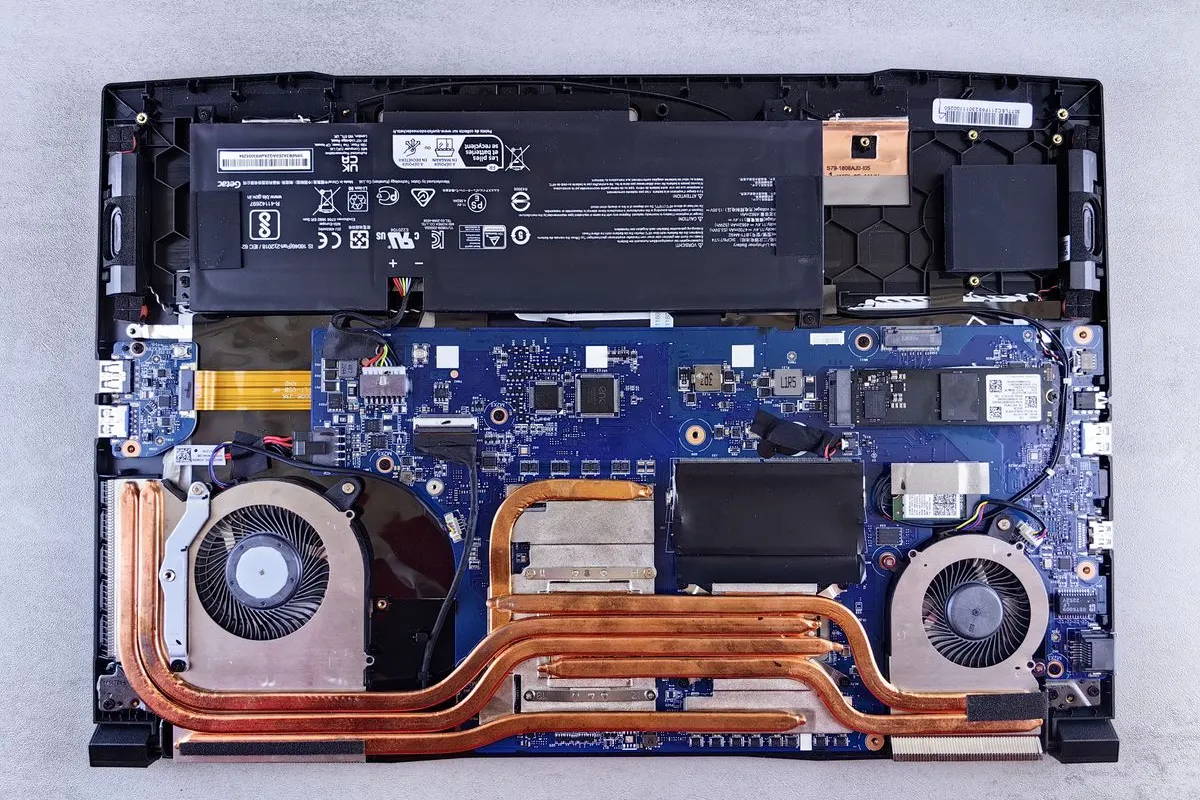
A fan follows heat, and heat follows work. Check the processor first: it takes two minutes and decides which half of this guide you need. If that sounds like your bench, read up on reduce system heat next.
- Press Ctrl + Shift + Esc to open Task Manager. If it opens in compact view, select More details.
- Stay on Processes and click the CPU column header so the arrow points down.
- Note the name at the top and its Type: App, Background process, or Windows process.
- Watch for two to three minutes. A real cause stays near the top. A one-off spike fades and a different name takes its place.
- Select the Performance tab. A flat high line confirms a steady load.
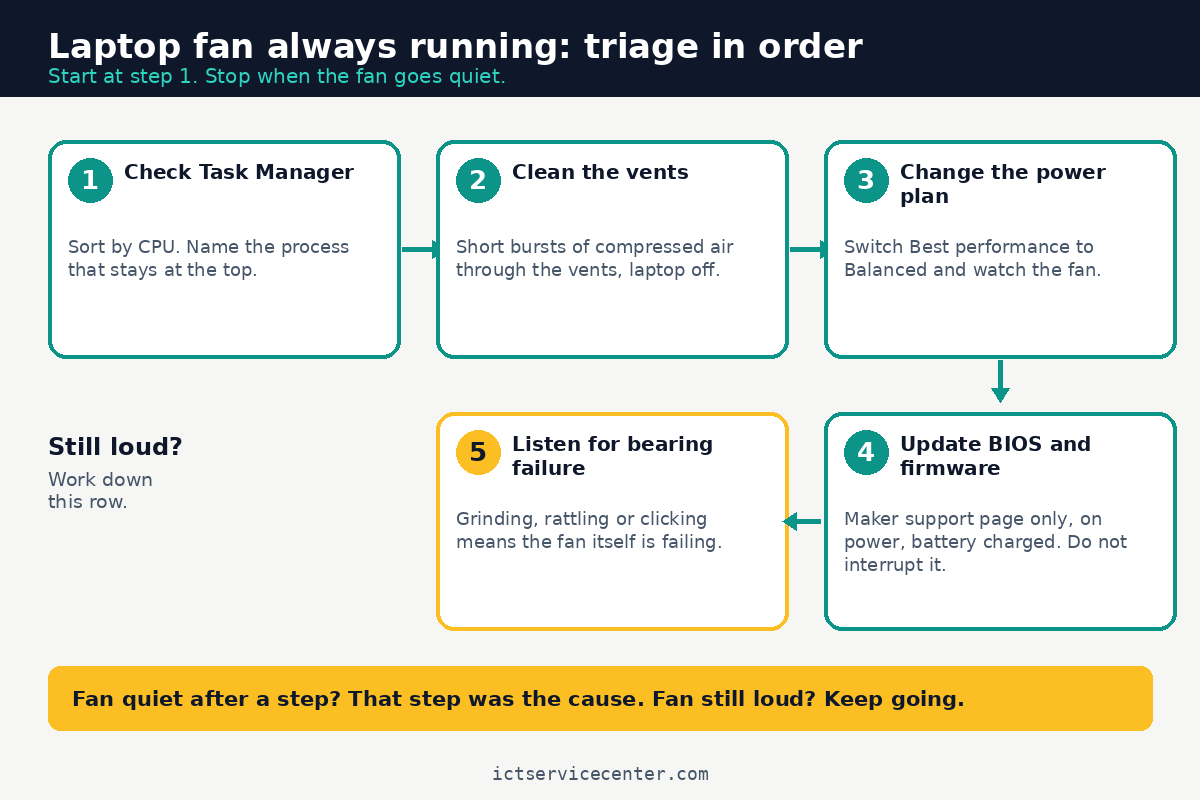
If one process stays at the top, skip to the background apps section: that process is your fix. If CPU settles low and the fan keeps running, the cause is heat or the fan itself, so work through the cleaning and power plan sections next. Our guide to high CPU usage when nothing is running covers the same triage in more depth.
What the symptom usually means
| Symptom | Likely cause | Fix |
|---|---|---|
| Fan loud right after sign-in, then quiet | Startup apps loading at once | Trim Startup apps, then restart |
| Fan runs with low CPU and a hot base | Dust in the vents or blocked airflow | Clean the vents and use a hard, flat surface |
| Fan runs on Best performance | Power plan holds clock speeds high | Switch to Balanced |
| Fan loud after a Windows or BIOS update | Driver or firmware mismatch | Update drivers and BIOS from the maker page |
| Grinding or rattling that never changes with load | Worn fan bearing | Take it to a shop for a fan replacement |
Clean the vents and clear the airflow
Dust is the most common physical cause of a fan that never rests. Lint builds up on the vent fins and the fan blades, airflow drops, and the fan has to spin faster to move the same heat. A laptop that sat on a bed or a sofa for months can have packed vents even when the outside looks clean.
Most laptops pull air in through the bottom and push hot air out near the hinge. If the base feels hot under light use, our guide to a laptop bottom getting too hot covers the same checks, and our guide on how to reduce laptop CPU temperature walks through the full cooling routine.
Power off the laptop and unplug it before any cleaning step that touches the vents, and never open a laptop with a swollen battery. If the bottom cover bulges or the trackpad has lifted, stop and take it to a shop.
- Shut the laptop down fully, unplug the charger, and let it cool for a few minutes.
- Set it on a hard, flat surface with the vents clear.
- Hold the can of compressed air upright and give short bursts through the intake and exhaust vents from a few inches away.
- Hold the fan still with a finger or a soft tool while you blow air near it, so the blades do not spin freely.
- Wipe the outside of the vents with a dry cloth, then plug in, power on, and listen for a few minutes.

Short bursts from a can clear dust from the vents without opening the laptop.
- Removes dust, dirt, and debris from keyboards, computers, laptops, printers, gaming
- USE NOZZLE – Provides controlled airflow to reach tight spaces, vents, ports, and
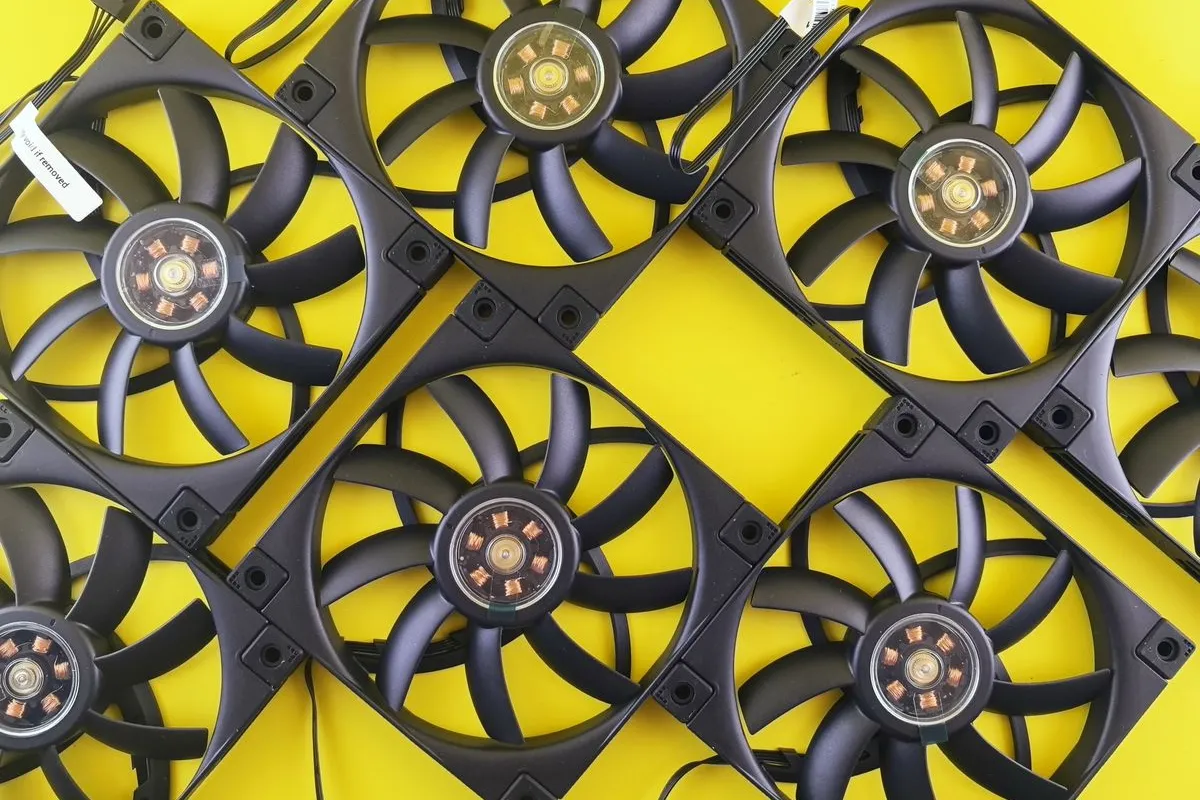
Judge the result by the sound over the next few minutes. A short loud burst at startup is normal: most laptops spin the fan up once as a self-test. What you want is the fan settling down once Windows finishes loading. If cleaning changes nothing, the cause is not airflow. Our guide on how to clean laptop vents and dust covers the full routine.
Stop the background apps keeping the CPU busy
When Task Manager names a process, that process is the fix. The usual names are cloud storage syncing files, chat apps, a browser tab playing video, and updaters running in the background. Together they can hold the processor busy all day.

If the name is a browser, check its tabs first: one tab playing video can use more CPU than the rest of the browser combined. Press Shift + Esc in Chrome or Edge to open the browser task manager and find that tab.
If the name is a cloud sync app, pause syncing for an hour and watch the CPU number. A first sync after a large upload can run for a long time.
We go through laptop fan making too much noise step by step in its own article.
Next, trim what launches with Windows. Open Settings, then Apps, then Startup, and turn off chat apps, game launchers, music players, and updaters for apps you rarely use. Leave your security software on. Restart and watch Task Manager for three minutes.
If the top process is a Windows process such as Windows Update or Search indexing, let it finish, restart once, and check again. Never end a Windows process just because its name is unfamiliar: search the exact name first.
Change the power plan and the fan curve
The power plan decides how hard the processor is allowed to work, and that decides how much heat the fan has to clear. Best performance holds clock speeds high, so the CPU runs warmer and the fan runs more.
Balanced is the default on most laptops and the right choice for daily use. The fan curve is the second half of this fix: it turns temperature into fan speed, and it lives in the firmware or the maker utility, not in Windows.
Check the plan at Settings, then System, then Power and battery, under Power mode. If it is set to Best performance and you are only browsing or writing, switch it to Balanced and watch the fan for a few minutes. Microsoft lists the same three choices, Best power efficiency, Balanced, and Best performance, and notes that Best performance can make the device run warmer.
Maker tools such as Dell Power Manager, HP Command Center, Lenovo Vantage, and MyASUS offer a Quiet or Silent profile that lets the laptop run a little warmer before the fan speeds up. Pick that profile for desk work and switch back only for games or video work.
Change one setting at a time and listen for a few minutes after each change, so you know which change worked.
Update BIOS and firmware, with care
The BIOS controls the fan curve, so a BIOS that does not match the installed Windows build can run the fan wrong: too fast at idle, or too slow under load. A fan that started running all the time right after an update is the classic sign of this mismatch.
Go to the laptop maker support page for your exact model, not a driver download site, and check for chipset and BIOS updates. Install Windows updates first, then check Optional updates for driver updates. Only then install a BIOS update from the maker page.
Install it only on power, with the battery charged, and do not touch the laptop, close the lid, or unplug it while it runs. An interrupted BIOS update can leave the laptop unable to start, and that is a shop repair.
When the fan itself is failing
Software fixes stop working when the cause is the fan. A worn bearing cannot be fixed with a setting, and it gets worse over weeks. Listen for the sound: a healthy fan hums, while a failing one grinds, rattles, clicks, or ticks. The sound stays the same whether the laptop is idle or busy, because the noise comes from the bearing, not from the load.
Other signs point the same way: the fan stops and starts for no reason, the fan spins but little air comes out of the exhaust, or the laptop shuts down from heat even after the vents are clean.
Our guide on how to fix laptop fan noise covers the sound itself and what each noise type means.
If the whole cooling system is at fault rather than one fan, our step-by-step guide to how to fix a laptop cooling system covers the deeper checks, including heat pipes and thermal paste.
Replacing a fan means opening the laptop and disconnecting the battery, which is shop work on most modern models. Book the repair while the fan still spins: a fan that stops completely leaves the laptop with no cooling. Back up your files first.
Some fan behavior is normal. A short burst at power-on is a self-test, and a fan that runs hard during a video call or a game is doing its job. What is not normal is a fan at full speed for minutes while the laptop sits idle with low CPU on a hard, flat surface.
Mistakes to avoid
Blowing air into a spinning fan without holding it still. A free-spinning fan can spin far faster than it was built for. The fix: hold the blades still and use short bursts.
Leaving the power mode on Best performance. Best performance is for heavy work, not for browsing. The fix: switch to Balanced for daily use.
Ending every process at the top of Task Manager. The top entry is often a Windows process that restarts at once. The fix: end only apps you recognize.
Updating BIOS on battery power or closing the lid mid-update. An interrupted BIOS update can leave the laptop unable to start. The fix: update only on power, with the battery charged, and leave it alone until it restarts.
Ignoring a grinding fan and hoping it quiets down. A worn bearing only gets louder, and a stopped fan leaves the laptop with no cooling. The fix: book the repair while the fan still spins.
Frequently asked questions
Is it normal for a laptop fan to run all the time?
No, not at idle. A fan should settle to quiet once sign-in finishes and the laptop sits with low CPU use. Short bursts at power-on are normal. A fan at full speed for minutes while you do nothing points at a process, dust, a setting, or a worn fan.
Why does my fan run when CPU usage is low?
Because the fan answers to heat, not to the CPU number alone. Dust traps heat and Best performance holds clock speeds high. Check the vents and the power plan first. If the base is cool and the fan still runs, the BIOS fan curve or a worn bearing is the next suspect.
Can I stop the fan completely?
Do not try. The fan is the only thing moving heat out of the laptop, and stopping it risks a heat shutdown or damage over time. Give it less work instead: close the heavy process, clean the vents, and switch to Balanced.
Will a cooling pad stop the fan running?
It can help, but it does not fix the cause. A pad pushes extra air under the laptop, which lowers the temperature a little and lets the fan run slower. If dust, a heavy process, or Best performance is the cause, the fan will still run. Clean the vents and check the power plan first.
How often should I clean the vents?
Clean the outside vents every few months, and sooner if you use the laptop on soft surfaces or in a dusty room. Look at the exhaust slots in good light: if dust is packed between the fins, it is time. A full internal clean, with the bottom cover off, is a once-a-year job at most, and a shop job on most models.
Bottom line: Open Task Manager, sort by CPU, and name the process that stays at the top. If CPU stays low, clean the vents, switch to Balanced, and check for a BIOS update from the maker page. If the fan grinds or rattles, book a repair while it still spins, and read our troubleshooting guides for the next problem.
Sources: Microsoft Support, Change the power mode for your Windows PC (support.microsoft.com); Microsoft Learn, Guidance for troubleshooting high CPU usage (learn.microsoft.com); Microsoft Support, Tips to improve PC performance in Windows (support.microsoft.com). Photos: Andrey Matveev, Jep Gambardella, Sami Abdullah, Richard L via Pexels. Diagram: ictservicecenter.com.