
 By
High CPU usage when nothing is running usually has one cause, and Task Manager can name it in under a minute. Find it before you change any setting.
In short: Press Ctrl + Shift + Esc, open Processes, click the CPU column so the heaviest process sits at the top, and watch it for two to three minutes. If one app, service, or Windows process stays at the top, that is your cause: end it, stop it starting with Windows, scan for malware, or fix the driver or cooling fault behind it.
Key takeaways
- Sort Task Manager by CPU and watch for two to three minutes before you act.
- A process that stays at the top is the cause. A top process that keeps changing is normal idle load.
- High System Idle Process means the CPU is free, not busy.
- Never end a Windows process or disable a service just because its name is unfamiliar.
First, read the number the right way

CPU usage is a live reading: it jumps when you open an app and falls when that work finishes. Ninety percent for ten seconds after sign-in is normal, but high for minutes while you do nothing is not. If that sounds like your bench, read up on preventing thermal throttling next.
Check the Performance tab in Task Manager, which graphs CPU over time. A spike that fades in under a minute is Windows finishing a job, such as indexing files or applying an update. A plateau that lasts minutes is worth chasing. Microsoft treats CPU use at 80 percent or higher for an extended period as a sign of a problem.
Then check System Idle Process. A high number there is good news: it shows the share of CPU time doing nothing, so 90 percent idle means the processor is 90 percent free.
Triage in Task Manager: find the process
Every fix in this guide starts from one name. Without it, you are changing settings at random.
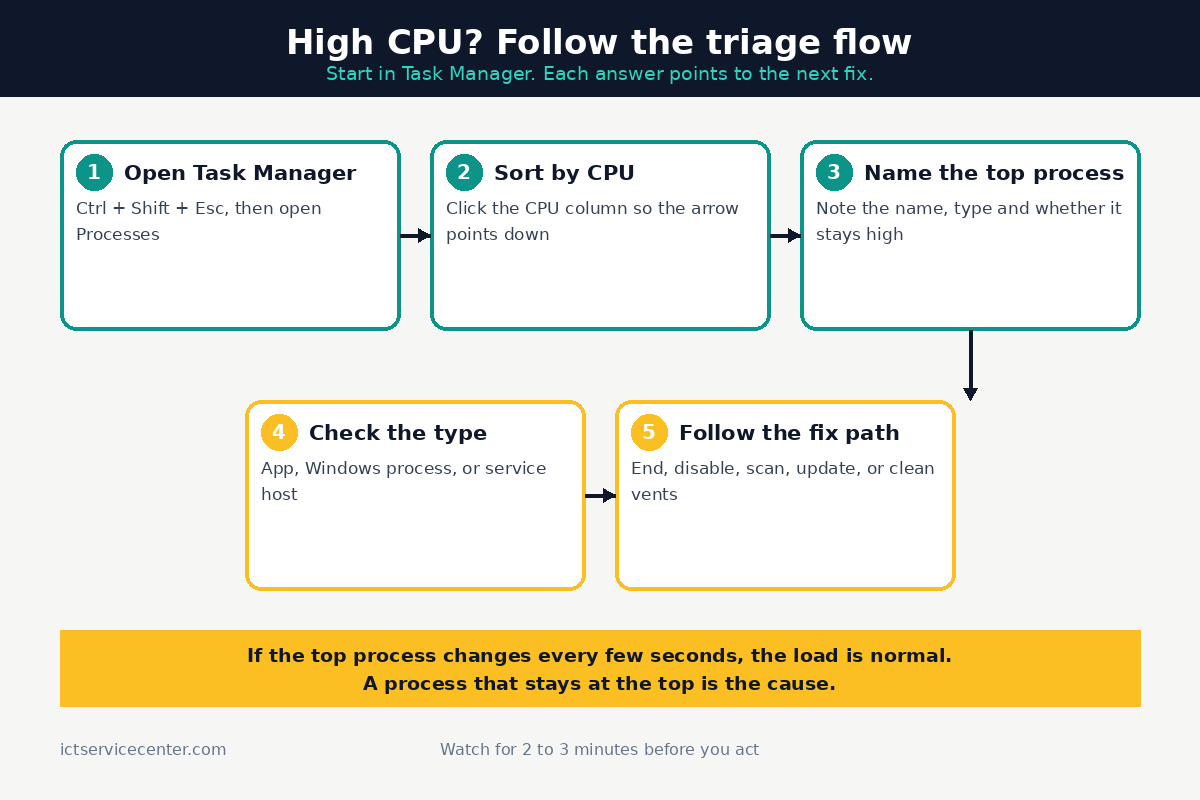
- Press Ctrl + Shift + Esc to open Task Manager. If it opens in compact view, select More details.
- Stay on Processes and click the CPU column header so the arrow points down. The heaviest process sits at the top.
- Note the name at the top and its Type: App, Background process, or Windows process.
- Watch for two to three minutes. A real cause stays near the top. A one-off spike fades and a different name takes its place.
- Select the Performance tab. A flat high line confirms a steady load.
If you can name the process, skip to the section that matches its type.
One warning: ending a process is safe for an app you opened yourself, such as a browser. It is not safe as a reflex for Windows processes. Ending the wrong one can close your session or force a restart, so search the exact process name first. Our guide to how to identify a system bottleneck shows how to tell a CPU limit apart from a memory or disk limit.
What the symptom usually means
| Symptom | Likely cause | Fix |
|---|---|---|
| One app sits at the top | Syncing, updating, or stuck in a loop | Close it, update it, or turn off its background work |
| CPU high right after sign-in, then falls | Too many Startup apps loading at once | Disable Startup entries you do not need |
| A Windows process stays high | Indexing, an update, or a stuck service | Let it finish, then restart and check for updates |
| Fan loud on a hot base | Heat, dust in the vents, or a failing fan | Clear the vents and check cooling |
| Slow everywhere | Malware, a bad driver, or a failing drive | Run a full malware scan, then update drivers |
Close the background apps doing the work
Most idle CPU load comes from apps you are not looking at: cloud storage syncing files, chat apps checking for messages, browsers keeping tabs alive, and updaters running in the background. Together they can hold the CPU busy all day. For the detail, see our notes on adjusting panel brightness.
If it is a browser, check its tabs first: one tab playing video can use more CPU than the rest of the browser combined. Press Shift + Esc in Chrome or Edge to open the browser task manager and find that tab.
If the name is a cloud sync app, pause syncing for an hour and watch the CPU number. A first sync after a large upload can run for a long time. If the number falls while syncing is paused, let the sync finish overnight on power.

For other apps, look for background or startup options inside the app itself: some keep working after you close their window, and only a setting inside the app, or a right-click on its system tray icon, stops them. Our explainer on what a background process is covers which ones Windows needs and which ones you can safely stop.
Before you end a process, save open work in that app. Ending a task closes it without asking, and unsaved work in it is lost.
Trim Startup apps and Windows services
High CPU right after sign-in usually means too much is launching at once, and the load should fall within a few minutes. If it does not, one of those apps is the cause.
Open Settings, then Apps, then Startup, and turn off chat apps, game launchers, music players, and updaters for apps you rarely use. Leave your security software on. Task Manager shows the same list with an impact rating: open the Startup apps tab and choose Disable.
Turning an entry off does not uninstall the app. Restart and watch Task Manager for three minutes. The other half of this decision is laptop fan always running.

Services are the next layer down. A service is a background job that Windows or an app runs without a window, and many share one host process called svchost.exe, which is why svchost often sits near the top of the CPU column.
To see which service inside svchost is busy, right-click it and choose Go to details. Windows Update, Search indexing, and SysMain are common heavy ones that usually finish on their own, so let them finish, restart once, and check again.
Never disable a service published by Microsoft unless a support page for your exact problem tells you to.
If a third-party service you recognize is the cause, set its Startup type to Manual in the Services app (type services.msc in the Start menu search) and write down what you changed.
If slow sign-in is your main symptom too, our guide on why a laptop takes too long to start walks through the same Startup list in more depth.
Never disable your antivirus startup entry or its service to save CPU. A laptop with no security software and high idle CPU is the exact shape of a malware problem, and turning protection off makes it worse.
Rule out malware with a full scan
Malware is not the most common cause, but rule it out early: it hides behind ordinary names, and a miner can sit at 60 or 70 percent for hours while the laptop looks idle.
- Select Start, type Windows Security, and open it.
- Select Virus and threat protection, then Quick scan.
- If the quick scan finds nothing and CPU is still high, select Scan options and run a Full scan on power.
- If you still suspect malware, run a Microsoft Defender Offline scan from the same screen: it restarts the laptop into a clean environment.
If a threat keeps coming back after removal, a scheduled task or a startup entry is usually restoring it. Our guide to finding malware that pushes CPU to 100 percent covers those deeper checks, and our step-by-step on how to scan a laptop for malware walks through each scan type. Do not install a second antivirus: two real-time scanners fight over every file and push CPU higher.
Check the power plan, drivers and firmware
A laptop on the wrong power plan can look busy when it is only running hot and fast. Balanced is the default on most laptops and the right choice for daily use.
Best performance holds clock speeds higher, so the CPU works harder and the fan runs more. Check the plan at Settings, then System, then Power and battery, under Power mode.
If it is set to Best performance and you are only browsing, switch it to Balanced and watch the idle number.
Drivers are the next suspect, above all after a Windows update: a driver that does not match the installed Windows build can loop and hold the CPU busy. Open Settings, then Windows Update, install any pending update, then check Advanced options, then Optional updates. It helps to understand high disk usage while downloading before going further.
For chipset and BIOS updates, go to the laptop maker support page for your exact model, not a driver download site. Install a BIOS update only on power, with the battery charged, and do not touch the laptop while it runs.
When high idle CPU means a hardware or cooling problem
Software fixes stop working when the cause is heat: blocked vents mean the fan runs hard and the CPU slows itself down to stay safe. The result looks like high CPU usage, but the root cause is airflow.
Check the signs first: the base feels hot under light use, the fan runs loud while the laptop sits idle, and the laptop slows down after a few minutes of work. Those three together point at cooling, not software. Our guide on how to reduce laptop CPU temperature covers the cleaning steps in full.
Lift the laptop off a bed or your lap so the intake vents can breathe, and use it on a hard flat surface. Blow short bursts of compressed air through the vents from a few inches away, with the laptop off and unplugged, and hold the fan still so it does not spin freely.
Take it to a shop when the fan rattles or grinds, when the laptop shuts down from heat, or when cleaning the vents changes nothing. Those signs point at a failing fan, dried thermal paste, or a worn heat pipe, and replacing them means opening the laptop and disconnecting the battery, which is shop work on most modern models. Never open a laptop with a swollen battery.
Mistakes to avoid
Ending every process at the top of the list. The top entry is often a Windows process that restarts at once. The fix: end only apps you recognize.
Turning off every Startup app, including security software. A bare Startup list leaves the laptop unprotected. The fix: leave security software enabled.
Installing a CPU booster or registry cleaner. These apps promise to free CPU, then add their own background process. The fix: uninstall them and use Task Manager.
Disabling Windows services you do not recognize. A service with a strange name can still be part of Windows. The fix: change only third-party services you can name, and write down each change.
Chasing software while the laptop overheats. No setting fixes a fan full of dust. The fix: check the vents first when the base runs hot.
Frequently asked questions
Is 100 percent CPU usage at idle normal?
No. A laptop doing nothing should settle to low single digits after sign-in finishes. If it sits near 100 percent for minutes while idle, one process is holding it busy. Sort Task Manager by CPU and watch for two to three minutes to find it.
Why is System Idle Process at 90 percent?
System Idle Process shows the share of CPU time spent doing nothing, so 90 percent means the processor is 90 percent free. It is not a process using your CPU. A real load shows up as a low idle number, not a high one.
Can I end svchost.exe to lower CPU usage?
Do not end svchost outright. It is a container that hosts several Windows services, so ending it can stop services your session needs. Right-click it, choose Go to details, and find the busy service inside it. Let updates and indexing finish first, then restart.
Can high CPU usage damage a laptop?
High CPU use on its own does not damage a processor: modern laptops slow down or shut down before heat causes harm. The real risk is heat over time from dust in the vents, a failing fan, or dried thermal paste. If the base runs hot, treat cooling as the cause.
Bottom line: Open Task Manager, sort by CPU, and name the process that stays at the top. Close it, stop it starting with Windows, scan for malware, or fix the driver or cooling fault behind it. If the fan runs loud and the base stays hot, take the laptop to a shop, and read our troubleshooting guides for the next problem.
Sources: Microsoft Learn, Guidance for troubleshooting high CPU usage (learn.microsoft.com); Microsoft Support, Configure startup applications in Windows (support.microsoft.com); Microsoft Support, Stay protected with the Windows Security app (support.microsoft.com). Photos: Daniil Komov, Tima Miroshnichenko, Markus Spiske, KIEU TRUONG, cottonbro studio via Pexels. Diagram: ictservicecenter.com.