
 By
Your PC restarts on its own, the screen goes black with no warning, and Event Viewer shows Kernel Power Error 41. That entry alone does not name the fault: it only proves the shutdown was unexpected. The time and the BugcheckCode point at the real cause.
In short: Open Event Viewer, filter the System log for Kernel-Power and Event ID 41, and read the BugcheckCode and the time of each entry. A code of 0 with restarts under load points at the power supply or heat. Restarts after sleep or shut down point at Fast Startup or a driver. Replace the PSU only when the evidence points at it.
Key takeaways
- Error 41 means the PC shut down without a clean shutdown.
- BugcheckCode 0 means no blue screen happened: the PC lost power.
- Restarts under load point at power or heat; restarts after sleep point at power settings.
- Turn off Fast Startup and test without sleep before you buy any part.
What Kernel Power Error 41 actually means
Windows logs Event ID 41 from the Kernel-Power source when the system restarts without a clean shutdown first. The PC may have lost power, stopped responding, or crashed in a way that left no blue screen. Microsoft describes the event the same way in its guide to Event ID 41 restarts. For the detail, see our notes on cursor moving alone.
That is why the same error appears for very different faults. A weak power supply, a driver crash, a sleep resume failure, and a hot CPU can all end with the same entry. Read the event details and match them to what the PC was doing, and you can cut the suspect list to one or two parts.
The error shows up on desktops more than on laptops, because a desktop has no battery to ride out a power dip. Before you start, save your work: a PC that restarts without warning can corrupt open files.
Read Event Viewer and find the clues
Every Error 41 entry carries three clues: when it happened, the BugcheckCode, and whether the PC was asleep or the power button was pressed. Our guide to using system logs to diagnose computer problems covers the same log in more depth.
- Press Win + X and select Event Viewer. If it is missing, press Win + R, type eventvwr, and press Enter.
- In the left pane, open Windows Logs > System.
- Select Filter Current Log in the right pane. In Event sources, tick Kernel-Power, and in Event IDs type 41. Select OK.
- Click the newest Error 41 entry, open the Details tab, and select Friendly View. Note the time, the BugcheckCode, the SleepInProgress value, and the PowerButtonTimestamp.
- Repeat for the last three or four entries and write down the pattern: same time of day, same BugcheckCode, or always after sleep.
Read the BugcheckCode like this. A value of 0 means Windows did not record a blue screen: the PC lost power or stopped responding. A value other than 0 means a bug check did happen: 0x0000001A is a memory fault, 0x00000133 is a driver fault. Search the code on Microsoft Learn for the matching guide.
SleepInProgress tells you whether the PC was moving into or out of sleep when it died: 0 means it was not, 1 to 6 means the shutdown happened during a sleep or hibernate transition, which points at a driver or a power setting rather than the PSU. PowerButtonTimestamp is 0 when nobody pressed the power button; a non-zero value means the restart was a manual hard reset.
Match the symptom to the cause
A PC that dies only while gaming has a different fault from one that dies after sleep. For the detail, see our notes on handling a dangerous battery bulge.
| Symptom | Likely cause | Fix |
|---|---|---|
| Restarts during games or heavy work, fan loud | Overheating or a failing power supply | Check temperatures, clean dust, test the PSU |
| Restarts at random times, even at idle | Weak or failing PSU, loose power cable | Reseat cables, check PSU wattage and rails |
| Restarts after sleep, hibernate, or shut down | Fast Startup, sleep resume, or a driver | Turn off Fast Startup, update drivers |
| Blue screen first, then Error 41 in the log | Driver crash or faulty RAM | Read the BugcheckCode, test the RAM |
| Restarts after a new part was fitted | PSU too weak for the new part, loose connector | Check the wattage, reseat the cables |
| Restarts only when the room is hot | Heat build-up inside the case | Improve airflow, clean vents |
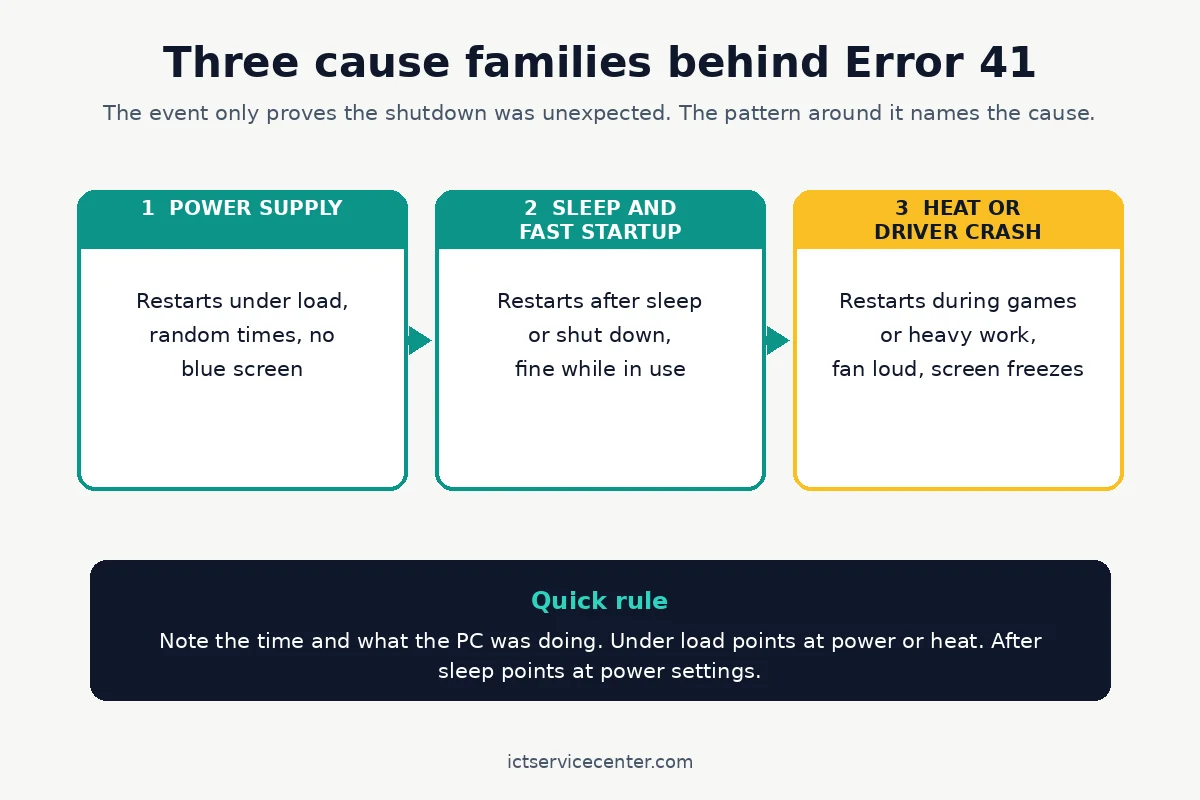
If your pattern does not fit one row cleanly, start with the software checks in the next section.
Quick checks that rule out software
Run these before you touch hardware.
First, turn off Fast Startup. It saves the kernel and driver state to disk at shut down, and a stale driver state can crash the next boot.
Open Control Panel > Hardware and Sound > Power Options > Choose what the power buttons do, select Change settings that are currently unavailable, and clear Turn on fast startup (recommended). Select Save changes and shut down fully.
Microsoft explains the options in its guide to shut down, sleep, or hibernate your PC.
Second, test without sleep. Open Settings > System > Power & battery and set both Screen and Sleep to Never for a day, then shut the PC down fully each night instead of letting it sleep. If the restarts stop, the fault sits in the sleep resume path. Our explainer on sleep vs hibernate covers what each mode does.
Third, run a clean boot to rule out a startup app or service. Press Win + R, type msconfig, and press Enter. On the Services tab, tick Hide all Microsoft services and select Disable all, then disable the startup items in Task Manager. Restart and use the PC normally. If the restarts stop, turn the items back on in small groups.
Fourth, check the system files and the RAM. Open Terminal (Admin) from the Win + X menu, type sfc /scannow, and press Enter. When it finishes, run DISM /Online /Cleanup-Image /RestoreHealth and restart. Then type mdsched in the Run box and choose Restart now and check for problems.
Test one change at a time and use the PC normally for a day after each change. If you change everything at once, you will never know which step fixed it. For the detail, see our notes on troubleshoot reasons for random laptop crashes.
Power supply checks for a desktop PC
When the software checks change nothing and the restarts happen under load, the power supply unit is the prime suspect. A PSU that cannot hold steady voltage when the CPU and graphics card both draw power will cut out.
Power off and unplug the PC before you touch anything inside the case. Press and hold the power button for 10 seconds after unplugging to discharge stored power. Never open the PSU itself: the capacitors inside hold a charge long after the power is off.
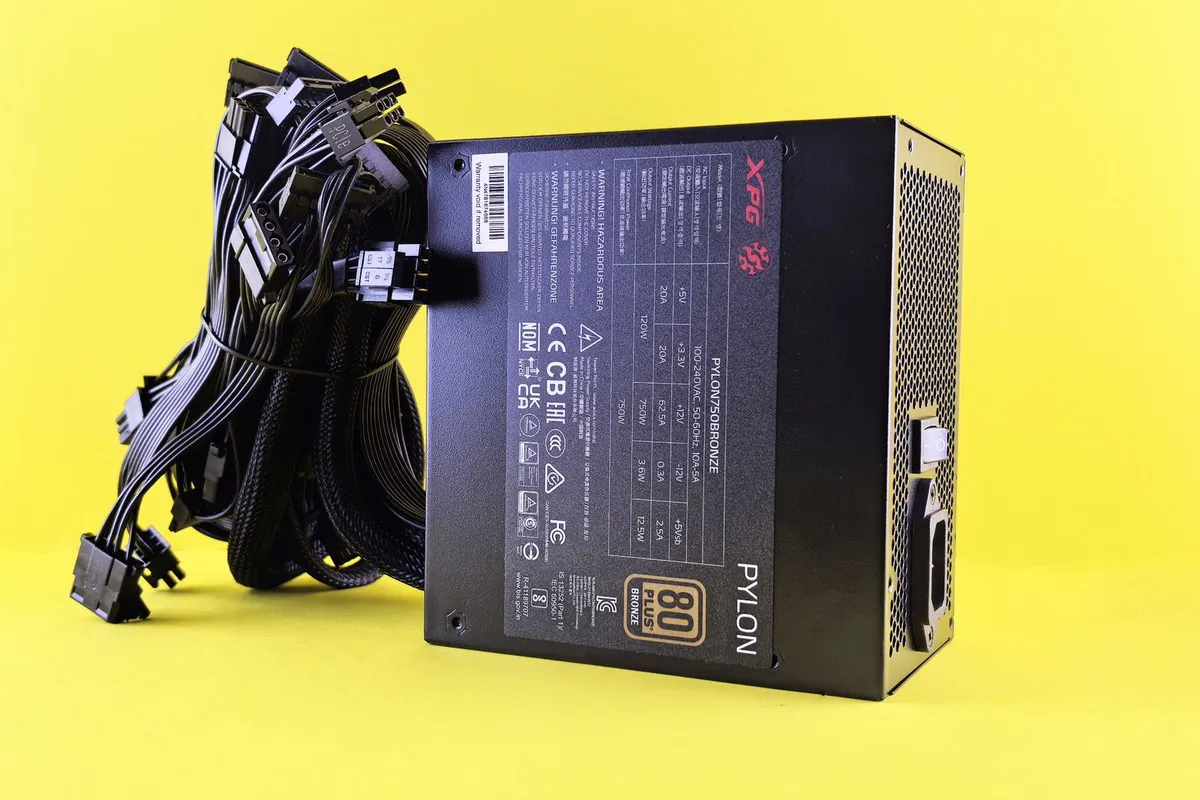
Check the wattage first. Read the label on the side of the PSU: a mid-range card and CPU together often need 550 to 650 watts, and a high-end card can need 750 watts or more. If the label shows less, the PSU is likely undersized.
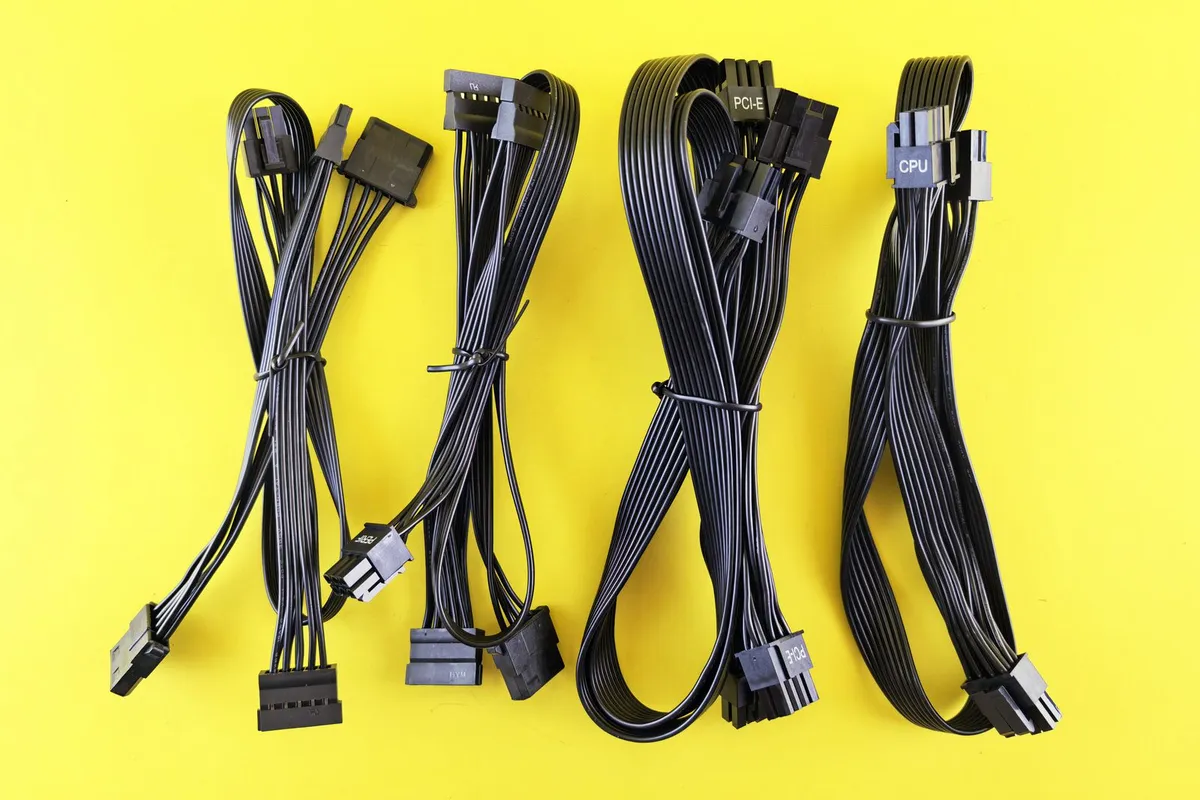
Next, reseat the power cables. With the PC unplugged, push the 24-pin motherboard connector and the 8-pin CPU connector firmly until each latch clicks, and do the same for the graphics card power connectors. A connector that is not fully latched can cut power for a split second under load.
Then check the voltages in BIOS or UEFI. Restart, enter setup with the key your maker lists, and find the hardware monitor page. The 12V rail should read 11.4V to 12.6V; a reading far outside that range points at a failing PSU.
Finally, test under load. Run a demanding game for 20 minutes: if the PC only dies under load, the PSU is the likely fault. The surest test is a swap with a known-good PSU of the right wattage. Our guide to desktop power supply repair covers the same checks in more detail.

A new PSU fixes the restarts only when the old unit cannot hold steady power under load, so confirm the fault first and match or beat the old wattage.
- 80 PLUS Gold, Cybenetics Platinum, and Cybenetics A++ certify high energy efficiency
- Pure Power 13 M 1000W is an ATX 3.1 PSU and comes with both native integration of the
Overheating and driver crashes
Check the temperatures first. Enter BIOS or UEFI and read the CPU temperature at idle: it should sit well below 60 degrees C. If the fan screams under load, heat is the likely trigger.
Open the case (unplugged, as above), clear dust from the CPU cooler fins and case vents with short bursts of compressed air, and check that all case fans spin freely.
If the cooler wobbles when you touch it, its mount has loosened: that is a shop job. Our guide to fixing an overheating laptop covers the same cleaning steps for laptops.
Update the drivers next, starting with the chipset and the graphics driver. Open Settings > Windows Update, install every update, then check Advanced options > Optional updates. If Windows Update offers nothing, get the chipset driver from your motherboard or laptop maker support site using your exact model, and the graphics driver from the card maker. Microsoft explains the Device Manager route in its guide to updating drivers in Windows.
If the restarts started right after an update, roll back the driver: open Device Manager, right-click the device, select Properties > Driver > Roll Back Driver. If the button is greyed out, install the previous version from the maker site.
When it is a failing PSU vs software
If the restarts happen only under load, the BugcheckCode is 0, the voltages read wrong, and the software checks changed nothing, the PSU is the likely fault. Replace it with a unit that meets or beats the recommended wattage for your graphics card, and keep the receipt.
If the restarts happen after sleep or shut down, the BugcheckCode is non-zero, or the fault started after an update, the cause is software. Work the driver and Fast Startup steps first.
One pattern points at the motherboard instead: restarts at idle with good voltages, cool temperatures, and clean drivers. That combination is rare, and it needs a shop diagnosis. If the restarts follow no load or sleep pattern at all, our guide to a laptop that keeps restarting randomly walks through the wider restart checks.
Mistakes to avoid
Replacing the PSU on the error name alone. Error 41 names no part: a sleep resume fault will survive a brand-new PSU.
Opening the PSU to look inside. There is nothing serviceable in a PSU, and the capacitors hold a charge after unplugging. A failed PSU is replaced as a unit, never opened.
Running a reset before backing up. A reset wipes apps and settings, and a PC that restarts without warning can corrupt files during the process. Back up first.
Ignoring the time pattern. Restarts at 3 a.m. point at a scheduled task or a sleep resume; restarts during games point at load.
Frequently asked questions
Is Kernel Power Error 41 dangerous?
The error itself is only a log entry, but the shutdowns it records can corrupt open files and, over time, damage the Windows install. The danger sits in the cause: a failing PSU can damage other parts, so fix the cause rather than clearing the log.
Can a bad driver cause Error 41?
Yes. A driver that crashes during a sleep resume or at shut down can stop Windows shutting down cleanly, and the next start logs Error 41. Update the chipset and graphics drivers first, and check the BugcheckCode: a non-zero code usually means a driver or a crash was involved.
Why does my PC restart only when I play games?
Games load the CPU and the graphics card at the same time, drawing the most power and making the most heat. That is why a weak PSU and a hot CPU both show up during games first. Check the temperatures and the PSU wattage.
Does turning off Fast Startup fix Error 41?
It fixes the cases where the fault sits in the saved driver state at shut down. If your restarts happen after shut down or sleep, turning it off is the first test to run. If the restarts happen while you use the PC, Fast Startup is not involved.
How do I know if my PSU is too weak?
Check the wattage on the PSU label against the recommended wattage for your graphics card. Restarts only under heavy load, a BugcheckCode of 0, and voltages outside 11.4 to 12.6 volts on the 12V rail all point at the PSU.
Bottom line: Read the BugcheckCode and the time pattern in Event Viewer first. Turn off Fast Startup, test without sleep, and update the drivers. If the restarts only happen under load with a BugcheckCode of 0, test the PSU. For more fixes, browse the Troubleshooting hub.
Sources: Microsoft Learn, Event ID 41: The system has rebooted without cleanly shutting down first; Microsoft Support, Shut down, sleep, or hibernate your PC; Microsoft Support, Update drivers through Device Manager in Windows. Photos: Andrey Matveev, cottonbro studio, Arturo A via Pexels. Diagram: ICT Service Center.