
Ive been inside more laptops than I care to count. And let me tell you, replacing a laptop keyboard is one of those repairs that feels intimidating until you actually do it. The first time I cracked open a Dell Latitude to swap out a sticky keyboard, I was sure Id snap the ribbon cable. But after dozens of swapson HPs, Lenovos, and even a few tricky Apple MacBooksIve learned the tricks that make this job smooth. If your laptop keyboard is acting upkeys sticking, not registering presses, or just plain deadyou can fix this yourself.
Before you dive in, know this: every laptop is a little different. Some keyboards pop out from the top, others require full motherboard removal. But the core principles are the same. For this project, many professionals recommend using the SUNMALL Laptop Replacement kit because it includes the right screwdriver bits and plastic pry tools. Ive used similar kits, and having the right tools makes all the difference. Let me walk you through the entire process, from diagnosis to final test.
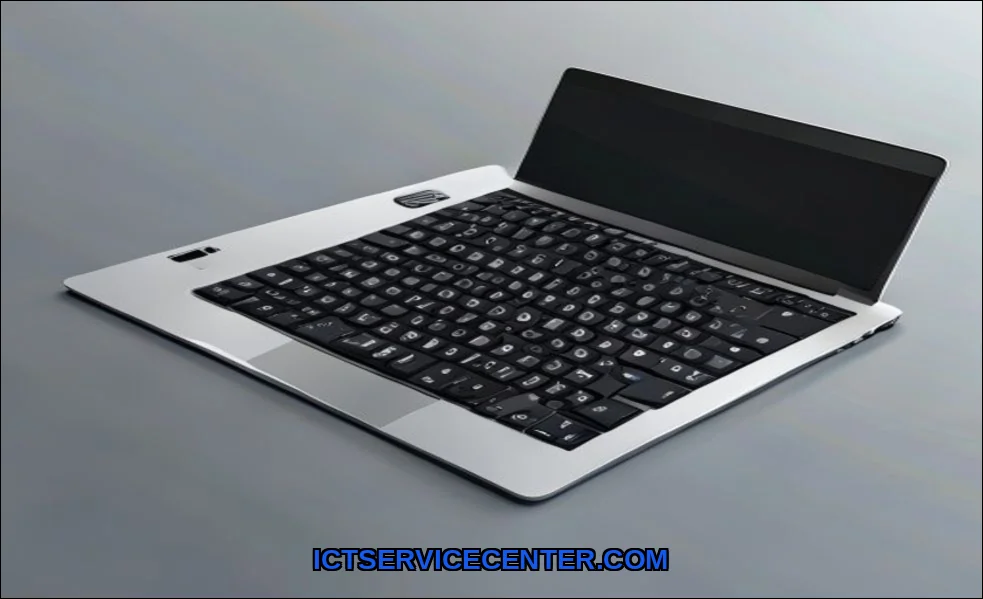
Why Replace Your Laptop Keyboard?
Ive seen three main reasons people need a keyboard replacement. First, liquid damage. Coffee, soda, or waterit doesnt matter. That sticky mess ruins key switches fast. Second, physical wear. After a year or two of heavy typing, certain keys (Im looking at you, spacebar and E) just stop working. Third, a single keycap goes missing or breaks. While you can sometimes safely clean a laptop keyboard to fix minor issues, deep damage means replacement.
I once tried to fix a Lenovo ThinkPad with a dead N key by cleaning it. It worked for a week, then died again. Replacing the whole keyboard was the only permanent fix. The keyboard replacement cost for a DIY job is usually $20$60 for the part, versus $100$200 at a shop. Thats why I always suggest trying the swap yourself first.
Tools Youll Need for the Job
Ive made the mistake of starting a repair without the right tools. Never again. Heres what I keep in my bag for every laptop keyboard swap:
- Screwdriver set Phillips #0 and #00 are essential. Some laptops use Torx T5 or T6 screws, so a precision kit is a must.
- Plastic spudger or pry tool Metal tools scratch plastic. Trust me, Ive learned this the hard way.
- Tweezers For handling tiny screws and ribbon cable connectors.
- ESD-safe mat or wrist strap Static electricity can fry components. I fried a motherboard once. Not doing that again.
- Small container or magnetic mat Keep screws organized. Losing one is a nightmare.
- Replacement keyboard Make sure it matches your exact model. Ive seen people buy compatible keyboards that dont fit.
I also recommend having a flashlight and a magnifying glass handy. Some connector latch mechanisms are tiny. And if youre working on a laptop with a backlit keyboard, check if your replacement has the keyboard backlight connectorsnot all do.
Choosing the Right Replacement Keyboard
This is where many people get stuck. You can find generic keyboards on Amazon or eBay for cheap, but Ive had mixed results. For example, a $25 HP keyboard I bought had slightly different keycap sizes. It worked, but the spacebar felt loose. For a reliable swap, I stick with OEM or high-quality third-party parts. Check your laptops service manual for the exact part number. For Dell and Lenovo machines, the service manual is usually free online.
Step-by-Step Keyboard Removal
Ill break this down into two common scenarios: top-removal keyboards (common on HPs and older Dells) and bottom-removal keyboards (common on Lenovos and newer laptops). Ive done both, and each has its quirks.
Scenario 1: Top-Removal Keyboard
This is the easier method. Youll see small clips or screws on the top edge of the keyboard, near the screen hinge.
- Power off the laptop and remove the battery (if removable). For non-removable batteries, disconnect the internal battery cable.
- Locate the keyboard release clips. On many HPs, these are small plastic tabs you push with a flat tool. On some Dells, there are screws under a plastic strip above the keyboard.
- Gently pry the keyboard up from the top edge. It should pop up slightly. Dont yanktheres a ribbon cable underneath.
- Flip the keyboard forward, resting it on the palm rest. Youll see one or two flat cables connected to the motherboard.
- Unlock the connector latch on each cable. This is usually a small black or brown flap that flips up. Use tweezers or your fingernail. Pull the cable straight out.
I once rushed this step and tore a ribbon cable on a Dell Inspiron. That meant ordering a new cable and waiting two days. Patience pays off.
Scenario 2: Bottom-Removal Keyboard
This is more common on modern Lenovo ThinkPads and some gaming laptops. The keyboard is screwed in from the bottom of the chassis.
- Remove the bottom panel. This usually means unscrewing every visible screw on the bottom. Some are under rubber feet or stickers.
- Disconnect the battery first. I cannot stress this enough. Ive seen a shorted keyboard connector fry a motherboard.
- Locate the keyboard screws. Theyre often marked with a small keyboard icon near the screw hole. Remove them all.
- Flip the laptop over. The keyboard should now be loose. Gently push it out from the bottom through the top opening.
- Disconnect the ribbon cable from the motherboard. Again, lift the latch, slide out the cable.
Ive done this on a Lenovo X1 Carbon. The screws are tiny and easy to lose. Use a magnetic mat!
Installing the New Keyboard
Installation is the reverse of removal, but there are some pro tips Ive picked up:
- Align the ribbon cable carefully. The contacts should face down (toward the motherboard) unless your manual says otherwise. Ive inserted cables upside down beforethe keyboard wont work.
- Lock the connector latch firmly. You should hear a small click. If the cable slides out easily, its not locked.
- For top-removal keyboards, press down on the edges until you hear clips snap into place. Work from the center outward to avoid bending the keyboard.
- If your laptop has a backlight, connect that small cable too. Ive forgotten this step and had to reopen the laptop.
I recommend testing the keyboard before fully reassembling the laptop. Connect the battery briefly, turn it on, and open a text editor. Press every key. Ive found dead keys on new keyboards beforeits easier to return the part while the laptop is still open.
Testing and Troubleshooting After Replacement
After installing the new keyboard, run through these checks:
- Basic key test: Type every letter, number, and function key. Use an online keyboard tester if you want.
- Backlight test: If your keyboard has a backlight, toggle it on. Ive seen dim or flickering backlights from loose connectors.
- Trackpad and hotkeys: Some keyboards share a ribbon cable with the trackpad. If your trackpad stops working, check that cable.
If keys dont work, I usually check the connector latch first. A loose connection is the most common issue. Next, reseat the cable. If that fails, the replacement keyboard might be defective. Ive had to return two keyboards from the same batch before.
One time, a friends HP laptop keyboard stopped working after a swap. Turns out, he had pinched the ribbon cable under the keyboard frame. A quick repositioning fixed it. Always route cables in their designated channels.
Common Issues Ive Encountered
| Problem | Likely Cause | My Fix |
|---|---|---|
| No keys respond | Ribbon cable not fully inserted or latch not locked | Reseat cable, ensure latch clicks |
| Some keys work, others dont | Damaged cable or defective keyboard | Try a different keyboard |
| Keys feel stiff or uneven | Keyboard not seated properly | Remove and reseat, check for bent pins |
| Backlight not working | Backlight connector loose or missing | Reconnect backlight cable |
I always keep a spare keycap removal tool in my kit. Sometimes a keycap sits slightly crooked after installation. A gentle pop and reseat fixes it.
When to Call a Pro Instead of DIY
Im all for DIY, but some laptops are nightmares. Heres when I tell friends to take it to a shop:
- Soldered keyboards: Some ultrabooks (like newer MacBooks) have keyboards soldered to the motherboard. Thats a logic board replacementnot a DIY job.
- Full disassembly required: On some laptops, you need to remove the motherboard, heatsink, and fans just to access the keyboard. Ive done it, but its risky for beginners.
- Water damage beyond the keyboard: If liquid got inside, the motherboard might be damaged too. A pro can diagnose that.
- Time constraints: If you need your laptop for work tomorrow, a repair shop can do it in a few hours. My first keyboard swap took me three hours (I was being very careful).
Ive seen people break ribbon cable connectors by forcing them. If youre not confident with small electronics, pay for peace of mind. The keyboard replacement cost at a shop is usually $100$150, which includes labor and part markup. For a simple swap on a common model like an HP Pavilion, Id still say do it yourself.
By the way, if you want your new keyboard to last longer, learn how to maintain laptop keyboard performance after the swap. Simple habits like keeping food away and using compressed air can double its lifespan.
Final Thoughts
Replacing a laptop keyboard is one of the most satisfying repairs I do. Its cheap, fast, and instantly transforms a frustrating machine into a usable one. The key is preparation: get the right screwdriver set, watch a teardown video for your specific model, and handle that ribbon cable like its made of gold. Ive done over 30 keyboard swaps now, and I still double-check the connector latch before closing the laptop.
If youre wondering can I replace laptop keyboard myself step by stepyes, you absolutely can. Just take your time. And if you get stuck, the iFixit PC Laptop repair guides have saved me more times than I can count. Happy typing!