
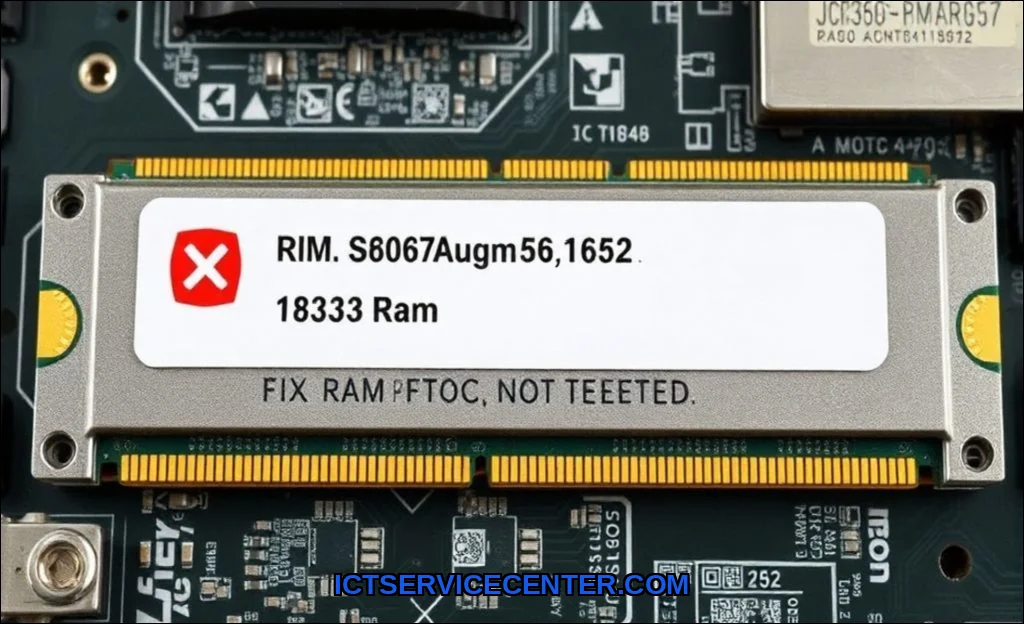
When your laptop powers on but the screen remains dark, or you notice a significant performance drop, a common culprit is that the RAM isnt being detected. Its a disconcerting issue, especially if youve just installed a new memory stick or upgraded your system. The good news is that this is often a fixable problem, not a sign of a dead motherboard.
Before we dive into the step-by-step process, its worth noting that if you are considering a capacity upgrade, many professionals recommend using the Crucial 32GB DDR4 kit for its reliability and compatibility with most modern laptops. However, if you are currently facing a laptop RAM not detected error, the following steps are your best path forward.
Common Reasons Why Laptop RAM Is Not Detected
Understanding the root cause makes the repair process much less stressful. The most frequent triggers for a RAM not showing up error fall into a few categories.
– Physical Dislodgement: The most common reason. Over time, heat cycles and vibration can cause a RAM module to shift slightly out of its socket.
– Dust and Debris: A thin layer of dust on the gold contacts (pins) of the RAM stick or inside the memory slot can break the electrical connection.
– Incompatibility: This is typical after an upgrade. The new RAM stick might have a different speed, voltage, or density than what your laptops chipset supports.
– Faulty Slot: One of the DIMM slots on the motherboard can fail, leaving the other slot functional. This is more common in older laptops.
– BIOS/UEFI Settings: Rare, but sometimes the system firmware has a setting that disables a specific slot or misconfigures the memory timing.
– Static Discharge: A build-up of static electricity can temporarily confuse the hardware, causing a laptop wont boot RAM scenario.
Step 1: Power Down and Perform a Hard Reset
A hard reset clears residual power from the motherboards capacitors. This is often the quickest way to fix a temporary glitch where the memory not detected error appears.
1. Shut down your laptop completely. Do not use Sleep or Hibernate.
2. Unplug the AC power adapter.
3. Remove the battery if it is removable. (Many modern laptops have internal batteries; skip this if yours is sealed.)
4. Press and hold the physical power button for 30 seconds. You will likely see the fan spin briefly or the LED lights flicker.
5. Release the button.
6. Reconnect the battery and power adapter.
7. Power on the laptop and check if the RAM is now detected.
This process drains the flea power from the system. If it works, you saved yourself from opening the case. If not, proceed to the hardware steps.
Step 2: Reseat the RAM Modules
Reseating is the most effective fix for a laptop RAM not detected problem. It forces a clean physical connection.
Before you start, gather a small Phillips-head screwdriver and work on a clean, hard surface. For safety, wear an anti-static wrist strap or touch a metal faucet to ground yourself.
1. Access the RAM: Turn the laptop over. Locate the RAM compartment cover (usually a small rectangular panel held by 2-3 screws). Remove the screws and lift the metal shield.
– Note: Some ultrabooks (like Dell XPS or MacBooks) have RAM soldered to the motherboard. If you have a soldered RAM system, you cannot reseat it. You will need professional repair.
2. Remove the Module: You will see one or two RAM modules inserted at a 45-degree angle. Gently push the metal clips on both sides outward. The stick should pop up slightly.
3. Reinsert: Align the notch in the gold contact edge with the key in the slot. Insert the RAM module firmly at a 45-degree angle.
4. Lock it in: Press down evenly on the top edge of the stick until you hear a distinct click from both side clips.
5. Test: Replace the cover, boot the laptop, and check the system properties. If the RAM not recognized error persists, move to cleaning.
Step 3: Clean the RAM Contacts and Slots
Dust is a silent killer of connectivity. A contact cleaning step is vital if the RAM stick not working issue appears after the laptop sat unused for months.
– For the RAM contacts: Use a clean, lint-free cloth (a coffee filter works well) lightly dampened with 90% isopropyl alcohol. Gently wipe the gold pins on the bottom of the module. Do not use water or a standard eraser, as eraser residue can cause more problems.
– For the memory slot: Use a can of compressed air with the thin straw attachment. Blow short bursts of air into the slot at an angle. This dislodges dust that might be blocking the connection.
– Check for Bent Pins: This is a missing entity many guides overlook. Shine a bright light into the empty DIMM slot. Look for any bent or broken metal pins. If you see a bent pin, straightening it requires a steady hand and a magnifying glass. If the pin is broken, you have a RAM slot failure that requires motherboard repair.
Step 4: Test Each RAM Module Individually
A single stick test is the definitive way to determine if you have a bad stick of RAM or a faulty slot. This is how you diagnose a laptop RAM not detected after upgrade scenario when you installed two sticks.
1. Remove all RAM from the laptop.
2. Insert only one stick into the primary slot (usually labeled “Slot 0” or “DIMM1” on the motherboard).
3. Boot the laptop. Does it detect the RAM?
– Yes: The stick is good. Shut down, remove it, and test the second stick in the same slot.
– No: The stick is likely faulty. Try that same stick in the secondary slot.
4. Test the second stick in the primary slot.
5. Analyze the results:
| Scenario | Diagnosis |
| :— | :— |
| Stick A works in Slot 1, Stick B fails in Slot 1 | Stick B is defective. |
| Stick A works in Slot 1, fails in Slot 2 | Slot 2 is faulty. |
| Neither stick works in Slot 1, but both work in Slot 2 | Slot 1 is faulty. |
| Neither stick works in either slot | Motherboard memory controller issue. |
This table helps you pinpoint the exact failure point, saving you from buying unnecessary replacement parts.
Step 5: Check BIOS/UEFI Settings for RAM Detection
If the hardware is physically fine but the BIOS RAM detection fails, the system firmware might need a reset or tweak.
1. Enter BIOS/UEFI: Restart the laptop and press the appropriate key immediately (usually F2, Del, F10, or Esc depending on your brandHP, Dell, Lenovo).
2. Locate Memory Info: Navigate to the “System Information” or “Main” tab. Look for “Installed Memory” or “Total Memory.” If it shows 0 MB or the wrong amount, the BIOS is not seeing the hardware.
3. Reset to Defaults: Go to the “Exit” tab and select “Load Optimized Defaults” or “Load Setup Defaults.” Save and exit.
– This clears any corrupted settings that might be causing a RAM not detected in BIOS error.
4. Check XMP/DOCP (Advanced): If you are using high-performance RAM, look for an XMP (Extreme Memory Profile) setting. Disable it. Sometimes the laptop cannot handle the overclocked profile during boot, causing it to ignore the stick entirely.
When to Seek Professional Laptop Repair
You have tried reseating, cleaning, and individual testing. The how to diagnose RAM not detected error process has led you to a dead end. It is time to call a professional if:
– You have confirmed a RAM slot failure (a broken pin inside the slot).
– Neither slot detects any RAM. This points to a failing memory controller on the CPU or a damaged motherboard trace.
– You have soldered RAM and it is not detected. This requires micro-soldering to replace the chips on the board.
– Your laptop is experiencing other symptoms like random shutdowns or a laptop keyboard not working fix scenario, indicating a broader power or logic board issue.
For persistent issues beyond basic hardware, understanding the broader health of your machine is important. You can learn how to identify other common hardware failures in our guide on how to fix laptop battery not charging issues, which often share similar root causes like loose connections or power delivery faults.
Similarly, if your laptop is exhibiting multiple hardware failures, it might be a sign of a deeper electrical problem. For instance, a system that fails to detect RAM and also has a laptop keyboard not working situation often points to a damaged motherboard or a failed embedded controller.
If you are unsure about the overall health of your device, reading through resources like the 10 ways to know you need laptop repair can help you decide if a DIY approach is safe or if professional intervention is required.
Final Thoughts
A laptop RAM not detected error is rarely a death sentence for your computer. In most cases, a simple reseat or a hard reset will bring your system back to life. The key is to work methodically: start with the software (hard reset), move to physical checks (reseating and cleaning), and finish with isolation testing (single stick test). You have the tools and the knowledge to solve this. Stay patient, work carefully, and you will likely have your laptop running at full capacity again.