
 By
Your desktop PC powers on, the fans spin, and the lights come on, but the screen stays black. That split points to a short list of causes, and you can test them in order.
In short: Start with the monitor and cable: check the power, the input source, and that the cable goes into the graphics card, not the motherboard port. Then reseat the RAM, check the graphics card, and reset the CMOS. If the fans spin but nothing ever appears, not even the maker logo, the fault is almost always the cable, the monitor, the RAM, the graphics card, or the power supply.
Key takeaways
- Check the monitor, input, and cable before you open the case: that fixes the most cases.
- Plug the cable into the graphics card ports, low on the back panel, when your PC has a separate card.
- One loose RAM stick can stop the whole boot, so reseat the memory before you blame the screen.
- Listen for beeps and watch the fans: they show how far the PC gets.
- Power off, unplug, and discharge the PC before you touch anything inside the case.
What the symptoms tell you
A PC that turns on but shows no display is not one problem: the picture fails at the first broken link.
Before you change anything, note what happens at the power button: do the fans keep spinning, do you hear beeps, and does the monitor show “No signal” or stay black?
“No signal”, or an amber or blinking light, means the monitor has power but the PC sends no picture. One short beep is normal: it means the power-on self-test, or POST, passed. Repeated beeps are error codes: check the table in your manual. Our guide to what happens during BIOS initialization explains those first seconds.
| Symptom | Likely cause | Fix |
|---|---|---|
| Fans spin, “No signal” on screen | Wrong input, loose cable, wrong port | Set the input, reseat the cable, use the card port |
| Fans spin, screen black, no beeps | Loose RAM | Reseat the RAM, test one stick |
| Fans spin, stop, then spin again | RAM, graphics card, or power supply | Reseat RAM and card, check the PSU |
| Repeated beeps at startup | Failed POST: RAM, card, or board | Look up the beep code, reseat that part |
Before you open the case: shut the PC down and pull the power cord out of the wall, switching off the power supply at the back first if it has a switch.
With the cord out, press and hold the power button for 10 seconds to drain stored charge, then touch a bare metal part of the case first. If you are not sure about any step, stop and take the PC to a repair shop.
Check the monitor and cable first
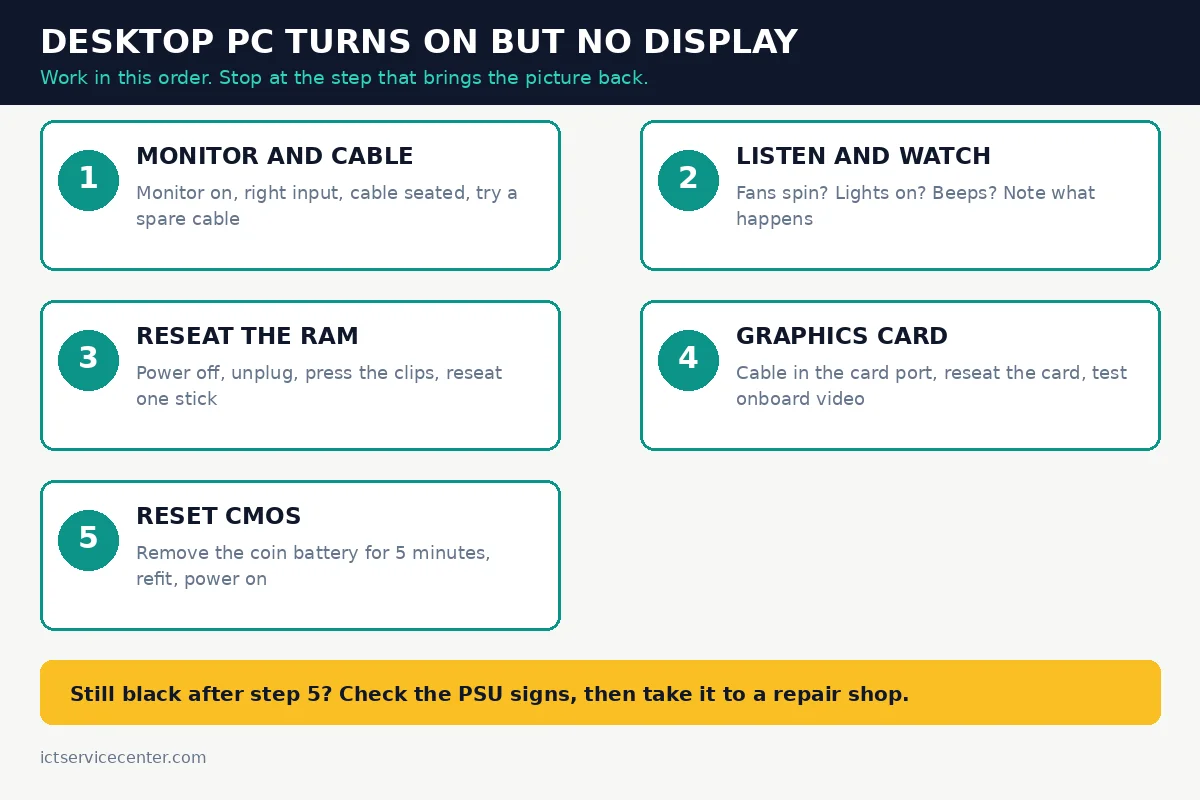
Most no-display cases end here, and none of these checks need the case open. Test after each change.
- Check the monitor power light. If it is dark, check the power cord at both ends and try another socket.
- Press the monitor input button and cycle through HDMI, DisplayPort, DVI, and VGA until it matches your cable.
- Unplug the video cable at both ends, check for bent pins on VGA or DVI plugs, and push it firmly back in.
- Check which port the cable uses. A separate card has its ports low on the back panel; the motherboard ports sit higher up, near the USB ports. Use the card ports first: a cable in the motherboard port often gives no picture when a card is fitted.
- Try a spare cable. A cable that looks fine can still be broken inside.
- Try a different monitor or a TV. If the second screen works, your monitor or cable is the fault.
If the monitor shows its own menu, it works and the fault is the signal coming in. Our guide on how to connect a monitor to a PC covers cable types and ports in full.

A spare HDMI cable lets you rule out a broken cable in one swap, and it fits most modern monitors and graphics cards.
- Top Technology--8K@60HZ: This 8K Ultra-High Speed 2.1 HDMI Cable uses the most
- Upgrade Revolution: Highwings Ultra High Speed HDMI Cable 2.1 8K supports 48Gbps
Reseat the RAM
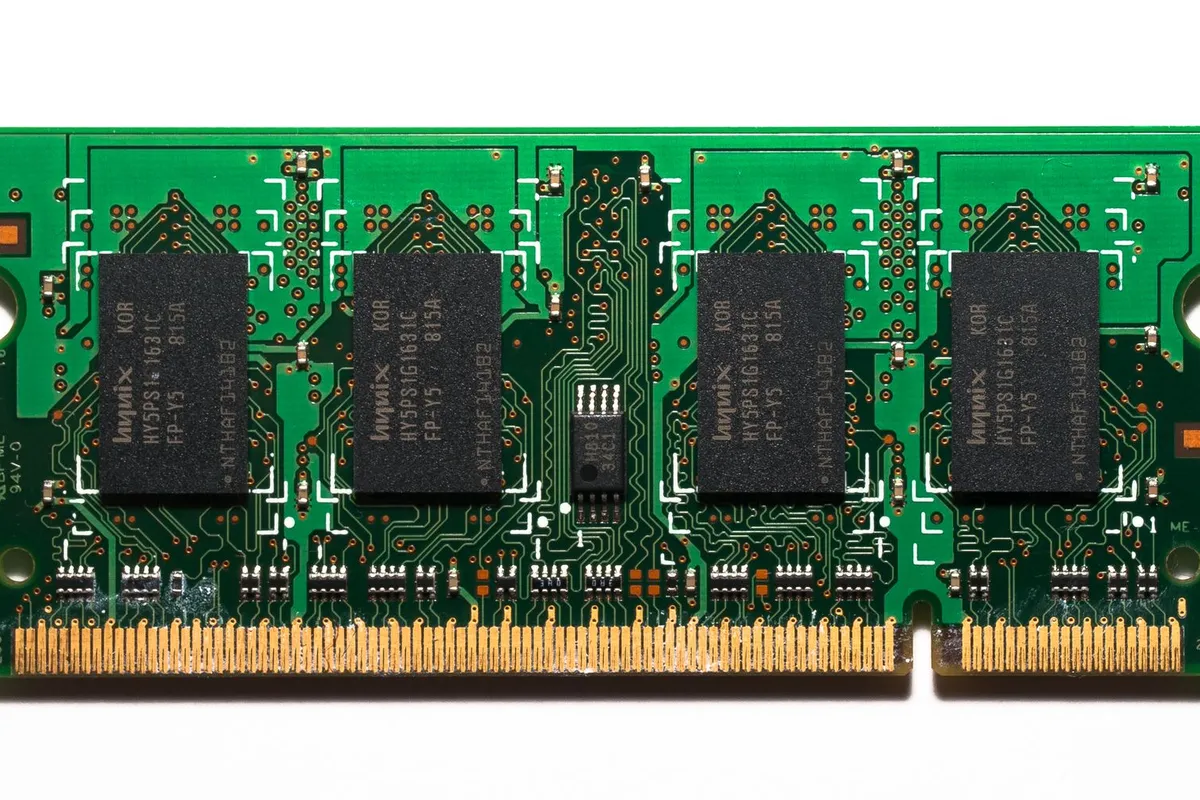
RAM that has lost contact is a common cause: without working memory, the PC stops its startup checks before it sends any picture. Moving a PC or a knock to the desk can loosen a stick.
- Power off, unplug, and discharge the PC as described above, then open the side panel.
- Find the RAM sticks in slots near the processor, held by small clips at each end.
- Push the clips at both ends outward, then lift the stick straight out by its edges. Do not touch the gold contacts.
- Blow dust out of the slot, line the notch up with the key, and press down firmly with both thumbs until both clips snap shut. A stick that is not fully seated can look level but sit a little high.
- Plug the PC back in and turn it on. If the picture returns, refit the side panel.
- If it stays black, test one stick at a time in the first slot your manual marks, usually the second slot from the processor. A stick that works alone while the other fails is the faulty one.
Most boards run two sticks in paired slots, shown in the manual. Our guide to what RAM does in a desktop computer explains how memory fits into startup.
Check the graphics card
The graphics card turns the picture into a signal the monitor can show. If it has worked loose, lost power, or failed, the PC can power on and still show nothing. Skip this step if your PC uses built-in graphics.
- Power off, unplug, and discharge the PC, then open the side panel.
- Find the card in a long slot near the middle of the motherboard, with its video ports at the back of the case.
- Check the power cables from the power supply to the card, and push each connector in until it clicks. A card with a loose power cable often spins its fans but sends no picture.
- Undo the screw holding the card bracket to the case, press the plastic clip at the end of the slot, lift the card out, then push it back in firmly until the clip snaps shut. Refit the screw.
- Plug the monitor cable into the card, not the motherboard port, then test.
If the picture returns, the card had lost contact. If it stays black, move the cable to the motherboard video port, if your processor has onboard graphics: if that works, the card or its slot is the fault. Do not force a card that will not seat.
Reset the CMOS
CMOS is the small memory that holds the BIOS settings, such as which graphics output to use first. A bad setting can leave the PC powered on with no display, even when every part works. Resetting CMOS restores the factory defaults.
- Power off the PC, unplug it, and discharge it. Open the side panel.
- Find the round silver coin battery on the motherboard, usually near the bottom edge. It is a CR2032 battery.
- Push the metal clip aside and lift the battery out, plus side up.
- Wait 5 minutes, and press and hold the power button for 10 seconds while the battery is out.
- Push the battery back in, plus side up, then close the case, plug in, and turn on.
- The PC may ask you to press a key to continue after a reset. Press it, then save and exit without changing anything else.
Some boards have a clear CMOS jumper or button instead; the manual shows where it is. Never move a jumper while the PC is plugged in. If the clock resets each time you unplug the PC, the battery is flat.

A fresh CR2032 restores the BIOS settings memory when the clock resets or the PC only boots after a CMOS reset.
- Works with Apple AirTag, all major car key fobs (Toyota, Honda, BMW, Ford, Chevrolet
- BITTER TASTE ON BOTH SIDES TO HELP KEEP CHILDREN SAFE—Duracell CR2032 features a bitter
Check the power supply signs
The power supply, or PSU, turns wall power into the voltages the parts need. A weak PSU can spin the fans yet fail to power the graphics card or the boot, leaving the screen black.
Check the simple things first: the power cord is firm, the PSU switch at the back is on, and the 24-pin main cable and the processor power cable are fully seated. Our guide to how to repair a desktop power supply issue walks through these checks in full.
Signs that point to the PSU are a PC that turns on and off in a loop, fans that spin up and stop, a burning smell, or a PSU fan that never spins. Clean the intake grill with short bursts of compressed air while the PC is unplugged.
Test with the least hardware connected: unplug all USB devices except the keyboard and mouse, and leave one RAM stick in place. If the picture returns, add parts back one at a time.
Do not open the PSU itself: the parts inside hold a charge long after it is unplugged. If the signs point to the PSU, replace the whole unit, matching the wattage and connectors.
If Windows loads but the screen stays black
Everything above covers a PC that never shows a picture. If the maker logo shows and the screen then goes black, Windows is the problem.
Press Win + Ctrl + Shift + B: Windows restarts the graphics driver, and you should hear a beep or see a flicker. Then press Win + P, press P again, then Enter, to cycle the display mode.
If the screen stays black, force the PC off, turn it on, and interrupt the startup three times to reach the recovery screen. Choose Troubleshoot, then Advanced options, then Startup Settings, then Restart, and press F5 for Safe Mode with Networking.
If the picture works there, the fault is a driver or a recent update: open Device Manager, open Display adapters, and roll the driver back. Our guide to a second monitor not detected covers the same settings.
Mistakes to avoid
Using the motherboard port when a card is fitted. The card takes over video output, so the motherboard port stays dark. The fix: use the card ports, low on the back panel.
Opening the case with the PC plugged in. Parts inside carry power even when the PC is off. The fix: power off and unplug first.
Reseating RAM without hearing the clips snap. A stick can look seated yet sit high on one end. The fix: press both ends until both clips shut.
Replacing parts before testing a spare cable and a second screen. A new card will not fix a broken cable. The fix: test the cable and monitor first; those tests cost nothing.
Ignoring beeps and fan behavior. Beeps are error codes, and fans that stop and start again point to power or memory. The fix: note what you hear, then look the code up.
Shorting parts you have not identified to reset CMOS. The wrong jumper can clear settings you need. The fix: use the battery method or the jumper in your manual.
Frequently asked questions
Why does my desktop PC turn on but show no display?
The most common causes are a loose or wrongly plugged video cable, a monitor on the wrong input, RAM that has lost contact, a graphics card that has worked loose, or a flat CMOS battery. Work through them in that order.
Can bad RAM cause no display on a desktop PC?
Yes. If the PC cannot read its memory, it stops during the startup checks before it sends any picture. The fans may spin, but the screen stays black. Reseat the sticks, then test one stick at a time on its own.
How do I know if my graphics card or my monitor is the problem?
Try a second monitor or a TV with the same cable: if the second screen works, your monitor is the fault. Then move the cable to the motherboard video port, if your processor has onboard graphics. If that works, the card is the fault.
What does it mean if my PC beeps but shows no display?
Beeps are the motherboard reporting a failed startup check. The pattern, such as one long beep and two short beeps, means something different on each board, so look it up in the manual. Most beep codes point to RAM or the graphics card.
Will resetting CMOS fix a no display problem?
It fixes cases where a bad BIOS setting stops the boot, such as the wrong graphics output. Remove the coin battery for 5 minutes, refit it, and power on. If the picture returns only after a reset, the battery is flat.
Bottom line: Check the monitor and cable first, then reseat the RAM, then the graphics card, then reset the CMOS, testing after each step. If all five fail, check the power supply signs and take the PC to a repair shop rather than buying parts at random. Read our troubleshooting guides for the next fix.
Sources: Microsoft Support, Blank screens in Windows (support.microsoft.com); Dell Support, Monitor Display Issues (dell.com); HP, Monitor Not Working (hp.com). Photos: Diana, Josh Sorenson, William Warby, Djenz Van Eysendeyk, Matheus Bertelli via Pexels. Diagram: ictservicecenter.com.