
 By
The best laptop for kids is tough enough to survive a backpack, light enough to carry to school, and simple enough for a parent to control. Age matters more than speed.
In short: Buy a Chromebook for younger kids and a Windows laptop or MacBook Air for teens. The Lenovo IdeaPad Slim 3 Chromebook 14 inch is the best overall pick, the Acer Chromebook Spin 512 is the toughest for younger kids, and the ASUS Vivobook 14 inch is the best budget pick.
Key takeaways
- Pick by age first. Younger kids need a tough small Chromebook, teens need a full Windows laptop or Mac.
- Durability beats speed. A spill-resistant keyboard and a rugged frame matter more than a fast chip.
- Look for 8GB of memory and solid-state storage, so the laptop stays quick through the school year.
- Set up parental controls on day one, before your child uses the laptop alone.
- Check what software your child’s school uses before you buy.
ChromeOS starts fast, updates itself, and pairs with Family Link controls for younger users.
A spill-resistant keyboard, a rugged frame, and a touchscreen that folds flat suit classroom life.

A bright 13.6 inch screen, a quiet fanless design, and Screen Time controls suit homework and creative work.
A 15.6 inch screen, a full-size keyboard, and full Windows 11 cover schoolwork and family use.
A 14 inch screen and a light body cover homework and browsing at a lower cost.
How to choose a laptop for kids
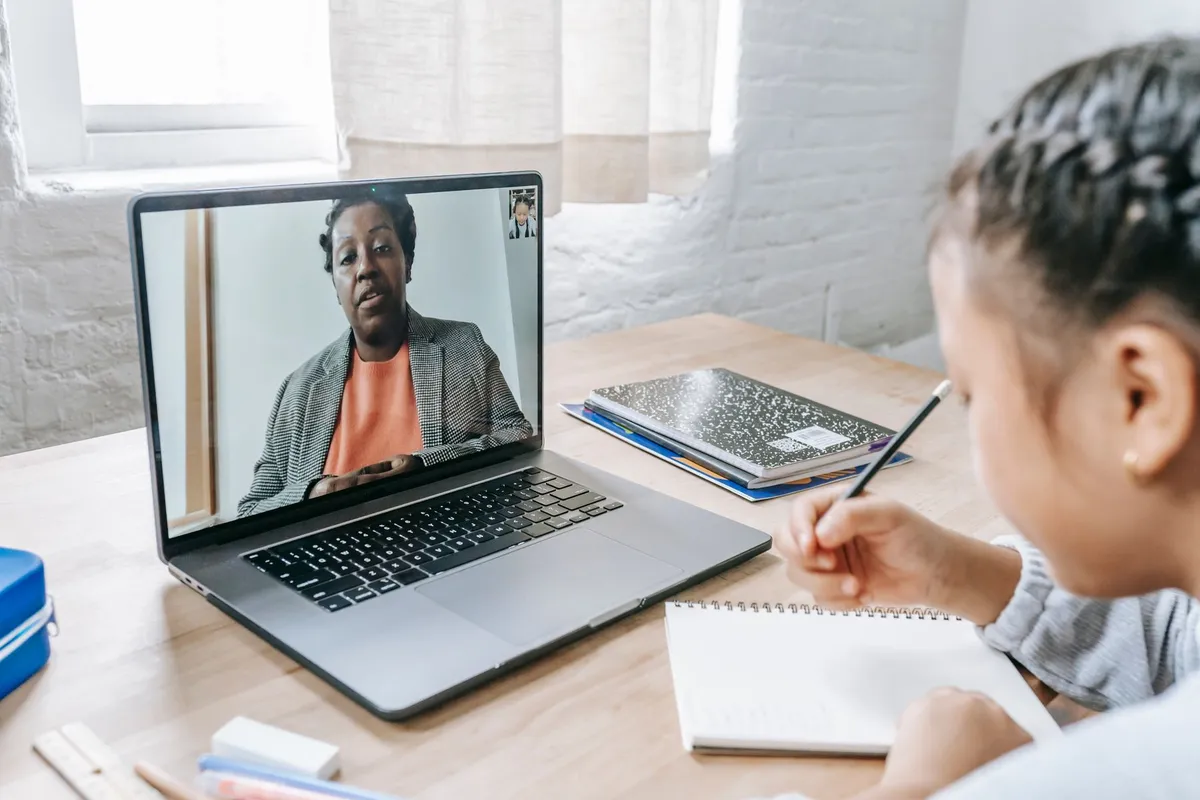
Start with your child’s age, not with a spec sheet. A seven year old and a fifteen year old use a laptop in different ways. The diagram below maps age to the right type of laptop. The other half of this decision is best editing laptops.
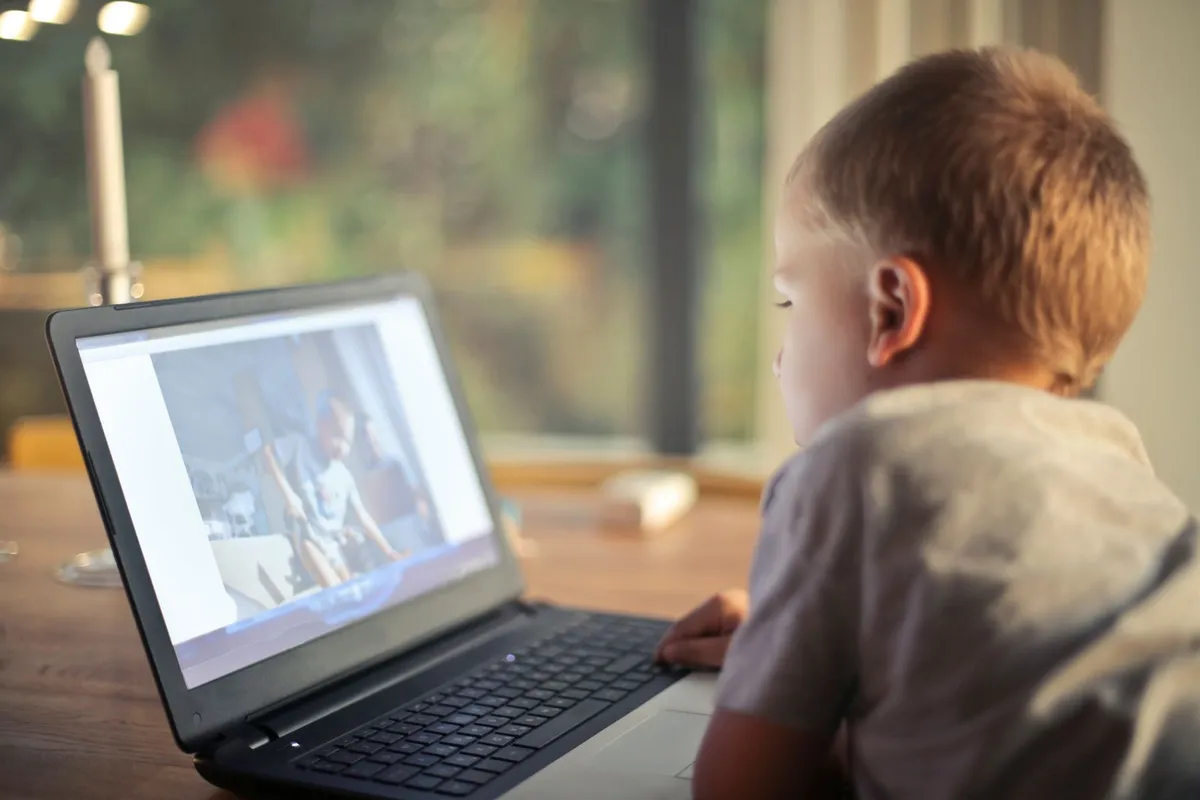
For ages five to seven, buy small and tough. An 11 inch or 12 inch Chromebook fits small hands, and a rugged model survives drops and spilled drinks. At this age the laptop runs a browser, a few learning apps, and video calls with a teacher, so it needs almost no power. What it needs is a keyboard and a screen that can take a knock.
For ages eight to ten, move up to a 14 inch Chromebook. The larger screen shows full web pages without scrolling sideways, and the laptop is still light enough to carry in a school bag. This is the age to turn on parental controls properly, since your child starts browsing on their own. A touchscreen helps here too, since kids tap and swipe before they type.
For ages eleven to thirteen, the choice opens up. A 14 inch Windows laptop or a MacBook Air suits a child who writes longer essays and starts coding. Look for 8GB of memory and a solid-state drive of at least 256GB, which keeps the laptop quick with several tabs open at once. This is also the age when school software starts to matter, so check the list before you buy.
For ages fourteen and up, buy the laptop your teen will use for the next three or four years. A 14 inch or 15.6 inch screen suits long homework sessions, and full Windows or macOS runs the software schools and clubs use. Weight still matters, so aim for under 4 pounds. Our guide to 13 inch vs 15 inch laptops for students covers the size trade-off in detail.
System choice comes next. A Chromebook runs ChromeOS, starts in seconds, and keeps almost everything in the browser, which makes it the easiest system for a parent to control. A Windows laptop runs the full range of school software, from Microsoft Office to coding tools. A Mac suits a child who already uses an iPhone or iPad. Our comparison of Chromebook vs Windows laptop walks through the differences.
Ask the school first. Many schools publish a list of required software, and some lend a laptop to every student. A laptop that cannot run the school’s programs is the wrong laptop. We cover laptop with intuitive interface in a guide of its own.
Battery life needs a plain check. Look for a maker rating of at least 10 hours, and treat it as a best case, since video calls drain the battery faster. A Chromebook usually lasts longest on one charge.
| Pick | Best for | Screen | System |
|---|---|---|---|
| Lenovo IdeaPad Slim 3 Chromebook | Schoolwork, ages 8 and up | 14 inch | ChromeOS |
| Acer Chromebook Spin 512 | Younger kids, ages 5 to 10 | 12 inch touchscreen | ChromeOS |
| Apple MacBook Air 13 inch | Older kids, creative work | 13.6 inch | macOS |
| HP Pavilion 15 inch | Windows school software | 15.6 inch | Windows 11 |
| ASUS Vivobook 14 inch | Budget pick, homework | 14 inch | Windows 11 |
1. Best overall for school: Lenovo IdeaPad Slim 3 Chromebook 14 inch
The Lenovo IdeaPad Slim 3 Chromebook 14 inch is the best laptop for most kids. It weighs about 3 pounds, so it rides in a school bag without strain, and its 14 inch screen shows a full page of homework without squinting. ChromeOS starts in seconds and updates itself in the background.
Parental control is where this pick earns its place. Google Family Link manages the Chromebook from your phone, so you can set screen time, approve apps, and block sites. Children signed in with a supervised account cannot browse in private. Google explains the setup in its Manage your child’s account on Chromebook guide, including the step that turns off guest mode so the controls cannot be dodged.
The trade-off is software. A Chromebook runs web apps and Android apps, but it cannot run full Windows programs. If your child’s school uses a Windows-only program, or a desktop app for music or coding, this laptop will not run it. Check the school list first. Our explainer on what a Chromebook is and how it works covers the limits in plain terms.
Who should skip it: any family whose school needs Windows or Mac software. The HP Pavilion 15 inch below covers Windows, and the MacBook Air 13 inch covers Mac software.
ChromeOS starts fast, updates itself, and pairs with Family Link controls for younger users.
See options on Amazon2. Toughest for younger kids: Acer Chromebook Spin 512
The Acer Chromebook Spin 512 is built for the way younger kids treat a laptop. It meets the MIL-STD 810H military test standard for drops and knocks, its keyboard resists spills, and its 12 inch touchscreen folds flat for reading and drawing. At under 3 pounds, a young child can carry it without help. If that sounds like your bench, read up on cost for a new laptop next.
The small screen is the honest trade-off. A 12 inch display suits a young child at a desk, but it feels cramped for an older child writing long essays. Buy this one for ages five to ten, and plan to move up to a 14 inch laptop later. The touchscreen and fold-flat hinge suit a child who still taps more than they type.
It runs the same ChromeOS and Family Link controls as the Lenovo above. Add a padded sleeve, and teach your child to close the lid before carrying it. A laptop that survives the first year is worth more than a faster laptop that cracks in the first term.
Who should skip it: anyone buying for a teen, or for a child who already writes long schoolwork. Buy the Lenovo IdeaPad Slim 3 Chromebook 14 inch instead.
A spill-resistant keyboard, a rugged frame, and a touchscreen that folds flat suit classroom life.
See options on Amazon3. Best for older kids: Apple MacBook Air 13 inch (M4)
The Apple MacBook Air 13 inch is the best laptop for an older child who needs a real computer, not just a browser. It weighs 2.7 pounds, it has no fan, and its 13.6 inch screen is bright enough for a sunny classroom. Its battery lasts a full school day of writing, browsing, and video calls.
Touch ID signs your child in with one touch and keeps a younger sibling out. Apple Screen Time, managed through Family Sharing, sets app limits, downtime, and content rules from your own iPhone or Mac. Apple explains the setup in its Use Screen Time to manage your child’s iPhone or iPad guide, which covers the Child Account and Family Sharing steps.
The trade-off is the system. It runs macOS, not Windows, so check that the school’s software runs on a Mac before you buy. Most school web apps work fine, and the Mac runs Microsoft 365 and Google Workspace in the browser. If the school expects Windows-only software, buy a Windows laptop instead.
It is also the dearest laptop on this list, so buy it when your child will use it for several years. A teen heading into high school gets the most from it. For a younger child, it is more laptop than they need. If your teen is still in school, our guide to the best laptop for school students covers the same ground for older students.
Who should skip it: any family that needs Windows-only school software, or any parent buying for a child under ten. A Chromebook is the better buy at that age.
A bright 13.6 inch screen, a quiet fanless design, and Screen Time controls suit homework and creative work.
- BUILT FOR COLLEGE. AND BEYOND — MacBook Air with the M5 chip packs blazing speed and
- TEAR THROUGH TOUGH ASSIGNMENTS — With its faster CPU and unified memory, the M5 chip
4. Best Windows all-rounder: HP Pavilion 15 inch
The HP Pavilion 15 inch is the pick when the school expects Windows. Its 15.6 inch screen shows a full document and a browser side by side, and its full-size keyboard includes a number pad for math homework. It runs full Windows 11, so it handles Microsoft Office, school coding tools, and the desktop apps a Chromebook cannot run.
Microsoft Family Safety is the control system here. Add your child to your family group at account.microsoft.com/family, have them sign in to the laptop with their own Microsoft account, then set screen time and content filters from the Family Safety page.
Microsoft covers the steps in its Set screen time limits across devices guide. The limits only apply on your child’s own account, so never let them use an adult account.
The cost of the big screen is size and weight. At just under 4 pounds, it is the heaviest laptop here, and it needs a large bag. Treat it as a laptop that lives on a desk at home and travels to school in a padded sleeve. Check the model you buy has 8GB of memory and a solid-state drive of at least 256GB.
Who should skip it: anyone buying for a child under eleven, or for a child who carries a laptop all day. The Chromebook picks above are the better fit.
A 15.6 inch screen, a full-size keyboard, and full Windows 11 cover schoolwork and family use.
See options on Amazon5. Best budget pick: ASUS Vivobook 14 inch
The ASUS Vivobook 14 inch is the budget pick, and it covers the homework basics well. Its 14 inch screen is big enough for comfortable reading and writing, the keyboard is full-size, and it runs full Windows 11. It handles school web apps, documents, slides, and video calls, and at about 3 pounds it carries easily in a school bag.
Keep the buying checks short. Look for 8GB of memory and a solid-state drive of at least 256GB, and skip any configuration with 4GB of memory or a spinning hard drive. Check the screen brightness in person if you can, since budget screens can look washed out near a sunny window. Our checklist of what to look for when buying a laptop covers the same checks.
The trade-off is build. A budget laptop uses more plastic and less metal, so it needs a padded sleeve and a little care. Teach your child to carry it with two hands and to keep drinks away from the keyboard. With those habits, it lasts through the school years.
Who should skip it: anyone whose child needs a touchscreen, or whose school issues Chromebooks and expects ChromeOS. Buy the Lenovo Chromebook above so the school setup matches.
A 14 inch screen and a light body cover homework and browsing at a lower cost.
See options on AmazonParental controls and setup
Set the laptop up together, in person, on the first day. It takes about an hour. Start with your child’s own account, never an adult account, then turn on the controls for that system before your child opens a browser.
- Create your child’s own account. On Windows, add them to your Microsoft family group and have them sign in with their own Microsoft account. On a Chromebook, add supervision through Family Link. On a Mac, create a Child Account in Family Sharing.
- Turn on the controls for that system. Windows uses Microsoft Family Safety, Chromebooks use Google Family Link, and Macs use Apple Screen Time. Set screen time limits and content filters, and turn off guest mode where the system allows it.
- Set the laptop up for school. Connect the Wi-Fi, sign in to the school account if the school gave one, and install the apps the school asked for. Test one video call before the first school day.
- Agree the rules out loud. Decide together when the laptop can be used, where it charges at night, and what happens when time runs out.
- Keep the charger in one fixed spot. A laptop that always charges in the same place never goes missing at bedtime, and a full battery in the morning means no dead laptop in the first lesson.
Check the controls again after the first week. Children find workarounds fast, so open the Family Safety, Family Link, or Screen Time dashboard. If a limit did not apply, check that your child signed in with their own account, since limits never apply to a local account or an adult account. Our guide to how to set up a new laptop covers the first-day steps.
Mistakes to avoid
Buying a full-size 15.6 inch laptop for a young child. A big screen looks good in the shop and weighs too much in a small school bag. Fix: buy an 11 inch or 12 inch Chromebook for ages five to seven, and move up later.
Buying the cheapest laptop with 4GB of memory. A laptop with 4GB of memory feels slow the moment several tabs are open. Fix: buy 8GB of memory and a solid-state drive, even on a budget pick.
Skipping parental controls on day one. A laptop without limits means open browsing from the first hour. Fix: set up Family Safety, Family Link, or Screen Time before your child uses the laptop alone.
Buying without checking the school software list. A Chromebook cannot run Windows-only school software. Fix: ask the school for the list, and match the system to it before you pay.
Handing over your old laptop with your files and accounts still on it. Your old laptop holds your email, your passwords, and your files. Fix: wipe the laptop fully, or set up a fresh account for your child and remove your own, before you hand it over.
Frequently asked questions
What age should a child get their first laptop?
Most children are ready for their own laptop around age six or seven, when school starts asking for typed homework. Buy a tough 11 inch or 12 inch Chromebook at that age, since it survives drops and spills and is easy for a parent to control. Wait until the early teen years for a full Windows laptop or Mac.
Is a Chromebook enough for schoolwork?
Yes, for most schoolwork. A Chromebook handles web apps, documents, slides, and video calls, which covers what most schools ask for in the early years. It falls short only when the school needs Windows-only software or desktop coding tools. Ask the school for its software list before you buy, since that list decides the answer.
How much memory does a kids laptop need?
8GB of memory is the right amount for a kids laptop, on ChromeOS, Windows, or a Mac. It keeps the laptop quick with several tabs and apps open. Pair it with a solid-state drive of at least 256GB on Windows or Mac, or at least 64GB on a Chromebook.
Should I buy a laptop with a touchscreen for my child?
A touchscreen helps younger children, who tap and swipe before they learn to type, and it suits drawing and reading apps. It matters less for older children, who type most of their schoolwork. Buy a touchscreen for ages five to ten, and spend the money on a better screen or more memory for a teen instead.
How do I limit screen time on my child’s laptop?
Use the control system that matches the laptop. Windows uses Microsoft Family Safety, Chromebooks use Google Family Link, and Macs use Apple Screen Time. Add your child to the family group, have them sign in with their own account, then set daily time limits and bedtime hours. The limits only work on your child’s own account.
Bottom line: Buy by age: a tough Chromebook for ages five to ten, then a full Windows laptop or MacBook Air for teens.
That means the Lenovo IdeaPad Slim 3 Chromebook 14 inch for most kids, the Acer Chromebook Spin 512 for younger kids, or the ASUS Vivobook 14 inch for a budget buy. Set up parental controls on day one. See the full set of guides in our Buying Guides hub.
Sources: Microsoft Support, Set screen time limits across devices; Google Chromebook Help, Manage your child’s account on Chromebook; Apple Support, Use Screen Time to manage your child’s iPhone or iPad. Photos: Katerina Holmes via Pexels; Andrea Piacquadio via Pexels; Anastasia Shuraeva via Pexels; August de Richelieu via Pexels; Ivan Samkov via Pexels. Diagram: ictservicecenter.com.