
When you look at a desktop computer, you’re likely seeing the computer case cabinet first. It’s the metal and plastic shell that holds everything together. But calling it just a “box” doesn’t do it justice.
The computer case cabinetalso known as a computer chassis or system unitis the structural backbone of your PC. It physically protects sensitive electronics, manages airflow, and dictates what hardware you can actually install.
Without it, you’d just have a pile of expensive components on your desk.
Choosing the right case isn’t just about looks. It affects your PC’s cooling, noise levels, and future upgrade potential.
Whether you’re building a gaming rig, a quiet office machine, or a home server, understanding the computer case cabinet is your first step. For this project, many professionals recommend using the 4U Server Cabinet for rack-mounted builds, which offers exceptional space and cooling. Let’s break down everything you need to know.
What Is a Computer Case Cabinet?

A computer case cabinet is the enclosure that houses and protects the internal components of a desktop computer. It’s often referred to as the computer chassis, tower case, or simply the system unit. The case provides a physical structure where you mount the motherboard, power supply, storage drives, and cooling fans.
Think of it as the foundation of your build. The form factor of the case determines which motherboard sizes it supportslike ATX, Micro-ATX, or Mini-ITX. This is critical because your motherboard dictates what CPU, RAM, and expansion cards you can use.
The case also features front panel ports (USB, audio) and power/reset buttons that connect directly to the motherboard. Loaders in this spot often ask about desktop computer parts as well.
Key Functions of the Computer Case Cabinet
Your computer case cabinet does more than just hold parts. It performs several essential roles:
Physical Protection
The case shields sensitive electronics from dust, accidental bumps, and static discharge. A sturdy steel or aluminum chassis prevents motherboard flex and protects hard drives from vibration damage.
Airflow and Cooling Management
Proper airflow is non-negotiable for modern components. Cases are designed with intake and exhaust fan mounts, strategically placed vents, and mesh panels. Good airflow keeps your CPU and GPU from thermal throttling, which directly impacts performance and lifespan.
Cable Management
This is a missing entity that many cheap cases ignore. A quality case includes routing holes, tie-down points, and a compartment behind the motherboard tray to hide cables. Good cable management improves airflow and makes future upgrades much easier.
Noise Dampening
Another often-overlooked feature. Premium cases include sound-dampening foam on side panels and drive cages. This reduces fan and vibration noise, making your PC quieter during operation.
Dust Filtration
Dust filters are washable mesh panels placed over intake fans. They prevent dust buildup inside the case, which keeps components cooler and reduces cleaning frequency. This is a missing entity that budget cases often skip.
Common Types of Computer Cases
Understanding PC case types helps you match the case to your needs. Here are the most common computer case sizes:
| Case Type | Motherboard Support | Typical Use | Key Advantage |
|---|---|---|---|
| Full Tower Case | E-ATX, ATX, Micro-ATX | High-end gaming, workstations, servers | Maximum space for multiple GPUs, radiators, and drives |
| Mid Tower Case | ATX, Micro-ATX | Gaming, general desktop | Best balance of size, airflow, and expandability |
| Mini Tower Case | Micro-ATX, Mini-ITX | Office, HTPC, budget builds | Compact footprint, easy to move |
| Small Form Factor (SFF) | Mini-ITX only | Portable, space-constrained setups | Smallest possible size |
| Desktop Case | Micro-ATX, Mini-ITX | Office, low-profile builds | Horizontal layout, sits under monitor |
| Rackmount Case | ATX, E-ATX | Data centers, home servers | Standardized rack installation |
For most users, the difference between mid tower and full tower case comes down to space needs. A mid tower is perfect for a single GPU and air cooling. A full tower is for those running multiple GPUs, custom water loops, or massive storage arrays. Before you buy anything, it is worth looking at find Your Perfect PC.
What Components Are Inside a Computer Case?
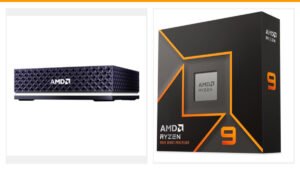
So, what components go inside a computer case cabinet? Here’s the standard list:

– Motherboard: The main circuit board that connects everything. Its form factor must match the case.
– Power Supply Unit (PSU): Converts AC power to DC for all components.
Typically mounted at the bottom or top.
– Central Processing Unit (CPU): The brain of the computer, installed on the motherboard.
– Graphics Card (GPU): Handles visual output. Modern GPUs are large and require good airflow.
– Storage Drives: SSDs and HDDs.
Mounted in dedicated bays or directly on the motherboard.
– RAM Modules: Installed on the motherboard in DIMM slots.
– Cooling System: Air coolers (fans and heatsinks) or liquid cooling (AIO or custom loop).
The case must support your chosen cooler’s size.
– Cables: Power cables from the PSU, data cables for drives, and front panel connectors from the case to the motherboard.
The computer housing unit also includes front panel I/O (USB, audio jacks, power button) that connects to the motherboard via internal headers.
How to Choose the Right Computer Case
How to choose the right computer case size depends on your components and goals. Follow these steps:
1. Determine Your Motherboard Size
Your motherboard’s form factor is the starting point. Most builds use ATX (standard) or Micro-ATX (compact). Check the case specs for “motherboard compatibility” to ensure your board fits.
2. Check GPU and Cooler Clearance
Modern graphics cards are huge. Measure the maximum GPU length the case supports. Similarly, check CPU cooler height clearance. A case might look big but have tight interior space.
3. Consider Airflow and Fan Support
Look for cases with mesh front panels for maximum airflow. Count the included fans and available fan mounts. For high-performance builds, ensure support for 360mm or 280mm radiators.
4. Evaluate Storage Needs
How many drives do you need? Some cases have dedicated 3.5-inch bays for HDDs, others only support 2.5-inch SSDs. Plan for future expansion. For the detail, see our notes on our notes on how it works.
5. Look for Cable Management Features
A case with cable routing holes, Velcro straps, and a PSU shroud makes building cleaner and easier. This improves airflow and aesthetics.
6. Don’t Forget Dust Filters and Noise Dampening
If your PC sits on the floor, dust filters are essential. For a quiet office build, look for cases with noise-dampening foam on side panels.
7. Match Your Aesthetic
Whether you want a gaming computer case with RGB lighting or a minimalist office case, choose one that fits your space. Tempered glass side panels are popular for showing off components.
For a balanced home or office PC, you might want to check our guide on the best desktop computer for home use. If you’re on a budget, our recommendations for the best value desktop computer can help you find a pre-built system that matches your needs.
Frequently Asked Questions About Computer Cases
What is the purpose of a computer case cabinet?
The primary purpose is to protect internal components, manage airflow for cooling, and provide structural support. It also reduces noise, filters dust, and gives you easy access to ports and buttons.
Can I use any case with any motherboard?
No. You must match the case’s supported form factor with your motherboard. An ATX case will fit ATX, Micro-ATX, and sometimes E-ATX boards. A Mini-ITX case only fits Mini-ITX boards.
Do I need a full tower case for gaming?
Not usually. A mid tower case is sufficient for most gaming builds. Full towers are for extreme setups with multiple GPUs, custom water cooling, or massive storage arrays. It helps to understand when do you need a desktop computer? key use cases before going further.
How does airflow affect performance?
Poor airflow causes components to overheat. When your CPU or GPU gets too hot, they throttle down to protect themselves, reducing performance. Good airflow keeps temperatures low and performance consistent.
What is the difference between mid tower and full tower case?
Mid towers are 18-20 inches tall and support ATX motherboards with room for 1-2 GPUs. Full towers are 22-28 inches tall, support E-ATX boards, and have space for multiple GPUs, large radiators, and many drives.
Are glass side panels safe?
Tempered glass is durable but can shatter if struck sharply or if there’s a manufacturing defect. Handle with care during installation. Some users prefer steel or acrylic panels for durability.
Do I need cable management?
Yes, even for a basic build. Good cable management improves airflow by reducing cable clutter, makes future upgrades easier, and looks cleaner. Most modern cases include routing channels and tie-down points.
Can I reuse an old case for a new build?
Yes, as long as the case supports your new motherboard’s form factor and has adequate airflow for modern components. Check GPU length and cooler clearance before reusing.
What brands make good computer cases?
Popular brands include Corsair, NZXT, Cooler Master, Fractal Design, Lian Li, and Phanteks. Each offers different styles, features, and price points. For budget builds, brands like Thermaltake and DeepCool also offer solid options. If that sounds like your bench, read up on getting a psu? how your computeru2019s power supply works right next.
How do I clean my computer case?
Unplug the PC, remove side panels, and use compressed air to blow out dust from fans, heatsinks, and filters. Clean dust filters with warm water and let them dry completely before reinstalling. Do this every 3-6 months.
Conclusion
Your computer case cabinet is far more than a metal box. It’s the foundation that determines your build’s cooling, expandability, and longevity. Understanding form factor, airflow, and cable management helps you make an informed choice. Whether you’re building a gaming computer case setup or a quiet office machine, prioritize compatibility with your components and your specific needs.
Take your time comparing PC case types and computer case sizes. Check clearance for your GPU and CPU cooler. Invest in a case with good dust filters and noise dampening if those matter to you.
A quality case can last through multiple builds, making it one of the smartest investments in your PC. For more guidance on complete systems, explore our recommendations for the best desktop computers for home use and best value options.
